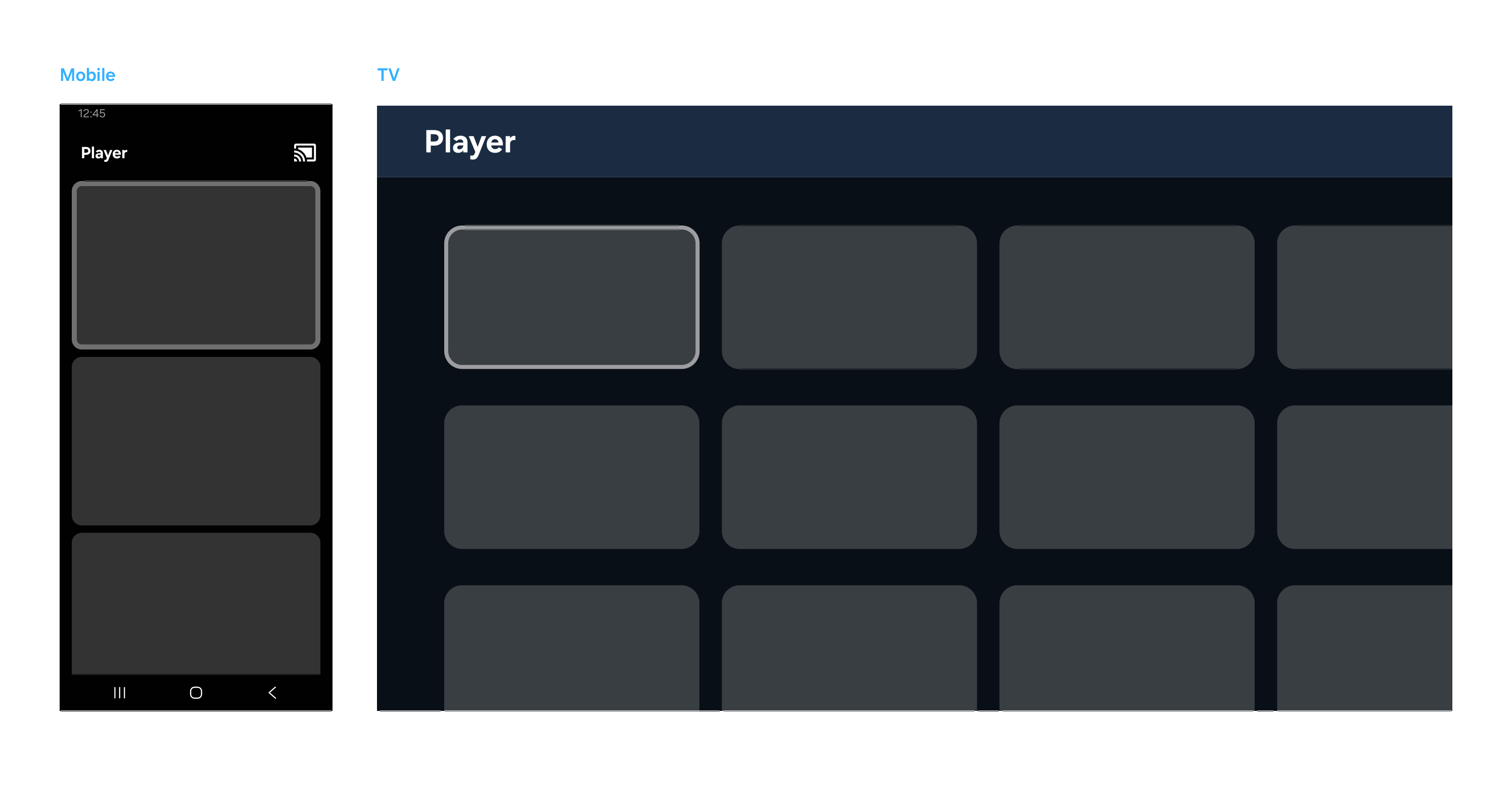
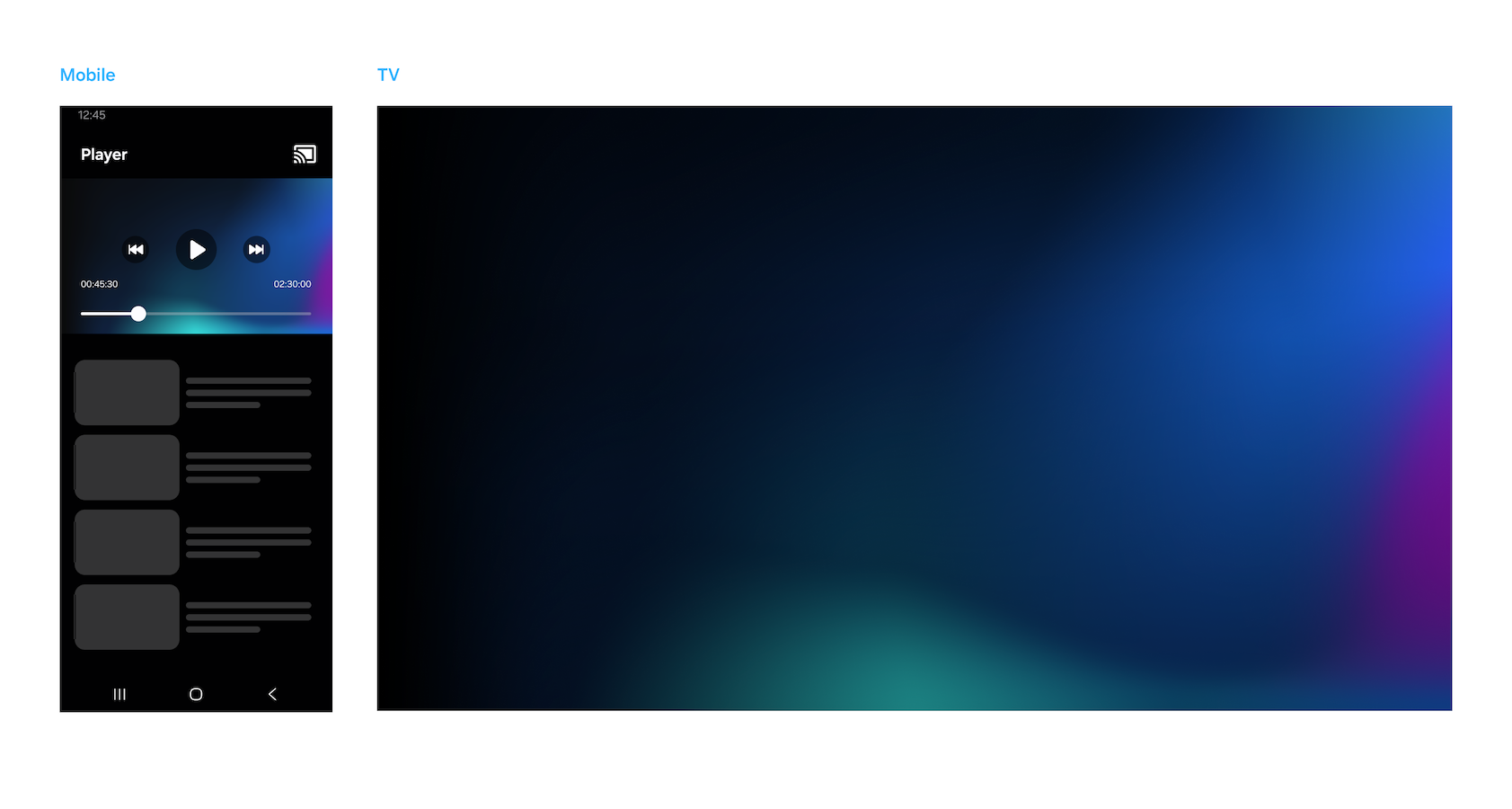
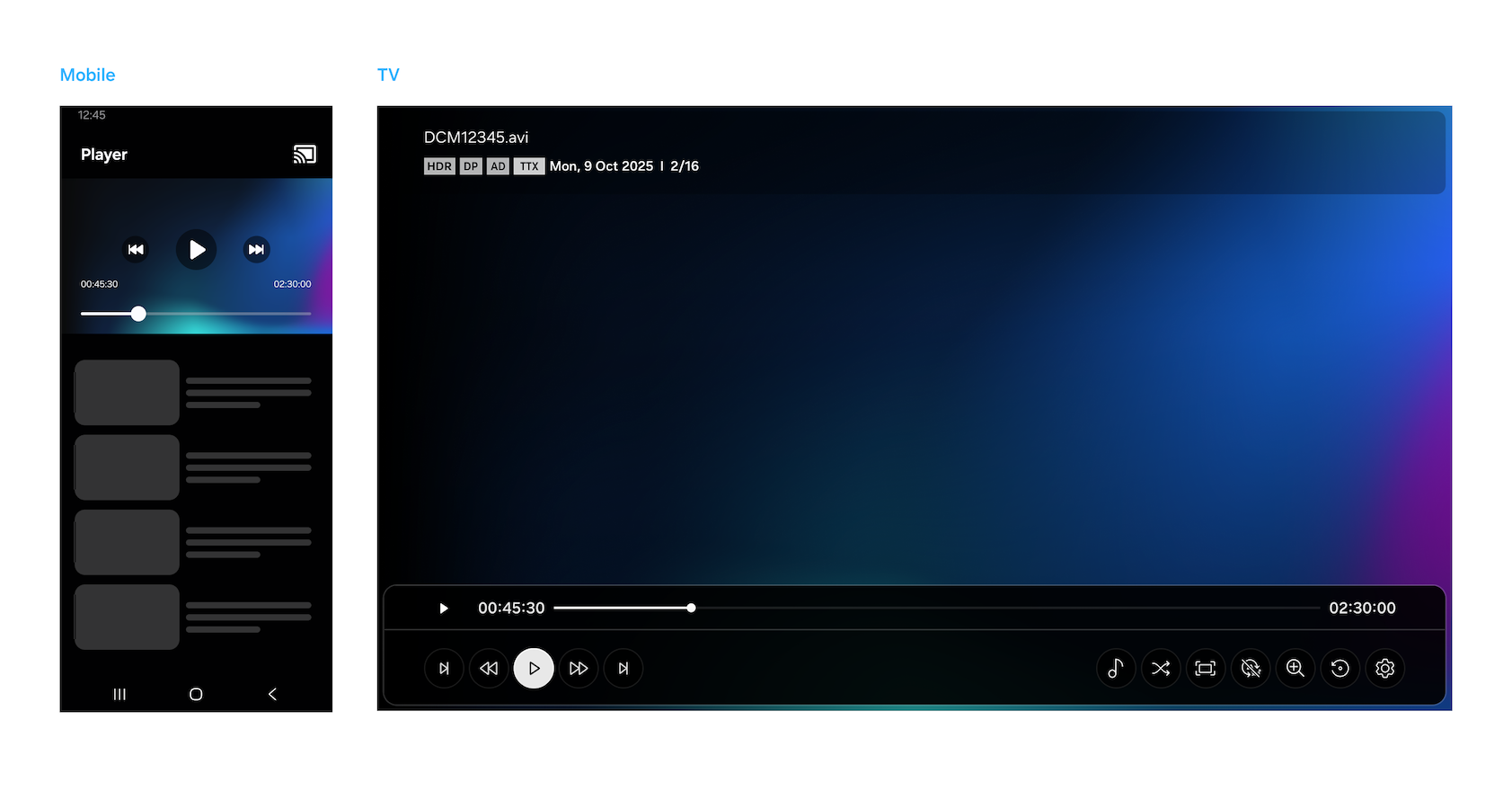
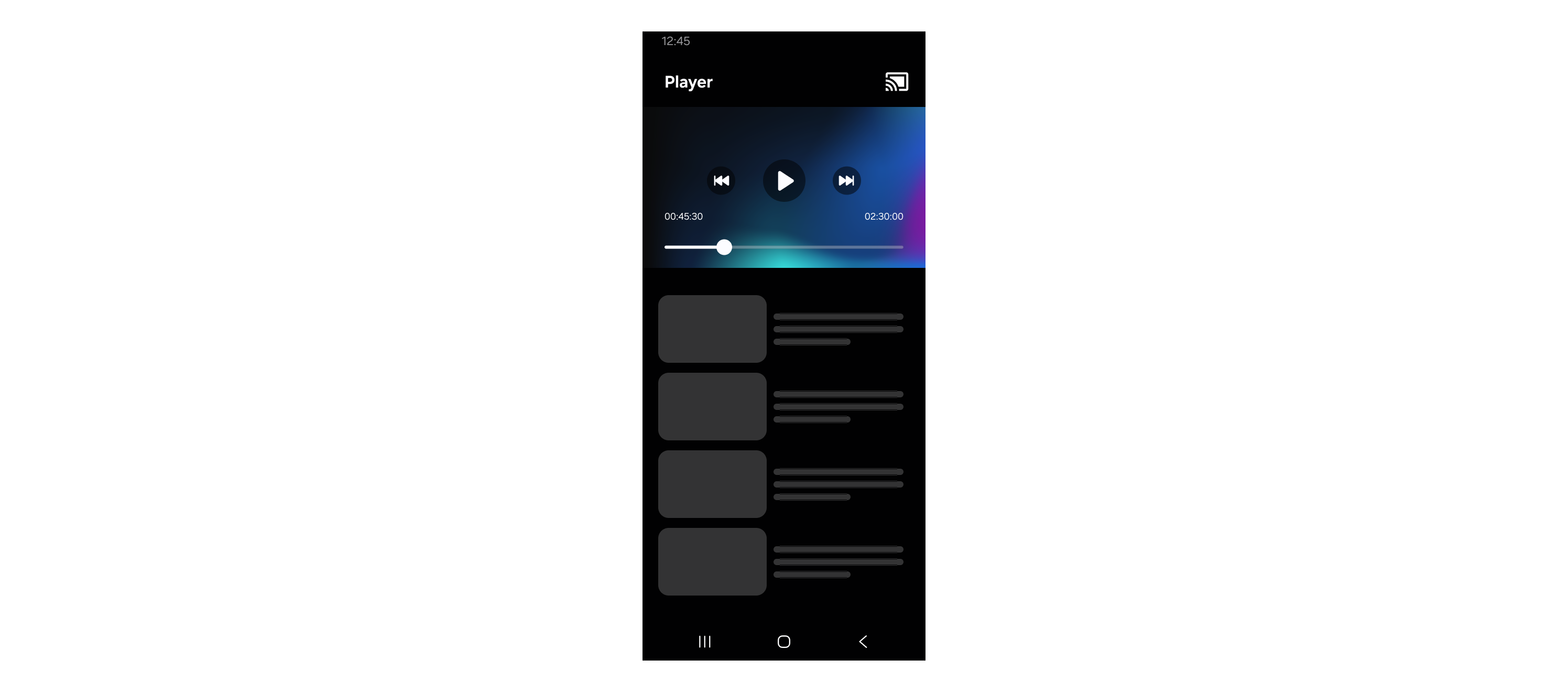
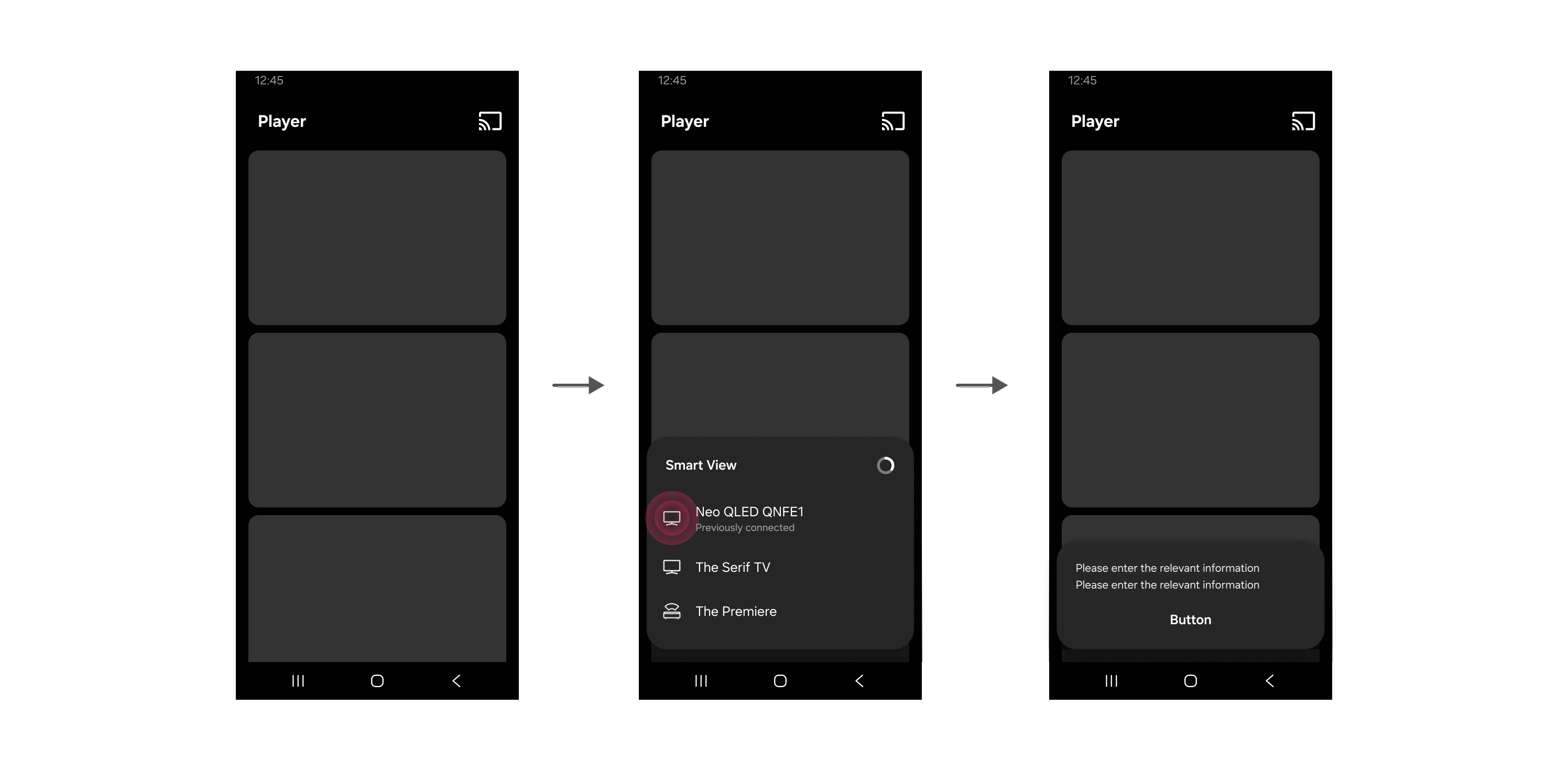
With the Samsung Smart View SDK, you can develop mobile applications that can stream multimedia content from mobile devices to Samsung Smart TVs. This chapter provides basic guidelines you must consider when you are designing a Smart View enabled application.
Cast Icon
Button Design
Smart View enabled applications should show their current status with the following button images:
Downloading Button Images
Click here to download the Cast button images for Android and iOS.
Device Discovery
Note
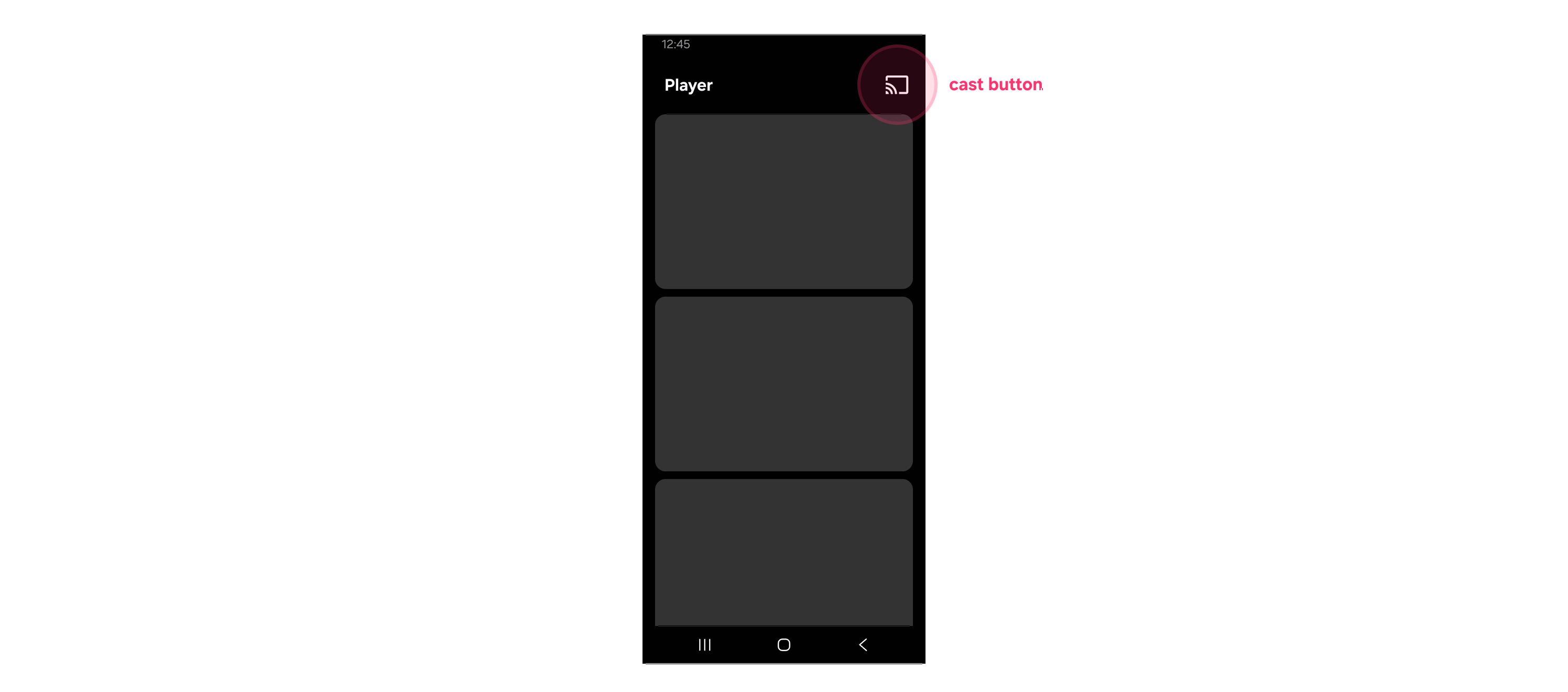
A Smart View enabled application should show the Cast button when the mobile device and TV are connected to the same network and the TV supports Smart View.
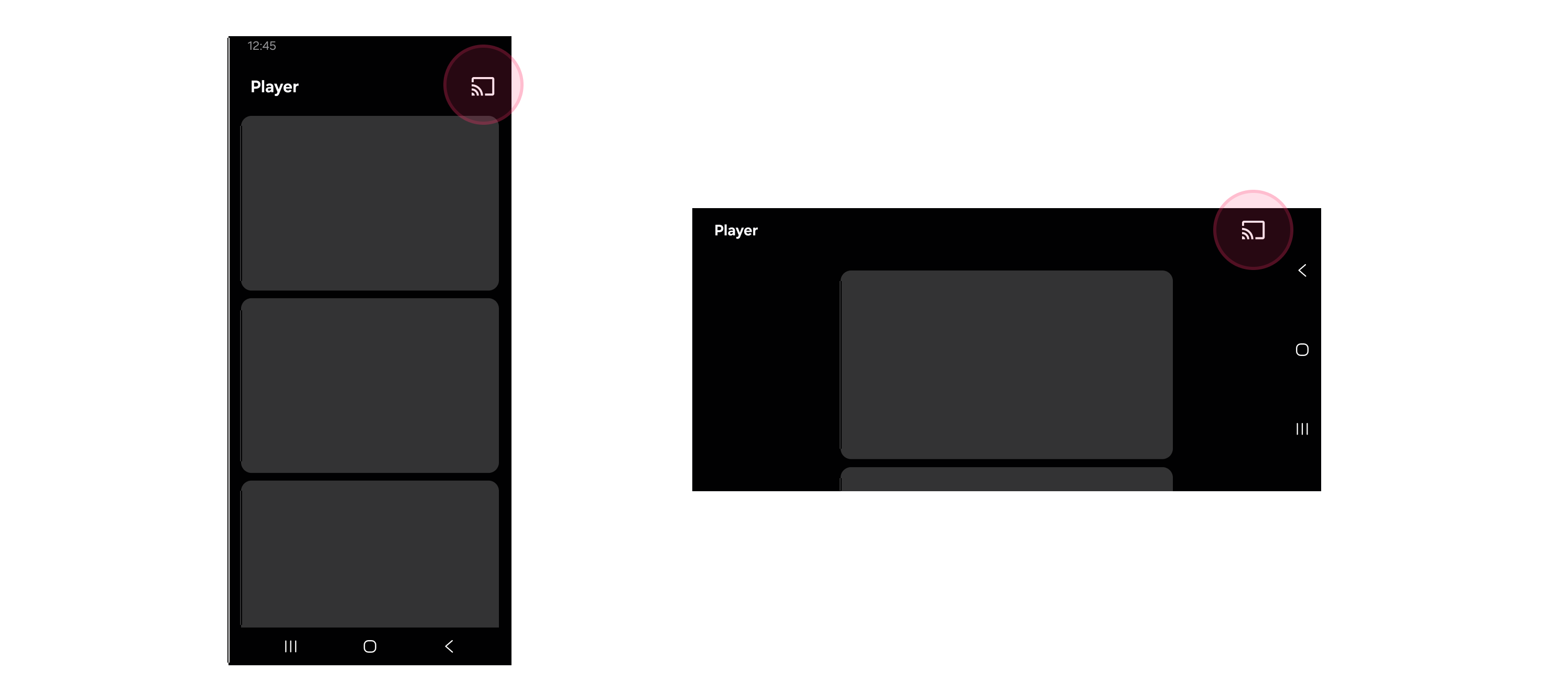
The Cast button should be shown at the top-right corner of the Smart View enabled application.
Note
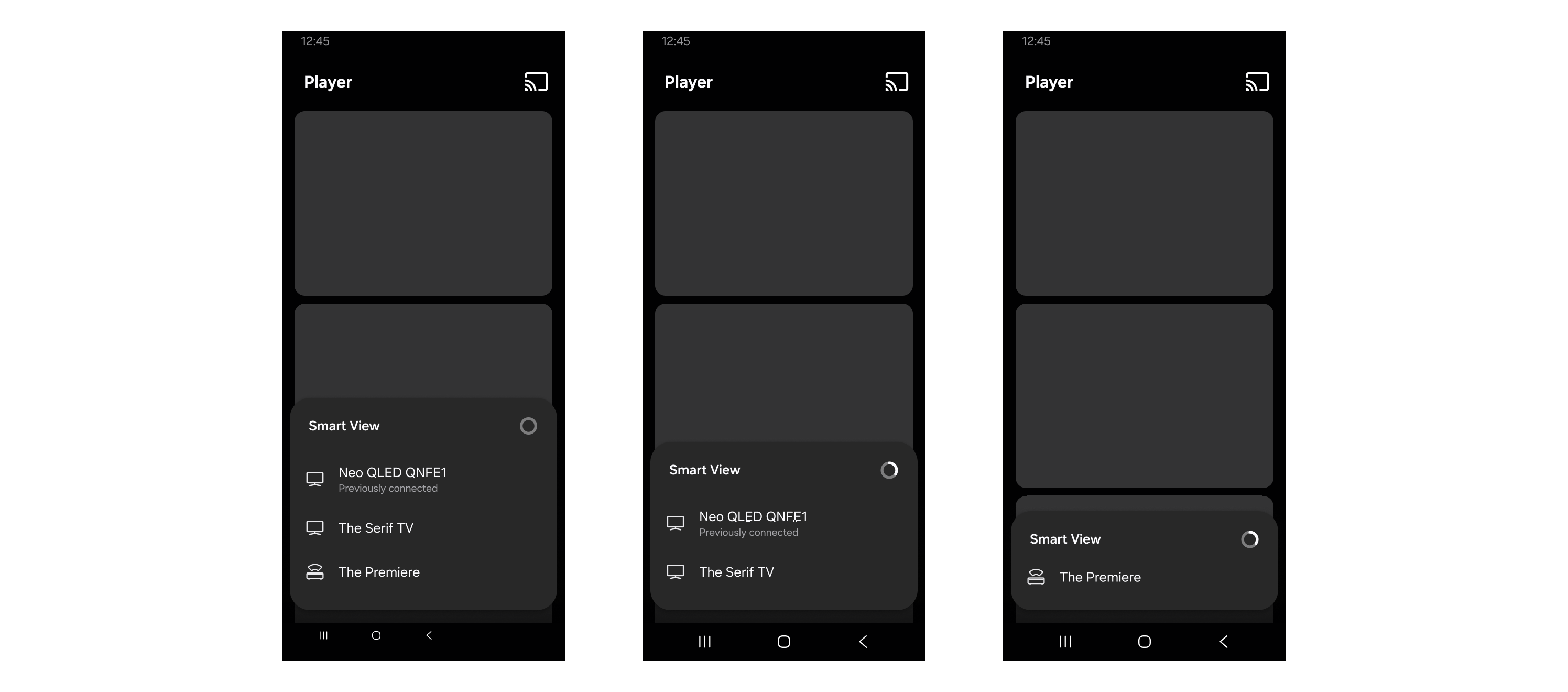
Tapping the Cast button will display a list of available devices that support Smart View.
Samsung Smart TVs should be shown at the top of the list.
If your application only supports one type of receiver, such as TVs, you can make your application filter out unsupported devices.
If both the TV and mobile device support Bluetooth Low Energy (BLE), make the TV name appear in the available devices list even if it is not connected to a Wi-Fi network. Selecting the TV name should open the Device Connection Guide popup window. In this popup, users should be guided to choose the right connection method for their devices. Refer to Supported Models and Versions for information chapter about troubleshooting tips.
Connected Behaviors
Note
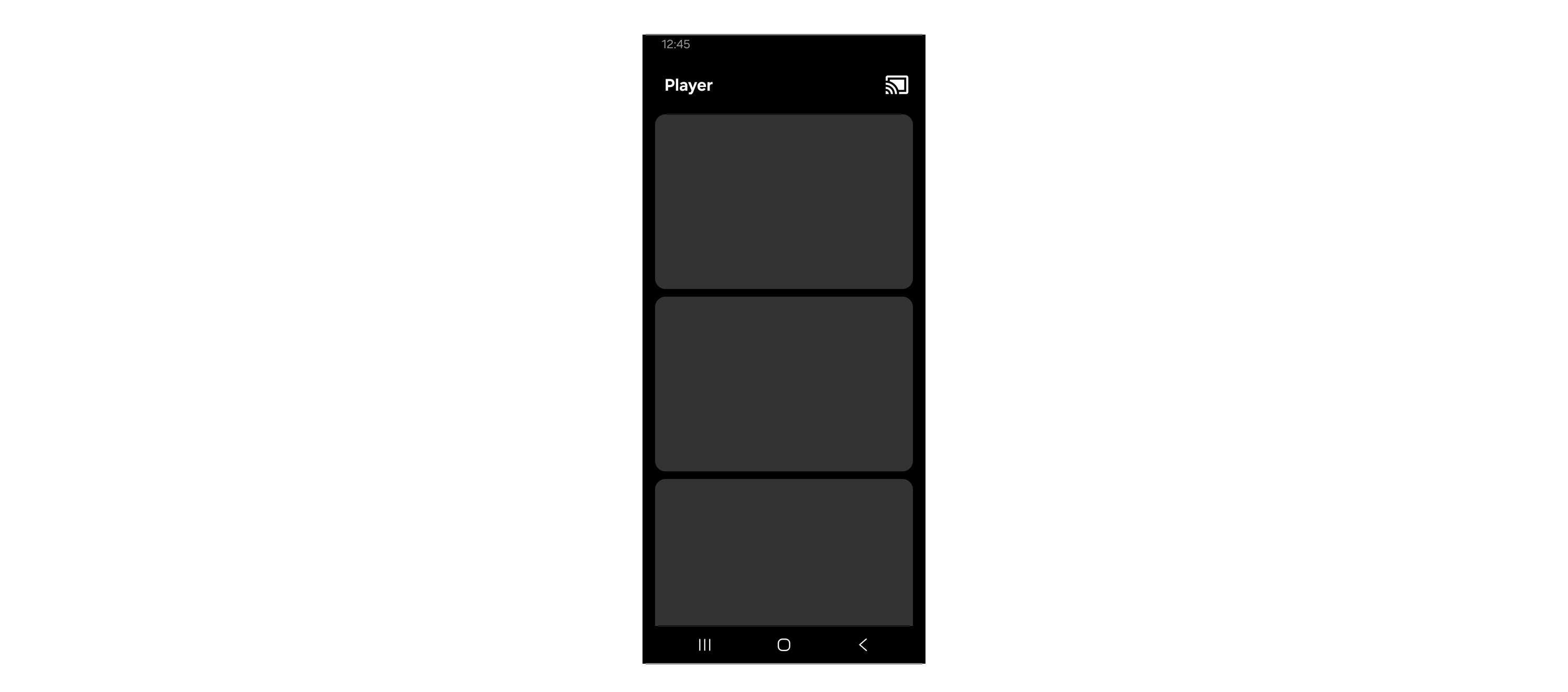
A Smart View enabled application should show the connecting Cast button while it is trying to connect to a display device that supports Smart View.
A Smart View enabled application should show the connected Cast button when it has been connected to a display device that supports Smart View.
There are two ways to stream multimedia content from a mobile device to a TV: the Connect and Play method and the Play and Connect method. With the Connect and Play method, users can stream multimedia content to a TV after selecting a multimedia file using a file browser to connect to a TV and launch a TV application. With the Play and Connect method, users can stream multimedia content to a TV after tapping the Cast button while the multimedia file is playing on the mobile device.
Connect and Play
The connection will launch the TV application and content can be selected using the TV remote control.
The TV application launches after connection, with its main page at the top.
When multimedia content is streamed from the mobile device, the TV application starts playing it on the TV screen.
Multiple multimedia content items can be selected and sent from the mobile device to the TV.
When multiple multimedia content items are selected and sent to the TV, they must be played sequentially in the order they were selected.
When a new multimedia content item is added to the play queue, it must be added to the end of the play queue.
In the play queue (containing multimedia content selected from the mobile device), a user must be able to move forward or backward using the TV remote control.
Play and Connect
Tapping the Cast button while a multimedia file is playing on a mobile device temporarily pauses the playback on the mobile device while connecting to TV. When the connection is complete, the mobile application resumes the playback and the TV application starts playing it on the TV screen.
Note
The Cast button should be shown at the top-right corner of the Playback window (in both portrait and landscape modes).
Playback starts on the TV screen from where the streaming started on the mobile device (playback is synced between the mobile and TV applications).
On the multimedia content’s details page, users should be able to see the ‘Casting’ status with simple content information (such as the content title, timeline, and thumbnail) for what is being streamed.
Browse and Control
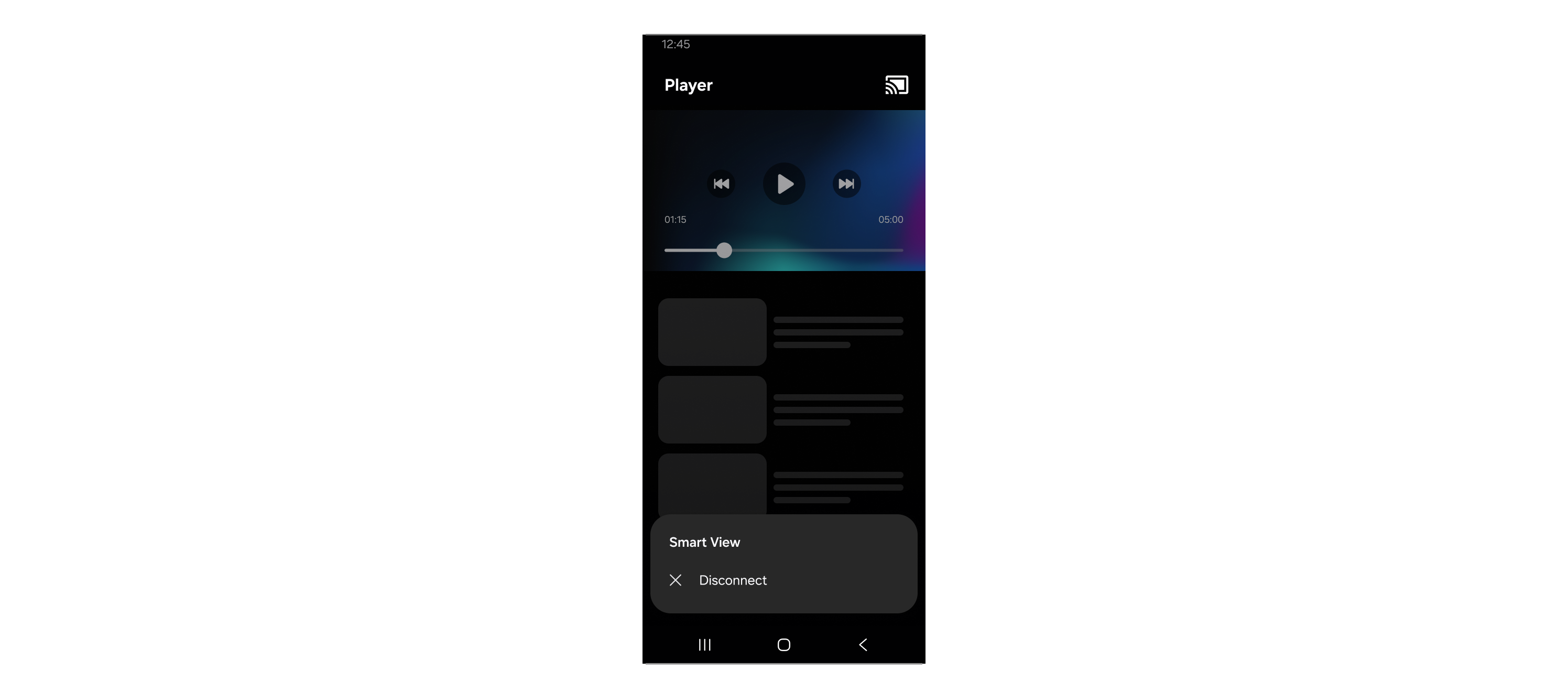
Tapping the Cast button while multimedia content is being streamed should show the information about the cast status and available options.
Connected device name
Disconnect
Content information which is being casted
Playback controls (e.g. on-screen volume control and pause)
Volume control
The hardware buttons on a mobile device should adjust the TV system volume.
Playback Sync
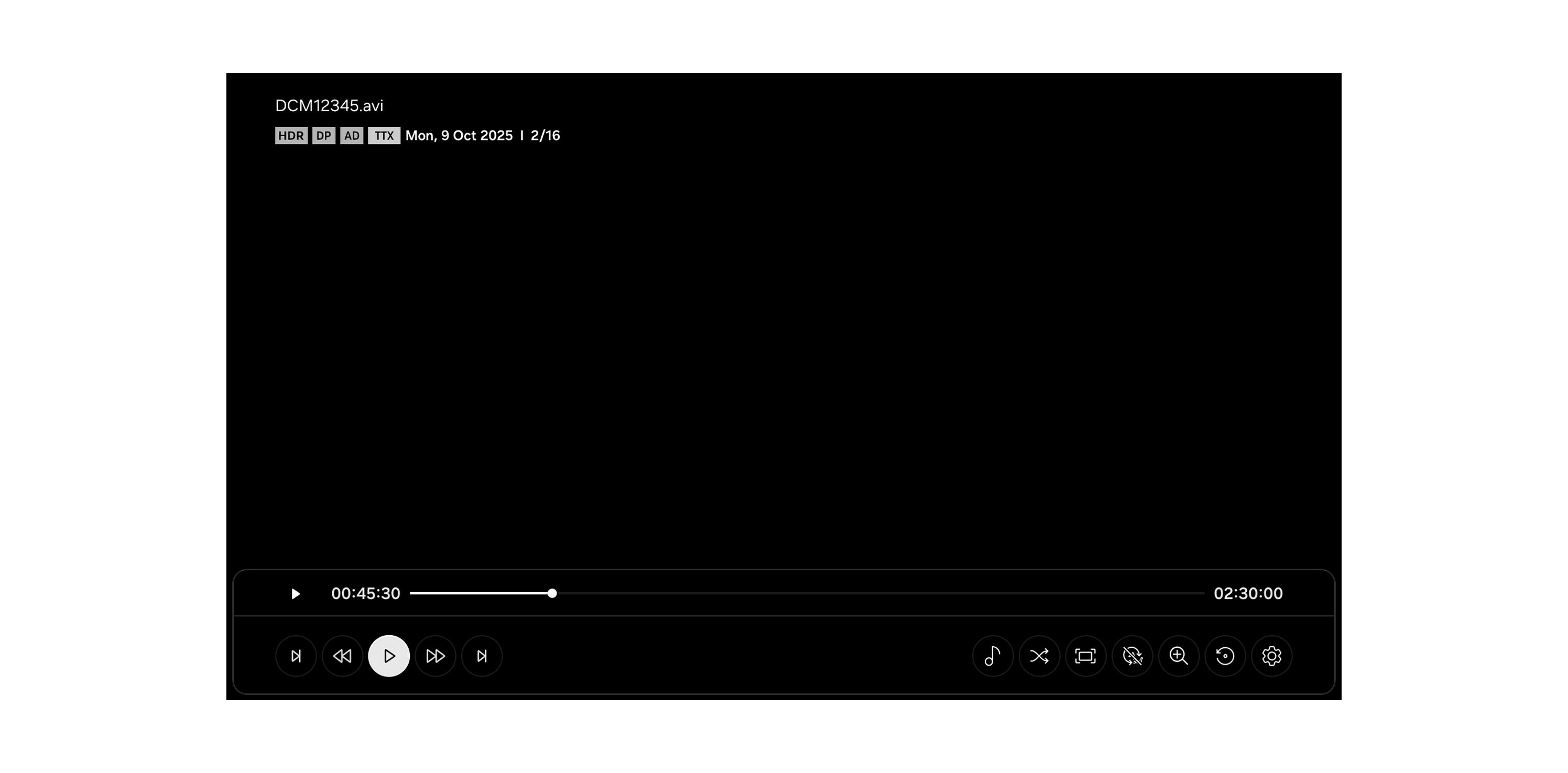
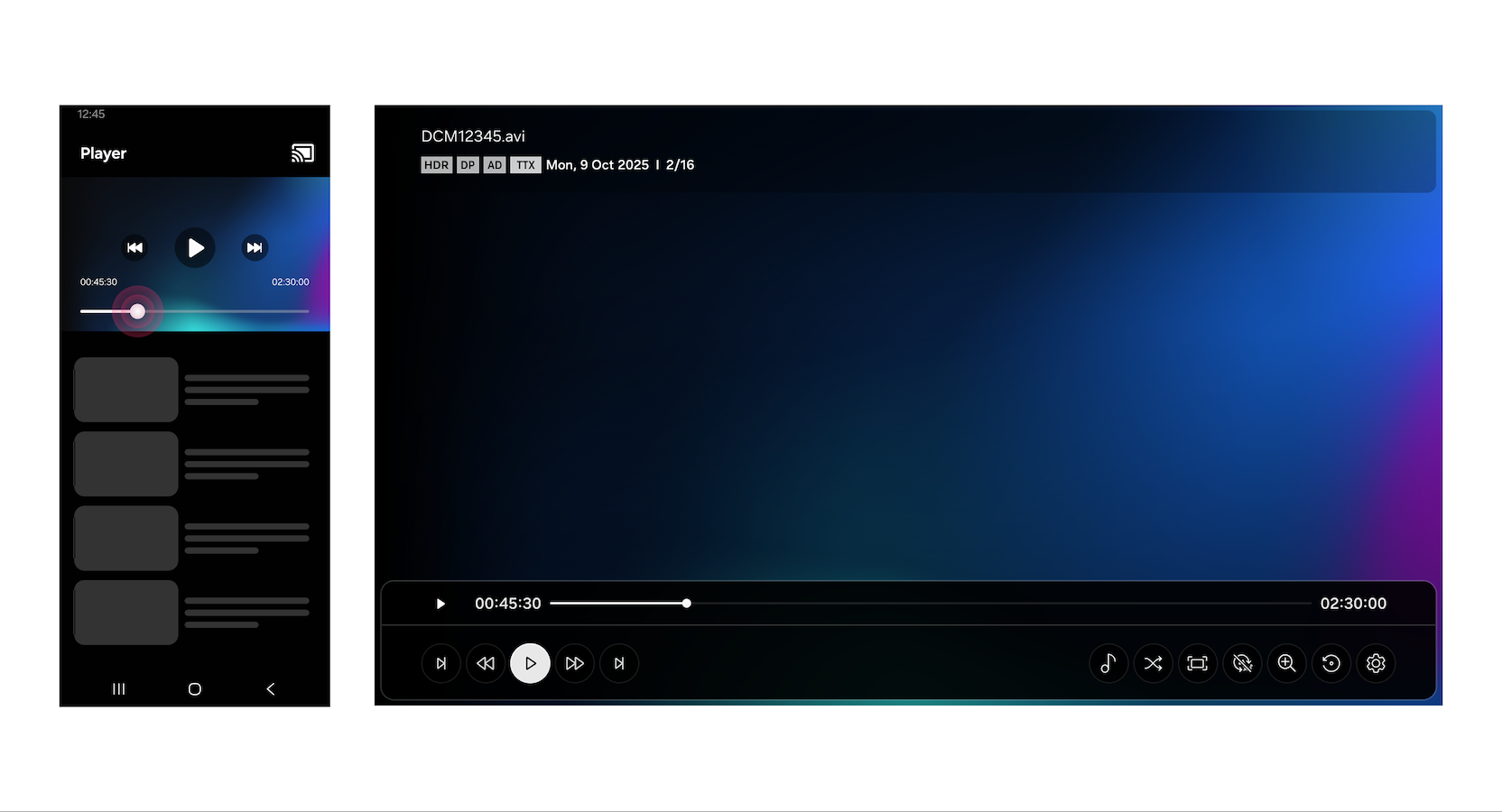
This chapter describes the synced playback between mobile and TV applications.
The same feedback should be shown on the mobile and TV applications while the TV application is loading the content.
Loading animation
Content title
The same playback controls (Fast Forward, Rewind, Play, Stop, and Pause) should be shown on both the mobile and TV applications.
When controlling the playback on a mobile device, changes in the playback status should also be shown on the TV screen.
When controlling the playback on the TV using the remote control, the playback status should also be updated on the mobile device.
Even when the TV application is launched first using the remote control and the connection is made afterwards, the status of the TV application should be synced to the mobile device while connected.
Disconnect
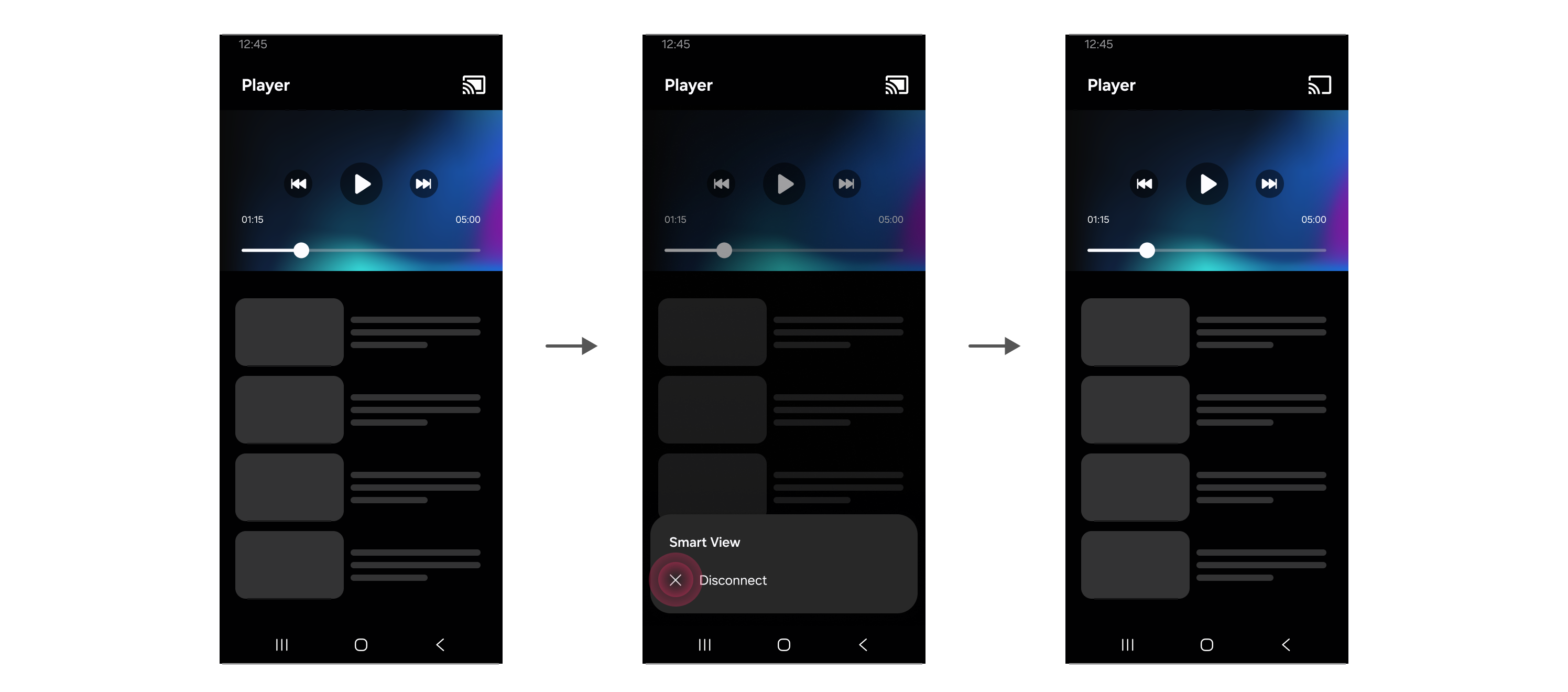
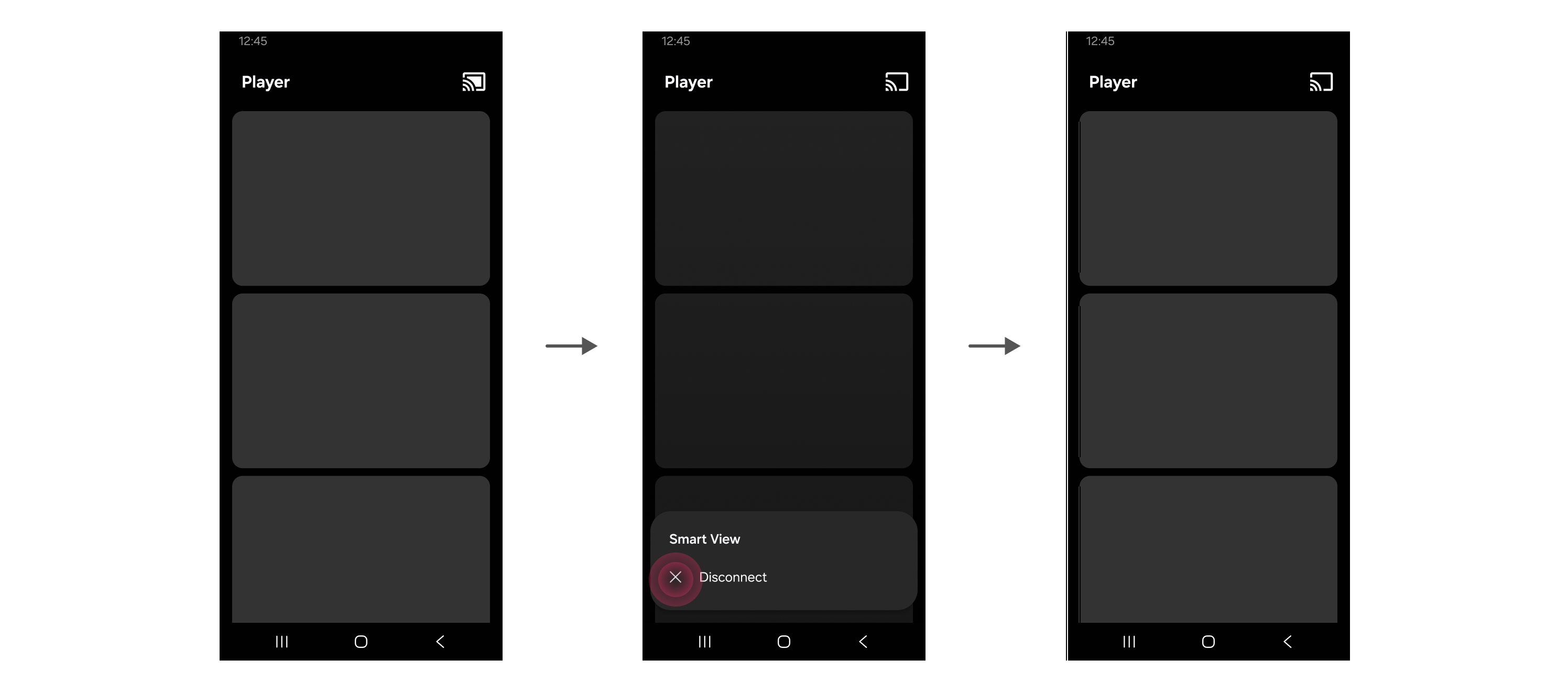
NoteThe Disconnect popup window has only one option and leaves the TV application open even after disconnection.
The TV application stays where it was before disconnection (the content keeps playing).
The mobile application goes to the content detail page when the content is paused, when content is being played on the TV.
The mobile application stays where it is (for example, on the content detail page or main page) when no content is being played on the TV.
Multitasking
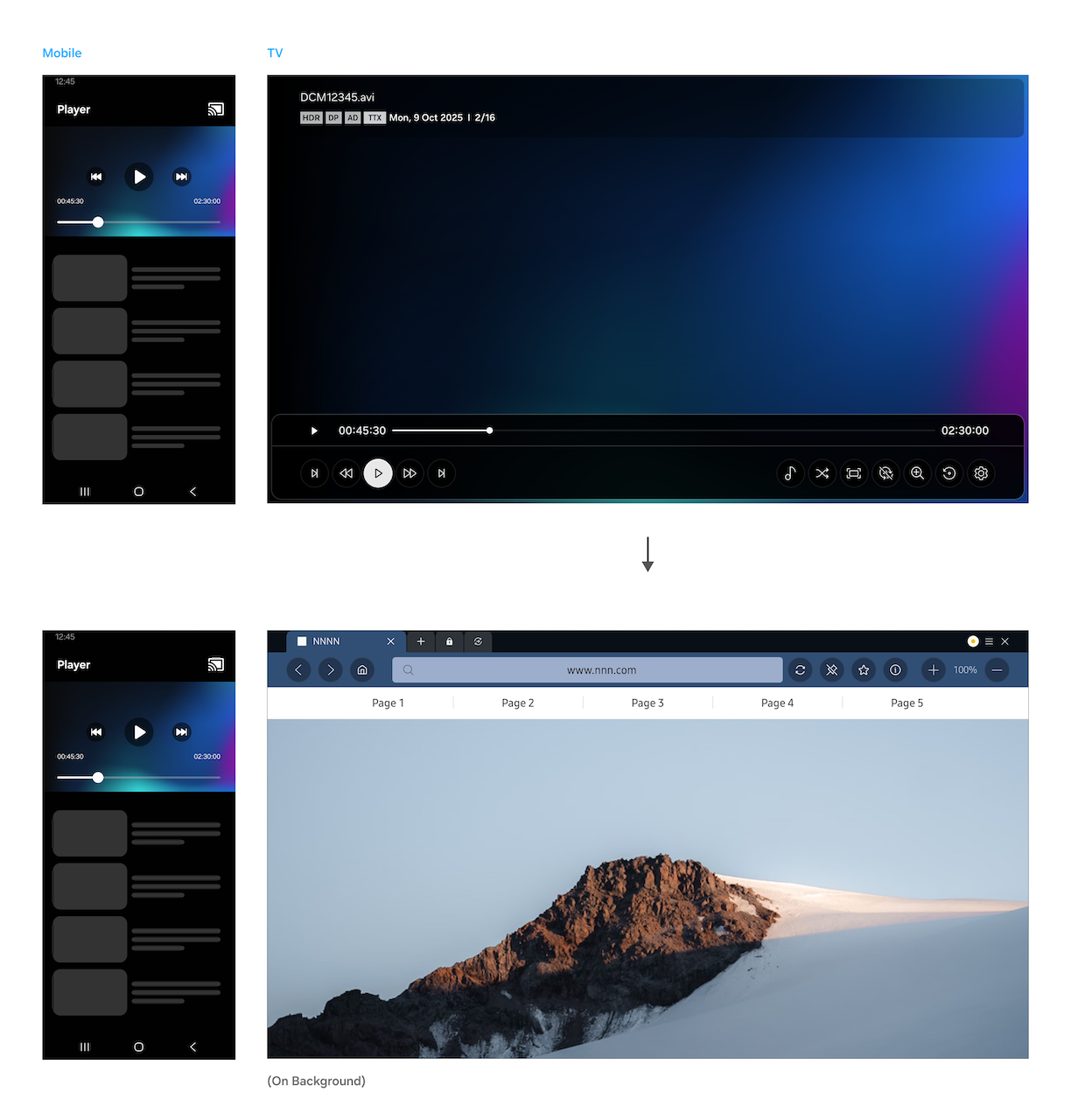
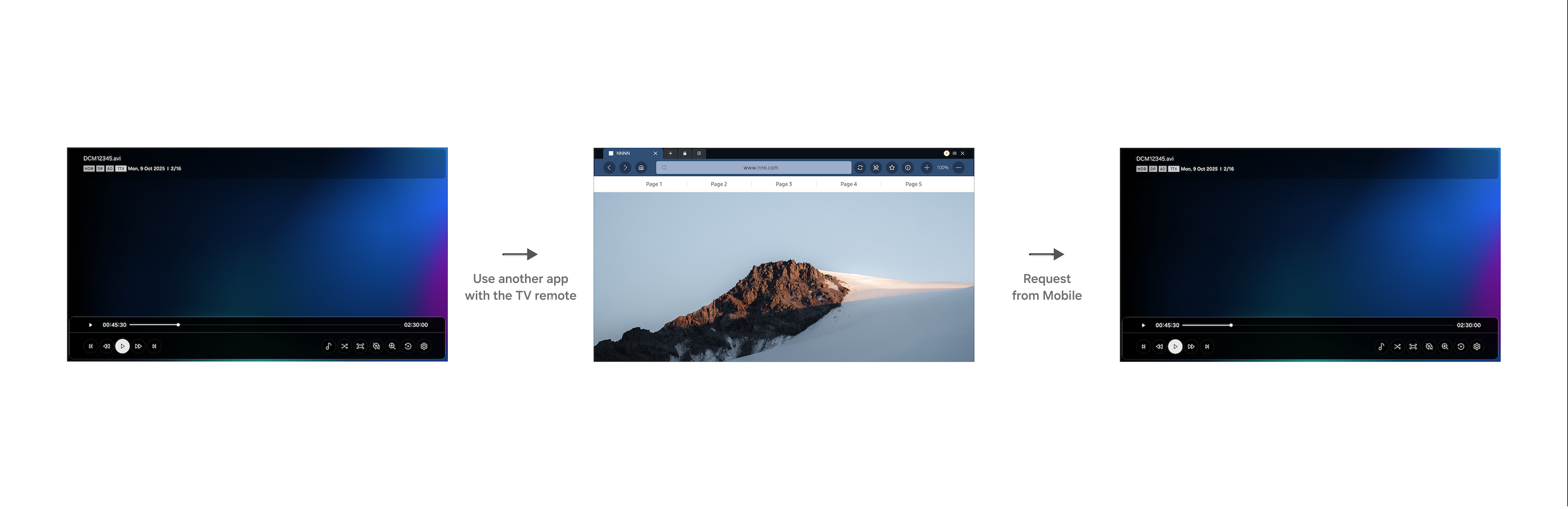
When a TV application is active in the background, the connection remains and the mobile application should still show the “Connected” status.
While still connected, the TV application must be pushed to the foreground when new cast requests are received from the mobile application.
WoW (Wake on WirelessLAN)
When the TV and mobile device are connected to the same network and the TV is turned off, streaming multimedia content from the mobile device to the TV will make the TV automatically turn on and start playing the content.
Click here to find more details on specifications and features for WoW.
When the TV is turned off, the TV status is displayed as “{TV Name} (standby)” on the mobile device.
Compatibility Check
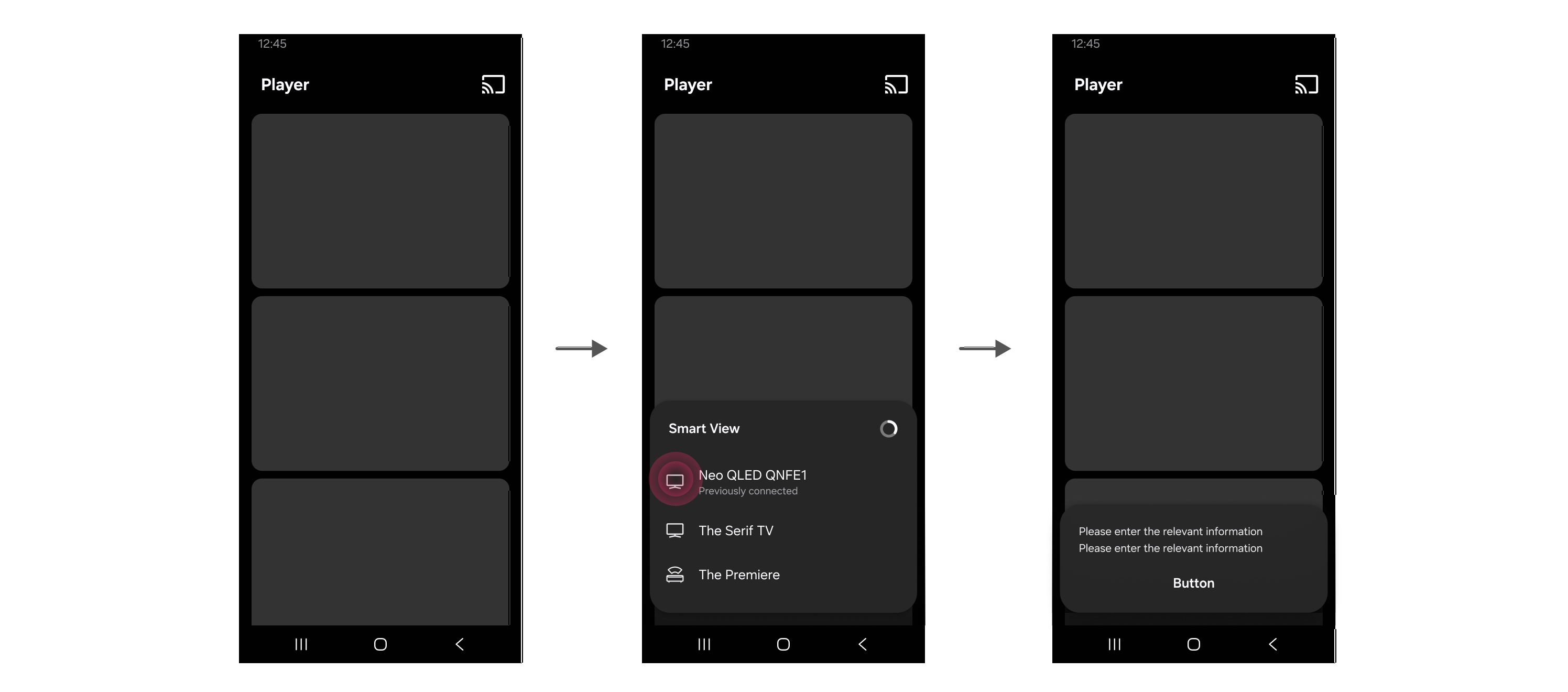
We recommend that you show the correct Cast button and provide appropriate popup windows to help users if they fail to discover their Samsung Smart TVs through the Smart View enabled application on their mobile devices or if they have Samsung Smart TVs that do not support Smart View.
Problems Finding Samsung Smart TVs
When a Samsung Smart TV cannot be discovered using a Smart View–supported mobile application, or when the connected TV does not support Smart View, the system should display the correct Cast button state and provide an appropriate guidance popup. The popup should instruct users to:
Verify that the network connection is functioning correctly.
Ensure that both the mobile device and the TV are connected to the same network.
Provide appropriate guides for users to solve problems
If there are no devices available, make the Cast button appear dimmed. Tapping the Cast button should still open the Connection popup window.
Different Connection Scenarios to Consider
Even if users successfully connect their Smart View enabled applications to their TVs, users may still have to perform other tasks to play the streamed multimedia content on their TVs. Provide them with appropriate messages that correctly describe what they need to do.
The TV application must be installed
Provide the users with a message telling them that the TV application is not yet installed, and tell them to try connecting again after installing the TV application. If the users confirm this message, they should be taken to the application download page, on the TV screen, where they can manually install it using the remote control.
Example of a message: {TV application name} is not installed on this TV. You must confirm this manually with a TV remote and try reconnecting once finished. Open the download page on the TV?
The TV application must be updated
Provide the users with a message telling them that the TV application needs to be updated to the latest version, to support the casting functionality, and instruct them how to do this.
Example of a message: {TV application name} must be updated to support this feature. You will need to confirm this manually with a TV remote and try reconnecting once finished. Open the update page on the TV?
The TV application doesn’t support Smart View yet
Provide the users with a message telling them that their TVs do not support the Cast functionality, even though the application is available on their TVs.
Example of a message: {TV application name} does not yet fully support this feature. Try launching anyway?
The TV application is not available
Provide the users with a message telling them that the TV application does not support their TV models at all.
Example of a message: Sorry, {TV application name} is not available for this TV model.
Mobile Application
On the mobile application installation stage, provide the users with a link to the Play Store or iTunes to let them check supported TV models.
We use cookies to improve your experience on our website and to show you relevant
advertising. Manage you settings for our cookies below.
Essential Cookies
These cookies are essential as they enable you to move around the website. This
category cannot be disabled.
Company
Domain
Samsung Electronics
developer.samsung.com, .samsung.com
Analytical/Performance Cookies
These cookies collect information about how you use our website. for example which
pages you visit most often. All information these cookies collect is used to improve
how the website works.
Company
Domain
Samsung Electronics
.samsung.com
Functionality Cookies
These cookies allow our website to remember choices you make (such as your user name, language or the region your are in) and
tailor the website to provide enhanced features and content for you.
Company
Domain
Samsung Electronics
developer.samsung.com, google.account.samsung.com
Preferences Submitted
You have successfully updated your cookie preferences.