Write exercise data to Samsung Health
Objective
Create an exercise app that can write data to Samsung Health app using Samsung Health Data SDK.
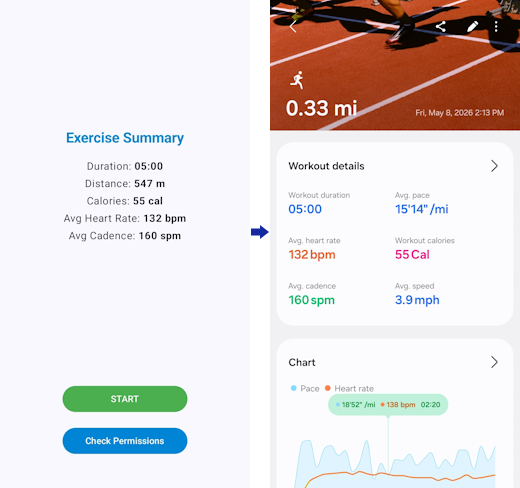
NoteThis Code Lab demonstrates how to utilize Samsung Health Data SDK to write exercise data, such as running activities, to the Samsung Health app. It provides a step-by-step guide on integrating your app with the SDK and offers hands-on experience in creating sample exercise data with the correct exercise type. Furthermore, it explores how to construct an insert request using the prepared data, ensuring smooth integration with Samsung Health's data store.
Overview
Samsung Health provides a comprehensive suite of features to monitor users' health and well-being data, including exercise activities. Samsung Health Data SDK empowers apps to access selected health data from the Samsung Health app and also allows writing data to Samsung Health's data storage. This means apps using the SDK can both retrieve and contribute to the health data stored in the Samsung Health app.
For more detailed information, refer to Samsung Health Data SDK documentation page.
Set up your environment
You will need the following:
- Android Studio (latest version recommended)
- Java SE Development Kit (JDK) 17 or later
- Android mobile device compatible with the latest Samsung Health version
- Samsung Health app installed on the device
Set up your Android device
Click on the following links to set up your Android device:
- Enable developer options
- Run apps on a hardware device
- Activate the developer mode of Samsung Health
Start your project
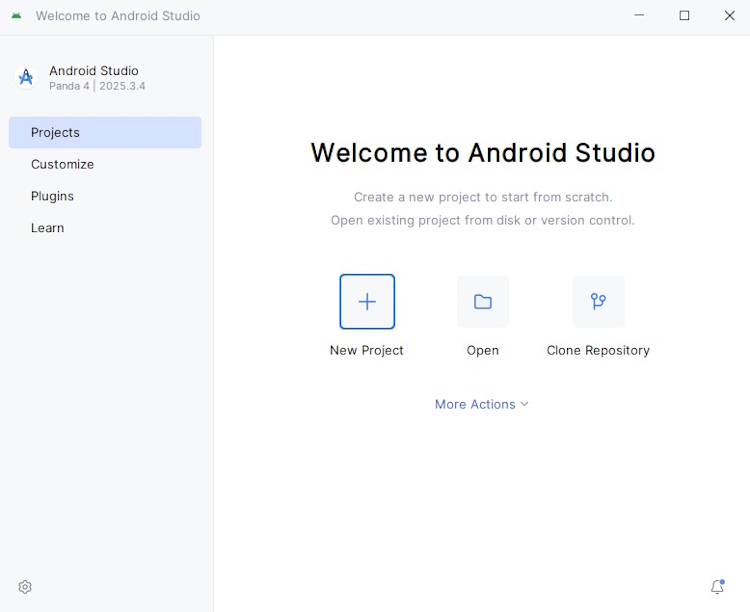
In Android Studio, click New Project to create your project.
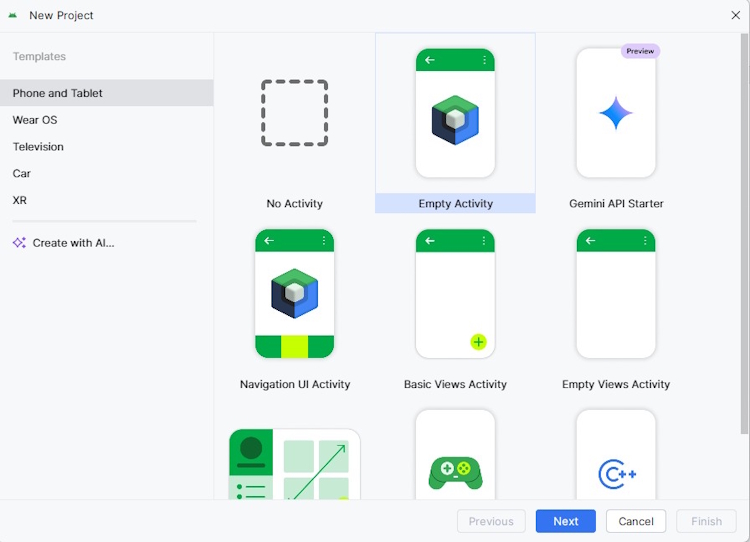
Select the project type from the Phone and Tablet category. Then, click the Next button.
Configure your project:
- Set the Name and Package name, which you need to register during the partnership request.
- Choose the Save location where you want to store the project locally.
- Select the Minimum SDK level for your app. Samsung Health runs on devices with Android 10 (API level 29) or higher.
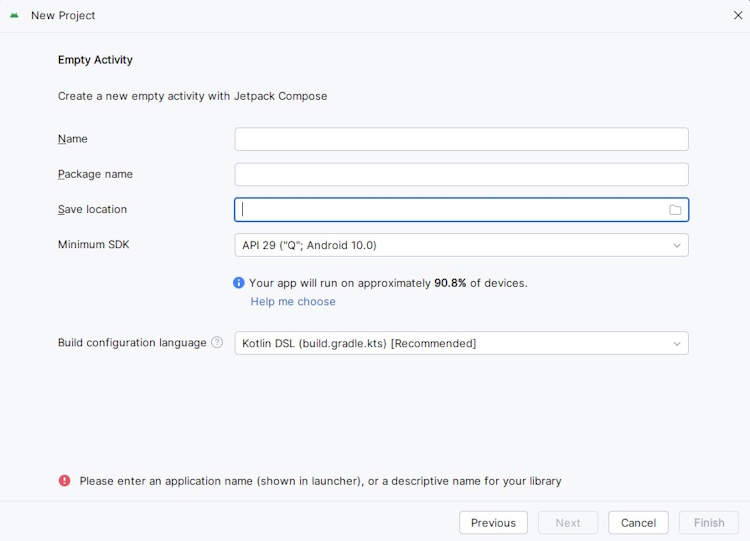
Click Finish once done.
NoteEssential code snippets for this Code Lab are provided in the next sections. Implement them in your app, and design your preferred architecture. Exception handling is not included in this content.
Set up the Gradle and import Samsung Health Data SDK
Before using Samsung Health Data SDK library, you need to configure your project with the necessary dependencies and plugins.
Add the Gson library
Gson is a dependency required for JSON serialization and deserialization. Add Gson as a dependency in the module-level build.gradle file:
dependencies {
    implementation(libs.gson)
}
Define the correct version of Gson in the libs.versions.toml file:
[versions]
gson = "2.13.2"

[libraries]
gson = { module = "com.google.code.gson:gson", version.ref = "gson" }
Apply the kotlin-parcelize plugin
The Kotlin Parcelize plugin simplifies the process of making Kotlin classes parcelable.
In the libs.versions.toml file, define the version for the parcelize plugin:
[versions]
parcelize = "2.3.20"

[plugins]
parcelize = { id = "org.jetbrains.kotlin.plugin.parcelize", version.ref = "parcelize" }
Go to the project-level build.gradle file and create an alias for the plugin:
plugins {
    alias(libs.plugins.parcelize) apply false
}
Then, go back to module-level build.gradle file and add the parcelize plugin:
plugins {
    alias(libs.plugins.parcelize)
}
Download and import Samsung Health Data SDK
To use Samsung Health Data SDK, follow these steps:
- Download the latest version of Samsung Health Data SDK library from the Samsung Developer page.
- In the downloaded zip file, find the
samsung-health-data-api-(version).aar file in the libs folder.
- In your project, create a new
libs folder inside the app module.
- Move the downloaded
samsung-health-data-api-(version).aar library into the newly created app>libs folder.
- Add the library as a dependency in the module-level
build.gradle file:
dependencies {
    implementation(files("libs/samsung-health-data-api-(version).aar"))
}
Access the API
After setting up the project and importing the SDK, you can access the API by creating an instance of HealthDataStore from HealthDataService. Use the getStore() method, ensuring you provide the appropriate context
HealthDataService.getStore(appContext)
With this HealthDataStore object, the app is ready to access and manage the data stored in Samsung Health.
Request exercise data permissions
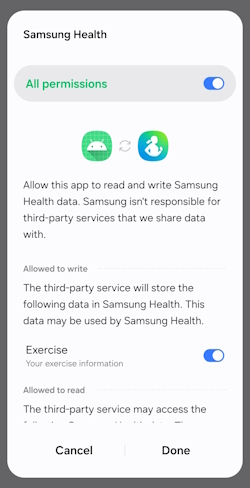
To access health data stored in Samsung Health, you need to request the appropriate permissions from the app's user. Each health data type has specific permissions for reading and writing operations. This Code Lab focuses on obtaining write permission for exercise data.
Before displaying the permission request dialog in the app, verify if the user has already granted the necessary permissions using the getGrantedPermissions(permissions: Set<Permission>) function from the HealthDataStore API:
var grantedPermissions = healthDataStore.getGrantedPermissions(permissionSet)
If any required permissions are missing, request them using the requestPermissions(permissions: Set<Permission>, activity: Activity) function:
healthDataStore.requestPermissions(permissionSet, activity)
Prior to this, ensure that you create a set of required Permission objects.
Permission
Indicates the unit of permission to obtain the user's consent to share their data with the Samsung Health app's data store.
Each permission is granted for a pair of DataType and specific AccessType.
|
|
| Permission
|
Companion Object of(dataType: DataType, accessType: AccessType)
Creates a Permission instance with the given data type and access type.
|
To prepare the permission set for writing exercise data, modify the preparePermissions() function as follows:
/******************************************************************************************
 * [Practice 1] Prepare the permission set to write exercise data.
 *
 * ----------------------------------------------------------------------------------------
 *
 * - Use the provided variable 'permissionSet', which is currently defined as an empty set.
 * - Inside the 'permissionSet' declaration, create a Permission object using
 * the 'Permission.of(dataType: DataType, accessType: AccessType)' function.
 * - Use the data type 'DataTypes.EXERCISE' and the access type 'AccessType.WRITE'.
 ******************************************************************************************/
private fun preparePermissions(): Set<Permission> {
    val permissionSet = setOf<Permission>(
        Permission.of(DataTypes.EXERCISE, AccessType.READ),

        // TODO: create the Permission object for write here
    )

    return permissionSet
}
Fulfill the code by creating a Permission object utilizing the Permission.of() function with DataTypes.EXERCISE and AccessType.WRITE as parameters.
Next, implement the logic to request exercise permissions:
suspend fun requestExercisePermissions(activity: Activity): Boolean {
    val permissionSet = preparePermissions()
    var grantedPermissions = healthDataStore.getGrantedPermissions(permissionSet)

    return if (grantedPermissions.containsAll(permissionSet)) {
        true
    } else {
        runCatching {
            grantedPermissions = healthDataStore.requestPermissions(permissionSet, activity)
        }.onFailure {
            if (it is HealthDataException) {
                throw it
            } else {
                it.printStackTrace()
            }
        }
        grantedPermissions.containsAll(permissionSet)
    }
}
Now, your app asks the user to grant write permission for the exercise data type.
Prepare exercise session data
This section demonstrates how to create an ExerciseSession specifically for RUNNING. It involves organizing and structuring exercise session data, which includes details such as start time, end time, duration, exercise type, distance, calories, and an exercise log containing heart rate, cadence, power, and speed values.
The data required for this task is already prepared in this Code Lab, so there's no need to prepare it manually.
To begin, create a list that holds the collected running data: heart rate, cadence, power, and speed. For simplicity, use a local class named ExerciseLogData to store these values:
private data class ExerciseLogData(
    val heartRate: Float,
    val cadence: Float,
    val power: Float,
    val speed: Float
)

private fun prepareData() = listOf(
    ExerciseLogData(heartRate = 96.0f, cadence = 158.0f, power = 173.0f, speed = 0.78f),
    ExerciseLogData(heartRate = 113.0f, cadence = 162.0f, power = 186.0f, speed = 1.32f),
    ExerciseLogData(heartRate = 114.0f, cadence = 160.0f, power = 171.0f, speed = 2.26f),
    ExerciseLogData(heartRate = 128.0f, cadence = 172.0f, power = 207.0f, speed = 2.32f),
    ExerciseLogData(heartRate = 134.0f, cadence = 170.0f, power = 194.0f, speed = 1.56f),
    ExerciseLogData(heartRate = 138.0f, cadence = 160.0f, power = 176.0f, speed = 2.0f),
    ExerciseLogData(heartRate = 139.0f, cadence = 164.0f, power = 179.0f, speed = 2.12f),
    ExerciseLogData(heartRate = 140.0f, cadence = 162.0f, power = 164.0f, speed = 1.82f),
    ExerciseLogData(heartRate = 141.0f, cadence = 160.0f, power = 171.0f, speed = 1.96f),
    ExerciseLogData(heartRate = 138.0f, cadence = 170.0f, power = 176.0f, speed = 1.48f),
    ExerciseLogData(heartRate = 142.0f, cadence = 160.0f, power = 190.0f, speed = 1.66f),
    ExerciseLogData(heartRate = 139.0f, cadence = 164.0f, power = 197.0f, speed = 2.32f),
    ExerciseLogData(heartRate = 137.0f, cadence = 164.0f, power = 187.0f, speed = 1.36f),
    ExerciseLogData(heartRate = 140.0f, cadence = 156.0f, power = 179.0f, speed = 1.64f),
    ExerciseLogData(heartRate = 138.0f, cadence = 156.0f, power = 180.0f, speed = 1.42f),
    ExerciseLogData(heartRate = 136.0f, cadence = 158.0f, power = 178.0f, speed = 1.72f),
    ExerciseLogData(heartRate = 136.0f, cadence = 162.0f, power = 170.0f, speed = 1.7f),
    ExerciseLogData(heartRate = 134.0f, cadence = 160.0f, power = 170.0f, speed = 1.86f),
    ExerciseLogData(heartRate = 133.0f, cadence = 156.0f, power = 171.0f, speed = 1.6f),
    ExerciseLogData(heartRate = 133.0f, cadence = 158.0f, power = 180.0f, speed = 1.74f),
    ExerciseLogData(heartRate = 133.0f, cadence = 158.0f, power = 170.0f, speed = 1.9f),
    ExerciseLogData(heartRate = 129.0f, cadence = 156.0f, power = 160.0f, speed = 1.54f),
    ExerciseLogData(heartRate = 132.0f, cadence = 154.0f, power = 161.0f, speed = 1.72f),
    ExerciseLogData(heartRate = 129.0f, cadence = 158.0f, power = 167.0f, speed = 1.58f),
    ExerciseLogData(heartRate = 132.0f, cadence = 154.0f, power = 182.0f, speed = 1.98f),
    ExerciseLogData(heartRate = 137.0f, cadence = 158.0f, power = 179.0f, speed = 1.96f),
    ExerciseLogData(heartRate = 132.0f, cadence = 156.0f, power = 178.0f, speed = 1.52f),
    ExerciseLogData(heartRate = 133.0f, cadence = 164.0f, power = 164.0f, speed = 2.1f),
    ExerciseLogData(heartRate = 135.0f, cadence = 158.0f, power = 164.0f, speed = 1.7f),
    ExerciseLogData(heartRate = 137.0f, cadence = 158.0f, power = 171.0f, speed = 2.1f),
    ExerciseLogData(heartRate = 138.0f, cadence = 160.0f, power = 169.0f, speed = 1.92f)
)
Next, use the data generated by the prepareData() function to create ExerciseLog entries. These logs represent time-series data captured at different stages throughout the exercise.
To implement this process, create a list of ExerciseLog instances with timestamps calculated at 10-second intervals:
private fun prepareRunningExerciseLog(startTime: Instant): List<ExerciseLog> {
    var secondsToAdd = 0L
    val secondsInterval = 10L
    val exerciseLog = mutableListOf<ExerciseLog>()
    val exerciseData = prepareData()

    exerciseData.forEach { data ->
        exerciseLog.add(
            ExerciseLog.of(
                timestamp = startTime.plusSeconds(secondsToAdd),
                heartRate = data.heartRate,
                cadence = data.cadence,
                count = null,
                power = data.power,
                speed = data.speed
            )
        )
        secondsToAdd += secondsInterval
    }

    return exerciseLog
}
The ExerciseSession object adds the prepared list of ExerciseLog entries. Additionally, it calculates and includes mean and maximum values for various metrics. This allows users to view comprehensive exercise statistics after inserting the data into Samsung Health.
private fun prepareExerciseSession(startTime: Instant, endTime: Instant): ExerciseSession {
    val exerciseLog = prepareRunningExerciseLog(startTime)

    val session = ExerciseSession.builder()
        .setStartTime(startTime)
        .setEndTime(endTime)
        .setExerciseType(DataType.ExerciseType.PredefinedExerciseType.RUNNING)
        .setDuration(Duration.between(startTime, endTime))
        .setDistance(547f)
        .setCalories(55f)
        .setLog(exerciseLog)
        .setMeanHeartRate(132.8f)
        .setMaxHeartRate(142f)
        .setMeanCadence(160.2f)
        .setMaxCadence(172f)
        .setMeanPower(176.3f)
        .setMaxPower(207f)
        .setMeanSpeed(1.76f)
        .setMaxSpeed(2.32f)
        .build()

    return session
}
NoteThe ExerciseSession object is created using ExerciseSession.Builder and its build() function. To create a valid ExerciseSession, all mandatory fields must be set correctly. If any mandatory fields are missing or if the end time is earlier than the start time, an InvalidRequestException will be thrown. This ensures the integrity and accuracy of the exercise session data.
Prepare HealthDataPoint
After preparing the session, create an instance of HealthDataPoint.
A HealthDataPoint is a fundamental data structure in Samsung Health Data SDK that represents a single data entry. It includes essential fields such as start time, end time, and data type, as well as additional fields like exercise type and exercise session.
It's crucial to ensure that all mandatory fields are properly set. For ExerciseType, specifying DataType.ExerciseType.EXERCISE_TYPE and including sessions are mandatory.
NoteStart time, end time, and data type are always mandatory for HealthDataPoint. Other mandatory fields may vary depending on the data type. If the required fields are not set correctly, an InvalidRequestException will be thrown.
To initialize a HealthDataPoint instance, use the builder() method. Set the properties, such as start time and end time, by calling the setStartTime() and setEndTime() functions, respectively.
For additional properties like exercise data type and session, use the addFieldData() function.
HealthDataPoint
A HealthDataPoint is an individual record of health data saved in the Samsung Health app's data store.
|
|
| HealthDataPointBuilder
|
addFieldData(field: Field<T>, value: T?)
Set a value of a specified field.
|
/******************************************************************************************
 * [Practice 2] Add missing information to HealthDataPoint:
 * - data type of exercise,
 * - previously prepared exercise session.
 *
 * ----------------------------------------------------------------------------------------
 *
 * In TODO 1:
 * - Use the addFieldData(field: Field<T>, value: T?) function to add the exercise data type.
 * - Use DataType.ExerciseType.EXERCISE_TYPE as the field, and DataType.ExerciseType.PredefinedExerciseType.RUNNING as the value.
 *
 * In TODO 2:
 * - Use the addFieldData(field: Field<T>, value: T?) function to add sessions data.
 * - Use DataType.ExerciseType.SESSIONS as the field, and the local variable 'sessions',
 * which contains a list with previously prepared session.
 ******************************************************************************************/
private fun prepareHealthDataPoint(): HealthDataPoint {
    val fiveMinutesAsSeconds = 300L
    val startTime = Instant.now().minusSeconds(fiveMinutesAsSeconds)
    val endTime = Instant.now()
    val sessions = listOf(prepareExerciseSession(startTime, endTime))

    val data = HealthDataPoint.builder()
        .setStartTime(startTime)
        .setEndTime(endTime)
        // TODO 1: Add exercise of running here
        // TODO 2: Add session data here
        .build()

    return data
}
Call addFieldData() with:
DataType.ExerciseType.EXERCISE_TYPE set to DataType.ExerciseType.PredefinedExerciseType.RUNNING- the parameters
DataType.ExerciseType.SESSIONS and the local variable sessions, which contain the prepared exercise data.
Create an insert request
You can create an insert request to add the prepared HealthDataPoint object to the HealthDataStore. Every DataType, such as ExerciseType, that supports write operations includes an insertDataRequestBuilder, which simplifies the process of building and configuring the request before submission.
To include the data in the request, use the addData() function. Once the request is fully configured, it is passed into the insertData() method. This method is responsible for adding the prepared HealthDataPoint data to the HealthDataStore. Upon successful execution, the data is stored and available for viewing in the Samsung Health app.
Now, use the InsertDataRequest API to include the HealthDataPoint in the request.
InsertDataRequest
InsertDataRequest represents a request for inserting a HealthDataPoint that an app creates into the Samsung Health app.
|
|
| InsertDataRequest.BasicBuilder
|
addData(data: T)
Adds a data point created by the app to the request.
|
/******************************************************************************************
 * [Practice 3] Add a HealthDataPoint object to the write request.
 *
 * ----------------------------------------------------------------------------------------
 *
 * - Use the addData(data: T) function to add the HealthDataPoint object to the write request.
 * - As a parameter, use the local variable 'healthDataPoint', which contains the previously prepared data.
 ******************************************************************************************/
suspend fun writeExercise() {
    val healthDataPoint = prepareHealthDataPoint()
    val writeRequest = DataTypes.EXERCISE.insertDataRequestBuilder
        // TODO: add health data point here
        .build()

    healthDataStore.insertData(writeRequest)
}
Call the addData() function and pass the local variable healthDataPoint, which contains the previously prepared instance of HealthDataPoint, as a parameter.
At this point, your app is fully capable of inserting running data into the Samsung Health data storage.
Check exercise data
Once the data is successfully inserted, it becomes accessible to applications that read from the Samsung Health storage. You can verify the inserted exercise data using two methods: the DataViewer tool and the Samsung Health app.
DataViewer
The DataViewer tool is a utility designed to help developers and users inspect and validate data stored in the Samsung Health app. It provides a detailed view of the data, including exercise sessions and exercise logs, allowing you to confirm that the inserted data is correctly stored and structured. To use the DataViewer tool:
- Locate its APK in the tool folder within the downloaded SDK package.
- Install and launch the app on your mobile device.
- In the app, select the Exercise item from the list of data types.
- Grant the necessary permissions when prompted.
- Click the inserted data point to see its details.
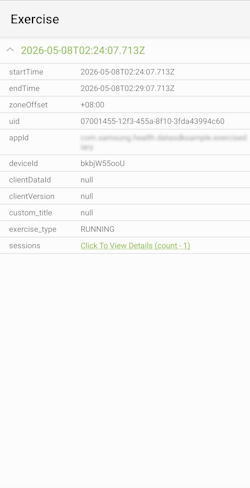
- In sessions, click the link to view the details.
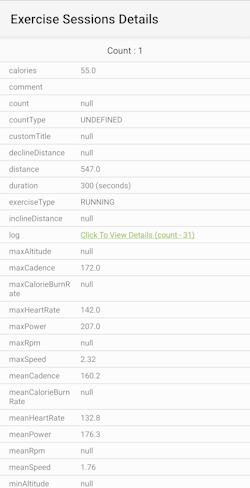
- From the Exercise Sessions Details, you can view the log containing a list of each individual entry.
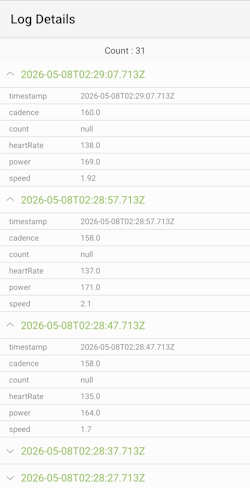
- Verify that the information displayed matches the data you inserted, such as start time, end time, exercise type, and other details.
Samsung Health
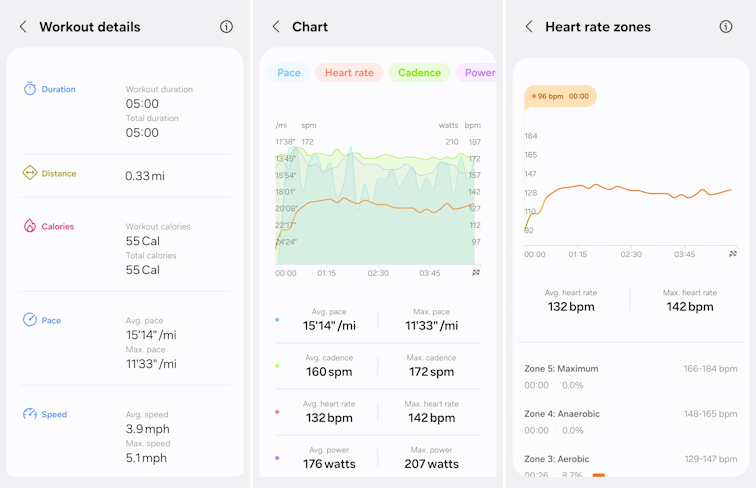
The inserted data can also be directly viewed in the Samsung Health app. This app offers a comprehensive overview of the workout data, enabling users to verify that the exercise details—such as start time, end time, exercise type, distance, calories burned, and exercise log—are accurately stored and displayed. To verify data in Samsung Health:
- Open the Samsung Health app on your phone.
- Navigate to the Workout this week card.
- Find the inserted exercise in the All exercises list.
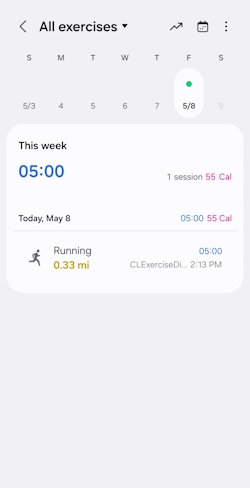
- Tap on the exercise to view its details.
- You can view all statistics, including mean and max values for each workout parameter, presented on the chart.
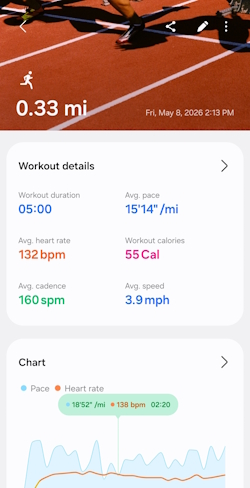
- Verify that the displayed information matches the data you inserted, including start time, end time, exercise type, distance, calories burned, and the details from the exercise log.
You're done!
Congratulations! You have successfully completed the goal of this Code Lab. Now, you can create a mobile health app that can write exercise data to Samsung Health on your own!
To learn more, explore Samsung Health Data SDK.