-APV (Advanced Professional Video) codec supported (S26 Ultra only) -LUT (Look-Up Table) preview and Samsung Log video editing features supported -Samsung Cinematic LUT package deployed
1. Understanding Log Filming
Log filming is a technique that captures videos in a wider dynamic range, requiring post-production work to correct colors.
In log filming, the camera sensor records a wider luminance range, from the darkest areas to the brightest areas.
While the dynamic range is compressed to fit a certain format in standard filming, log filming preserves more data. This provides video creators with greater flexibility in color adjustments and post-production, yielding more cinematic and visually appealing results.
The general advantages of log filming are:
1) Cost-effectiveness: High-quality videos can be produced without the need for expensive, high-end equipment
2) Time efficiency: The filming process to achieve the desired look is simplified, reducing production time
3) Flexibility in post-production: Greater control over colors, shadows, highlights, and color tones
When light passes through a lens and reaches the camera's sensor, each pixel in the sensor records the corresponding value. This sensor information is then digitized and recorded through an image processor.
Please note that this information is different to the visual information perceived by the human eye;
When the number of candles is increased from one to three in a dark room, a camera records that the light intensity has increased threefold. The human eye, however, perceives the increase as approximately 2.5 times, which is a relative value.
Because the human eye perceives light relatively; when you increase the number of candles from two to three, it perceives an increase of one candle, which is half of two. A camera, on the other hand, measures light intensity in a linear calculation.
To mimic how the human eye perceives light, a "gamma" correction curve is applied to the video, converting the linear data to a logarithmic scale.
In this process, the range of darker tones (shadows) is expanded, while the range of brighter tones (highlights) is compressed, compensating for limited data in shadows by reallocating some of the abundant data in highlights.
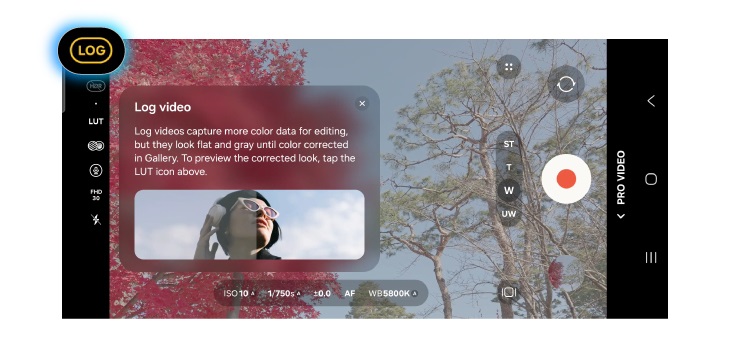
As a result, typical log footage saved appears flat and washed-out, with reduced contrast. To restore the footage to standard color and contrast levels, A LUT, which is a pre-defined set of color adjustment values, is applied to the footage in post-production, to restore a standard color profile and achieve a desired visual style.
2. Filming and Color Correction with Samsung Log
1) Samsung Log
Today, we're living in an era of personal media, with platforms like Reels and Shorts. Creators, more often than not, edit their videos to reflect their unique style rather than using auto-corrected footages as they are.
Log filming is a technique that offers significantly greater editing flexibility for users who want their videos to stand out.
Giving a unique look to a video with fixed lines and colors is challenging, akin to painting over an already sketched and colored artwork. However, it's much easier for creators to express their colors and visual style when the footage contains only rough sketches. This is why we offer a log filming service.
Previously, log filming was considered a professional-only feature equipped in studio-grade cameras.
Samsung Log offers a log curve designed to extend tonal range in low-light areas and provide smooth highlight gradation without banding. It supports the 10-bit HEVC codec, ensuring excellent compatibility and storage efficiency. Additionally, it supports the visually lossless APV codec on the S26 Ultra, ensuring optimal image quality for post-production. With these features, we aim to provide professional-level quality for experts and accessibility for general users.
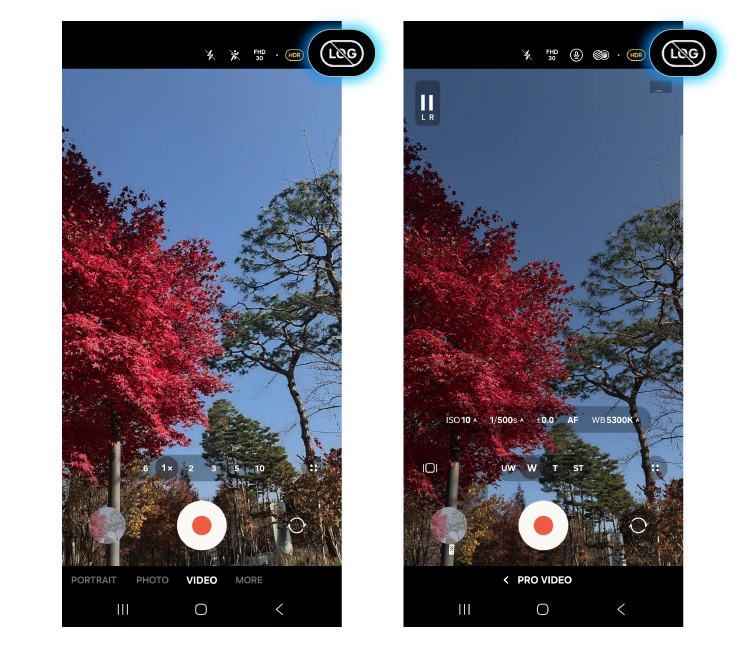
Log filming is supported by default in Pro Video mode. To start filming, select "Log" from the quick settings options displayed on the screen.
Figure 2: Pro Video Mode: Log Filming
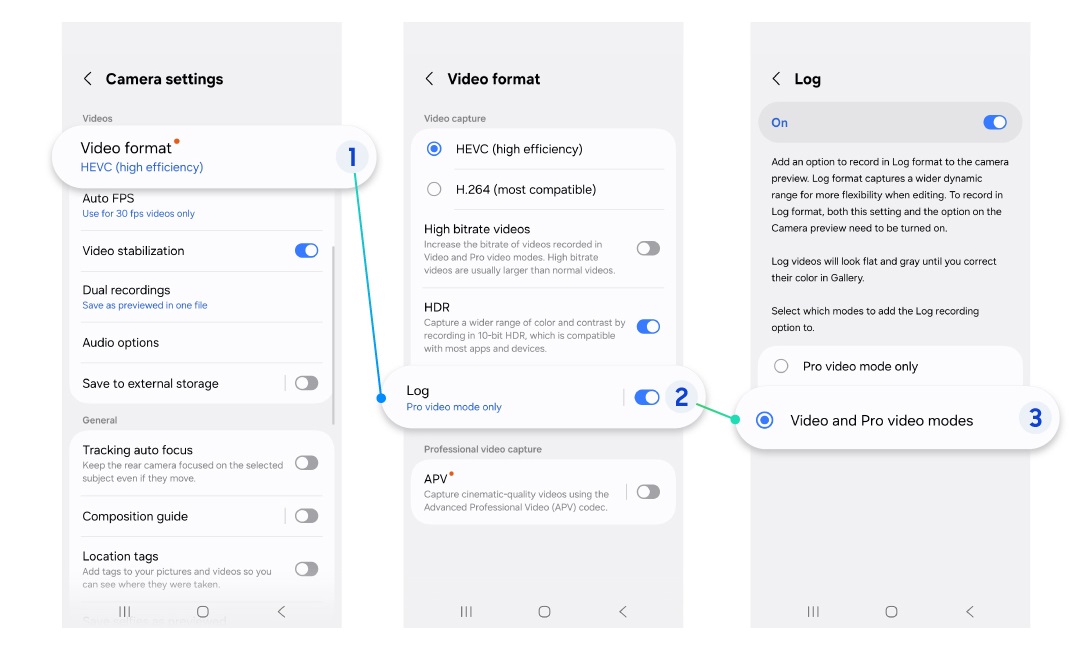
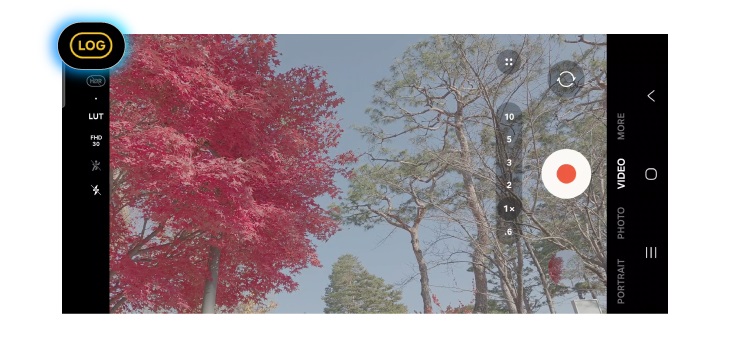
You can set up the Log option under the Camera settings menu to enable it in Video mode for lens switching and easy filming. Select “Camera settings > Video format > Log > Video and Pro Video mode” to enable log filming to be selected in the quick settings options in Video mode.
Figure 3: How to Set Log Filming Feature in Video Mode
Figure 4: Video Mode: Log Filming
3) LUT (Look-Up Table) Preview
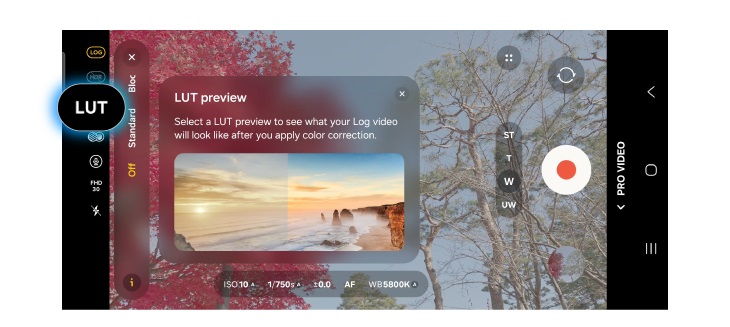
Filming with Samsung Log adjusts the gamma curve to secure a wider dynamic range, resulting in a flat appearance. It can be challenging to intuitively grasp how the final image's color and exposure will appear. To address this issue, the LUT preview feature allows real-time preview of color-corrected video.
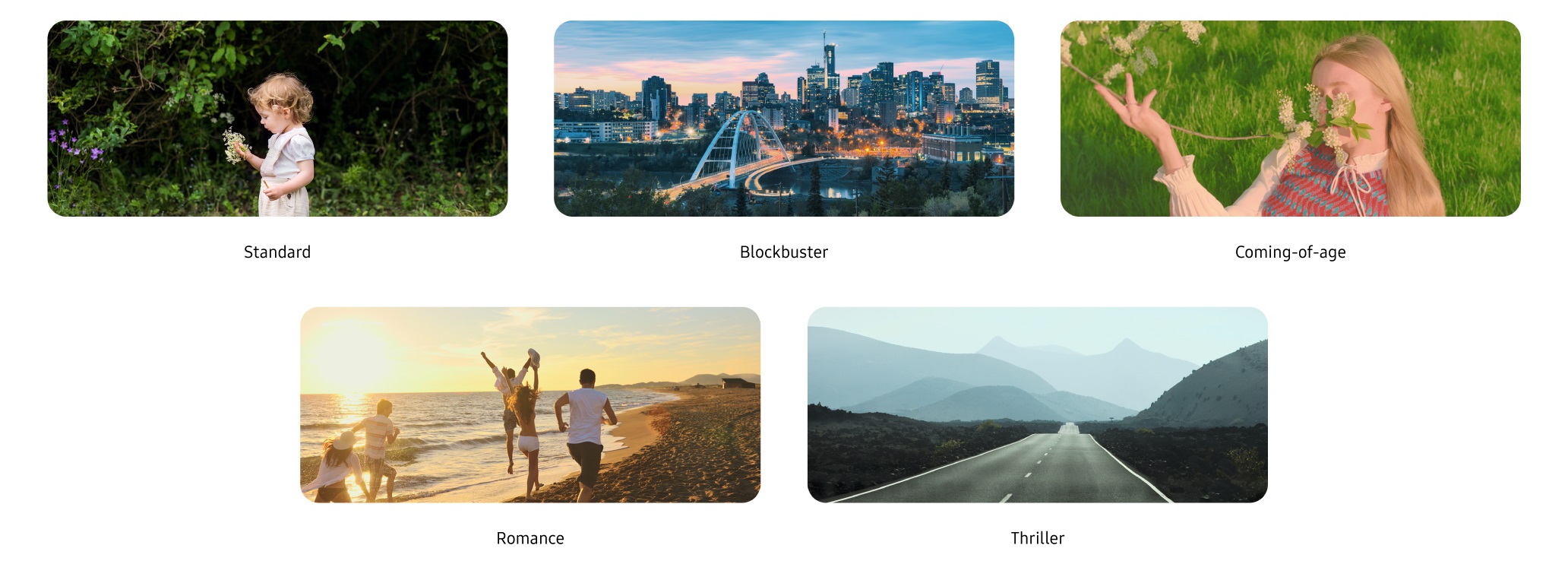
Users can select from various LUT presets to monitor, depending on the shooting environment and video purpose.
Standard: Provides a standard correction that maps video footage to the Rec.709 color space, allowing users to accurately check exposure and colors during shooting.
Cinematic LUT: Four creative styles are provided to allow users to preview a cinematic mood in real-time while shooting.
Blockbuster: Emphasizes Hollywood's signature orange and teal tones to create a cinematic look with more depth and tension.
Coming-of-age: Creates a mood often seen in coming-of-age films or K-pop music videos with calm pastel tones, soft contrast, and balanced color tones.
Romance: Uses soft, warm tones to render emotional moments for characters or create a romantic mood, suitable for reflective scenes.
Thriller: Creates an intense, dramatic effect by reducing saturation and increasing contrast to produce dark, gritty images.
※ Note: The LUT preview feature is intended to aid monitoring during filming. Users will see LUT-applied colors in previews, but the actual recorded video files are saved as original log footage without any LUT applied. This enables users to correct and grade colors as desired in post-production.
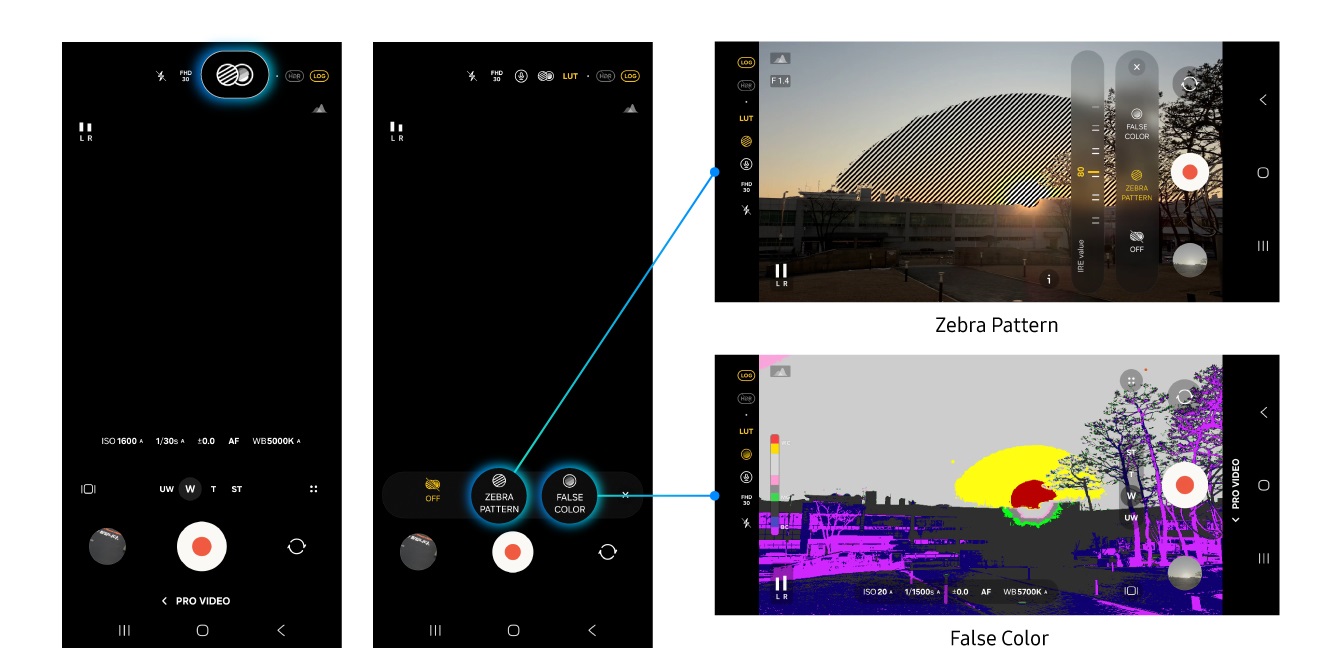
To easily check exposure during log filming, Samsung Log provides exposure monitoring features such as zebra patterns and false color, which assist with filming.
When used in conjunction with the LUT preview feature, users can precisely identify exposure values based on the corrected image, making it easier and more accurate to set appropriate exposure level even when shooting in log.
Zebra patterns are displayed in areas where exposure exceeds the pre-set value (70 to 100), easily identifying overexposed areas.
False color marks all areas in different colors based on exposure grade: red for overexposure, light green for proper exposure, and purple for underexposure, allowing you to see overall exposure at a glance.
These features can be toggled on or off at any time, before or during recording
Figure 7: Samsung Log Exposure Monitor
5) Editing Samsung Log Video Footage on Mobile
Samsung Log supports a seamless mobile workflow, from shooting to editing and sharing.
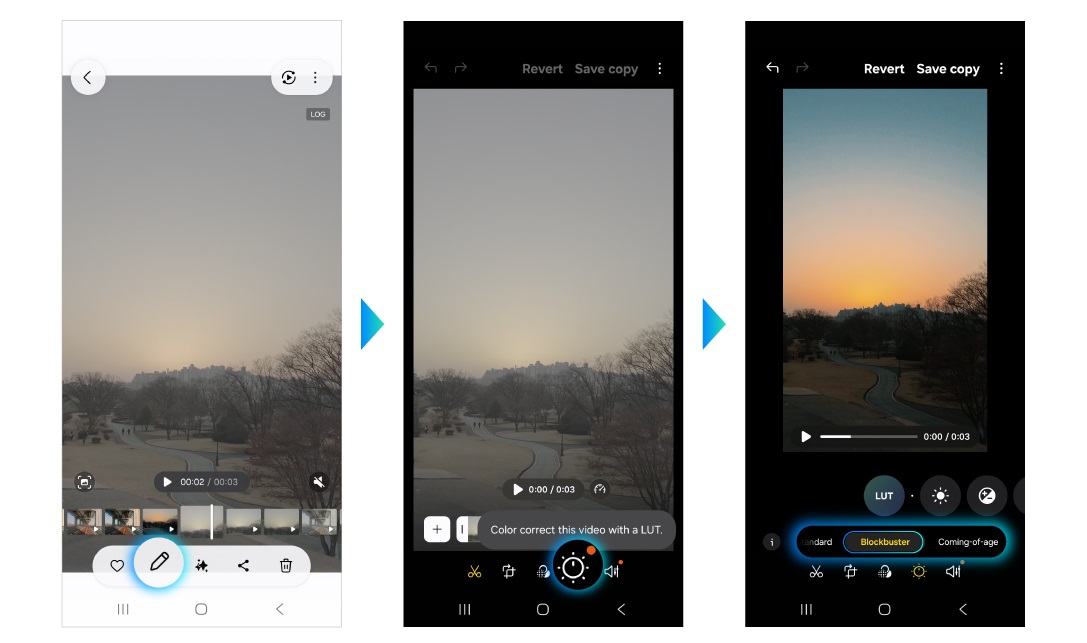
The LUT presets previewed during recording can also be applied in the Gallery application's editing menu while users process the original log data.
Users can use the 4 Cinematic LUTs (Blockbuster, Coming-of-Age, Romance, and Thriller) alongside tone adjustment features to apply a film look instantly and produce refined footage even in a mobile environment, without complex workflows.
※ Compared to videos filmed in Video mode, Samsung Log offers greater editing flexibility, allowing for more detailed shadow expressions and customized color tones.
Figure 8: Color Correction in Samsung Log
6) Editing Samsung Log Video Footage on PC
For professionals seeking more control in post-production, LUT files compatible with professional PC editing software such as DaVinci Resolve are provided. The LUT files can be downloaded via the link in the following section.
The Cinematic LUT package for PC offers an expanded library of 12 LUT types (three per style) to enable more detailed and precise color grading based on the four base styles available on mobile.
Three versions with varying intensities per style are provided, allowing users to choose an appropriate level according to their creative intent. Attributes such as color structure, contrast, and color density have been redesigned for each tone to achieve optimal results at each intensity level. This ensures the intended tone is achieved accurately without compromising the overall mood of the video footage.
LUT Style
Characteristics
Tone Intensity
Design Approach
Blockbuster
Strong contrast, cool/warm split
Neutral – Strong1 - Strong2
Contrast adjustment by stage, adjustment of color temperature balance (between highlights and shadows) and color density
Coming-of-age
Low saturation, soft contrast
Soft2 - Soft1 - Neutral
Differential design of saturation and luminance balance in highlights/shadows to prevent a flat look
Romance
Focused on warm tones, detail preservation in highlights, reduced excessive weight in shadows
Soft – Neutral - Strong
Rebalancing of color temperatures and saturation/color density to minimize tonal fatigue
Thriller
Low saturation, high contrast, emphasis on shadows
Neutral - Strong1 - Strong2
Differential design of saturation and luminance balance in highlights/shadows
Table 1: Characteristics of Each LUT Style
3. Samsung Log Profiles and LUT
Samsung Log White Paper_En.pdf
Samsung Log to Linear 1DLUT_v1.0.cube
Samsung Log to Rec709 3DLUT_v1.0.cube
Samsung Log to CineLUT Rec709_v1.0.zip
4. Samsung Log Support Information
Support Information
Samsung Log
Filming device
Galaxy S26/S25/S24 series, Z Fold 7/6, Z Flip 7/6, Z Flip 7 FE
Resolution
All
Codec
10bit HEVC, APV (S26 Ultra only)
Modes
Pro Video mode Video mode (Log option needs to be enabled in “Camera” settings)
※ Details, including supported devices and features, are subject to change based on company policies.
※ Note: The APV codec is only available on the Galaxy S26 Ultra as it requires hardware support. Existing models do not support this codec, as it cannot be enabled with software updates.
Manage Your Cookies
We use cookies to improve your experience on our website and to show you relevant
advertising. Manage you settings for our cookies below.
Essential Cookies
These cookies are essential as they enable you to move around the website. This
category cannot be disabled.
Company
Domain
Samsung Electronics
developer.samsung.com, .samsung.com
Analytical/Performance Cookies
These cookies collect information about how you use our website. for example which
pages you visit most often. All information these cookies collect is used to improve
how the website works.
Company
Domain
Samsung Electronics
.samsung.com
Functionality Cookies
These cookies allow our website to remember choices you make (such as your user name, language or the region your are in) and
tailor the website to provide enhanced features and content for you.
Company
Domain
Samsung Electronics
developer.samsung.com, google.account.samsung.com
Preferences Submitted
You have successfully updated your cookie preferences.