The APV (Advanced Professional Video) codec is an open-source, visually lossless, high-quality video codec for professionals that has been developed independently by Samsung. The codec is designed to support the workflow from video production through post-processing and it enables high-quality video recording with professional-grade YUV422 color reproduction. It also has the advantage of minimizing image degradation during re-encoding.
Compression efficiency: APV has roughly 10% more efficient compression compared to other codecs at comparable image quality
Hardware/software specifications supported: Galaxy S26 Ultra devices with Android OS 16 or later
Compatibility: Compatible with major multimedia frameworks including FFmpeg
The Galaxy S26 Ultra supports APV 422 HQ and APV 422 LQ profiles.
APV 422 HQ: Provides enhanced details and color accuracy, making it suitable for high-quality video recording.
APV 422 LQ: File size is about half of the HQ, suitable for when you need files to be smaller and workflow lighter.
APV Bitrate
The APV codec uses a higher bitrate than the HEVC to provide high-quality image resolution.
Resolution
FPS
APV 422 HQ
APV 422 LQ
HEVC HDR
HD (1280x720)
30
98Mbps
50Mbps
9Mbps
FHD (1920x1080)
24
158Mbps
81Mbps
12Mbps
30
198Mbps
101Mbps
12Mbps
60
396Mbps
202Mbps
20Mbps
120
792Mbps
404Mbps
32Mbps
4K (3840x2160)
24
637Mbps
325Mbps
35Mbps
30
796Mbps
406Mbps
35Mbps
60
1,592Mbps
812Mbps
52Mbps
120
3,184Mbps
1,624Mbps
68Mbps
8K (7680x4320)
30
3,184Mbps
1,624Mbps
96Mbps
Table 1-2 APV Bitrate
APV Recording Types
The APV codec provides two types of recording options:
HDR : Leverages a wide dynamic range to accurately capture both highlights and shadows, reproducing vivid colors and rich details.
Log : Records using the Samsung Log gamma curve to ensure exposure latitude during recording and maximize visual information for post-production color grading.
2. Capturing APV Videos
Galaxy S26 Ultra supports high-quality recording at resolutions up to 8K, ideal for films, commercials, YouTube, and short-form content.
Storage devices: Both internal and external storage devices supported for all resolutions.
※ Internal storage must have at least 10% free space to continue recording.
How to Enable APV
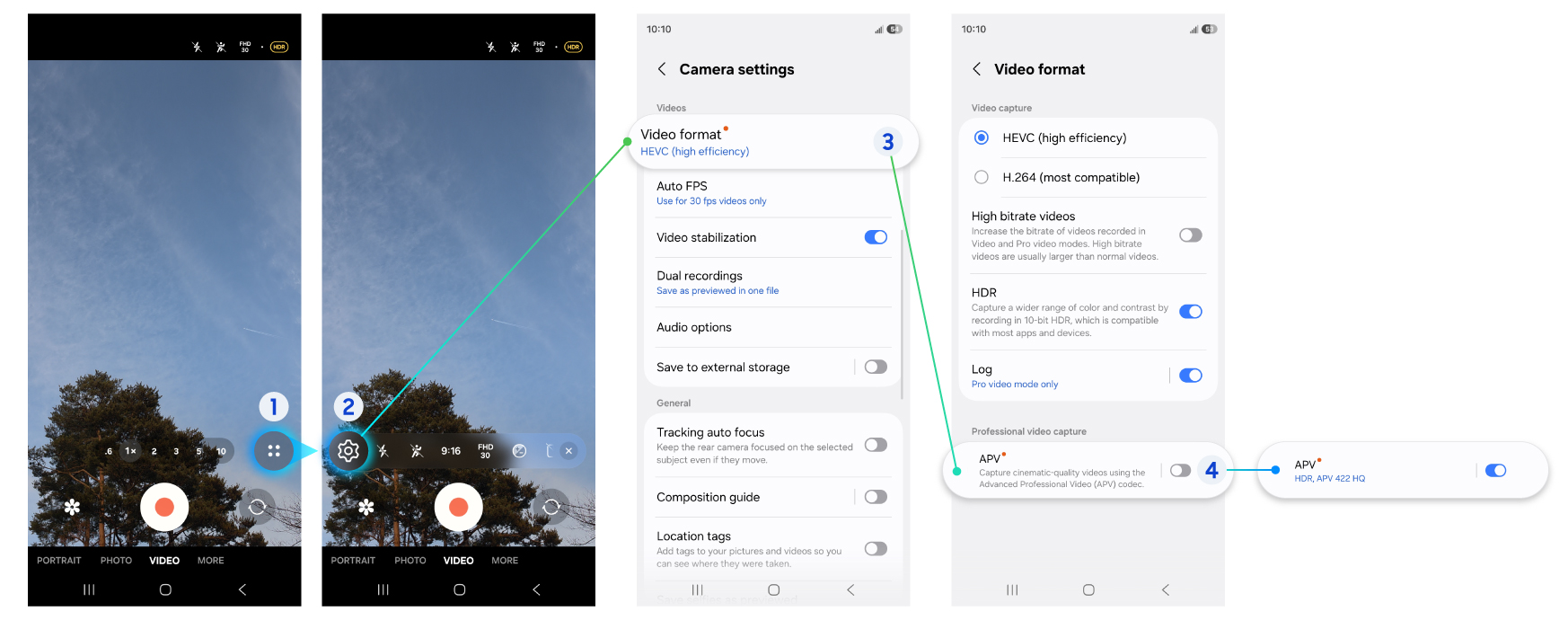
To enable the APV codec for video capture:
Select Camera settings > Video format, and enable the APV option under the Professional video capture heading.
Figure 2-1 APV Settings
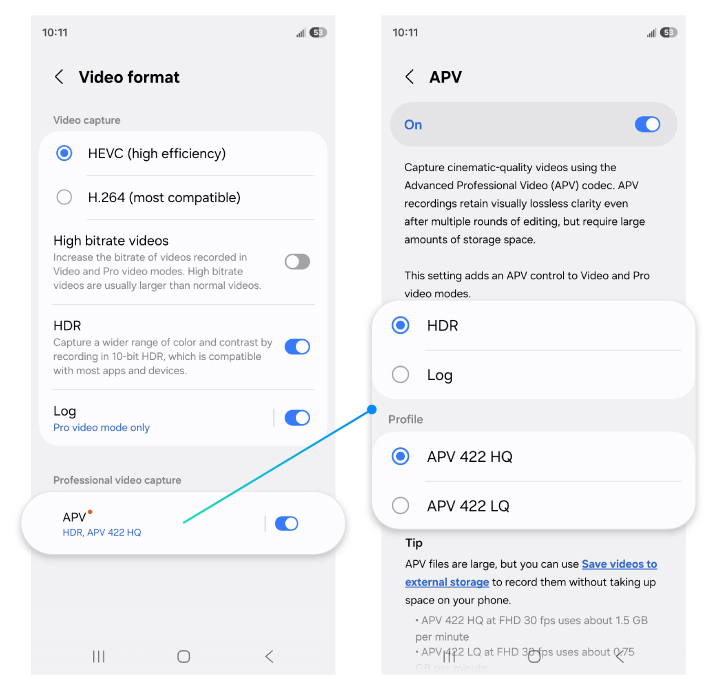
Go to the detailed settings menu to select the profile and video mode to use.
Figure 2-2 APV Settings details
※ The option is set to APV HDR by default. If you need to record the Log video, you can change it under Camera settings > Video format > APV detailed settings.
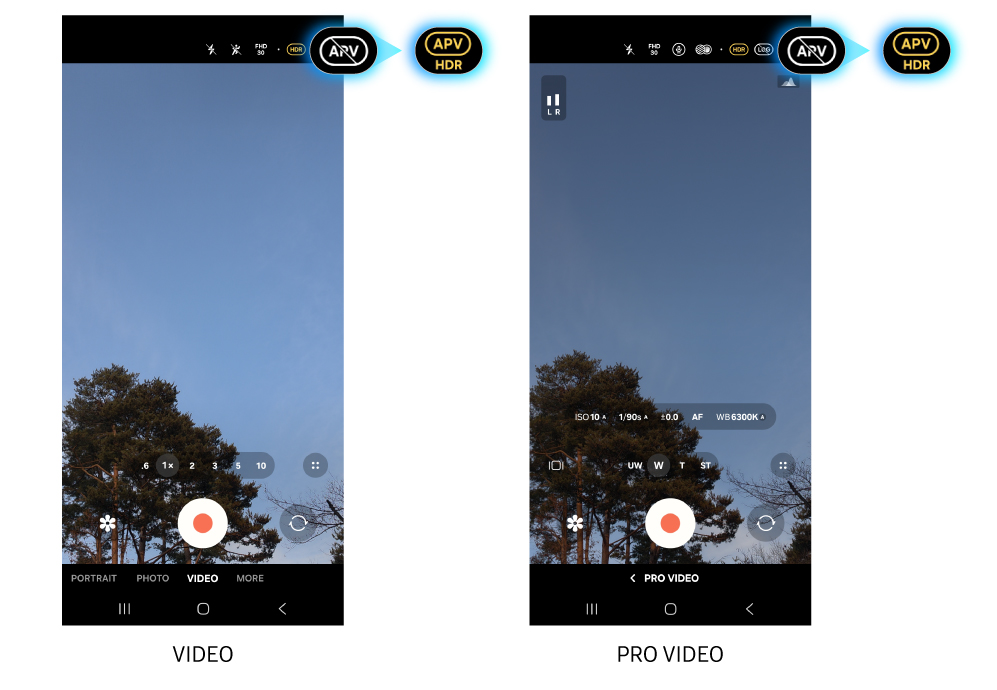
Select APV in the quick settings menu at the top of the camera preview screen.
Figure 2-3 APV Quick Settings
Recording to External Storage Devices
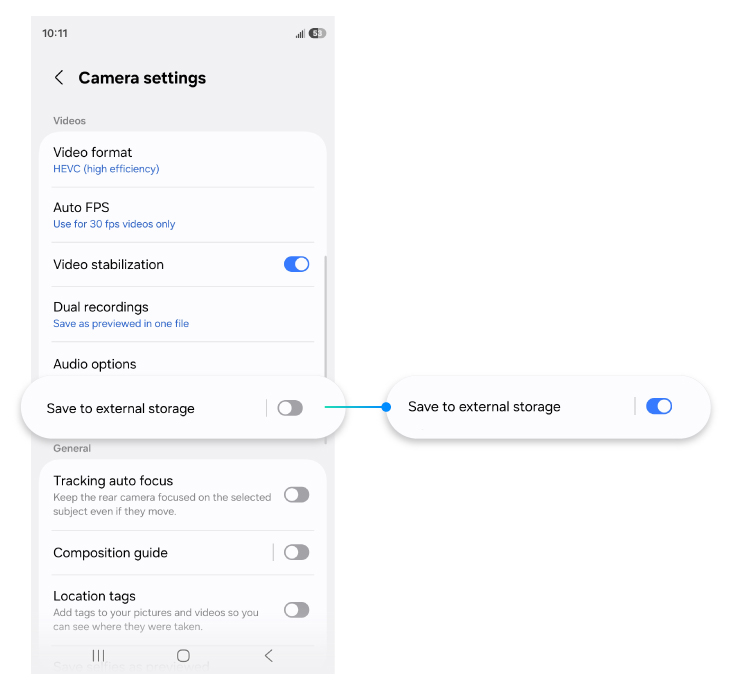
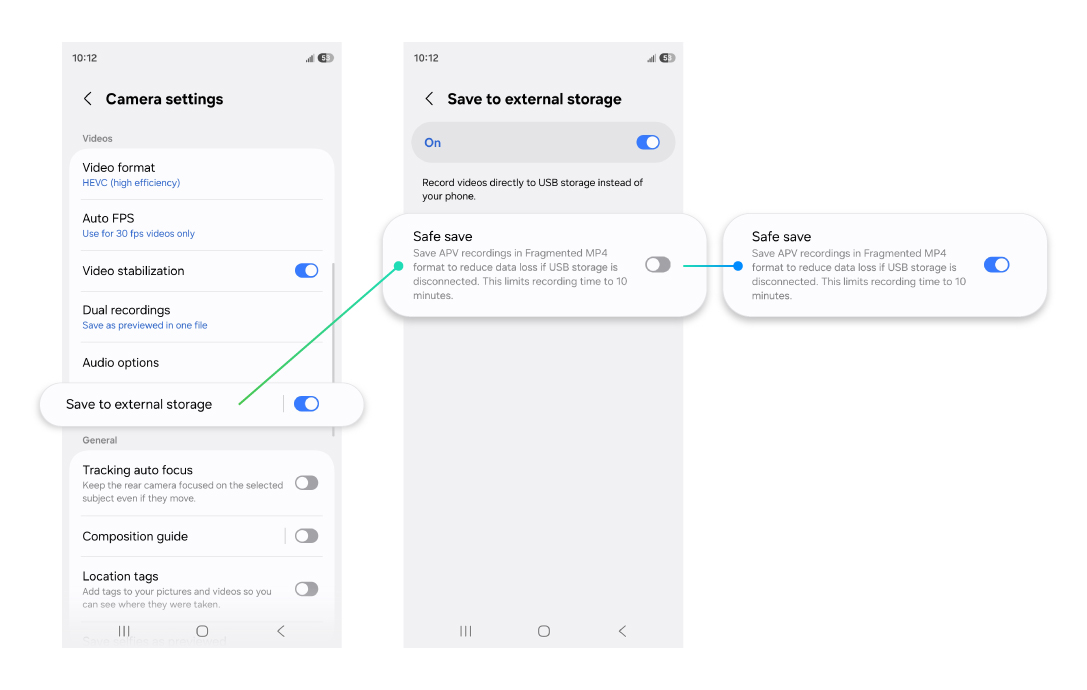
FHD 30fps recording with the APV 422 HQ profile requires about 1.5GB of storage space per minute. Using an external storage device allows you to record as long as necessary, even if there is insufficient internal storage available. Transferring and copying files are also easier, as you can separate the external storage from your mobile device after recording and connect it directly to your professional editing equipment. To use an external storage, select Camera settings > Save to external storage.
※ If an external storage is not connected, the video is saved to the internal memory even with the Save to external storage option enabled.
※ The recording will stop if the external storage runs out of space or is disconnected during recording.
Figure 2-4 External storage settings
When using an external storage, the video recorded can be damaged or deleted if the cable connection is lost during recording. It is recommended to use the "Safe save" feature to prevent this. This feature allows the video to be saved up to the moment of an unexpected disconnection, even if the external storage is disconnected during recording. However, recording time may be limited, and the format of the saved file may be different, which can result in reduced compatibility with some video players or editors.
Figure 2-5 External storage settings details
Specifications and recommendations for recording using external storage:
Cable: USB 3.0 or later (minimum speed of 10Gbit/s recommended)
File systems supported: exFAT (encrypted drives are not supported)
Minimum requirement per resolution:
UHD 120fps, 8K 30fps: External storage with a minimum write speed of 400 MB/s and support for up to 4.5 W power draw required
UHD 60fps or lower: External storage with a minimum write speed of 200 MB/s and support for up to 4.5 W power draw required
Recommendations:
It is recommended to format the external storage before starting recording for optimal performance.
Recording may stop if the write speed does not meet the recommended specifications. Using a high-speed SSD is strongly recommended.
Ensure that the SSD is securely connected to the cable to prevent any connection issues.
3. Using APV on Mobile Devices
It is designed to be easy and comfortable to use for both experts and non-experts.
Playback
APV is a new video codec designed to high- quality video and requires hardware (HW) codec support for smooth playback.
On devices that do not support the APV hardware codec, videos can still be played using a software (SW) codec. However, thumbnails may not appear, and playback issues such as stuttering or interruptions may occur. Playback quality may also vary depending on device performance and playback conditions.
For the best APV viewing experience, playback on a device that supports the APV hardware codec (Galaxy S26 Ultra) is recommended.
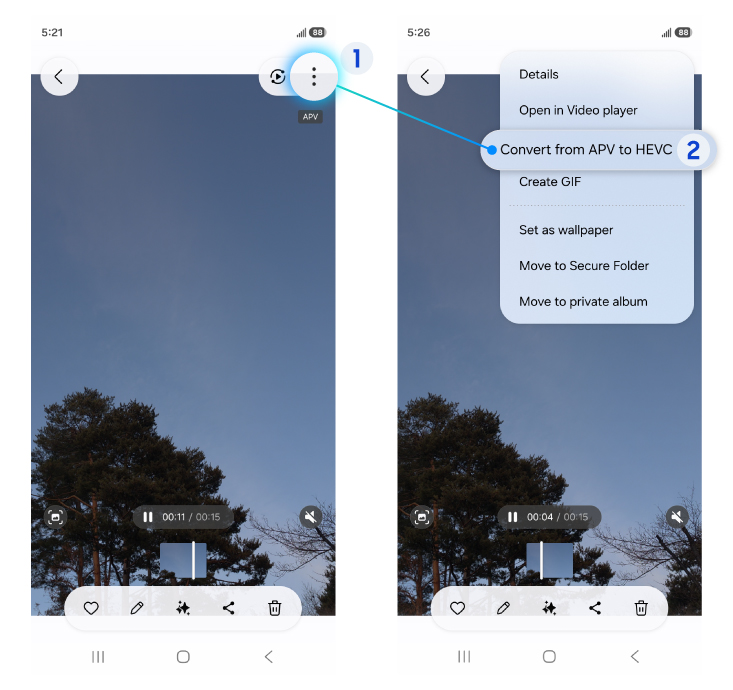
If you need to transfer videos to a device that does not support the APV codec, please use the APV to HEVC conversion menu available in the Galaxy S26 Ultra Gallery app to ensure smoother playback.
Samsung Gallery app > Menu > Convert from APV to HEVC
※ Please note that video quality may be reduced during the compression process.
Figure 3 Gallery APV to HEVC menu
Editing
Similar to other video formats, APV supports standard editing functions such as trim, transform, Tone, Audio editing. You can also change the resolution, video format, and so on using the Size and format menu. In addition, you can use the LUT (Look-Up Table) menu to grade colors quickly in APV Log files.
※ Galaxy S26 Ultra supports LUT editing for APV Log files. (Reference: Samsung Log Video )
Compatibility
Editing: LumaFusion supports editing. CapCut currently supports only HDR, with Log support coming soon.
Social media: Sharing through and uploading to social media channels such as YouTube, Instagram, KakaoTalk are available.
4. Using APV on PC
Playback
APV videos can be played using video players that support FFmpeg version 8.0 or later, such as FFplayer, MPV Player and PotPlayer.
Editing
The APV codec is optimized for professional workflows.
It can be used in DaVinci Resolve version 20.2 or later.
Manage Your Cookies
We use cookies to improve your experience on our website and to show you relevant
advertising. Manage you settings for our cookies below.
Essential Cookies
These cookies are essential as they enable you to move around the website. This
category cannot be disabled.
Company
Domain
Samsung Electronics
developer.samsung.com, .samsung.com
Analytical/Performance Cookies
These cookies collect information about how you use our website. for example which
pages you visit most often. All information these cookies collect is used to improve
how the website works.
Company
Domain
Samsung Electronics
.samsung.com
Functionality Cookies
These cookies allow our website to remember choices you make (such as your user name, language or the region your are in) and
tailor the website to provide enhanced features and content for you.
Company
Domain
Samsung Electronics
developer.samsung.com, google.account.samsung.com
Preferences Submitted
You have successfully updated your cookie preferences.