Create multiple premade watch face designs in a single project
Objective
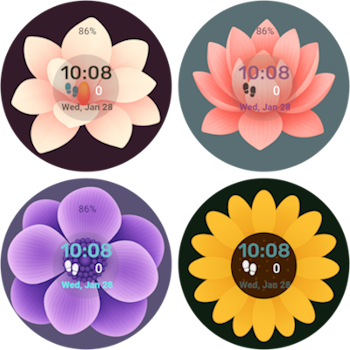
Learn how to create various watch face designs within a single project using the Premade feature in Watch Face Studio, allowing users to select and customize them from the Galaxy Wearable app.
Overview
Watch Face Studio (WFS) is a graphic authoring tool designed for creating watch faces compatible with the Wear OS ecosystem, including Galaxy Watch4 and later models.
One of the features of WFS that enables you to create innovative watch face designs is the Style feature. This feature allows you to modify layer styles, define customizable image styles, and use theme color palettes. The Customization Editor helps you refine, organize, name, and preview these styles for user customization.
TipTry out this Code Lab about style customization to learn more.
In Customization Editor, you can combine styles and components to create Premade designs. A Premade specifies a set of configuration values, grouped as a preset. Users can choose from the created premade designs in the companion app.
Set up your environment
You will need the following:
- Watch Face Studio (Version 1.9.5 or higher)
- Galaxy Watch or smartwatch running on Wear OS 5 or higher
Sample Project
Here is a sample project for this Code Lab. Download it and start your learning experience!
Premade Watch Face Sample Project (4.2 MB)
Start your project
To load the sample project in Watch Face Studio:
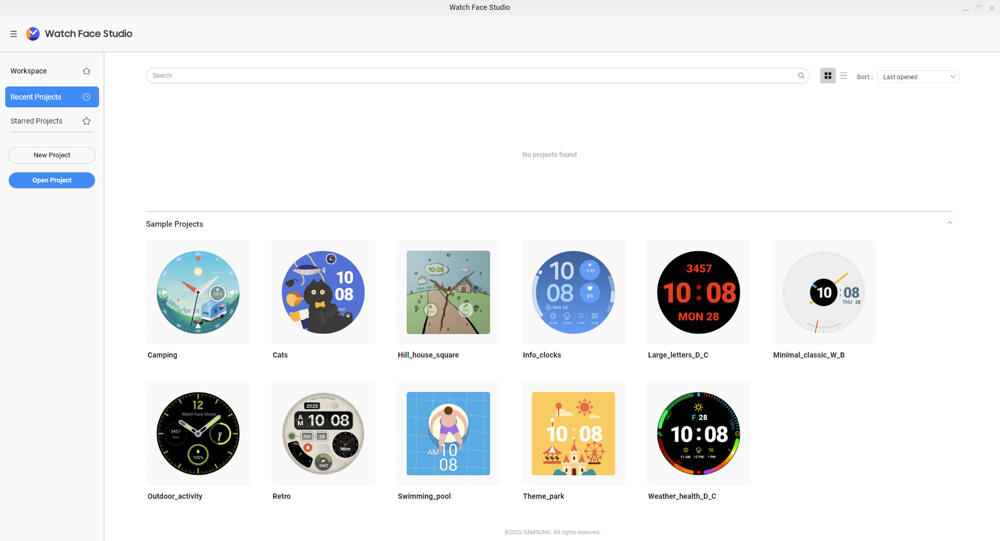
- Click Open Project in Watch Face Studio.
-
Locate and extract the downloaded sample project.
-
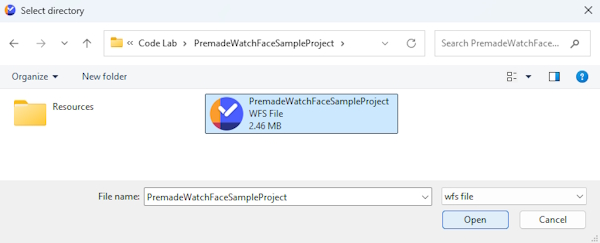
Select the WFS file, then click Open.
- Go to the Style tab and click on the Customization Editor button.
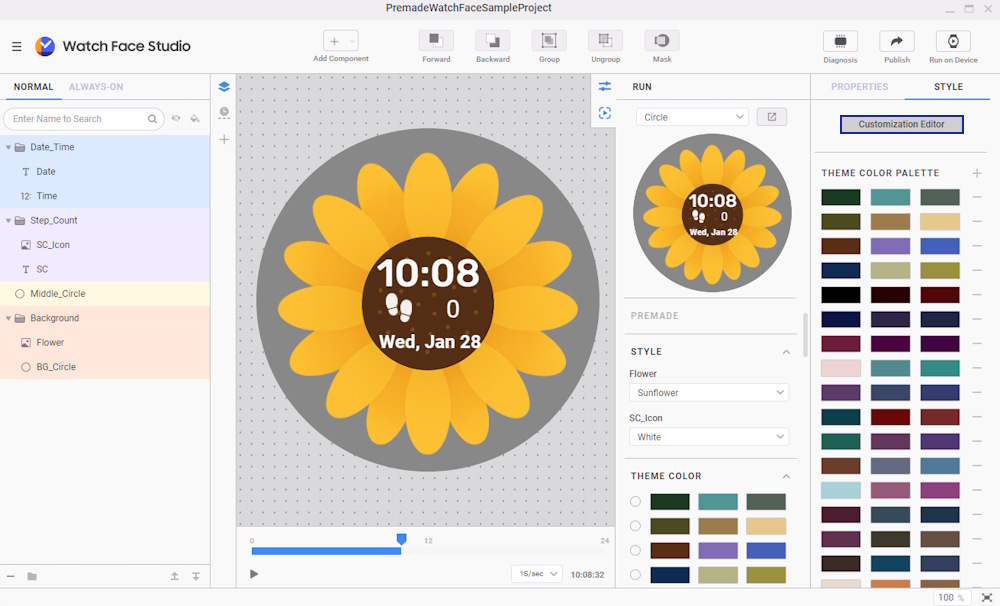
- Currently, only the default watch face design (with a sunflower as the background image, a white step count icon, no complications, and no theme color) is present in the premade collection.
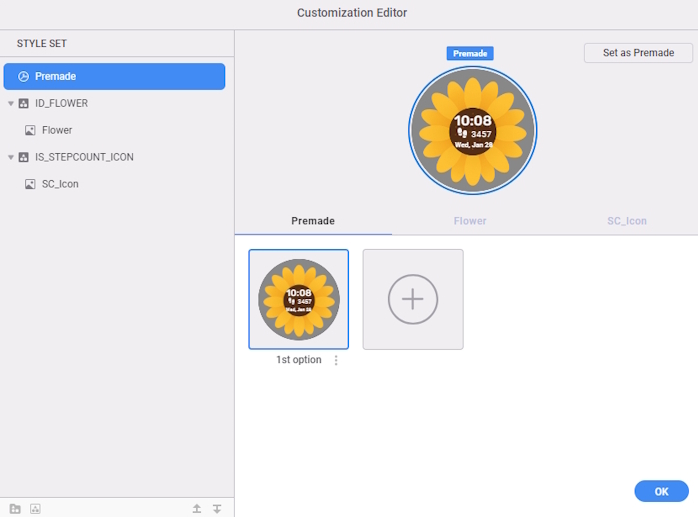
- Click OK to return to the canvas.
Add background image and step count icon styles
In WFS 1.9.5, you can add preset images to use for premade design.
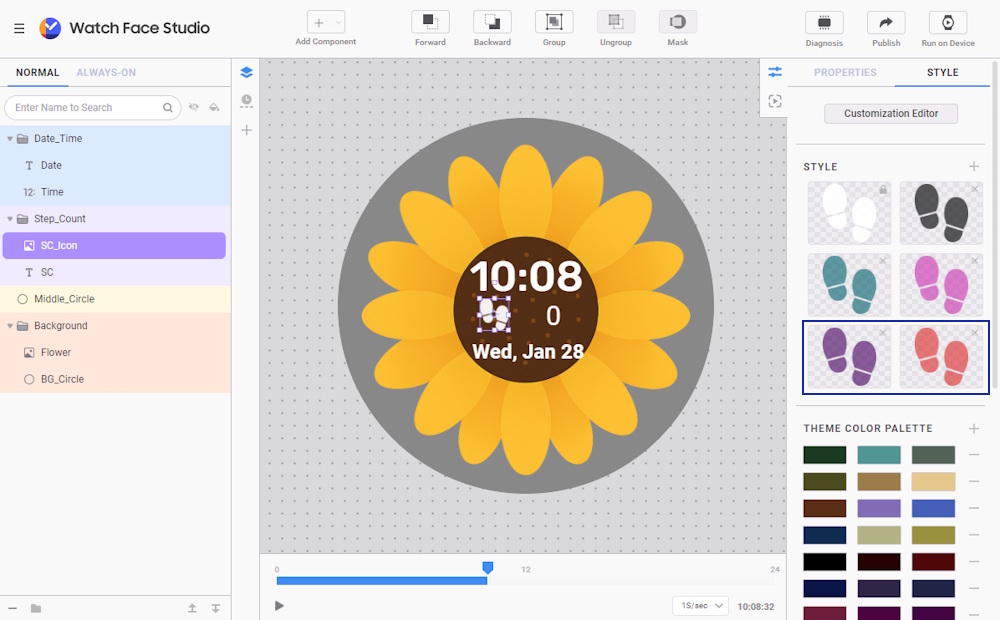
The sample project includes three flower images (sunflower, cherry, and lotus) as the background and four different colored step count icons. You can add more background and icon images by following the steps below:
-
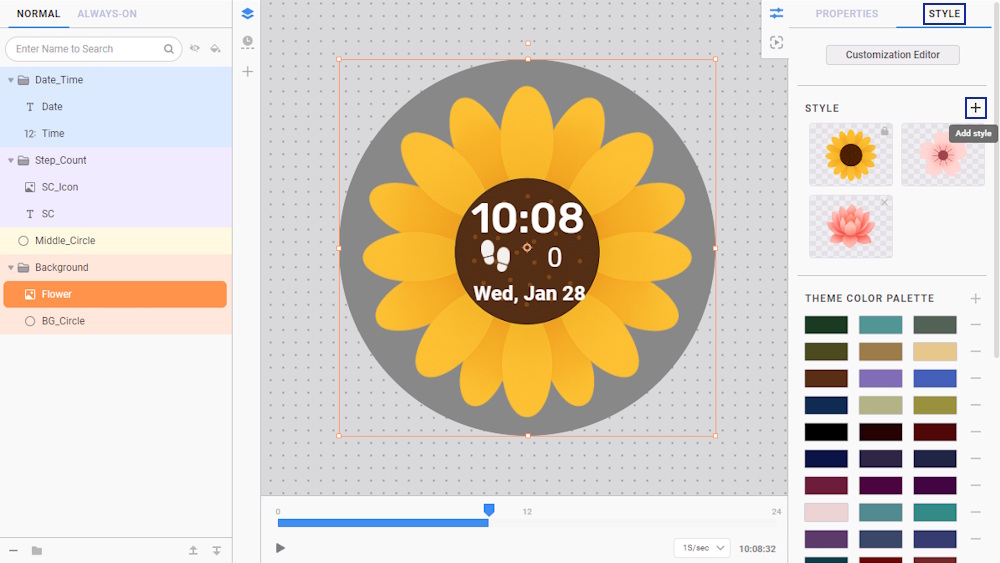
Select the Flower layer from the layer list.
-
From the Style tab, click the + icon to add a new image.
-
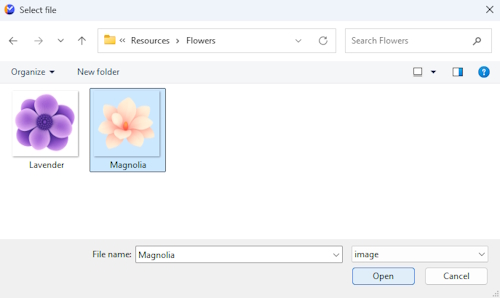
Navigate to the Resources > Flowers folder included in the downloaded sample project.
-
Select the Magnolia.png image.
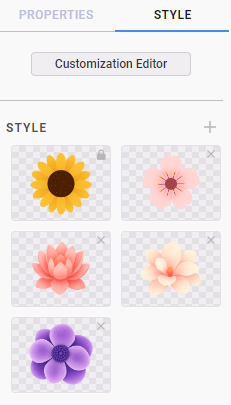
- Repeat the steps above to add the Lavender.png image.
-
Next, select the SC_Icon layer.
-
From the Style tab, click the + icon to add a new image.
-
Then, add SC_Indigo.png and SC_Red.png from Resources > Step Count folder.
Assign theme colors to selected layers
You can configure the theme color palette for a premade design.
The sample project includes 21 predefined theme colors, offering a variety of options to enhance the visual appeal of your watch faces. Each palette can have up to three colors, and each color can be assigned to different layers.
To assign a theme color, follow these steps:
-
Select the BG_Circle layer from the layer list.
-
Toggle the Theme Color icon once to assign the first color of each palette to BG_Circle.
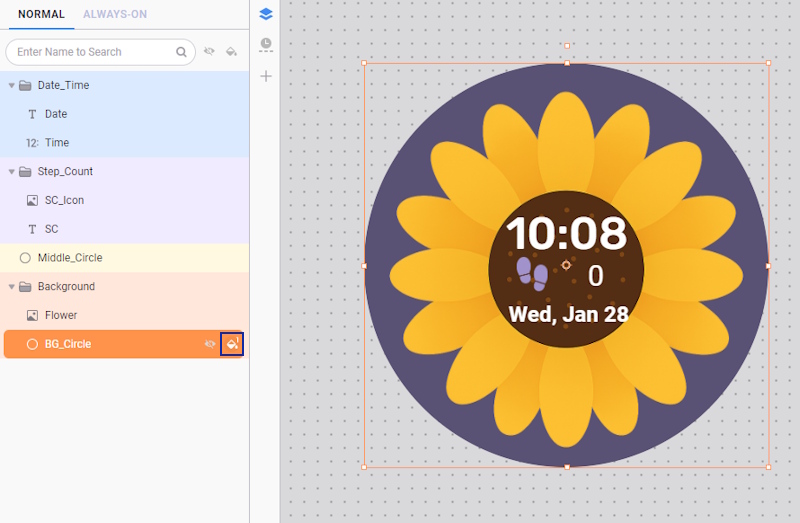
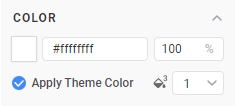
NoteYou can also select a theme from the Properties Tab > Fill. Enable Apply Theme Color and choose from the first to the third color.
-
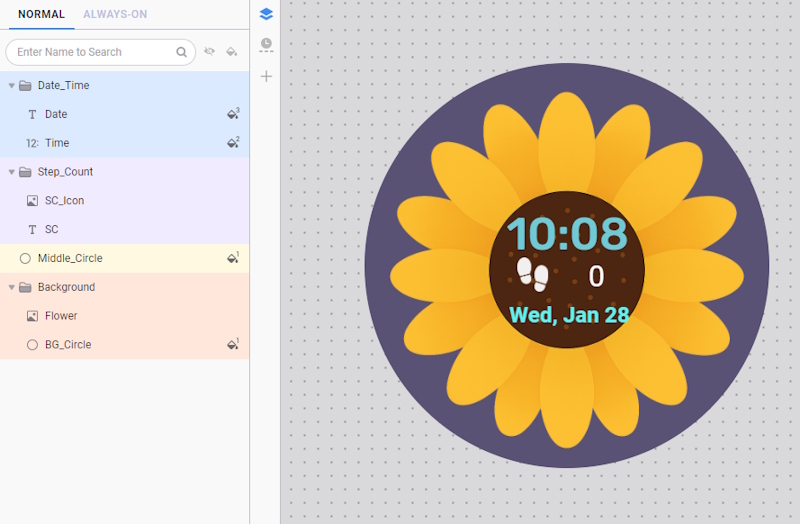
Repeat the steps for the following layers, but this time toggle the icon twice to assign the second color and three times to assign the third color:
- Date = third color
- Time = second color
- Middle_Circle = first color
Add complication
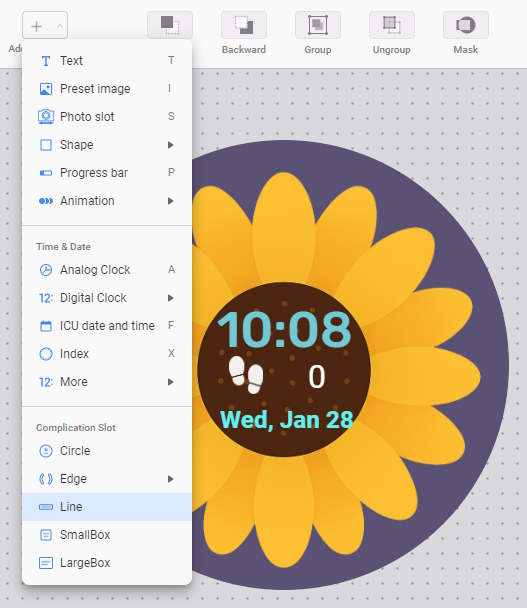
Complications are a popular component for displaying short information on watch faces and are also supported with the Premade feature. When you add a complication component to your design, you can assign its complication provider (such as watch battery, date, heart rate, etc.) to a premade design. Follow the steps below to add a complication to your watch face:
- Go to Add Component and choose Line Complication Slot.
-
Rename the newly added layer to Complication.
-
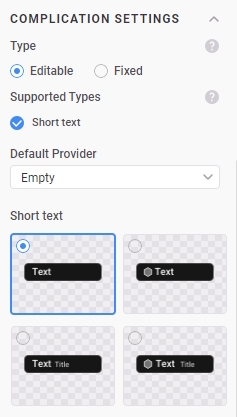
Under the Complication Settings properties, choose Text in the Short text layout.
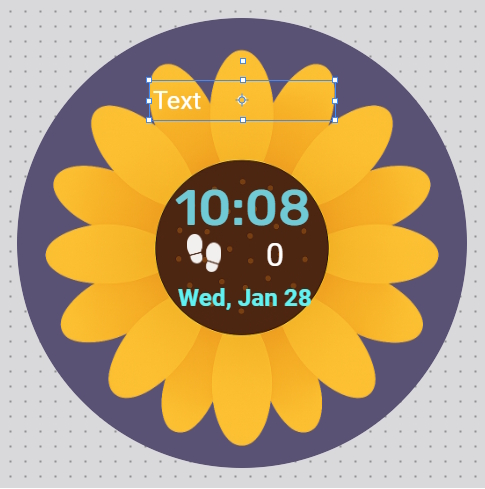
- Adjust the component's placement as below:
-
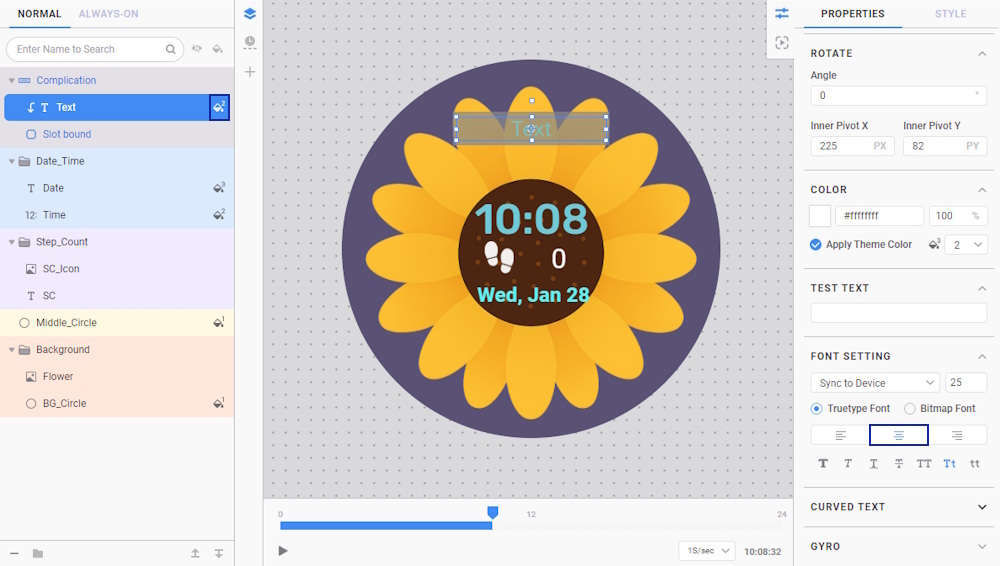
Expand the Complication layer.
-
Select the subcomponent Text and toggle the theme color icon twice to apply the second color.
-
In Font Setting properties of Text, choose center alignment.
Prepare premade watch face designs
You can now set different combinations of background image, step count icon, theme color, and complication provider as a premade design.
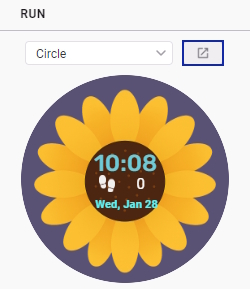
- Open the Preview Watch Face window from the Run panel to preview the premade design.
- Next, go to the Style tab and click the Customization Editor button.
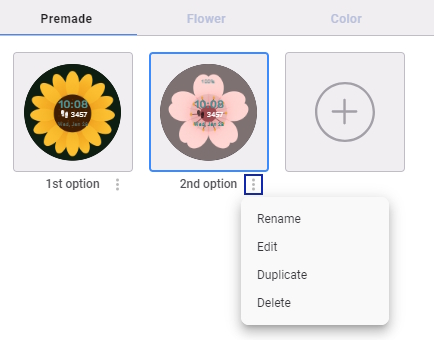
NoteBy default, a premade design is already created and named as the 1st option. This premade design cannot be edited or deleted, but you can change its name.
- Press the + button from the Premade tab or click the Set as Premade button to add a premade design.
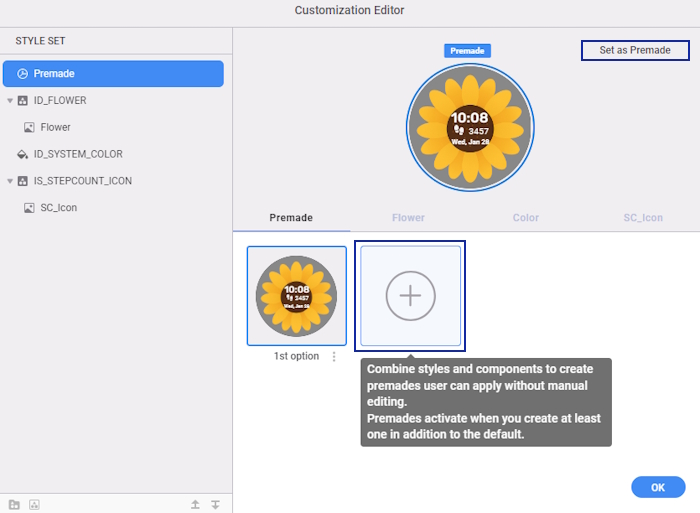
NoteThe + button and the Set as Premade button serve different purposes. The + option allows you to create a premade from the default watch face, while the Set as Premade option creates one from the currently selected styles.
-
In the Style section, choose a flower option as the background, a theme color option, and the color of the step count icon.
-
Then, choose the complication provider you want the premade design to use.
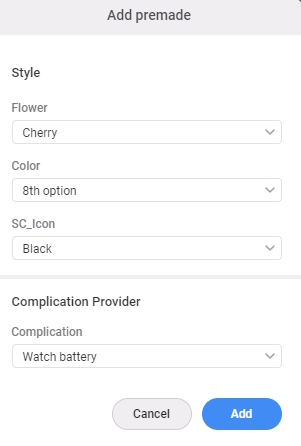
NoteBy default, the complication provider is set to Empty. If you prefer to skip showing complications for a particular premade design, you can leave it empty.
- Click Add to include the design in the premade collections.
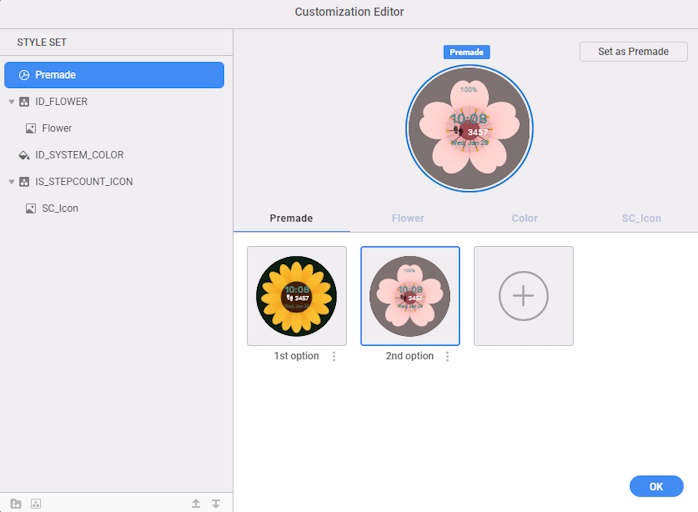
Each premade design has the following options:
- Rename: Change or assign a name to the premade design so the user can identify it easily.
- Duplicate: Copy the premade design for quick modification.
- Edit: Modify the style of the premade design.
- Delete: Remove the premade design from the collection.
Customize watch with premade designs
Follow the steps below to test and customize your watch face on a smartwatch:
-
Connect your watch to the same network as your computer.
-
In Watch Face Studio, select Run on Device.
-
Select the connected watch you want to test with.
-
If your watch is not detected automatically, click Scan devices to detect your device or manually enter its IP address by clicking the + button.
-
When the watch face is launched on the smartwatch, open the companion app on the connected mobile device.
-
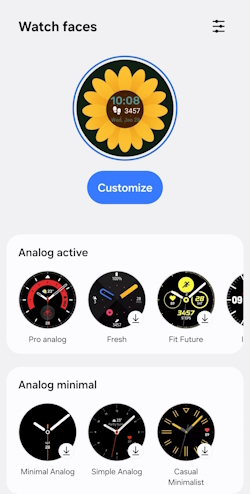
Go to Watch faces, and click Customize to modify the current watch face.
- In the Premade tab, select any design you want and click Save.
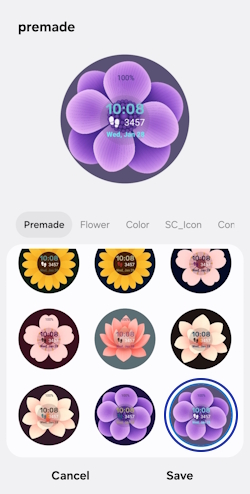
- You can further customize the premade design by choosing options in the Flower, Color, SC_Icon and Complication tabs.
You're done!
Congratulations! You have successfully achieved the goal of this Code Lab. Now, you can create a set of premade watch face designs in Watch Face Studio! If you're having trouble, you may download this file:
Premade Watch Face Complete Project (4.2 MB)
To learn more, explore Watch Face Studio.