Integrating RevenueCat with Samsung In-App Purchase for Galaxy Store Applications
Most Fowziya Akther Houya
Engineer, Samsung Developer Program
RevenueCat simplifies in-app purchases with a unified API for managing products, purchases, and entitlements across multiple application stores. If your Android application uses RevenueCat with Google Play Billing, you can now extend it to Galaxy Store for Samsung In-App Purchase (IAP).
Samsung IAP enables Galaxy Store developers to monetize applications through items and subscriptions via Samsung's secure payment platform. RevenueCat allows developers to manage products, entitlements, and subscription lifecycles from a single dashboard while Samsung IAP processes payments. This integration reduces back-end complexity and simplifies cross-platform monetization.
This blog covers the steps to integrate RevenueCat with Galaxy Store using product flavors, including the Galaxy Store build configuration, initializing RevenueCat with Samsung IAP, creating Samsung IAP products, adding the products to RevenueCat, and verifying the integration.
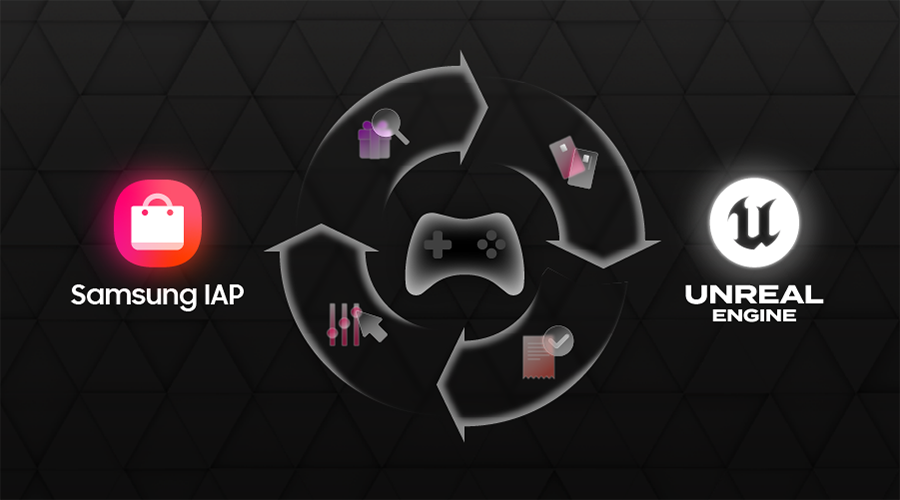
Below is the Galaxy Store setup flowchart:

Prerequisites
Before you begin integrating these services, ensure the following requirements are fulfilled:
Galaxy Store Requirements
- Galaxy Store Seller Portal account with the Commercial Seller status
- Seller Portal service account
RevenueCat Requirements
- RevenueCat account
- RevenueCat Project
- RevenueCat with Google Play
- SDK: Galaxy Store 10.7.0+, React Native 10.3.0+
1. Create a Galaxy Store Application in an Existing RevenueCat Project
RevenueCat lets one project hold multiple store applications. This allows a single set of applications to work across Google Play and Galaxy Store.
To begin using Galaxy Store with RevenueCat, in your existing RevenueCat project, add your Galaxy Store application.
-
In the RevenueCat dashboard, click Apps from the left-hand menu.
-
Choose Galaxy Store as the platform and enter:
- Application name
- Package name (same as your applicationId)
-
Enter the service account ID and upload the service account private key.
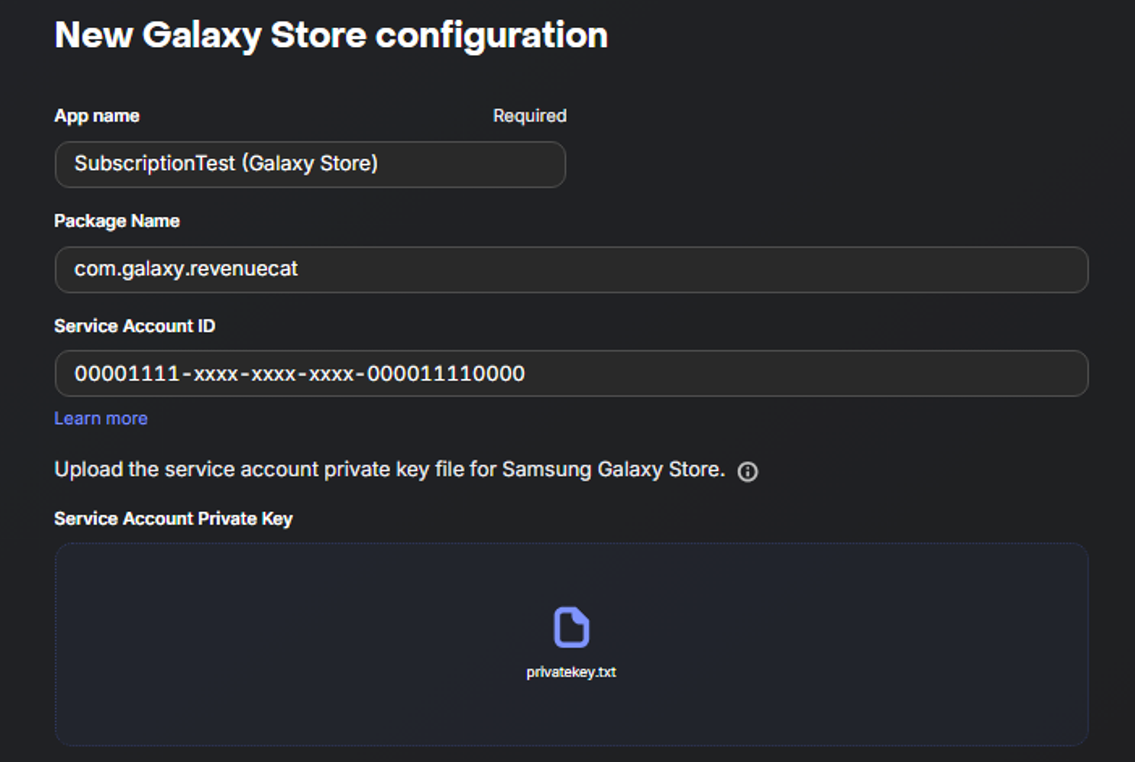
After completing this step, you can access the public API key for this application. This key enables RevenueCat to validate purchases and execute other necessary actions.

2. Extend the Project for Galaxy Store
Make your application compatible with Samsung IAP by using the RevenueCat SDK.
2.1 Use Flavor-scoped Dependencies
When building your project for Google Play and Galaxy Store, use product flavors to separate the builds. Define store-specific configuration values using buildConfigField so each flavor uses the appropriate keys. Configure each flavor with its own RevenueCat dependency.
android {
     …
    // RevenueCat Public SDK Keys
    val playStorePublicKey = "\"GOOGLE_PLAY_PUBLIC_API_KEY\""
    val galaxyStorePublicKey = "\"GALAXY_STORE_PUBLIC_API_KEY\""

    flavorDimensions += "store"

    productFlavors {
        create("playStore") {
            dimension = "store"

            buildConfigField("String", "STORE_NAME", "\"Google Play Store\"")
            buildConfigField("String", "RevenueCat_STORE", "\"PLAY_STORE\"")
            buildConfigField("String", "RevenueCat_PUBLIC_KEY", playStorePublicKey)
        }
        create("galaxyStore") {
            dimension = "store"

            buildConfigField("String", "STORE_NAME", "\"Galaxy Store\"")
            buildConfigField("String", "RevenueCat_STORE", "\"GALAXY_STORE\"")
            buildConfigField("String", "RevenueCat_PUBLIC_KEY", galaxyStorePublicKey)
        }
    }
}
Now, add the dependencies:
dependencies {
    add("playStoreImplementation", libs.RevenueCat.purchases.play)
    add("galaxyStoreImplementation", libs.RevenueCat.purchases.galaxy.core)
    add("galaxyStoreImplementation", libs.RevenueCat.purchases.galaxy)
}
This keeps the Google Play build free from Galaxy Store-specific billing libraries.
2.2 Add the SDK Dependencies
This step engages Samsung IAP support. No manual Samsung IAP SDK download or AAR file is needed. RevenueCat bundles everything via Maven.
The sample project uses a Gradle version catalog to keep dependency versions in one place. Navigate to gradle->libs.versions.toml
[versions]
revenuecat = "10.11.0"

[libraries]
# Core SDK used by the Galaxy Store flavor (must be 10.7.0+)
revenuecat-purchases-galaxy-core = { group = "com.revenuecat.purchases", name = "purchases", version.ref = "revenuecat" }
# Galaxy Store module — bring Galaxy Store in Samsung IAP support automatically
revenuecat-purchases-galaxy = { group = "com.revenuecat.purchases", name = "purchases-store-galaxy", version.ref = "revenuecat" }
2.3 Initialize RevenueCat with GalaxyConfiguration
The Galaxy Store setup differs from the usual setups in other stores. For example, Google Play uses PurchasesConfiguration, but the Galaxy Store uses a dedicated GalaxyConfiguration object.
Because each flavor needs a different configuration class, the project uses a RevenueCatConfigurationFactory with a flavor-specific implementation in each source set.
The RevenueCatConfigurationFactory.kt file is located at: src/galaxyStore/.../RevenueCatConfigurationFactory.kt
object RevenueCatConfigurationFactory {
    fun build(context: Context, publicSdkKey: String): PurchasesConfiguration {
	// Keep TEST for Samsung IAP test purchases
        return GalaxyConfiguration.Builder(context, publicSdkKey, GalaxyBillingMode.TEST).build()
              //switch to PRODUCTION before beta/production distribution.
        //return GalaxyConfiguration.Builder(context, publicSdkKey, GalaxyBillingMode.   PRODUCTION).build()
    }
}
2.4 Add Initialization Logic
To call the factory to get the correct configuration, use the RevenueCatManager class for both flavors.
class RevenueCatManager(private val context: Context) {
    val storeName: String = BuildConfig.STORE_NAME
    val productId: String = BuildConfig.RevenueCat_PRODUCT_ID
    val entitlementId: String = BuildConfig.RevenueCat_ENTITLEMENT_ID
    val offeringId: String = BuildConfig.RevenueCat_OFFERING_ID

    fun initialize(): RevenueCatStatus {
        if (!Purchases.isConfigured) {
            Purchases.logLevel = LogLevel.DEBUG
            Purchases.configure(
                RevenueCatConfigurationFactory.build(context, BuildConfig.RevenueCat_PUBLIC_KEY)
            )
        }
        return RevenueCatStatus(
            isConfigured = true,
            hasThemeAccess = false,
            message = "RevenueCat configured for $storeName.",
        )
    }
}
3. Create IAP products in Seller Portal
Now create an application in Galaxy Store Seller Portal.
3.1 Upload a Binary File
To create IAP products, you must first upload a binary file. It is not necessary to submit the binary file for review.
Build the application using the galaxyStore product flavor.
Check this Application Binary Registration guide to upload the binary file.
3.2 Create an IAP Product
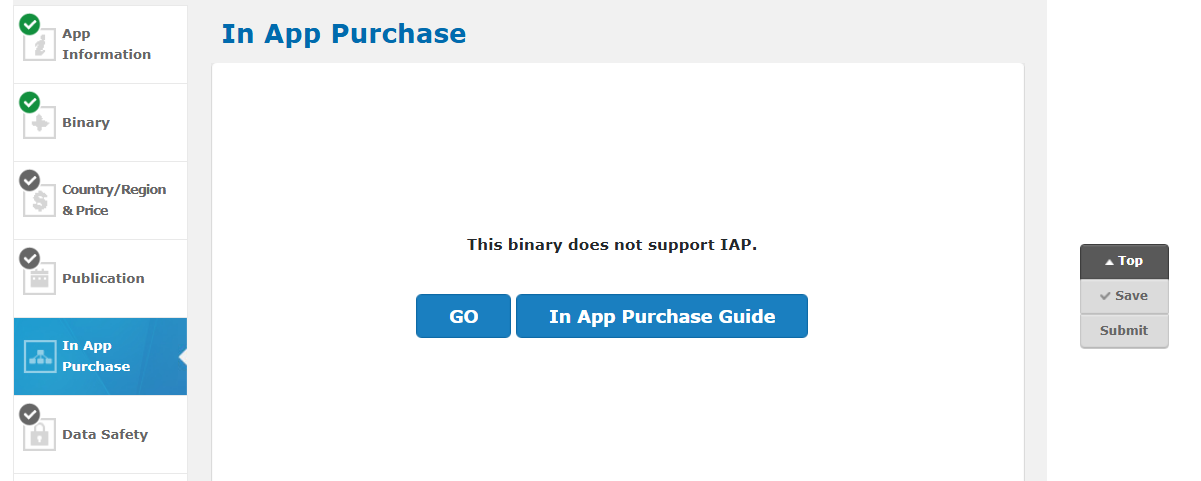
The uploaded binary must include the Samsung IAP integration. The RevenueCat Galaxy Store SDK provides the required Samsung IAP compatibility. Without this integration, you encounter an error similar to the one shown below when you create IAP products:
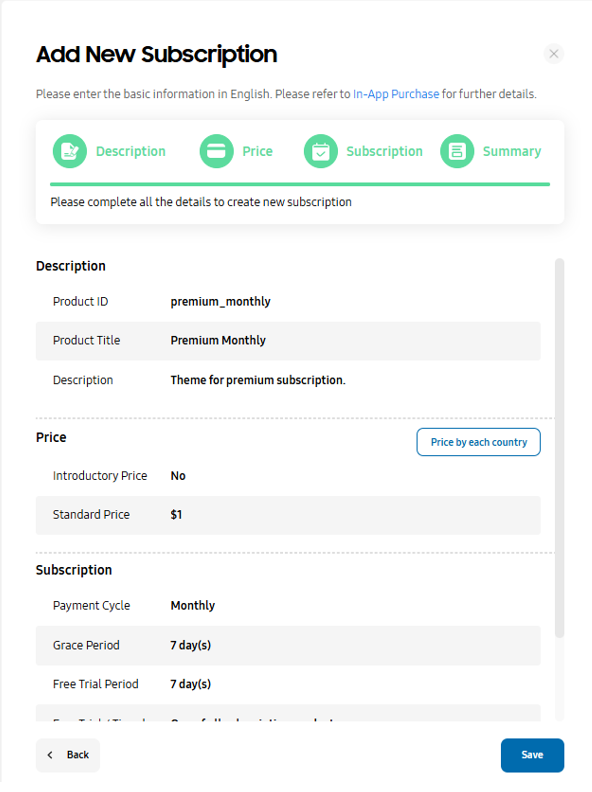
To add a subscription, follow the steps below (this article demonstrates adding a monthly subscription):
- After you have uploaded the binary file, navigate to the In-App Purchase tab.
- Press on Add New Product.
- Select Subscription from the pop-up window.
- Set the product ID to the app's product ID used in Google Play.
- Add a product title and description.
- Press Next and set the price.
- Add the payment cycle.
- Review the configuration and save it.
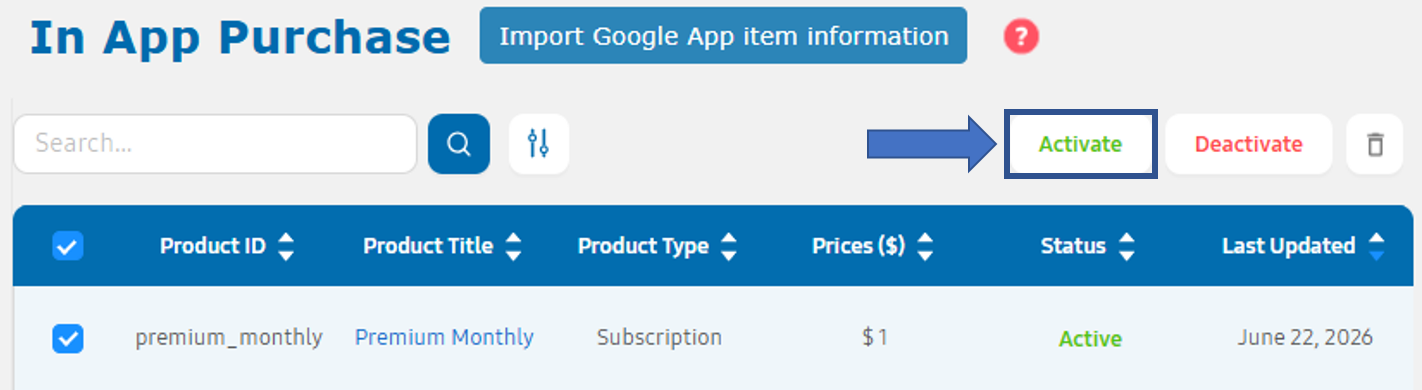
- Select the product and click Activate
4. Map the products in RevenueCat
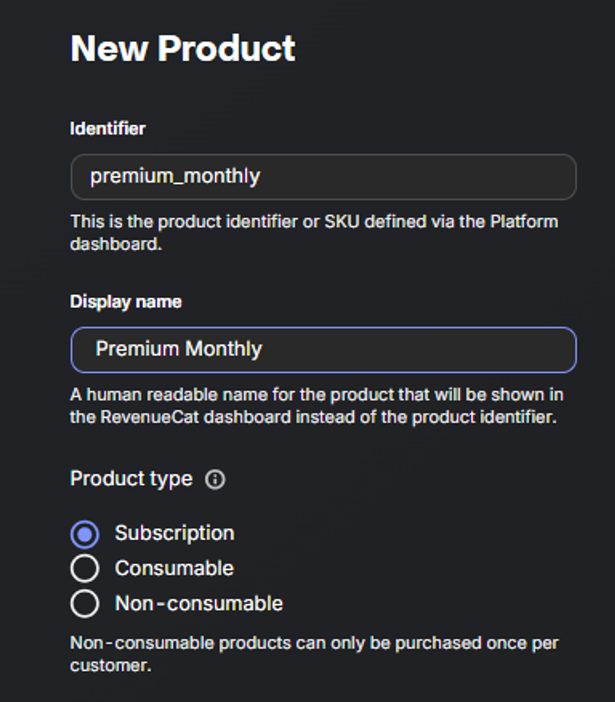
Create and activate your product in the RevenueCat product catalog by following the steps below:
- In the RevenueCat dashboard, navigate to: Product catalog → Products.
- Select the Galaxy Store tab.
- Click + New product .
- Enter the product's Identifier (the Product ID from Galaxy Store) and Display name.
- Select the product's type as Subscription.
The flow: User purchases a product → Unlocks an entitlement → You check the entitlement to grant access.
In the next step, you can attach this product to an entitlement to define what access it unlocks for your users.
- In the Entitlements page, click on your entitlement.
- Click Attach in the Products section.
5. Test the Integration with Remote Test Lab
Galaxy Store supports two ways for testing Samsung IAP:
- Physical Galaxy device: Install the Closed Beta Test app.
- Remote Test Lab (RTL): Check the Using Remote Test Lab with Android Studio blog to test the application using an RTL device.
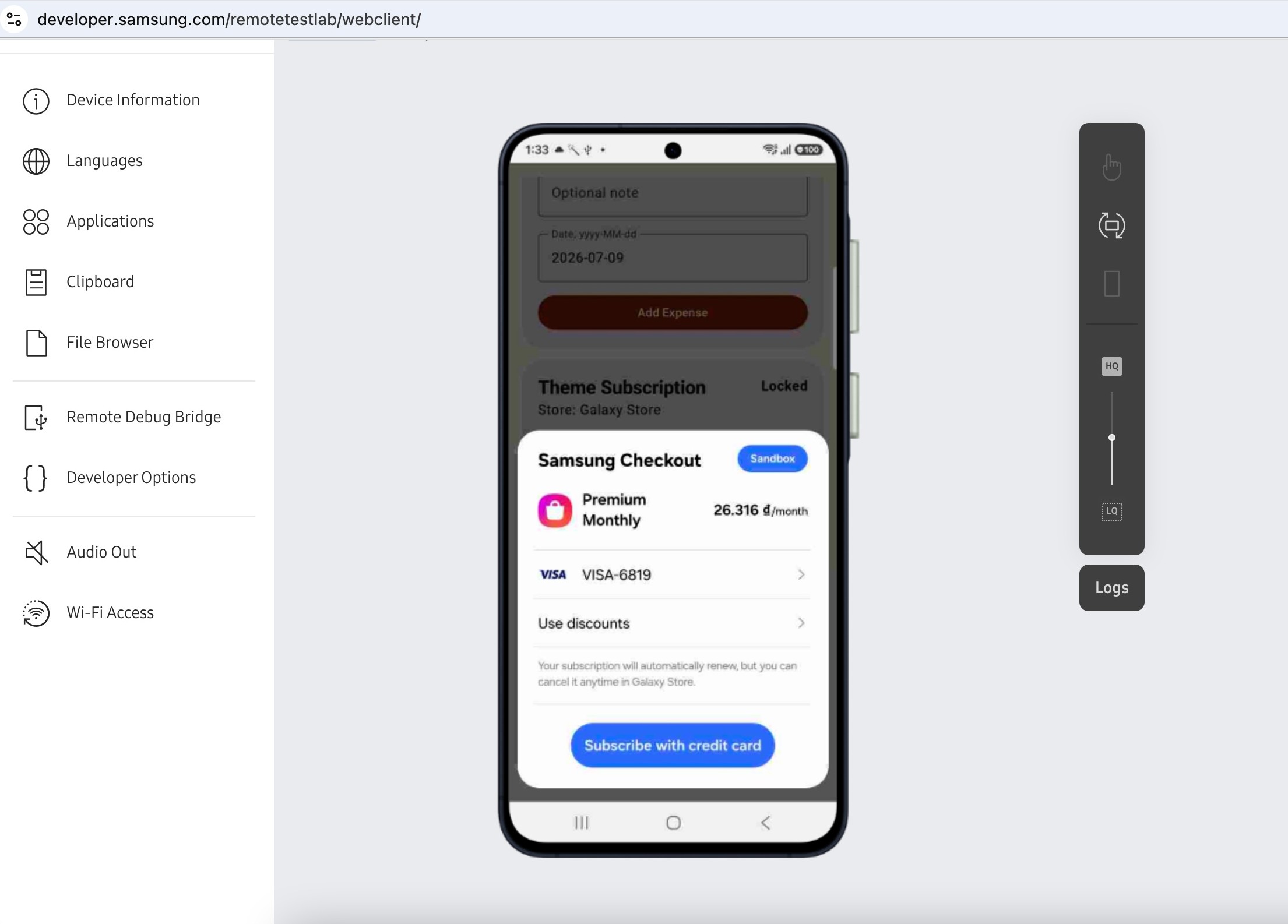
If you need to test canceling a subscription, open Galaxy Store on your phone, navigate to Menu-> Subscriptions. Select the subscription item and unsubscribe.
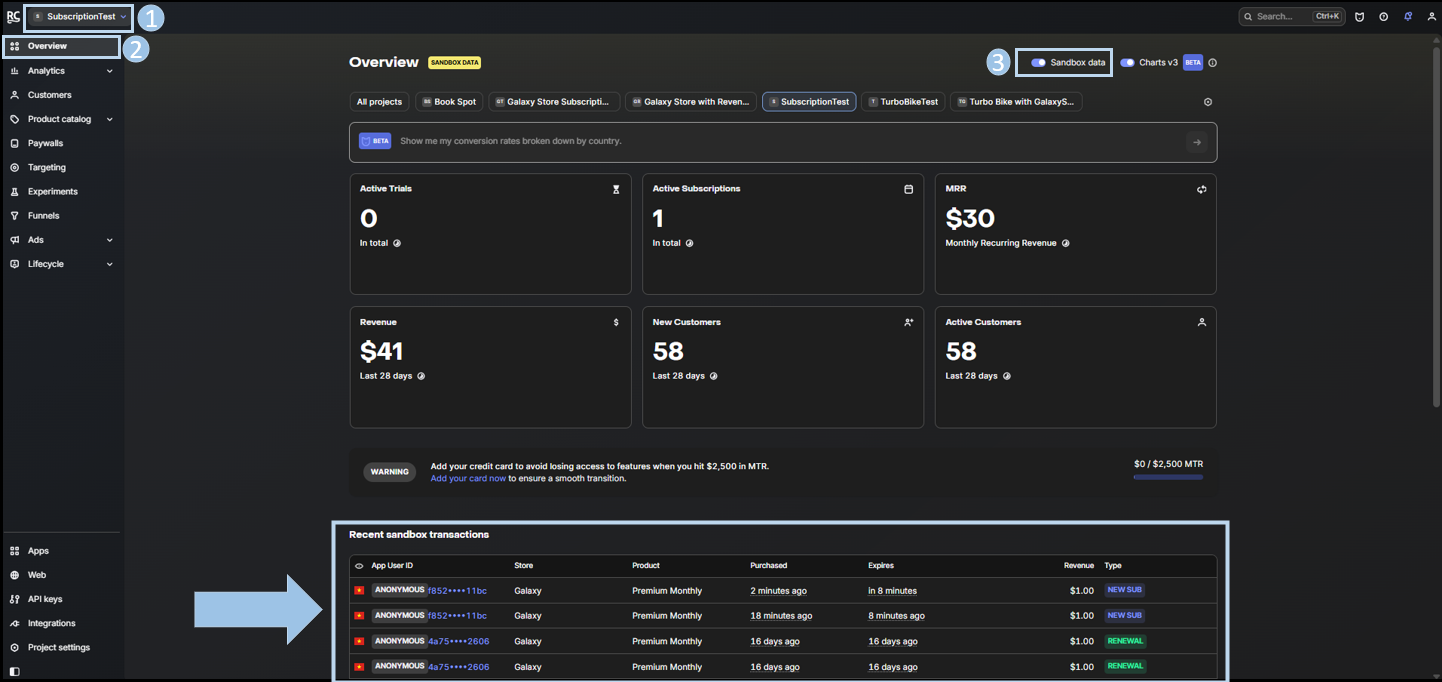
After successful testing, you can check the RevenueCat overview page for the recent sandbox data.
5.1 Common Issues
If the integration does not work as expected, check the following:
• Product Not Found – Ensure the Samsung IAP product is active and the product IDs match.
• Empty Current Offering – Confirm the product is added to the RevenueCat Current Offering.
• Billing Provider Unknown – Verify that the Galaxy Store dependency and GalaxyConfiguration are used for the galaxyStore build.
• Entitlement Not Active – Check that the product is correctly mapped to the RevenueCat entitlement.
6. Conclusion
Extending an existing RevenueCat integration to Galaxy Store requires only a few store-specific changes. By using product flavors, adding the RevenueCat Galaxy Store SDK, and configuring Samsung IAP, you can support both Google Play and Galaxy Store from a single codebase while continuing to use the same RevenueCat APIs for purchases and entitlements.
To learn more about Samsung IAP integration with RevenueCat, check Supported IAP Management Platforms.