Record and Capture Galaxy Watch Screens: No Mobile Device or Third-Party App Required!
Christopher Marquez
Engineer, Developer Relations
The Galaxy Watch ecosystem is designed for seamless connection from capturing screenshots that sync automatically to your phone, to sharing what's on your wrist in seconds. This works great for most users.
However, if you’re a developer, tester, or creator who prefers working directly on a computer, there’s a more efficient, hands-on way to capture your Galaxy Watch’s display.
Using Command Prompt (or Windows Terminal) and Android Debug Bridge (ADB), you can directly screen record or capture screenshots from your Galaxy Watch without needing a companion mobile device or any third-party apps. It’s fast, simple, and perfect for creating app demos, tutorials, or development documentation.
Record your Galaxy Watch screen via ADB
Follow these steps to record your Galaxy Watch screen directly from your computer:
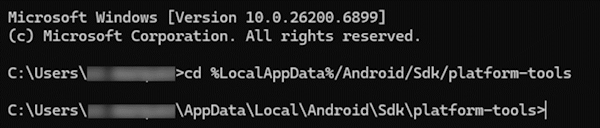
- Open the Command Prompt and use the
cdcommand to navigate to the platform-tools folder:
cd %LocalAppData%/Android/Sdk/platform-tools
- Pair and connect your Galaxy Watch to your computer over Wi-Fi.
- Enter the command below to start screen recording your watch:
adb shell screenrecord /sdcard/record_demo.mp4

This command tells your computer (via ADB) to start recording the screen of your connected Galaxy Watch. Let's break it down piece-by-piece:
adb– connects your computer to the watch or Android device.shell– opens a command-line interface inside the device.screenrecord– starts recording the device's screen. When you run screenrecord, the device starts capturing the display and saves it as a video file (the default format is .mp4)./sdcard/record_demo.mp4– sets the file path where the recording will be saved on the device and the file name.
- Stop the recording by pressing CTRL + C.

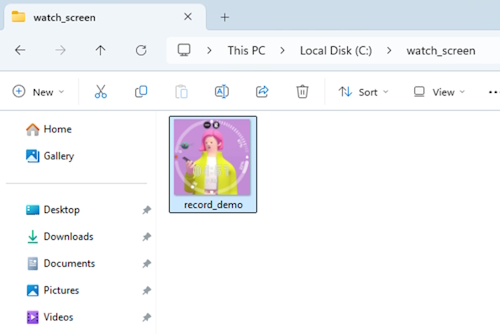
- Transfer the recorded video to your computer:
adb pull /sdcard/record_demo.mp4 C:\Destination\Folder\In\Your_Computer

The pull command copies the recording from your watch to your computer.
- (Optional) Delete the recording from your watch using the rm command.
adb shell rm /sdcard/record_demo.mp4
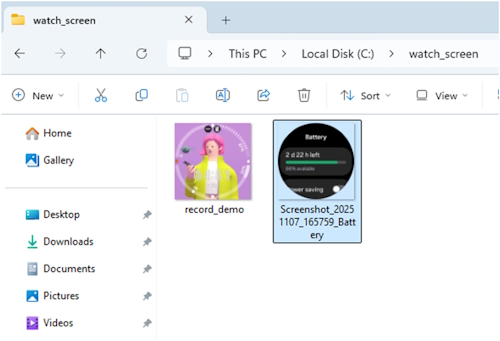
You now have a recorded video of your Galaxy Watch screen saved directly on your PC, ready for editing or presentation.
Capture screenshots directly from Galaxy Watch to PC
If you only need static images, you can easily transfer screenshots from your Galaxy Watch without using a phone:
-
Take a screenshot on your Galaxy Watch by pressing the Home and Back buttons simultaneously until you see the screenshot animation.
-
Locate the screenshot file using ADB shell and copy its filename.
adb shell
cd sdcard/DCIM/screenshots
ls

adb shell ls /sdcard/DCIM/screenshots/The ls command lists the screenshots stored on your watch.
- Transfer the screenshot to your computer:
adb pull /sdcard/DCIM/screenshots/[File_Name].png C:\Destination\Folder\In\Your_Computer

The image is now available on your computer for quick viewing or editing.
Things to keep in mind
This method works best with Galaxy Watches running Wear OS powered by Samsung (Galaxy Watch4 and newer models), as these devices support ADB connections for development and debugging. While this approach is highly effective for capturing screen activity, it has some limitations:
- Audio Capture: The screenrecord command records video but does not capture system audio. If you need audio, additional steps or tools may be required.
- Recording Duration: The recording duration may be limited (typically up to 3 minutes). This restriction can vary depending on the device and ADB implementation.
- Compatibility: Older Tizen-based Galaxy Watches may not support ADB connections, making this method unsuitable for those devices.
Using ADB through Command Prompt provides a direct and efficient way to interact with your Galaxy Watch. Whether you're developing apps, recording demos, or capturing visuals for documentation, these simple commands make it easy to manage your device directly from your computer.