Navigating the Samsung Pay SDK Development Lifecycle: Best Practices and Troubleshooting for Seamless Integration
Ummey Habiba Bristy
Engineer, Samsung Developer Program
The Samsung Pay SDK offers developers the ability to seamlessly incorporate mobile and online payment solutions and push provisioning capabilities into their applications, enhancing functionality and user experience. For Samsung Pay partners, mastering the development lifecycle and proactively addressing potential challenges are essential best practices for ensuring a smooth and successful integration. By adopting these strategies, developers can enhance the reliability of their implementations and minimize disruptions, ultimately delivering a superior user experience. This guide outlines the partnership process, best practices for development, testing strategies, and release process to ensure a smooth integration experience.
Setting Up Your Partnership
To begin integrating the Samsung Pay SDK, follow these steps:
-
Create a Samsung Account: Use your company email to register your Samsung Account. Personal emails may lead to rejection.
-
Register in the Partner Portal: To prevent rejection of your partnership request, ensure the following mandatory company details are provided accurately:
- Business account name
- Company name
- Company legal structure
- Company country
- Number of employees
- Company address
- Company phone number
- Company introduction
- Company Data Universal Numbering System (DUNS) number
- Company website URL
-
Collaborator access: Your colleagues can also sign up to be a member of your Business Account using either the business account name or the manager's email address to collaborate on your projects.
-
Review process: A Relationship Manager (RM) will review your application within 2-3 business days. If no response is received, contact Samsung Developer Support with your company name, country, and Samsung account details. While awaiting for approval, you can explore the Samsung Pay SDK Programming Guide.
Once your partnership request has been approved, you're ready to configure your project by creating a new service and registering your application.
You can find more details of the service creation process in the Samsung Pay documentation.
Key Considerations and Troubleshooting in the Development Phase
Follow the development guide, sample applications and code labs while integrating the Samsung Pay SDK. To avoid common pitfalls during implementation, make sure the following preparations have been implemented:
-
Verify the manifest configuration: Verify the inclusion of necessary queries.
<queries> <package android:name="com.samsung.android.spay" /> </queries> -
Apply optimizer rules: Make sure you have applied the correct ProGuard or DexGuard rules to prevent runtime errors.
ProGuard rules:
dontwarn com.samsung.android.sdk.samsungpay.**
-keep class com.samsung.android.sdk.** { *; }
-keep interface com.samsung.android.sdk.** { *; }
DexGuard rules:
-keepresourcexmlelements manifest/application/meta-data@name=spay_sdk_api_level -
For banks and financial institutions, verify the issuer name for push provisioning: Confirm the issuer name matches your setup. If you are getting an empty list from the
getAllCard()method, check that the issuer name on the Samsung Pay Portal matches the issuer name of the card. You can ensure the correct issuer name is used by adding the card to the Samsung Wallet application and retrieve the information from it:- Open the Samsung Wallet.
- Tap on the card.
- Tap on the three-dot menu.
- Select the Customer services option.
- The issuer name can be found under the title.
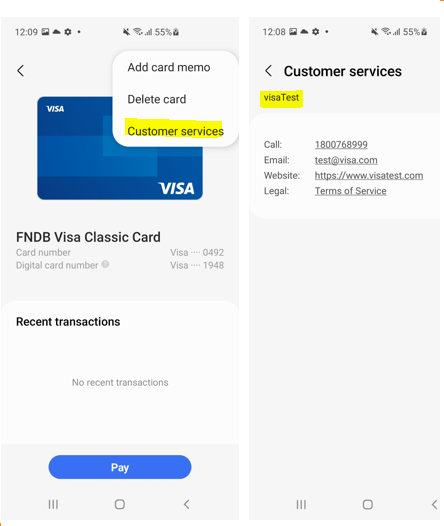
Figure 1: Retrieving the issuer name from the Samsung Wallet application
-
For merchants/payment gateways supporting Samsung Pay online payment, check the Service ID and Package Name configuration: Ensure alignment with Partner Portal configuration. Detailed information about the configuration can be found in the partner onboarding guide.
-
Check the allow list configuration: Ensure you have added the Samsung test accounts in the allow list. Follow these steps to add the test accounts to your service:
- Log into the Partner Portal.
- Go to My projects > Service management.
- Click on your SERVICE NAME > ADD SAMSUNG ACCOUNT on the Service details page.
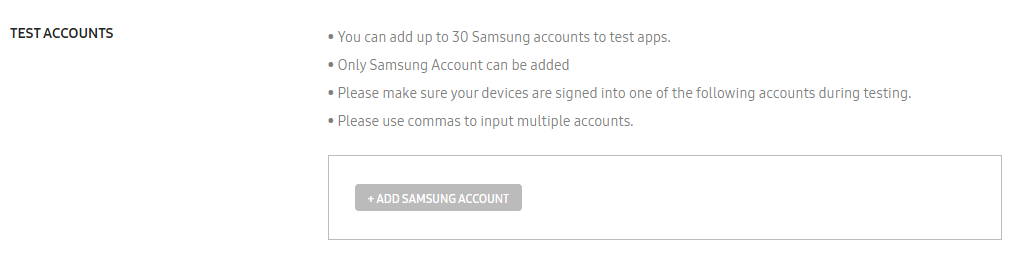
Figure 2:Adding test accounts to the allow list
-
Check the service expiration date: Make sure that your service ID is currently valid. To generate or extend the validity date of the service:
- Go to My projects > Service management.
- Select the SERVICE NAME to open the Service details page.
- Click GENERATE NEW DATE.
- Provide Samsung Accounts for testing the application. These accounts are placed on the allow list for testing.
- Click Generate. The new expiration date of your service appears on the page. Remember to extend the date after 90 days if you continue testing your application past that point.

Figure 3: Generating the service expiration date
- For merchants supporting Samsung Pay online payment, provide a valid CSR: For in-app payment services, you must upload a valid Certificate Signing Request (CSR) in the Partner Portal. This CSR is provided to you by your payment gateway (PG).
If issues persist
-
Check the FAQ: Samsung Pay guide has an extensive list of common error codes and solutions for common issues. Check this FAQ to help you resolve your issue: Samsung Pay FAQ
-
Submit a support ticket: You can reach out to the Samsung Engineers directly by creating a support ticket from Samsung Developer Support. Include detailed issue descriptions, affected APIs, expected vs. actual responses from the API, and attach dumpstate logs. To capture dumpstate logs, follow the below steps:
- Dial *#9900# > Set Debug Level to Mid > Restart the device.
- Reproduce the issue and re-enter *#9900# > Run dumpstate/logcat > Save logs to SD card.
- Package the logs in a zip file and submit them.
Testing with the Samsung Wallet Application
The service status flow for Samsung Pay SDK begins with the Debugging stage, where the service is still under internal testing and can only be accessed by authorized Samsung Accounts in the allow list. Once testing is complete, the partner submits the service along with the release version of the APK for approval, transitioning it to the Pending state. At this stage, the service still remains accessible only to the authorized Samsung Accounts while awaiting review. The Relationship Manager (RM) then evaluates the submission. If the service meets all requirements, it is marked as Approved and becomes eligible for public use. However, if the service fails to meet the necessary standards, it is Rejected, indicating that further improvements are needed before resubmission.
Samsung offers both production and staging environments to test your application with the Samsung Pay Partner Portal. For testing using the staging environment, you need the service ID from the Partner Portal, the staging version of the Samsung Wallet application, and test cards. You can find the staging version of the Samsung Wallet application from the Partner Portal by navigating to Support > Request Test App then clicking GALAXY APP URL to copy the test application link. Make sure that you have registered your test accounts to use the Samsung Pay STG application. You can access the test cards for the staging environment at Test Cards on Samsung Pay.
Release Your Application
The release process of your application can begin as soon as you upload a release version of your application. After that, keep an eye on the status of the release version under App details on your portal dashboard.
To begin the release process, upload a new release version of your application:
- Go to My projects > App management.
- Click on the application name to open its details, then click ADD NEW RELEASE VERSION.
You can also click the ADD NEW VERSION button corresponding to the application from the App management dashboard. - Drag and drop your APK file in the field provided or click the paperclip icon to browse for it.
- Drag and drop up to three screenshots demonstrating your application's compliance with Samsung Pay's branding guidelines.
- Click Register.
When the service status is approved, you're ready to publish the application.
Summary
Integrating the Samsung Pay SDK streamlines mobile payment solutions, offering partners a robust and scalable platform. By adhering to the onboarding guidelines, addressing development challenges proactively, and rigorously testing in both environments, you can ensure a successful deployment. Samsung’s dedicated support team and resources are readily available to assist at every stage. Leverage them to optimize your integration journey. Visit the Samsung Pay Developer Portal for official documentation and additional resources.