Continuous Heart Rate Tracking on Galaxy Watch, Even with the Screen Off
Shamima Nasrin
Engineer, Samsung Developer Program
Health and fitness are the most popular features for Galaxy Watches running Wear OS powered by Samsung. Implementing these features requires a continuous data stream to work effectively and seamlessly.
One of the most common challenges third-party developers face is keeping a sensor like the heart rate monitor active, even when the watch screen is off.
By default, Wear OS efficiently optimizes power consumption to extend usage time. As part of this optimization, sensor data collection may stop when the screen is off. This presents a challenge for applications that require continuous monitoring, such as health trackers, workout assistants, or medical-grade wearables.
What Happens When the Screen Turns Off
When a Galaxy Watch screen turns off, the system enters a low-power state to preserve battery. During this time:
- The CPU may slow down or suspend execution of background threads.
- Registered sensor listeners can stop receiving updates.
- Any active work in your Activity pauses.
To keep sensor data flowing, your application needs two things:
- A foreground service to keep your code running in the background.
- A wake lock to prevent the CPU from going into a deep sleep state.
This tutorial shows how to create a simple Galaxy Watch application that continuously collects heart rate data, even when the screen is off, using a foreground service and a wake lock and all the code examples are provided in a downloadable sample application.
Let's Start Coding
Step 1: Create a New Wear OS Project
Open Android Studio and create new project from scratch:
- Go to File > New > New Project > Wear OS Tab > Empty Wear App.
- Fill in the project details in the New Project window.
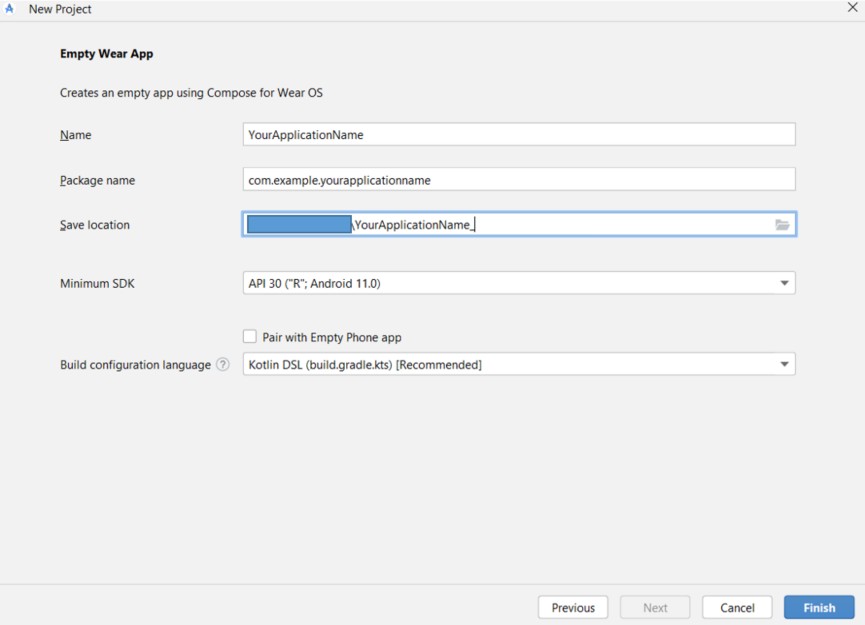
Figure 1: Create a new wearable application in Android Studio
- Click Finish and wait for Gradle sync to complete.
Step 2: Configure Permissions in AndroidManifest.xml
In the AndroidManifest.xml file, add the following permissions to access the heart rate sensor, foreground service, and wake lock.
<uses-permission android:name="android.permission.BODY_SENSORS" />
<uses-permission android:name="android.permission.FOREGROUND_SERVICE" />
<uses-permission android:name="android.permission.FOREGROUND_SERVICE_HEALTH" />
<uses-permission android:name="android.permission.WAKE_LOCK" />
<uses-permission android:name=" android.permission.BODY_SENSORS_BACKGROUND " />
<uses-feature android:name="android.hardware.type.watch" />
Register the SensorService in the manifest:
<service
            android:name=".SensorService"
            android:enabled="true"
            android:exported="false"
            android:foregroundServiceType="health" />
Step 3: Design Your Watch UI Layout
The watch UI can be designed entirely according to your preference. In this content, only two buttons have been used to start and stop the service and a TextView to show the result to keep it simple. Wear OS screens are small, so keeping the layout simple is the best practice.
To implement the UI, edit app/res/layout/activity_main.xml.
The following code implements a sample UI:
<?xml version="1.0" encoding="utf-8"?>
<androidx.constraintlayout.widget.ConstraintLayout xmlns:android="http://schemas.android.com/apk/res/android"
    xmlns:app="http://schemas.android.com/apk/res-auto"
    xmlns:tools="http://schemas.android.com/tools"
    android:layout_width="match_parent"
    android:layout_height="match_parent"
    android:padding="16dp"
    tools:context=".MainActivity"
    tools:deviceIds="wear">

    <LinearLayout
        android:layout_width="match_parent"
        android:layout_height="match_parent"
        android:gravity="center"
        android:orientation="vertical">

        <TextView
            android:id="@+id/heart_rate_text"
            android:layout_width="wrap_content"
            android:layout_height="wrap_content"
            android:text="--"
            android:textColor="#90EE90"
            android:textSize="24sp"
            android:layout_marginBottom="16dp"/>

        <Button
            android:id="@+id/start_button"
            android:layout_width="wrap_content"
            android:layout_height="wrap_content"
            android:text="@string/start_sensors" />

        <Button
            android:id="@+id/stop_button"
            android:layout_width="wrap_content"
            android:layout_height="wrap_content"
            android:layout_marginTop="8dp"
            android:text="@string/stop_sensors" />

    </LinearLayout>

</androidx.constraintlayout.widget.ConstraintLayout>
Step 4: Edit MainActivity.java
Inside MainActivity.java, sensor permissions must be requested at runtime.
onCreate() :
You need to initialize all the UI components inside the onCreate() method. This example uses two Button instances, for starting and stopping the service, and one TextView , for showing the result. Before staring the service, you have to check all the runtime permissions.
heartRateTextView = findViewById(R.id.heart_rate_text); //initialize globally to use it outside of the method
        Button startButton = findViewById(R.id.start_button);
        Button stopButton = findViewById(R.id.stop_button);

        if (startButton != null) {
            startButton.setOnClickListener(v -> {
                if (checkPermissions()) {
                    if (checkBackgroundPermission()) {
                        startSensorService();
                    } else {
                        requestBackgroundPermission();
                    }
                } else {
                    requestPermissions();
                }
            });
        }

        if (stopButton != null) {
            stopButton.setOnClickListener(v -> stopSensorService());
        }
In this application, when the user taps the start button, the application checks both permissions in sequence, and the stop button stops the service.
BODY_SENSORS_BACKGROUND must be requested as a separate step after foreground sensor permission is granted. The system does not grant this permission automatically.checkPermissions() :
This method checks at runtime whether the BODY_SENSORS permission has been granted. On Galaxy Watch, the user must explicitly grant this permission on their device.
private boolean checkPermissions() {
        return ContextCompat.checkSelfPermission(this, Manifest.permission.BODY_SENSORS) == PackageManager.PERMISSION_GRANTED;
    }
checkBackgroundPermission() :
This method checks for the BODY_SENSORS_BACKGROUND permission, which is essential for Wear OS 3+ devices (like Galaxy Watch 5, 6, 7) to access sensor data in all power states.
private boolean checkBackgroundPermission() {
        if (Build.VERSION.SDK_INT >= Build.VERSION_CODES.Q) {
            return ContextCompat.checkSelfPermission(this, Manifest.permission.BODY_SENSORS_BACKGROUND) == PackageManager.PERMISSION_GRANTED;
        }
        return true;
    }
startForegroundService() :
On Android 8 (Oreo) and above, you must call this method instead of startService() when starting a foreground service.
private void startSensorService() {
        Intent intent = new Intent(this, SensorService.class);
        if (Build.VERSION.SDK_INT >= Build.VERSION_CODES.O) {
            startForegroundService(intent);
        } else {
            startService(intent);
        }
        Toast.makeText(this, "Sensor Service Started", Toast.LENGTH_SHORT).show();
    }
stopSensorService() :
Once the task is completed, call this method to reduce battery drain.
private void stopSensorService() {
        Intent intent = new Intent(this, SensorService.class);
        stopService(intent);
        if (heartRateTextView != null) {
            heartRateTextView.setText("--");
        }
        Toast.makeText(this, "Sensor Service Stopped", Toast.LENGTH_SHORT).show();
requestPermissions() :
This method prompts the user for the BODY_SENSORS permission before starting the service.
private void requestPermissions() {
        ActivityCompat.requestPermissions(this, new String[]{Manifest.permission.BODY_SENSORS}, PERMISSION_REQUEST_CODE);
    }
requestBackgroundPermission() :
This method prompts the user for the BODY_SENSORS_BACKGROUND permission. Since the sample application targets Android 13 (API level 33) or higher (currently set to 34), this permission is required if you want to access sensor data in the background, even when using a foreground service. Without it, the system can restrict or stop sensor data delivery when the application is not in the immediate foreground for an extended period.
private void requestBackgroundPermission() {
        if (Build.VERSION.SDK_INT >= Build.VERSION_CODES.Q) {
            Toast.makeText(this, "Please allow 'All the time' sensor access in settings",Toast.LENGTH_LONG).show();
            // On API 30+, background permission MUST be requested separately and
            // the user must be directed to settings manually in many cases, or through a system dialog.
            ActivityCompat.requestPermissions(this, new String[]{Manifest.permission.BODY_SENSORS_BACKGROUND}, BACKGROUND_PERMISSION_REQUEST_CODE);
        }
    }
Override the onRequestPermissionsResult() method to handle the user's response to each permission request:
@Override
    public void onRequestPermissionsResult(int requestCode, @NonNull String[] permissions, @NonNull int[] grantResults) {
        super.onRequestPermissionsResult(requestCode, permissions, grantResults);
        if (requestCode == PERMISSION_REQUEST_CODE) {
            if (grantResults.length > 0 && grantResults[0] == PackageManager.PERMISSION_GRANTED) {
                if (checkBackgroundPermission()) {
                    startSensorService();
                } else {
                    requestBackgroundPermission();
                }
            } else {
                Toast.makeText(this, "Permission denied to read sensors", Toast.LENGTH_SHORT).show();
            }
        } else if (requestCode == BACKGROUND_PERMISSION_REQUEST_CODE) {
            if (grantResults.length > 0 && grantResults[0] == PackageManager.PERMISSION_GRANTED) {
                startSensorService();
            } else {
                Toast.makeText(this, "Background permission denied. Data collection may stop when app is not in foreground.", Toast.LENGTH_LONG).show();
                // Optionally start service anyway, knowing it might be limited
                startSensorService();
            }
        }
    }
Even if the background permission is denied, the service is started. This allows heart rate collection to continue while the application is visible, though data collection may pause when it moves to the background.
BroadcastReceiver:
Send an intent with the heart rate value to update the UI components in real time. This should be outside of the onCreate() method.
private final BroadcastReceiver heartRateReceiver = new BroadcastReceiver() {
        @Override
        public void onReceive(Context context, Intent intent) {
            if (SensorService.ACTION_HEART_RATE_UPDATE.equals(intent.getAction())) {
                float heartRate = intent.getFloatExtra(SensorService.EXTRA_HEART_RATE, 0);
                if (heartRateTextView != null) {
                    heartRateTextView.setText(String.format(Locale.getDefault(), "%.0f", heartRate));
                }
            }
        }
    };
onResume() :
Register a BroadcastReceiver inside this method to catch updates and display them in a TextView element.
@Override
    protected void onResume() {
        super.onResume();
        IntentFilter filter = new IntentFilter(SensorService.ACTION_HEART_RATE_UPDATE);
        if (Build.VERSION.SDK_INT >= Build.VERSION_CODES.TIRAMISU) {
            registerReceiver(heartRateReceiver, filter, Context.RECEIVER_NOT_EXPORTED);
        } else {
            registerReceiver(heartRateReceiver, filter);
        }
    }
onDestroy() :
This method stops the service when the activity is destroyed, preventing a dangling service.
@Override
    protected void onDestroy() {
        stopSensorService();
        super.onDestroy();
    }
Step 5: Edit SensorService.java
This is the core of the tutorial. SensorService is a foreground service that registers a heart rate sensor listener and acquires a wake lock to keep the CPU active when the screen turns off.
onCreate() :
Initialize the SensorManager instance and request the wake-up sensor. Here, do not use the default sensor. Instead, request the wake-up version:
sensorManager = (SensorManager) getSystemService(Context.SENSOR_SERVICE);
        if (sensorManager != null) {
            // Attempt to get the wake-up version of the sensor
            heartRateSensor = sensorManager.getDefaultSensor(Sensor.TYPE_HEART_RATE, true);
            if (heartRateSensor == null) {
                Log.i(TAG, "Wake-up heart rate sensor not available, falling back to non-wake-up.");
                heartRateSensor = sensorManager.getDefaultSensor(Sensor.TYPE_HEART_RATE);
            }
        }
Standard sensors stop sending data when the screen turns off. The true parameter ensures the sensor can wake up the processor to deliver data even in deep sleep.
onStartCommand() :
Execute the foreground service notification.
Promoting your service to the foreground is mandatory for the tracking to stay alive. This prevents Galaxy Watch from pausing your application after 60 seconds of screen-off time.
Promote Immediately: In onStartCommand(), promote the service to the foreground immediately to satisfy Android’s background limitations.
Build the Notification: Create a persistent notification that informs the user that heart rate tracking is active.
Specify Service Type: Android 10+ requires the FOREGROUND_SERVICE_TYPE_HEALTH type for health sensors.
Register Listener: Register the sensor listener to begin receiving heart rate events.
Check the code here:
 @Override
   public int onStartCommand(Intent intent, int flags, int startId) {
       Notification notification = new NotificationCompat.Builder(this, CHANNEL_ID)
               .setContentTitle(getString(R.string.sensor_notification_title))
               .setContentText(getString(R.string.sensor_notification_text))
               .setSmallIcon(android.R.drawable.ic_menu_info_details)
               .setPriority(NotificationCompat.PRIORITY_DEFAULT)
               .build();

       if (Build.VERSION.SDK_INT >= Build.VERSION_CODES.Q) {
           startForeground(1, notification, ServiceInfo.FOREGROUND_SERVICE_TYPE_HEALTH);
       } else {
           startForeground(1, notification);
       }

       if (heartRateSensor != null) {
           sensorManager.registerListener(this, heartRateSensor, SensorManager.SENSOR_DELAY_UI);
           Log.d(TAG, "Heart rate sensor registered.");
       } else {
           Log.e(TAG, "Heart rate sensor not available.");
       }

       return START_STICKY;
   }
onSensorChanged() :
To process sensor data and broadcast updates, implement this method to handle the actual data.
Capture Value: Extract the heart rate from event.values[0].
Broadcast Result: Send a local broadcast with the heart rate value so your UI components can update in real-time.
Here is the code:
@Override
    public void onSensorChanged(SensorEvent event) {
        if (event.sensor.getType() == Sensor.TYPE_HEART_RATE) {
            float heartRate = event.values[0];
            Log.d(TAG, "_________Heart Rate: " + heartRate);

            // Broadcast the result to update the UI
            Intent intent = new Intent(ACTION_HEART_RATE_UPDATE);
            intent.putExtra(EXTRA_HEART_RATE, heartRate);
            intent.setPackage(getPackageName()); // Ensure only this app receives the broadcast
            sendBroadcast(intent);
        }
    }
onDestroy() :
In this method, unregister the sensor listener to prevent excessive battery drain after the user is finished.
@Override
    public void onDestroy() {
        if (sensorManager != null) {
            sensorManager.unregisterListener(this); //Stop sensor
        }
        Log.d(TAG, "Sensor service destroyed and listener unregistered.");
        super.onDestroy();
    }
Step 6: Download the Sample Application
You may download the final projects here:
Step 7: Run the Sample Application on Galaxy Watch
To run the sample application on a Galaxy Watch:
- Connect Galaxy Watch to Android Studio over Wi-Fi.
- Run the sample application on your device.
- Tap START SENSORS and grant the sensor permission when prompted.
- When you see the second prompt (or toast), go to the System Settings > Apps > Permissions > Sensors and select All the time.
- Once granted, the data collection continues even if you close the application UI or the watch screen goes dark.
When the screen turns off, heart rate logs continue in Android Studio Logcat. - Tap STOP SENSORS when you want to stop data collection. This stops the service.
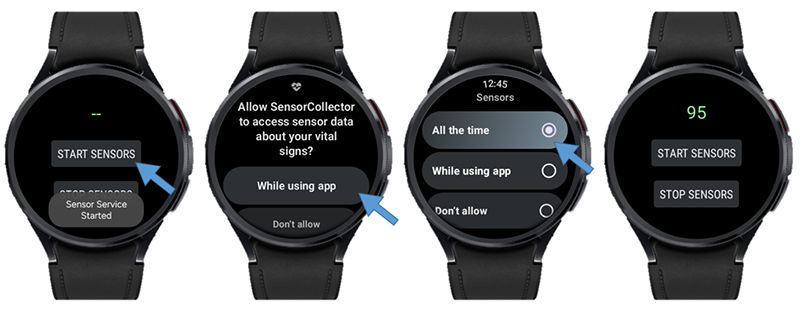
Figure 2: Sample application output on a real device
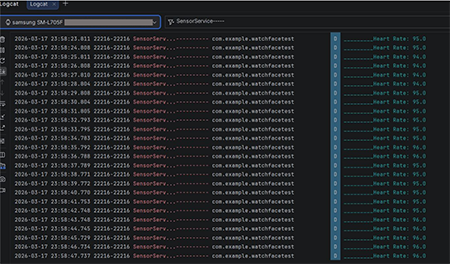
Figure 3: Data collection output in Logcat
In Logcat, filter by the SensorService tag to see the collected heart rate readings. New readings arrive even while the watch screen is off.
Conclusion
Following the steps above, you can build a Galaxy Watch application that collects heart rate data continuously—even when the screen turns off. This same approach applies to other sensors as well, allowing you to read any sensor data continuously in the background.
If you have any questions about or need help with the information in this article, you can reach out to us on the Samsung Developers Forum or contact us through Developer Support.