Managing Staged Rollouts Using the Content Publish API with Galaxy Store Seller Portal
Shamima Nasrin
Engineer, Samsung Developer Program
Galaxy Store Seller Portal is Samsung's platform for developers to publish and manage their applications in Galaxy Store. It provides tools for submission, distribution, analytics, and release control.
Galaxy Store is a gateway to millions of Samsung device users, and for a developer, the stakes of a release can be incredibly high: A minor bug in a major update can lead to negative reviews and churn. To mitigate this, Samsung provides the Staged Rollout feature.
A staged rollout allows developers to gradually release application updates to only a certain percentage of users. This controlled approach helps developers manage releases efficiently and observe application behavior during update deployment. Instead of distributing an update to all users at once, developers can define a rollout percentage and increase it over time.
Key Benefits
Here are the key benefits of using a staged rollout strategy:
- Control release distribution
- Identify issues early
- Reduce the risk of large-scale failures
- Monitor real-world performance
The staged rollout rate can be set from 0% to 100%, where 0% means the update is not available at all and 100% indicates a full release. Galaxy Store provides flexibility by allowing developers to manually control and adjust rollout percentages based on performance and feedback.
Staged rollouts are supported for Android applications and can be configured based on the application’s status in Seller Portal. The appStatus parameter is central to every staged rollout API call. Find out more at Status Parameters Mapping.
Managing Staged Rollouts Using the Content Publish API
While staged rollouts can be configured through the Seller Portal UI, the Content Publish API provides a powerful programmatic interface to automate your application’s lifecycle. Within this framework, the Staged Rollout API functions as a specialized suite of endpoints that allow developers to manage incremental distribution through code rather than manual intervention.
End-to-End Flow (Example)
Before jumping into the API description, it is important to understand the full workflow.
The following illustrates a typical staged rollout workflow using the Content Publish API:
Upload Binary → Create or Update Application Content → Configure Staged Rollout (Initial Rate) → Submit for Publication → Rollout Begins (Partial Distribution) → Monitor Rollout Status → Update Rollout Rate (Progressive Increase) → (Optional) Update Rollout Binary → Complete Rollout (Full Distribution)
This flow represents a common implementation pattern. Actual workflows may vary depending on your release process. For another example of a staged rollout workflow, see Staged Rollout Release.
This tutorial focuses on the four essential endpoints that form the backbone of an automated, controlled release workflow: View Staged Rollout Rate, Update Staged Rollout Rate, View Staged Rollout Binaries, and Update Staged Rollout Binary. Each of these endpoints provides the granular control necessary to ensure that your updates reach your Galaxy device users with maximum stability and minimum risk.
Prerequisites
Before making any Content Publish API calls, you must satisfy the following requirements set out in the Galaxy Store Developer API documentation:
- A registered Seller Portal account.
- Commercial seller status
- Registered applications in Seller Portal
- Service account ID from Seller Portal
- A valid access token generated using the authentication endpoint. Every API call must include this token in the Authorization: Bearer header. For more information about access tokens, check out this article.
- Python installed on your PC.
Starting the Implementation
Before implementing the APIs, it is helpful to understand the basic structure of the code. In this example, Python is used for API implementation.
The basic code structure is as follows:
Dependency Library → Headers → Application Information → Payload → API Endpoint → CRUD Operation.
Dependency Library
To use Python script for HTTP requests, import the requests library. At this point, also import the json library to see the response in the JSON format.
# Importing the requests library
import requests
# Importing the json library
import json
Headers
To call any Content Publish API, an access token and service account ID must be sent with the headers for user authorization.
Headers parameters are:
| Attribute | Type | Description |
|---|---|---|
| Authorization | string | Bearer <your-access-token> |
| service-account-id | header | Your service account ID |
Now, set the required values for these headers using Python:
# Access token and headers
accessToken = "<your-access-token>"
Authorization = "Bearer " + accessToken
SERVICE_ACCOUNT_ID = "<your-service-account-id>"

# Header to be sent to the API
headers = {
    'Content-Type': 'application/json',
    'Authorization': Authorization,
    'service-account-id': SERVICE_ACCOUNT_ID
}
Since the dependency libraries and headers are common across all requests, you have to define them first to implement the Content Publish API.
Authorization: Bearer <your-access-token> and service-account-id: <your-service-account-id>. Missing either of these headers returns an authentication error.Implementing the “View Staged Rollout Rate” Endpoint
This endpoint retrieves the current default rollout rate as well as any country-specific rollout rates for the given application.
Application Information
It is essential to provide the following details for the View Staged Rollout Rate operation:
# Content ID and app status
contentId= '<Content ID of your app>'
appStatus= 'REGISTRATION'
Here, contentId is the unique identifier of your application in Seller Portal. In the appStatus parameter, you can use either REGISTRATION or SALE. REGISTRATION is for the version under registration/update, and SALE is for the currently live version.
These parameters are required to accurately specify the application for which the staged rollout information is being requested.
API Endpoint
Use the following API to consume the application staged rollout rates.
# Defining the API endpoint (GET request)
api_url=f"https://devapi.samsungapps.com/seller/v2/content/stagedRolloutRate?contentId={contentId}&appStatus={appStatus}"
GET Operation
Finally, send an HTTP GET request to the Galaxy Store Server with the api_url and headers parameters.
This is a read-only operation to inspect the state of a rollout.
try:
    response = requests.get(api_url, headers=headers)
    print("Status Code:", response.status_code)
    data_shows = response.json()
    print("Parsed JSON:", json.dumps(data_shows, indent=4))

except Exception as e:
    print("Error:", str(e))
Response on Success
After processing the request, if all the provided information is correct, then the operation returns the success response in the JSON format:
Status Code: 200
Parsed JSON: {
    "resultCode": "0000",
    "resultMessage": "Ok",
    "data": {
        "rolloutRate": 40,
        "countries": [
            {
                "countryCode": " AUT ",
                "rolloutRate": 30
            },
            {
                "countryCode": "BEL",
                "rolloutRate": 45
            }]
       }
}
The rolloutRate object at the top level is the global default rate. The countries object contains possible country-specific rates that override the default. In this example, the application is being rolled out to 40% of users globally, to 30% in Austria, and to 45% of users in Belgium.
Implementing the “Update Staged Rollout Rate” Endpoint
Updating a staged rollout in Seller Portal refers to modifying the current rollout rate to expand application availability to a larger percentage of users. The updated rollout rate must be higher than the previously set value and is applied progressively during the distribution process.
The following figure shows the UI from Seller Portal. You can change most of the settings shown using the Update Staged Rollout API.
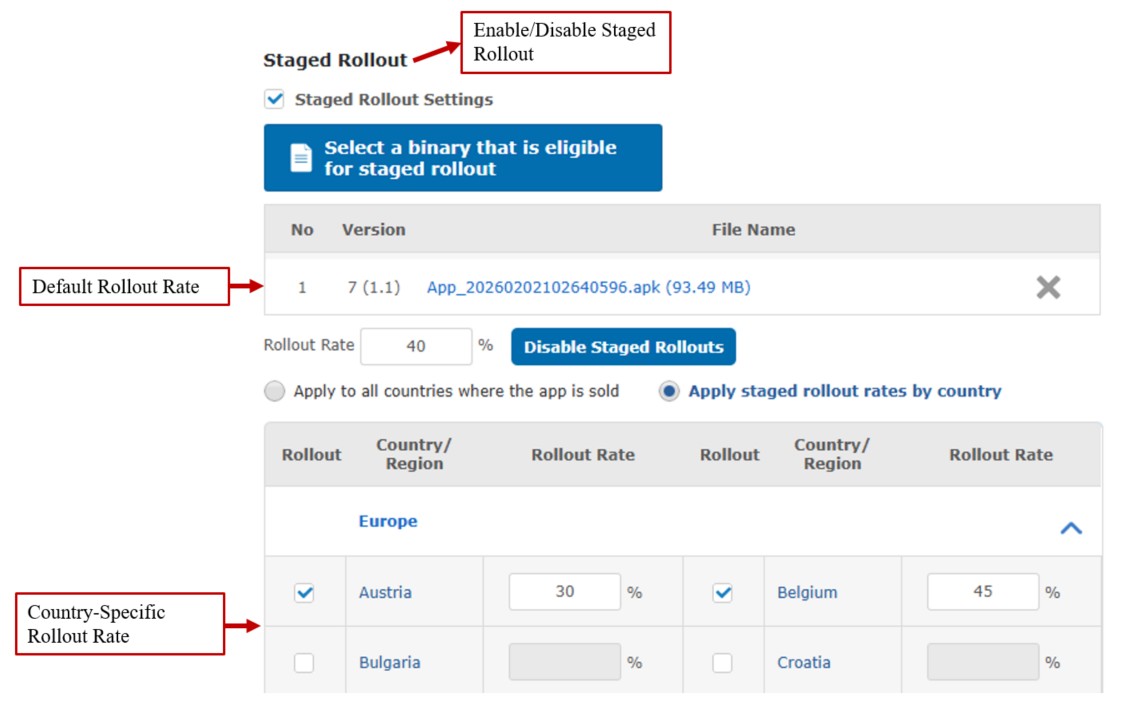
Figure 1: Update Staged Rollout Rate user interface
On this screen, if you enable the Staged Rollout Settings option, the rollout settings portion is enabled and you can set the rollout rate. Otherwise, the option to do so remains unavailable.
The Content Publish API allows you to manage distribution either globally or with regional precision.
Default Rollout Rate: This is the primary percentage applied to all supported countries. If no specific country data is provided, every market receives the update at this baseline rate.
Country-Specific Rollout Rate: This allows you to override the default rollout rate for individual markets. You can set a different rollout rate for each country.
In Figure 1, from the Seller Portal UI, you can see that the default rollout rate is 40%, the Austrian rate is 30%, and the Belgian rate is 45%. Here, the 40% default rate is applicable for all other countries except Austria and Belgium. During the release, Austria and Belgium will follow their customized rollout rate.
To modify the rollout rate for a specific country, your request has to contain either new or updated rates for any existing countries you have already defined (in the given example, Austria and Belgium) before you can add new ones. Otherwise, the request returns an error response. If you want to change the default rate only, then you can omit the countries object from the code.
API Endpoint
Define the API endpoint for updating the default or country specific staged rollout rate.
# Defining the API endpoint (PUT request)
api_url="https://devapi.samsungapps.com/seller/v2/content/stagedRolloutRate"
Payload
The payload defines the new rollout configuration to update the existing rollout settings. Here, when the appStatus is SALE or you are updating a previously deployed app, the new rolloutRate must be greater than the previously set default rollout rate. You cannot decrease a rollout rate once set for a live app. Plan your incremental ramp-up carefully before you start.
The payload contains the JSON data which are required for updating an application’s rollout rates.
#  Payload (ENABLE rollout)
payload = {
"contentId": " <Content ID of your app>",
"function": "ENABLE_ROLLOUT",
"appStatus": "REGISTRATION",
"rolloutRate": 50,
"countries": [
            {
                "countryCode": "AUT",
                "rolloutRate": 30
            },
            {
                "countryCode": "BEL",
                "rolloutRate": 55
            }]
       }
}
In this example, the code changes the default rollout rate from 40% to 50% and the country-specific rollout rate for Belgium from 45% to 55%.
You can set the function value as either “ENABLE_ROLLOUT” or “DISABLE_ROLLOUT” to enable or disable the staged rollout settings. If you disable the setting, you cannot change the value.
For this call to be successful, the appStatus field must be set. Setting it with the value “REGISTRATION” during an update indicates that the application content is being modified and prepared for submission.
PUT Operation
Send an HTTP PUT request for updating the staged rollout rate.
try:
    response = requests.put(api_url, headers=headers, json=payload)
    print("Status Code:", response.status_code)
    data_shows = response.json()
    print("Parsed JSON:", json.dumps(data_shows, indent=4))

except Exception as e:
    print("Error:", str(e))
Response on Success
A successful request returns the response “Ok”.
Status Code: 200
Parsed JSON: {
    "resultCode": "0000",
    "resultMessage": "Ok",
    "data": {}
}
After a successful response, Seller Portal UI looks like this:
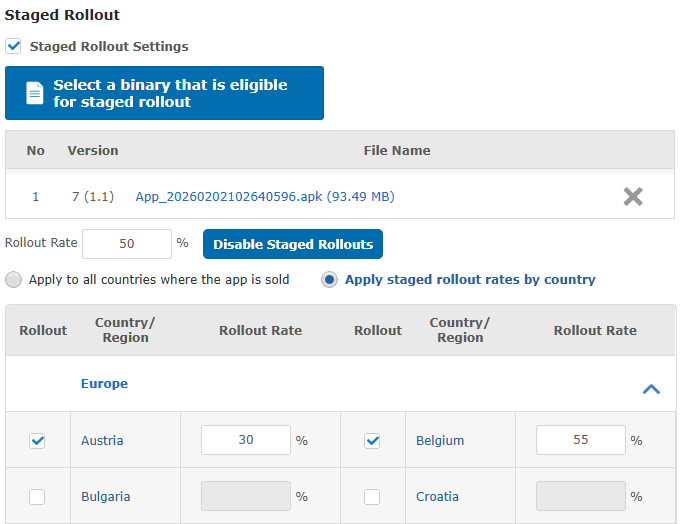
Figure 2: Seller Portal UI after updating the staged rollout rate
Implementing the “View Staged Rollout Binaries” Endpoint
Before modifying which binaries participate in a staged rollout, you need to know the current state of the binary. This GET endpoint returns the list of binaries associated with a staged rollout for a given application, giving you the binarySeq values you need to take further action.
Application Information
To get application information, you only need the content ID and application status values.
# Content ID and parameters
contentId = '<Content ID of your app>'
appStatus= 'REGISTRATION'
Here, appStatus can be set as either “REGISTRATION” or “SALE”, depending on which version you want to inspect.
API Endpoint
Define the api_url value, including the content ID and application status values, to get the staged rollout binaries.
# Defining the API endpoint  (GET request)
api_url=f"https://devapi.samsungapps.com/seller/v2/content/stagedRolloutBinary?contentId={Content_ID}&appStatus={appStatus}"
GET Operation
Send an HTTP GET request to the Galaxy Store Server with the api_url and headers values.
try:
    response = requests.get(api_url, headers=headers)
    print("Status Code:", response.status_code)
    data_shows = response.json()
    print("Parsed JSON:", json.dumps(data_shows, indent=4))

except Exception as e:
    print("Error:", str(e))
Response on Success
This is the success response, after completing the above operation.
Status Code: 200
Parsed JSON: {
    "resultCode": "0000",
    "resultMessage": "Ok",
    "data": {
        "binaries": [
            {
                "seq": 3,
                "versionCode": "7",
                "versionName": "1.1",
                "fileName": "App_20260202102640596.apk",
                "fileSize": "93.49",
                "rolloutStatus": "ENABLED",
                "appStatus": "REGISTRATION"
            }
        ]
    }
}
The response returns an array of binary objects, each containing the binarySeq identifier, version information, and whether the binary is currently included in the staged rollout. Keep a note of the binarySeq values, as you need them when calling the “Update the Staged Rollout Binary” endpoint.
Implementing the “Update the Staged Rollout Binary” Endpoint
This endpoint programmatically modifies the specific binary files associated with an active staged rollout, allowing developers to manage which version is being distributed. Using the API, the rollout status is set to either “ENABLED” or “DISABLED”, which refers to the “ADD” or “REMOVE” functions used to manage specific files within a release.
ENABLED (ADD): This function attaches a specific binary sequence to your staged rollout, making it active for the designated percentage of users.
DISABLED (REMOVE): This function disables a staged rollout immediately and makes that build available to all users globally.
API Endpoint
Define the API endpoint for changing the rollout status.
# Defining the API endpoint  (PUT request)
api_url= "https://devapi.samsungapps.com/seller/v2/content/stagedRolloutBinary"
Payload
To change a specific application’s rollout binary, send its content ID, function value (“ADD” or “REMOVE”) and the binary sequence value inside a JSON payload.
#  Payload (ADD or REMOVE binary to staged rollout)
payload = {
    "contentId": "<Content Id of your app>",
    "function": "REMOVE",   # or ADD
    "binarySeq": "3"
}
This code removes the specific binary from the list. You can check this modification from the Seller Portal UI.

Figure 3: Disabled staged rollout binary in the Seller Portal UI
PUT Operation
Send an HTTP PUT request to update the staged rollout binaries to the Galaxy Store Server.
try:
    response = requests.put(api_url, headers=headers, json=payload)
    print("Status Code:", response.status_code)
    data_shows = response.json()
    print("Parsed JSON:", json.dumps(data_shows, indent=4))

except Exception as e:
    print("Error:", str(e))
Response on Success
After a successful change of the rollout status from “ENABLE” to “DISABLE”, or vice versa, the operation returns a resultMessage with the value “Ok”.
Status Code: 200
Parsed JSON: {
    "resultCode": "0000",
    "resultMessage": "Ok",
    "data": {}
}
Response on Error
See the Failure response codes for a list of possible response codes when a request fails.
Key Cautions and Limitations
Samsung's official documentation makes several important constraints explicit that every seller needs to keep in mind:
- The staged rollout rate cannot decrease for live applications. Once you set a rollout rate for a SALE version, the only valid options are increasing the rate or disabling the rollout entirely.
- In an application, only one staged rollout can be active at a time. You must disable an existing rollout before enabling a new one. Concurrent rollouts on the same content ID are not supported.
- The rules for binary contentStatus are very strict. The “Update the Staged Rollout Binary” endpoint only works when the application has a status of “REGISTERING”, “UPDATING”, “RE_REGISTERING”, or “READY_FOR_SALE”. The “FOR_SALE" status is not supported for this operation.
- The “DISABLE_ROLLOUT” action is irreversible in terms of exposure. Disabling a staged rollout immediately makes the current build available to all users globally. You cannot "re-stage" that release.
- Application review is still required. A staged rollout is only a distribution control mechanism and does not bypass the standard Samsung Galaxy Store review process. Applications must pass review before any users receive the update.
- Manual publication adds an extra step. If
publicationTypeis set to “manual", even after passing review, you must callPOST /seller/contentStatusUpdatewithcontentStatus: "FOR_SALE"to release the pending application. - New application registration is not supported through the API. The Galaxy Store Developer API only manages applications that have already been registered in Seller Portal. First-time application submissions must begin in the Seller Portal web interface.
- The HTTPS protocol is mandatory for all API calls. HTTP requests are rejected.
Conclusion
The Galaxy Store Developer API enables developers to manage application releases programmatically through staged rollouts. By integrating these APIs into your development workflow, you can improve release reliability, reduce manual effort, and enhance the overall user experience. Staged rollout management is essential for modern application delivery, empowering teams to scale effectively through automated and controlled release processes.
If you have any questions about or need help with the information in this article, you can reach out to us on the Samsung Developers Forum or contact us through Developer Support.
For additional reference you can check out the following resources:
- How to Create an Access Token for the Galaxy Store Developer API Using Python: Learn how to create an access token using the Galaxy Store Developer API and Python.
- Set a Staged Rollout in the Seller Portal: Learn how to configure a staged rollout of applications in Seller Portal.
- Python Sample Source Code: Learn how to install Python on your PC and the setup for implementing these APIs.