Personalized Watch Faces with Photo Slot
Most Fowziya Akther Houya
Engineer, Samsung Developer Program
Watch Face Studio (WFS) allows designers to create custom watch faces for Galaxy Watches running Wear OS powered by Samsung with powerful visual and interactive features. One of the newest additions to the software is the Photo slot feature, which lets users personalize watch faces by adding images from their phones through the companion app (Galaxy wearable), making designs more dynamic and customizable.
This blog demonstrates how designers can implement the Photo slot feature in a watch face project and allow users to customize backgrounds directly from their phones. The blog covers:
• Adding a background image using a Photo slot
• Setting the Photo slot properties
• Customizing the Photo slot using the companion app
The sample project includes some images that requires the use of the Photo slot feature.
Adding a background image using Photo slot
To begin, create a new watch face project in WFS. Instead of adding a Preset image, use the Photo slot component.
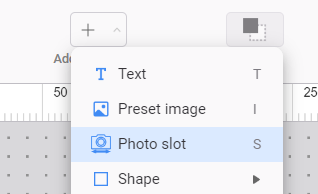
The Photo slot component allows adding only one image to the project. However, after deploying the watch face on a real device, the Photo slot enables the inclusion of multiple images within it.
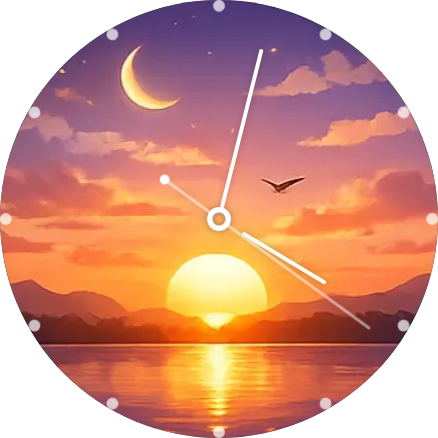
In the sample project, different times of the day are used to display the background image. This ensures that the watch face has a ready-to-use appearance when it first loads.
Additional background images are provided with the sample project file, such as:
● Noon
● Evening
● Night
In this project, the Morning theme is already added within the watch face design. The other themes are demonstrated later through customization using the companion app.
Setting Photo slot properties
The Photo slot component has two options in the "WHEN TO CHANGE PHOTO" section of the properties:
• When watch face is tapped (the default value)
• When watch wakes
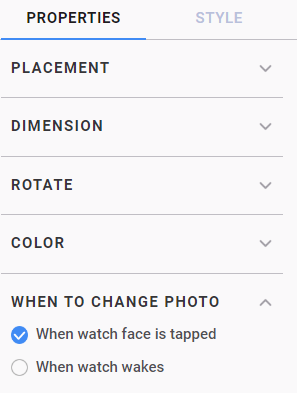
In this project, the When watch face is tapped option is selected. This option allows the user to quickly and interactively change the watch face background by tapping the watch screen to cycle through the available images in the slot.
The Photo slot also includes another property called When watch wakes. When enabled, the background automatically changes whenever the watch screen turns on.
Deploying the watch face
After configuring the Photo slot and watch face elements, the project can be deployed to a real Galaxy Watch.
For guidance on deploying the watch face to a real device, refer to Connecting Galaxy Watch to Watch Face Studio over Wi-Fi.
Customizing the Photo slot
One of the main advantages of the Photo slot feature is that it allows end users to customize the watch face with their own photos.
Once the watch face has been deployed, the user can then customize it with their own background images by following the steps below:
- Open the companion app on the connected phone.
- Tap the Customize button.
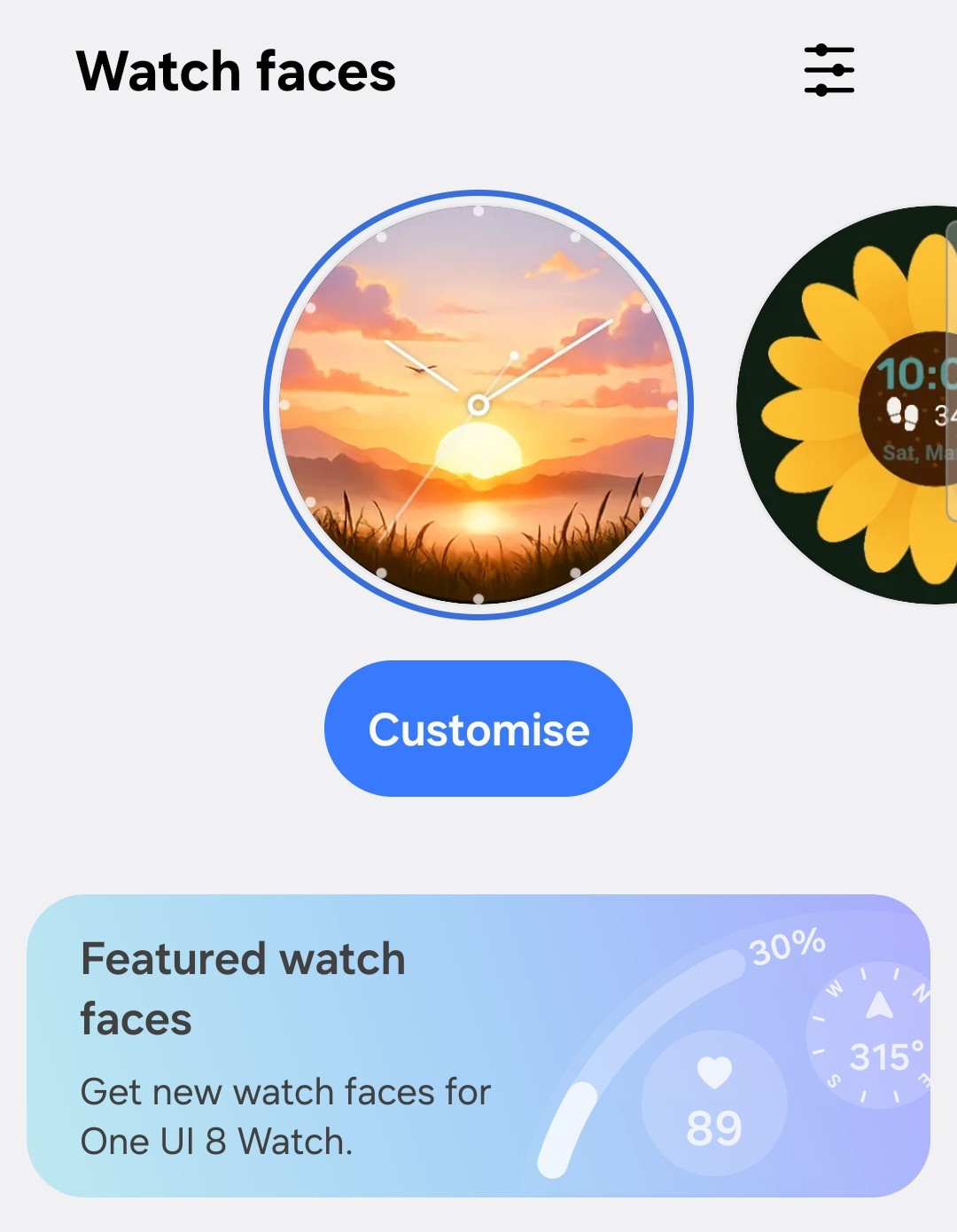
- Click on the ‘+’ sign to add images.
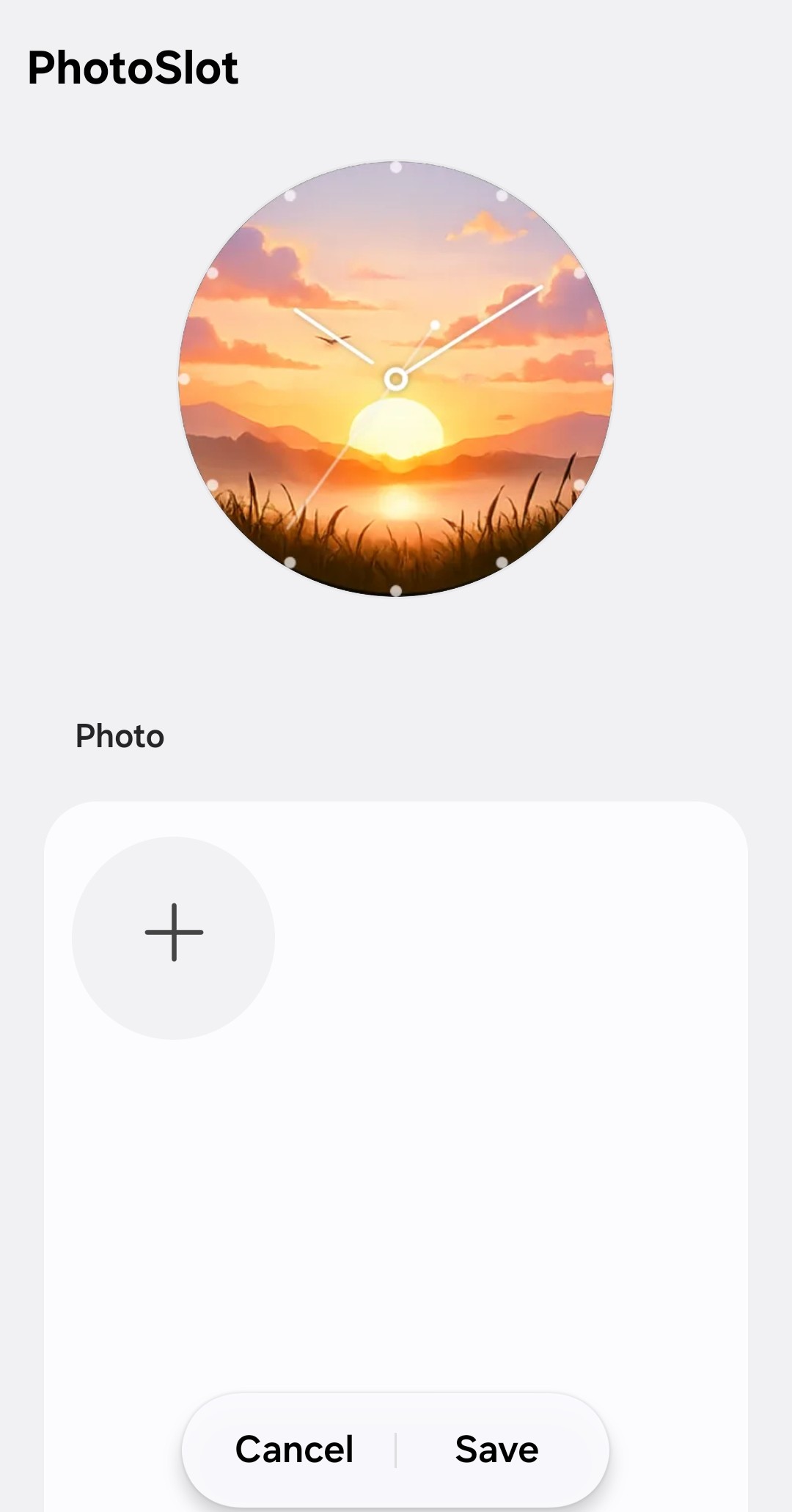
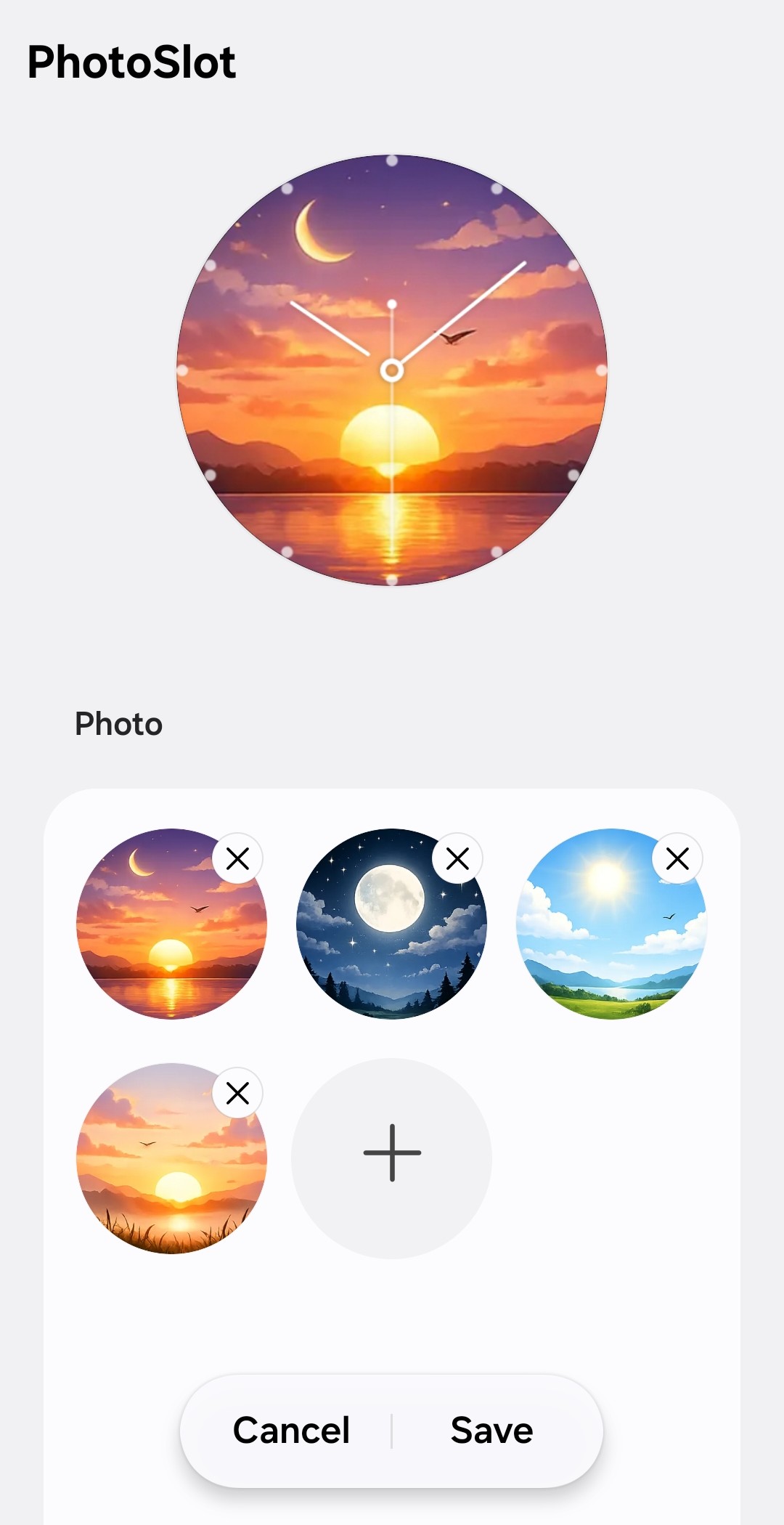
The process opens the phone's photos and provides options to select images. After images have been added, they are displayed on this screen, along with an option to delete them. The first added image is automatically set as the background image.
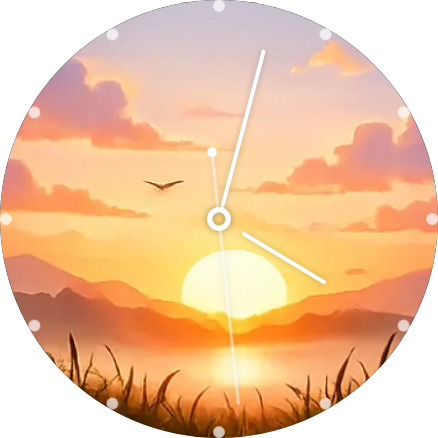
Testing on a real device ensures that the Photo slot interaction behaves correctly and the tap-based background switching works smoothly.


Conclusion
The Photo slot feature in Watch Face Studio introduces a powerful way to create customizable watch faces. By combining the built-in background image with user-selected images through the companion app, designers can deliver watch faces that are both visually appealing and highly customizable.
If you have questions or need help with the information presented in this article, you can share your queries on the Samsung Developers Forum. You can also contact us directly for more specialized support through the Samsung Developer Support Portal.