Introduce Subscriptions for Your Games Using the Samsung IAP Unreal Engine Plugin
Mobassir Ahsan
Engineer, Samsung Developer Program
For a game developer working on live service games, managing subscriptions effectively can make or break your monetization strategy. In a previous blog article, you have learned how to integrate the Samsung IAP plugin into a basic Unreal Engine game. This time, you learn how to implement a complete subscription workflow using the updated Samsung IAP Unreal Engine Plugin.
The Samsung IAP plugin for Unreal Engine has been updated to reach feature parity with the Samsung IAP SDK. The plugin introduces multiple new APIs allowing you to easily integrate a complete subscription management workflow in your games. Using these APIs, you can check promotional offer eligibility, purchase and change subscription plans, acknowledge purchases, and so on. This update also introduces Boolean return types similar to the base Samsung IAP SDK to check if an API call was executed successfully.
This article demonstrates how you can integrate the Samsung IAP plugin into Unreal Engine games to enable users to check subscription promotional pricing eligibility, purchase in-app products, acknowledge purchases, and change subscription plans.
Prerequisites
The demonstration in this article uses the following recommended development environment:
- Unreal Engine 5.7
- Visual Studio 2022 Professional
- Android SDK:
- Android SDK API Level 35
- Android NDK r27c
- CMake 3.10.2
- Build tools 36
Setting Up the Development Environment
To set up your Unreal Engine game project to implement the Samsung IAP plugin:
- Open an existing Unreal Engine project or create a new project.
- If the project is not already configured for Android, go to Edit > Project Settings > Platforms > Android , and click Configure Now.
- Set the Android Package Name from the Platforms > Android tab.
- Download the Samsung IAP Unreal Engine Plugin from the Samsung Developer website.
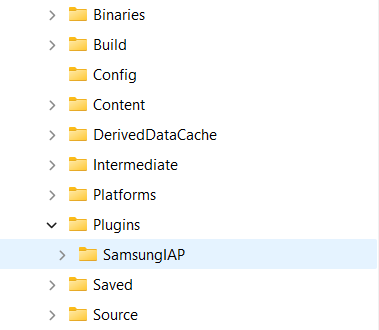
- Extract the content of the downloaded file inside the Plugins folder of your project directory. If the /Plugins/ folder does not exist, you must create it.
- In the /Source/ folder, open the <project_name>.build.cs file.
- In the PublicDependencyModuleNames.AddRange() section, add SamsungIAP to the list.
PublicDependencyModuleNames.AddRange(new string[] { "Core", "CoreUObject", "Engine", "InputCore", "EnhancedInput", "SamsungIAP" });
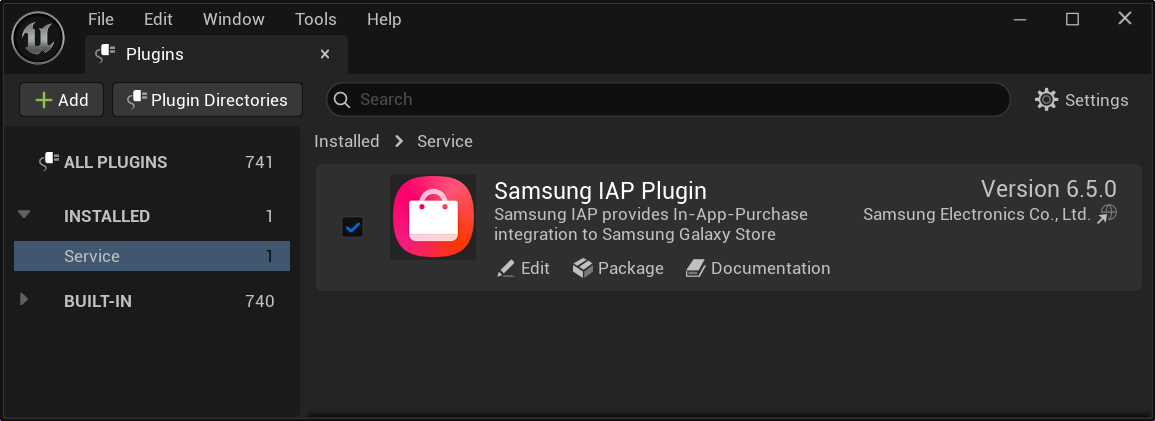
- Relaunch Unreal Engine. Go to Edit > Plugins > Installed > Service and tick the checkbox next to Samsung IAP Plugin to enable the plugin.
Registering In-App Products in Galaxy Store Seller Portal
In live service game monetization, two types of in-app products are most common. These are one-time purchasable cosmetic items and monthly recurring subscriptions. To allow the implementation of both types of in-app products, Samsung Galaxy Store Seller Portal also allows you to register two types of products: item and subscription.
The next step of the demonstration is to register two types of subscriptions called basic and premium, and one item called weapon_skin.
- Package the binary for testing. In the Unreal Engine toolbar, select Platforms > Package Project > Android.
- Register your game application in Seller Portal, filling in the required information.
- In the Binary tab of Seller Portal, upload your game's packaged binary file.
- In the In-App Purchase tab, create your in-app products and activate them. For this demonstration, create the following products:
- basic - A lower priced subscription.
- premium – A higher priced subscription.
- weapon_skin – An item for demonstration of one-time purchases.
For subscriptions, you can also add free-trial or introductory promotional pricing options if you wish. Check Subscription Pricing Options.
- To save the game information and IAP item details, select Save.
- Finally, register tester accounts from Galaxy Store Seller Portal > Profile to enable testing IAP functionality.
Integrating In-App Purchases in Your Game
Now that the game application and its IAP items are registered, you can begin implementing the Samsung IAP features in your game.
Step 1: Include the IAP header file
To access the Samsung IAP functions in your project, you must add the header file to the Unreal Engine project source code:
- In Unreal Engine, select Tools > Refresh Visual Studio project.
- To open and edit the project code in Visual Studio, select Tools > Open Visual Studio.
- Navigate to the C++ code file and open it in the editor.
- Include the Samsung IAP Unreal Engine Plugin header file in your code:
#include "IAP.h"
Now you can access the APIs provided by Samsung IAP from your code.
Step 2: Set the IAP operation mode
The Samsung IAP Unreal Engine Plugin has three operation modes:
IAP_MODE_TEST: For development and testing.IAP_MODE_PRODUCTION: For public beta and production releases.IAP_MODE_TEST_FAILURE: For testing failure cases. In this mode, all requests return failure responses.
The operation mode can be set using the setOperationMode(<IAP MODE>) function.
Since the game is in development, use IAP_MODE_TEST.
#if PLATFORM_ANDROID
    samsung::IAP::setOperationMode(IAP_MODE_TEST);
#endif
Step 3: Create and set a listener class for callback functions
The updated Samsung IAP Unreal Engine Plugin has 7 main API functions. Each of these functions requires a listener or callback function that handles the data returned from the IAP library function. Create a listener class with the callback functions for all the APIs. The callback functions are:
- onGetProducts() is the listener for
getProductDetails(). - onGetOwnedProducts() is the listener for
getOwnedList(). - onPayment() is the listener for
startPayment(). - onConsumePurchasedItems() is the listener for
consumePurchasedItems(). - onAcknowledgePurchases() is the listener for
acknowledgePurchases(). - onGetPromotionEligibility() is the listener for
getPromotionEligibility(). - onChangeSubscriptionPlan() is the listener for
changeSubscriptionPlan().
In this example, a C++ class named SamsungIAPListener is created in Unreal Engine, generating the SamsungIAPListener.cpp and SamsungIAPListener.h files in the project source directory.
In the SamsungIAPListener.h file, define the class with function declarations:
#pragma once

#include "CoreMinimal.h"
#include "IAP.h"

class SamsungIAPListener : public samsung::IAPListener {
public:
    void onGetProducts(int result, const FString& msg, const std::vector<samsung::ProductVo>& data);
    void onGetOwnedProducts(int result, const FString& msg, const std::vector<samsung::OwnedProductVo>& data);
    void onPayment(int result, const FString& msg, const samsung::PurchaseVo& data);
    void onConsumePurchasedItems(int result, const FString& msg, const std::vector<samsung::ConsumeVo>& data);
    void onAcknowledgePurchases(int result, const FString& msg, const std::vector<samsung::AcknowledgeVo>& data);
    void onGetPromotionEligibility(int result, const FString& msg, const std::vector<samsung::PromotionEligibilityVo>& data);
    void onChangeSubscriptionPlan(int result, const FString& msg, const samsung::PurchaseVo& data);
};
In the SamsungIAPListener.cpp file, create minimal skeleton code for the callback functions as well so that the project compiles without any issues.
Next, in the main code file, to set the SamsungIAPListener listener class that was just created as the IAP listener class for the project, use the setListener() function.
#if PLATFORM_ANDROID
    samsung::IAP::setListener(new SamsungIAPListener);
#endif
}
Step 4: Check if promotional pricing is available for subscriptions
Seller Portal allows setting promotional prices, such as free trials and introductory prices for the first time purchase of a subscription. To complement this, Samsung IAP also provides an API for checking if any such promotional offers are currently available for the user. This is the getPromotionEligibility() function. You can use it to check which pricing is available for the user and then display the best available pricing options to encourage subscription purchases.
Call the method and specify one or more comma-delimited subscription item IDs.
result = samsung::IAP::getPromotionEligibility("basic,premium");
Once the request is processed, the result is provided in the onGetPromotionEligibility() callback function, which contains information about the promotional pricing for each mentioned subscription.
void SamsungIAPListener::onGetPromotionEligibility(int result, const FString& msg, const std::vector<PromotionEligibilityVo>& data)
{
    for (auto& i : data) {
        UE_LOG(LogTemp, Display, TEXT("Pricing type for %s: - %s"), *i.itemID, *i.pricing);
    }
}
The pricing field indicates the type of promotional pricing available. Depending on how you registered the subscriptions in Seller Portal, the subscriptions should display one of the following 3 types of pricing:
FreeTrial: The user is eligible for a free trial period.TieredPrice: The user is eligible for an introductory price.RegularPrice: The user is not eligible for any promotions.
Step 5: Purchase in-app items and subscriptions
In Samsung IAP, the process of purchasing both items and subscriptions are similar. The startPayment() function is used for purchasing both types of products. In this next step, you will learn how to purchase one-time purchasable items (also known as non-consumable items) and subscriptions using the startPayment() function.
The startPayment() function now accepts obfuscated account ID and obfuscated profile ID parameters. These obfuscated identifiers are returned in the purchase response for verification. Purchase the weapon_skin item using the following code:
samsung::IAP::startPayment("weapon_skin", "obfuscatedAccountId", "obfuscatedProfileId");
If the startPayment() API call is successful, the result of the purchase is returned to the onPayment() callback function. Save the purchase ID for acknowledging the purchase later.
void SamsungIAPListener::onPayment(int result, const FString& msg, const PurchaseVo& data) {
    PurchaseIDHelper::setSavedPurchaseID(*data.mPurchaseId);
}
Purchasing a subscription is similar to purchasing items since the startPayment() function is also used for purchasing subscriptions.
Purchase the basic subscription by using the startPayment() method. The result of this purchase is also returned to the onPayment() callback function.
Purchase the basic subscription:
samsung::IAP::startPayment("basic", "obfuscatedAccountId", "obfuscatedProfileId");
To check if the items and subscriptions have been added to the user's owned product list, you can use the getOwnedList("all") function.
At this stage, the purchased products exist in a non-acknowledged state. Next, you need to either consume or acknowledge the purchase depending on the intended product type and use case.
Step 6: Verify the purchases using the Samsung IAP Server APIs
Samsung IAP also allows you to query and verify purchases from the server side using the Samsung IAP Server APIs. While this step is completely optional, it is highly recommended if you wish to double-check and ensure the authenticity of the purchase before granting users access to the purchased products.
To verify purchases, store the purchase ID and send a GET request to the Samsung IAP server using the following endpoint:
https://iap.samsungapps.com/iap/v6/receipt?purchaseID={purchaseID value}
Replace {purchaseID value} with the actual purchase ID to retrieve the purchase receipt and validate the transaction.
If the purchase ID is valid, you receive the complete purchase information from the Samsung IAP server:
{
  "itemId": "Basic",
  "paymentId": "TPMTID20260606US18339044",
  "orderId": "P20260606US18339044",
  "packageName": "com.example.game",
  "itemName": "Basic Subscription",
  "itemDesc": "Basic Subscription Detail",
  "purchaseDate": "2026-06-06 09:13:16",
  "paymentAmount": "1.0",
  "status": "success",
  "paymentMethod": "Credit Card",
  "mode": "TEST",
  "consumeYN": "N",
  "consumeDate": "",
  "consumeDeviceModel": "",
  "acknowledgeYN": "N",
  "acknowledgeDate": "",
  "acknowledgeDeviceModel": "",
  "currencyCode": "USD",
  "currencyUnit": "$",
  "minorStatus": "NOT_MINOR"
}
mode field value is PRODUCTION instead of TEST.And if the purchase is invalid and the purchase ID does not exist, the request simply returns a "not exist order" error.
{
  "status": "fail",
  "errorCode": 9135,
  "errorMessage": "not exist order"
}
Once you verify the purchase from your server, you can now consume or acknowledge the purchases and provide the user with the purchased products.
Step 7: Acknowledge purchased non-consumable items and subscriptions
In order to make these purchases permanent, you must acknowledge non-consumable / one-time purchasable items and subscriptions using the acknowledgePurchases() function. Use the acknowledgePurchases() function with the purchase IDs of the non-consumable items or subscriptions in order to acknowledge the purchases. To learn more about acknowledging non-consumable items and subscriptions, check the Samsung IAP documentation.
FString savedPId = PurchaseIDHelper::getSavedPurchaseID();
samsung::IAP::acknowledgePurchases(savedPId);
This operation informs Samsung IAP that the user has been granted entitlement for the purchased product. Once a product purchase has been acknowledged, the product cannot be consumed or purchased again.
When the acknowledgment is processed, the onAcknowledgePurchases() callback function is called. In this callback function, you can verify the acknowledgment status and store the purchase details locally.
void SamsungIAPListener::onAcknowledgePurchases(int result, const FString& msg, const std::vector<AcknowledgeVo>& data) {
    for (auto& i : data) {
        UE_LOG(LogTemp, Display, TEXT("Product Acknowledge Status: %s"), *i.mStatusString);
    }
}
You can also check the acknowledgment status of an owned item through the acknowledgedStatus field in the OwnedProductVo data returned by getOwnedList(). The possible values are:
- ACKNOWLEDGED: The purchase has been acknowledged.
- NOT_ACKNOWLEDGED: The purchase has not been acknowledged.
- UNSUPPORTED: Acknowledgment is not supported for this product.
Step 8: Change subscription plan
Finally, you can allow users to upgrade or downgrade their existing subscriptions using the changeSubscriptionPlan() function. For example, a user subscribed to the basic plan can upgrade to the premium plan using this function.
samsung::IAP::changeSubscriptionPlan("basic", "premium", PRORATION_MODE_INSTANT_PRORATED_DATE, "obfuscatedAccountId", "obfuscatedProfileId");
Here the first parameter is the existing subscription ID, the second parameter is the new subscription ID, the third value is the proration mode, and the fourth and fifth parameters are the obfuscated account and profile ID.
Samsung IAP supports four proration modes that determine how the billing transition is handled:
- PRORATION_MODE_INSTANT_PRORATED_DATE: The subscription is upgraded or downgraded immediately. Remaining time is adjusted by crediting the price difference, and the next billing date is pushed forward. There is no additional payment.
- PRORATION_MODE_INSTANT_PRORATED_CHARGE: For upgraded subscriptions only. The subscription is upgraded immediately but the billing cycle remains the same. The price difference for the remaining period is then charged to the user.
- PRORATION_MODE_INSTANT_NO_PRORATION: For upgraded subscriptions only. The subscription is upgraded immediately and the new price is charged when the subscription renews. The billing cycle remains the same.
- PRORATION_MODE_DEFERRED: The subscription is upgraded or downgraded when the subscription renews. When the subscription renews, the new price is charged. A downgrade is always executed with this mode.
You can find more information about proration modes in the Samsung IAP documentation.
Once the subscription plan change is processed, the result is returned to the onChangeSubscriptionPlan() callback function, which contains information about the purchased product and the transaction.
void SamsungIAPListener::onChangeSubscriptionPlan(int result, const FString& msg, const samsung::PurchaseVo& data)
{
    FString newId = TEXT("premium");
    if (newId.Equals(*data.mItemId)) {
        UE_LOG(LogTemp, Display, TEXT("Subscription plan changed to premium"));
    }
}
Summary
With the Samsung IAP feature fully integrated into your live service Unreal Engine game, you can now test the IAP functionality within the game and confirm that the monetization of your game progresses without any hitches.
For subscription items, the updated Samsung IAP Unreal Engine Plugin enables a complete subscription management workflow:
getPromotionEligibility()checks if the user qualifies for free trials or introductory pricing on subscriptions.startPayment()initiates the subscription purchase with obfuscated identifiers for enhanced security.acknowledgePurchases()confirms that the user has been granted entitlement for the subscription.changeSubscriptionPlan()allows the user to upgrade or downgrade their subscription with flexible proration modes.
The Samsung IAP Unreal Engine Plugin brings significant improvements over the previous versions, giving you the tools to build a complete and secure in-app purchase experience. The new acknowledgePurchases() function ensures proper purchase confirmation for non-consumable items and subscriptions, getPromotionEligibility() enables targeted promotional offers, and changeSubscriptionPlan() provides flexible subscription management. Combined with the updated startPayment() function that uses obfuscated account IDs for security, these enhancements make the Samsung IAP Unreal Engine Plugin a comprehensive solution for monetizing Unreal Engine games.
To learn more about how Samsung IAP works, see our previous article Integration of Samsung IAP Services in Android Applications. To learn how the other APIs of the Unreal Engine plugin works, you can check the previous article on Integrate Samsung IAP in Your Unreal Engine 5 Game. If you have questions about or need help with the information in this article, you can share your queries on the Samsung Developer Forum.