Integrate Personalized Gift Cards for a Seamless Wallet Experience
Most Fowziya Akther Houya
Engineer, Samsung Developer Program
Samsung Wallet allows users to conveniently store and access payment cards, passes, and now also custom gift cards—all in one secure place. With gift card integration, partners can deliver a personalized and rewarding experience to their users, enhancing brand connection and user convenience.
In this article, you learn how to create and integrate your own gift card as a partner using Samsung Wallet’s card template system. Learn to customize visuals, define key details like balance and expiration date, and enable a seamless ‘Add to Samsung Wallet’ experience for your customers.
Gift card setup
Are you ready to dive into the world of Samsung Wallet and create your first card template? Follow these simple steps to get started and bring your ideas to life!
Step 1: Complete the onboarding process if you have not done it already. For details, check out the Onboarding Guide.
Step 2: Log in to the Wallet Partners Portal. This is your gateway to creating and managing your wallet cards.
Step 3: Once logged in, head over to the Wallet Cards section. Here, you find the Create Wallet Card option. For more details about creating a card, don’t forget to check out the Manage Wallet Cards documentation.
Step 4: Choose the Gift Card template from the list of available card templates.
Step 5: Customize your card. Now comes the fun part! Modify the card information to suit your needs. Through adjusting colors, adding logos, or tweaking text, this is where your creativity shines.
Step 6: Launch your card once you are satisfied with your edits. For more details on launching, refer to the Launch Wallet Cards guide.
Gift card specifications
Before generating the Card Data token for the ‘Add to Samsung Wallet’ button, it’s essential to understand the structure of a sample gift card.
Every gift card in Samsung Wallet is built from a defined set of data fields that determine how the card looks and functions. These fields are part of the card’s JSON structure and control everything from how the card title appears to how barcode data is delivered when scanned.
The following examples illustrate how different card elements map to the gift card specifications. Each image highlights a specific group of parameters used when creating a gift card for Samsung Wallet.
Basic gift card information
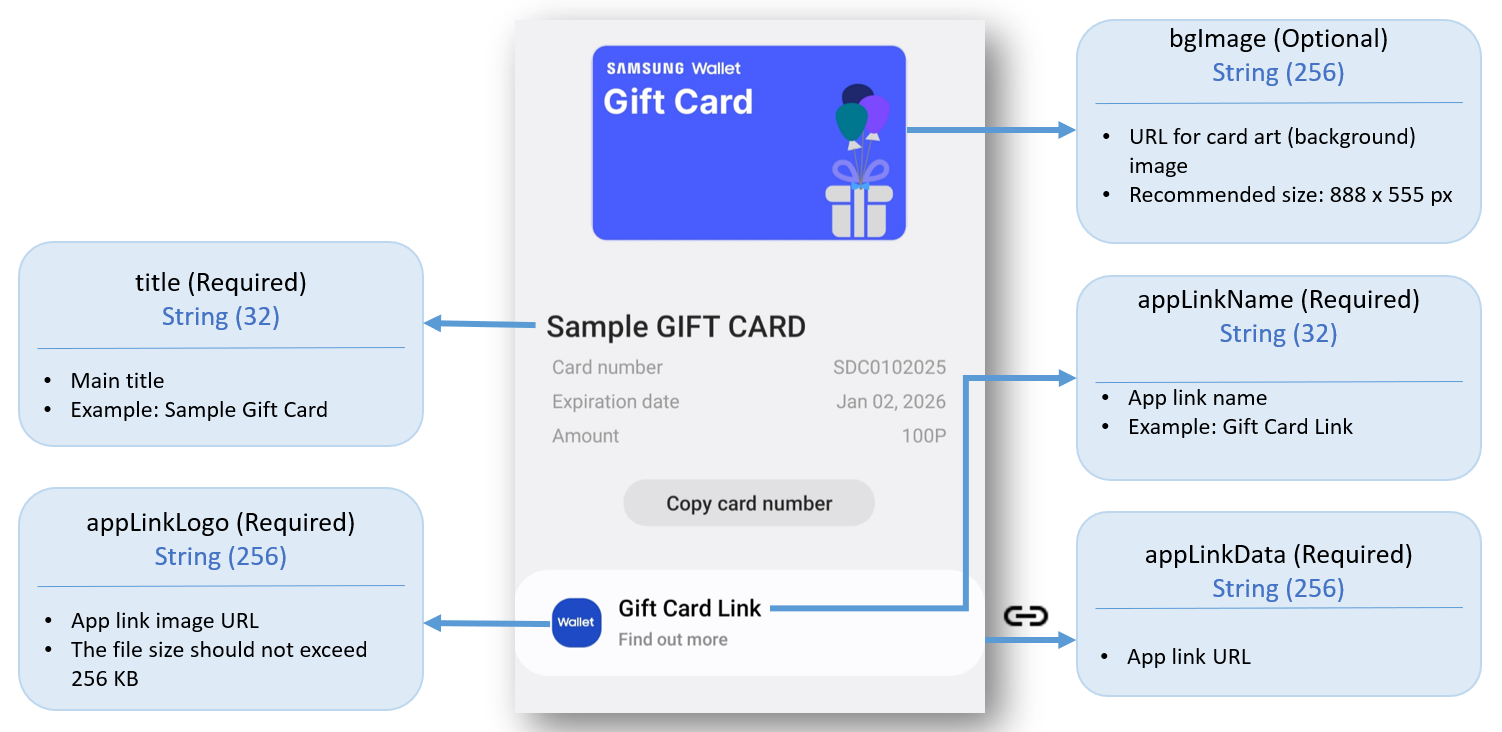
This image illustrates the core elements that define the basic structure of a gift card in Samsung Wallet. It highlights the required fields—such as title, appLinkName, appLinkData, and appLinkLogo—which control the card’s main display name and linked actions. Optional parameters like bgImage enhance the visual design by allowing a custom background. Together, these specifications form the foundation of the card’s visible layout and branding.

This image demonstrates the specification fields that define the card’s balance, expiration date, and barcode data in Samsung Wallet.
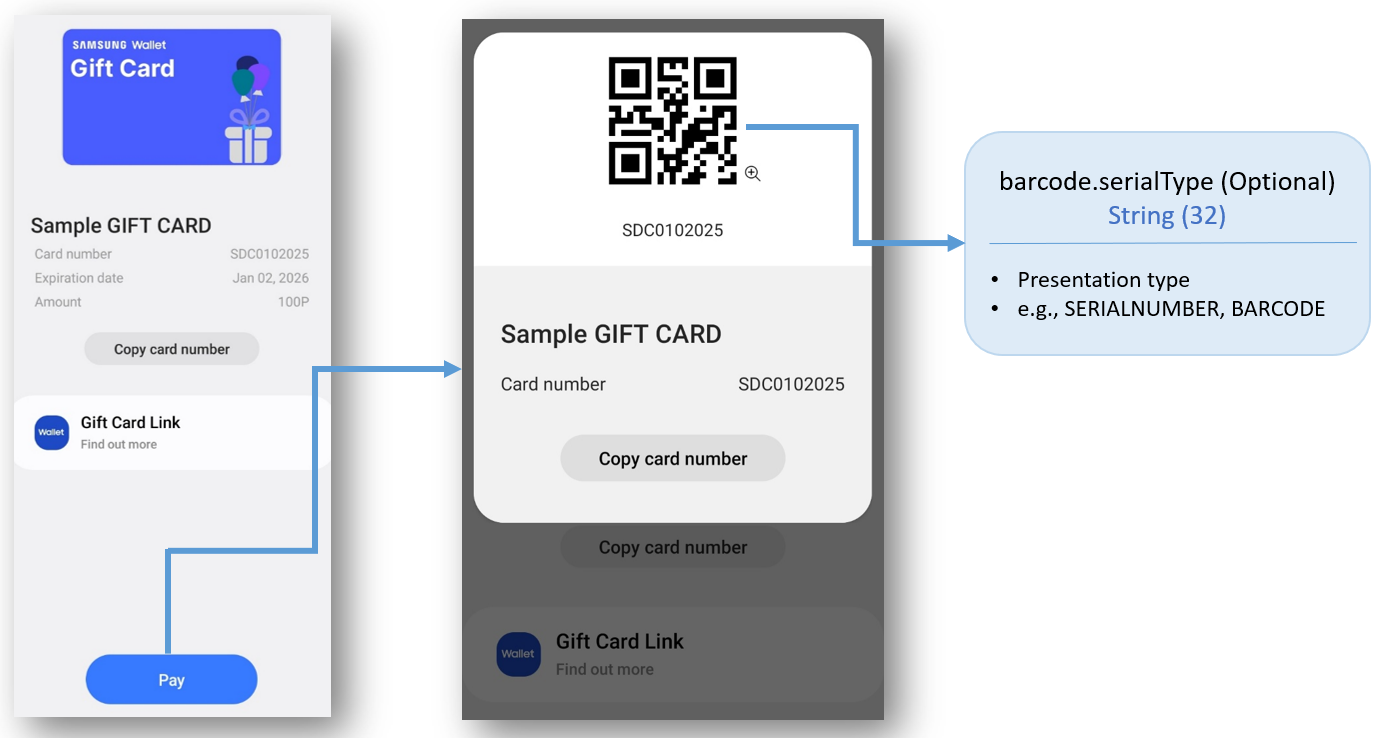
This image illustrates how the barcode appears when the user taps the Pay button on the gift card. The displayed barcode corresponds to barcode.serialType, which specifies the presentation format (such as BARCODE or SERIALNUMBER). This configuration allows users to redeem their gift cards seamlessly by scanning the code at a merchant terminal.

This image demonstrates the use of the csInfo field to store customer support information. Telephone number, email address, and website address information can all be stored in it.
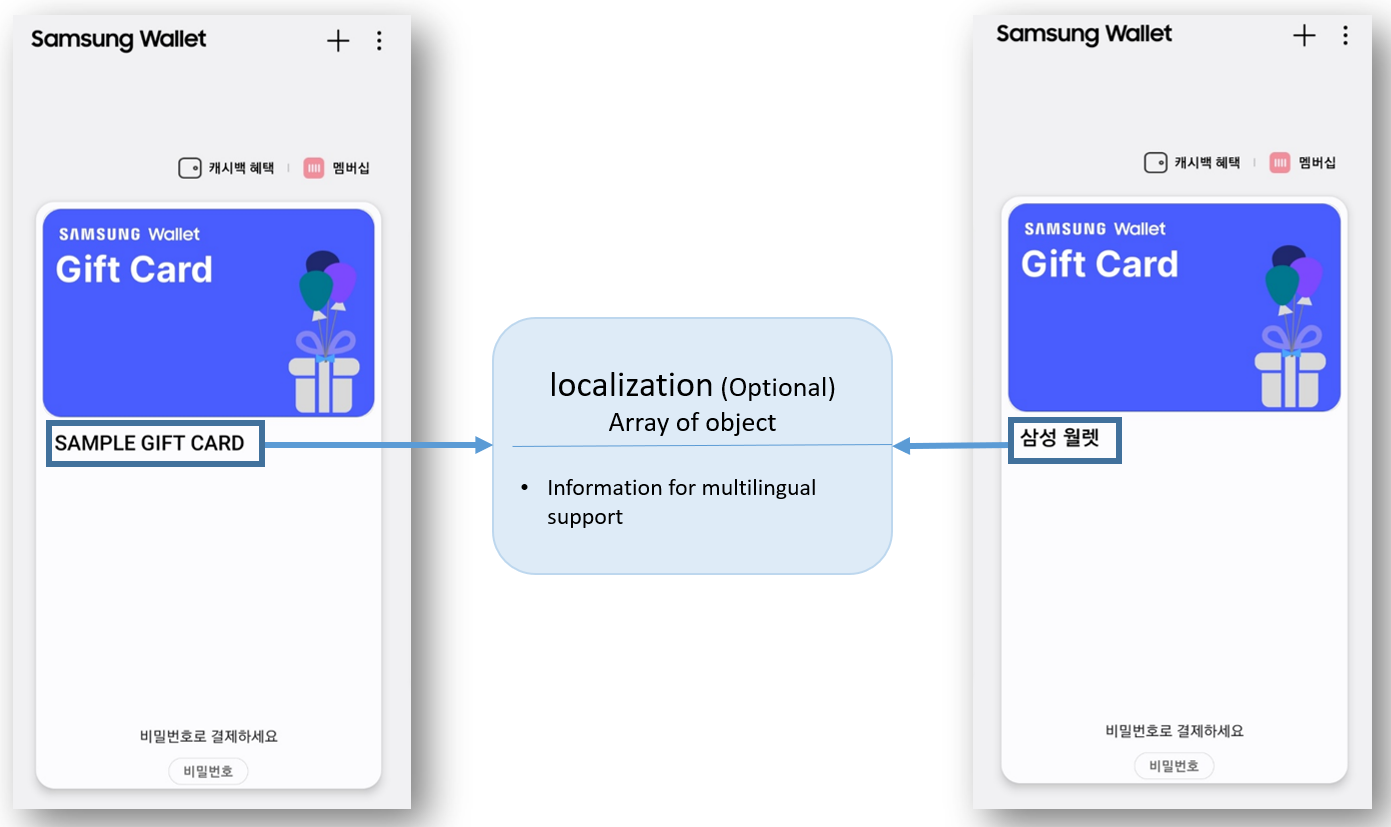
This image illustrates how the gift card’s display language adapts to the user's device language settings through the localization field. Localization allows the user to serve content in multiple languages. When a user sets their device to a specific language, the corresponding localized content is displayed on their device.
These specifications collectively define how your gift card appears and behaves in Samsung Wallet. For more detailed insights, check out the comprehensive Gift Card document.
Gift card JSON structure
Once you’ve reviewed the gift card specifications, the next step is to define them in the JSON structure. This data structure contains all the parameters that describe your gift card—including its title, amount, expiration date, barcode details, and optional links. The JSON is used to generate the Card Data token, which securely transfers the card information when users tap ‘Add to Samsung Wallet’.
The following is an example JSON file for a sample gift card:
{
  "card": {
    "type": "giftcard",
    "subType": "others",
    "data": [
      {
        "refId": {refId},
        "createdAt": {createdAt},
        "updatedAt": {updatedAt},
        "language": "en",
        "attributes": {
          "title": "SAMPLE GIFT CARD",
          "eventId": "event-001",
          "logoImage": "https://djcpagh05u38x.cloudfront.net/wlt/kr/stg/IHGhULmHRiqfhI73YdQZcA/GhDKJ4z2Q5O23CwuXSupBg.png",
          "logoImage.darkUrl": "https://djcpagh05u38x.cloudfront.net/wlt/kr/stg/IHGhULmHRiqfhI73YdQZcA/zdzSwFKbTvuvAz35MSKmzw.png",
          "providerName": "Gift Card Provider name testing",
          "user": "John Smith",
          "csInfo": "{\"call\":\"(+82) 1588-3366\",\"website\":\"https://www.samsung.com/us/\"}",
          "appLinkLogo": "https://d3unf4s5rp9dfh.cloudfront.net/TANGO/03-11-2025-wallet-gift-card-applink-logo-image.png",
          "appLinkName": "Gift Card Link",
          "appLinkData": "https://developer.samsung.com/wallet",
          "bgImage": "https://d3unf4s5rp9dfh.cloudfront.net/TANGO/03-11-2025-wallet-gift-card-design-v2.png",
          "fontColor": "",
          "amount": "100P",
          "startDate": {startDate},
          "endDate": {endDate},
          "barcode.value": "SDC0102025",
          "barcode.serialType": "QRCODE",
          "barcode.ptFormat": "QRCODESERIAL",
          "barcode.ptSubFormat": "QR_CODE"
        },
        "localization": [
          {
            "language": "ko",
            "attributes": {
              "title": "삼성 월렛"
            }
          }
        ]
      }
    ]
  }
}
Gift card testing with the ‘Add to Wallet’ test tool
You have created a gift card in the Wallet Partners Portal, now check if the card works properly before further development process. Follow these steps to check the card.
-
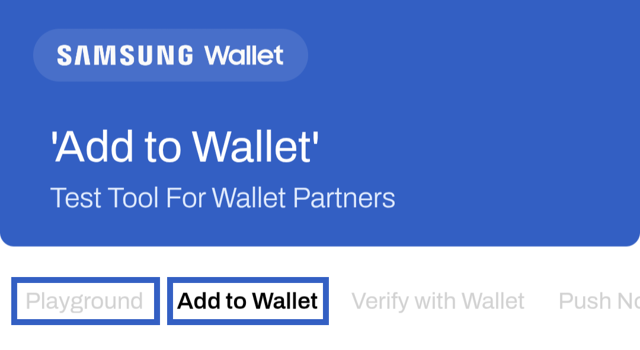
Sign in to the Add to Wallet test tool, navigate to the Playground section, select the gift card from the dropdown menu, and press Add to Samsung Wallet.
-
Navigate to the Add to Wallet menu on the Add to Wallet test tool site and follow the step-by-step guide provided in the Add to Samsung Wallet Test section in the Online Test Tool documentation.
‘Add to Samsung Wallet’ implementation
After testing the card with the ‘Add to Wallet’ test tool, you can let users add it directly to Samsung Wallet. Implement the ‘Add to Samsung Wallet’ button so that user can add the card to their wallet. For more details, refer to the Implementing ATW button documentation.
In the ‘Add to Samsung Wallet’ button implementation process, the generated JWT token expires after 30 seconds. As a result, you need to implement the server logic so that this token generates after the user interaction like pressing a button. See the Implementing "Add to Wallet" in an Android Application blog to get details on the server-side logic implementation process of an ‘Add to Samsung Wallet’ button in an Android application.
Conclusion
Bringing your gift cards to Samsung Wallet creates a secure, seamless, and branded experience for your users. By defining your card data, generating the token, and enabling the Add to Samsung Wallet flow, you make digital gifting effortless and engaging. Start integrating today and let users enjoy convenient, personalized gifting within Samsung Wallet.