Send Push Notifications to Samsung Wallet Users Using the Send Notification API
M. A. Hasan Molla
Engineer, Samsung Developer Program
Samsung Wallet provides an e-wallet service to its customers through wallet cards, as well as offering features designed to enhance user engagement and drive business growth for partners. Sending push notifications to users is such a feature. Partners can send push notifications to users' wallet cards directly, using pre-approved message templates.
These notifications can be used to send promotional messages or alert users about important updates. This article demonstrates a complete implementation of the Send Notification API.
In the example scenario, we send a notification to a user's wallet card from a partner's server using this API.
System requirements
The Notification API has the following prerequisites:
-
Complete the onboarding procedure to obtain the required security certificates if you are new to Samsung Wallet.
-
Now create your wallet card. Follow the Step 1 - Create Wallet Card Template section of the documentation.
-
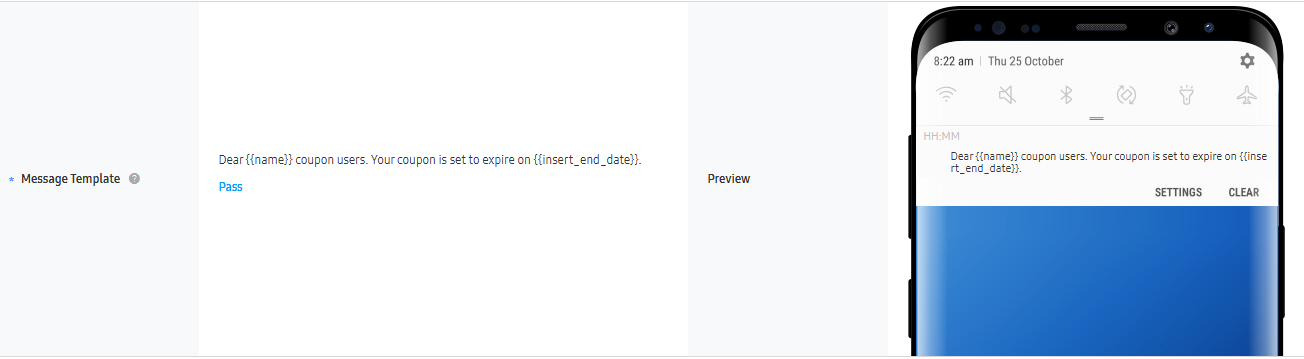
Create your notification template and request for approval. Follow the Notification Workflow Overview to complete this step. Remember to check the template to detect prohibited content. No additional approval is required if it passes.
- Get permission from Samsung to use the Send Notification API. Reach out to Samsung Developer Support for further support.
API fundamentals
As an authorized partner, you can send notifications to the users linked to your card, using the Send Notification API from your server.
Endpoint: The endpoint below processes the notification requests.
URL
https://tsapi-card.walletsvc.samsung.com/{cc2}/wltex/cards/{cardId}/notifications/{templateId}/send
Headers: Header information is required to ensure secure communication between the Samsung server and the partner server.
Authorization:Bearer token for authentication. Refer to JSON Web Token documentation for specifications.x-smcs-partner-id:Unique partner identifier required for API access.x-request-id:A unique UUID string that identifies each request.
Body: A payload including a parameter named ndata possessing a JWT token that contains the relevant data to identify the card user.
See the official documentation for detailed API specifications.
API implementation process
The Send Notification API allows you to send personalized push notifications to users. Download the sample source code and follow the step-by-step process below for a better understanding of the implementation of the API.
Step 1: Managing cryptographic keys
Cryptographic keys are needed for authorization purposes. In this step, use the certificate you obtained during the onboarding process to extract the necessary keys. These keys are needed for JWT token generation.
Extracting the public keys
Extract the public keys from the partner.crt and samsung.crt certificate files.
def getPublicKey(crt_path):
    try:
        with open(crt_path, "rb") as f:
            crt_data = f.read()

        certificate = x509.load_pem_x509_certificate(crt_data, default_backend())
        public_key = certificate.public_key()

        public_key_pem = public_key.public_bytes(
            encoding=serialization.Encoding.PEM,
            format=serialization.PublicFormat.SubjectPublicKeyInfo
        )

        return public_key_pem

    except Exception as error:
        print(f"Error reading public key from {crt_path}: {error}")
        return None
Extracting the private key
Extract the private key from the .pem file generated during the onboarding process.
def getPrivateKey(pem_path):
    try:
        with open(pem_path, "rb") as data:
            private_key = serialization.load_pem_private_key(
                data.read(),
                password=None,
                backend=default_backend()
            )

            return private_key

    except Exception as error:
        print(f"Error reading private key from {pem_path}: {error}")
        return None
Step 2: Constructing the authorization token
An authorization token is needed to validate the API request. Construct an authorization header with AUTH as the payload content type and include the certificate and partner IDs. Retrieve these IDs from My account > Encryption Management in the Wallet Partner Portal, then build the payload and construct the authorization token.
The following code snippet implements the actions described.
def generateAuthToken(partnerId, certificateId, utcTimestamp, privateKey, cardId, cc2, templateId):
    auth_header = {
        "cty": "AUTH",
        "ver": 3,
        "certificateId": certificateId,
        "partnerId": partnerId,
        "utc": utcTimestamp,
        "alg": "RS256"
    }

    auth_payload = {
        "API": {
            "method": "POST",
            "path": f"/wltex/cards/{cardId}/notifications/{templateId}/send"
        },
    }

    auth_token = jwt.encode(
        payload=auth_payload,
        key=privateKey,
        algorithm='RS256',
        headers=auth_header
    )

    return auth_token
Step 3: Constructing the notification data token
The request payload requires the ndata parameter, which is a JWT token that contains information about the notification data and the cards’ identifiers. Follow these steps to construct the ndata token.
Defining the notification object
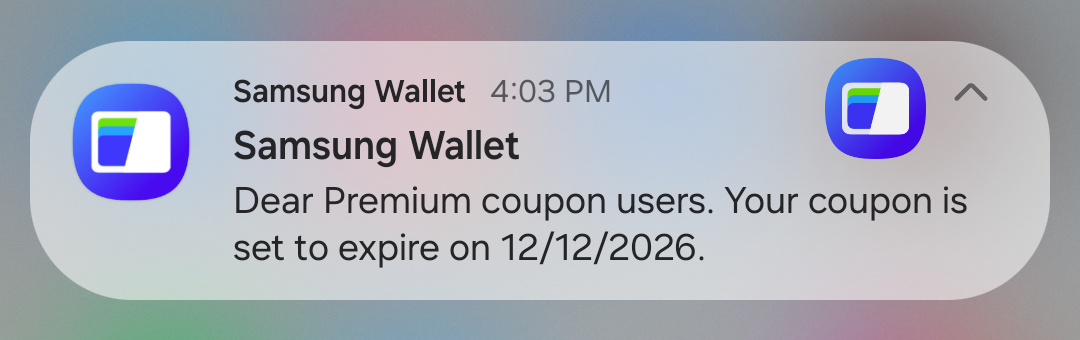
The notification object is a JSON structured data object containing a list of reference IDs and the data. The reference IDs identify the specific cards to send the push notification to. You can use a list of reference IDs to send the push notification to multiple recipients at a time. The data contains the name-value pairs used in the notification template. In our sample notification template, we used two name-value pairs (name and insert_end_date).
notifcationObject = {
        "refIds": [
            "4afb049c-efef-43ca-8f03-1df55243477c"
        ],
        "data": {
            "name": "Premium",
            "insert_end_date": "12/12/2026"
        }
    }
Constructing the notification data JWT token
Next, construct the JWT token for notification data (ndata). You can get more information about the JWT format in the "Card Data Token" section of this documentation.
def generateCDataToken(partnerId, samsungPublicKey, partnerPrivateKey, certificateId, utcTimestamp, data):

    jwe_header = {
        "alg": "RSA1_5",
        "enc": "A128GCM"
    }

    jwe_token = jwe.encrypt(
        data,
        samsungPublicKey,
        encryption=jwe_header["enc"],
        algorithm=jwe_header["alg"]
    )
    print(f"jwe_token: \n{jwe_token}\n")

    jws_header = {
        "alg": "RS256",
        "cty": "NOTIFICATION",
        "ver": 3,
        "certificateId": certificateId,
        "partnerId": partnerId,
        "utc": utcTimestamp,
    }

    jws_token = jws.sign(
        jwe_token,
        key=partnerPrivateKey,
        algorithm='RS256',
        headers=jws_header
    )
    print(f"jws_token: \n{jws_token}\n")

    return jws_token
Step 4: Building and executing the POST request
Construct the HTTP POST request to send the push notification using the following code structure.
# --- Prepare JSON body (Python dictionary) ---
payload = {
        "ndata": nData
    }

    # --- Build HTTP Request ---
    headers = {
        "Authorization": "Bearer " + authToken,
        "x-smcs-partner-id": partnerId,
        "x-request-id": requestId,
        "Content-Type": "application/json"
    }

    # --- Execute HTTP Request ---
    try:
        response = requests.post(endpoint, json=payload, headers=headers)

        response.raise_for_status()

        print("Wallet Card Template Notificatiom: " + json.dumps(response.json()))

    except requests.exceptions.RequestException as e:
        print("Failed to notify the Wallet Card user:")
        print(f"Error: {e}")
        if response:
            print("Response body:", response.text)
Running the sample application
Once the four steps described above are implemented, open the sample project and do the following:
- Update the
partner_id,certificate_id,card_id, andtemplate_idvalues insrc/main.pywith your actual values. - Place your
partner.crt,samsung.crtandprivate_key.pemfiles in the/certdirectory. - Install all dependent libraries listed in the
requirements.txtfile. - Run the main script in the terminal.
After the script is executed successfully, a push notification is sent to the user's wallet.
Conclusion
Now that you have implemented the Send Notification API sample application successfully, you can implement this API with your server to send customized push notifications.
Additional resources
For more information on this topic, consult the following resources: