The Samsung Wallet Partners Portal provides partners with the necessary tools and functionality to integrate the “Add to Samsung Wallet” feature into their services. This guide outlines the process of registering, managing wallet cards, and ensuring that everything runs smoothly. Refer to the Partner Onboarding guide for the Samsung Wallet portal.
The Partners need to complete the following steps to register and gain access to the Samsung Wallet Portal.
Note-Wallet portal currently offers 'Add to Samsung Wallet' functionality to the partners.
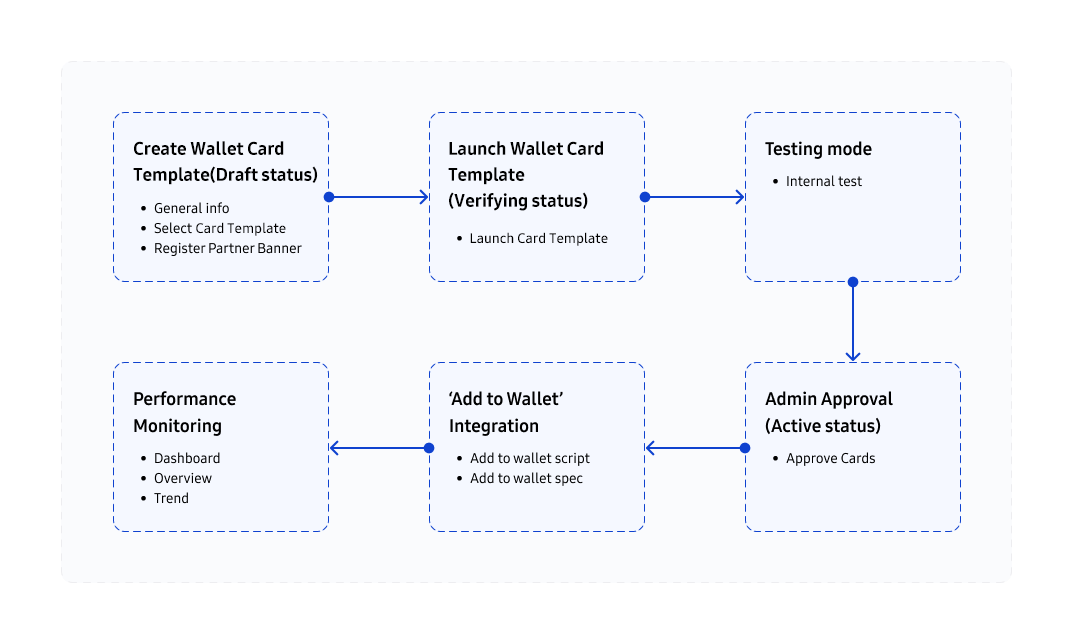
Overall Managing Process
Once registered and logged into the Samsung Wallet Portal, partners can follow the steps to manage wallet cards and monitor performance:
Step 1 - Create Wallet Card Template
Begin by drafting the cards that will be added to Samsung Wallet. These cards can include loyalty cards, tickets, boarding passes, and more. Draft Status - Initially, these cards will be in Draft status until they are fully configured and ready for testing.
Manage Wallet Card
Partners can manage all registered wallet cards. This includes edit, update, and monitor the status of the wallet cards.
General Information
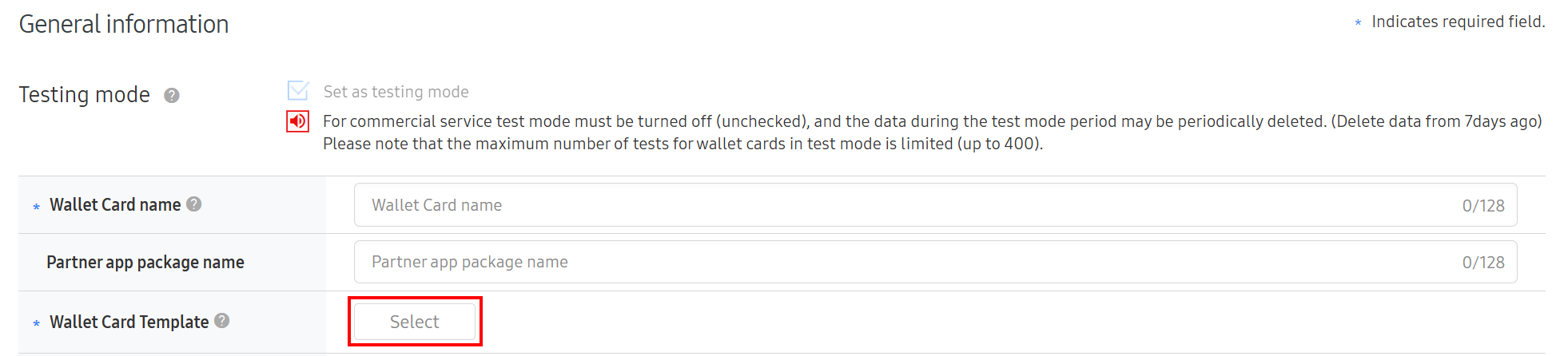
The General Information page allows the partner to enter administrative details to manage their cards, as well as to define common parameters for the wallet.
Folder
Contents
Testing mode
All data generated in Testing mode is periodically deleted. Be sure to turn off the "Testing mode" setting after the test is over.
Wallet Card name
Representative title of the wallet card.
Wallet Card ID
Unique wallet card domain name.
Partner app package name
Partner application package name.
Wallet Card Template
Pre-defined partner wallet card template.
Partner Get card data
URL for the partner API call to receive card data. If the partner uses this API, enter the URL. Otherwise leave it blank.
Partner Send card state
URL for the partner API call to send a card state notification. If the partner uses this API, enter the URL. Otherwise leave it blank.
Samsung Server IPs
Samsung Wallet Server IPs which need to be allowed by the partner’s firewall, separately described for inbound and outbound.
Wearable Wallet assistance
Whether to support the Wearable Wallet service.
Support ‘No Network’ status
Whether to support wallet card opening during the ‘No Network’ status.
Description
Description of the wallet card.
Select Card Template
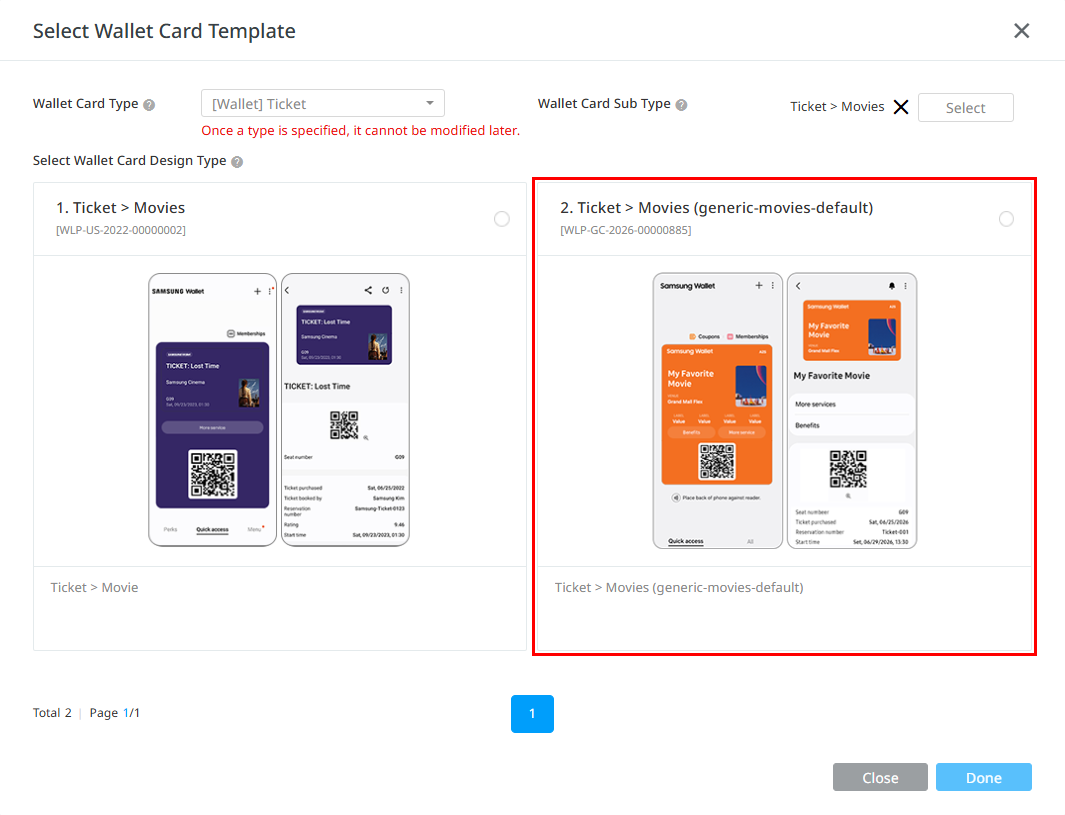
The Samsung Wallet Portal offers various wallet card templates optimized for different use cases, including boarding passes, tickets, coupons, and digital IDs.
To streamline your integration, you can easily select the appropriate template from the Select Wallet Card Template pop-up window.
Steps to select Wallet Card Template
Navigate to the Select Wallet Card Template option within the portal.
In the Wallet Card Type drop-down menu, select the category that best suits your use case (e.g., Boarding Pass, Ticket, Coupon, or Digital ID).
Once the card type is selected, a list of templates will appear in the Wallet Card Sub Type section.
Choose one of the available templates from the list that corresponds to your selected card type.
Some card types support a Flexible layout design.
After selecting the template, you can proceed with configuring the card’s details, including the branding, content, and data fields specific to the selected template.
Samsung Wallet supports various wallet card types designed to cater to different use cases. Each card type is optimized for specific functions, making it easier for partners to provide a seamless experience to users.
Note-Refer to section Wallet Card Type to learn more about it.
View Wallet Card Template
Partners can easily manage all their registered wallet cards through the Samsung Wallet Portal. This includes the ability to view, edit, and delete wallet cards as needed.
Once a wallet card is ready for launch, it must go through the Verifying status before it can be activated and made available to users. Partners can launch and activate their cards once they have been reviewed and approved, ensuring the card meets all requirements.
Steps to launch card template
To begin the launch process, click Yes to confirm and approve the activation of the wallet card.
To begin the activation process, click the Launch button for the card you wish to activate.
Once a card is launched, the button text changes to Launched. The activation cannot be cancelled.
After the card is launched, its status will change to Verifying. During this stage, the system will conduct a final review to ensure all information is accurate and meets the necessary requirements.
After verification, the card will undergo administrator approval. The admin will review and approve the card for activation.
Once the card is approved by the administrator, its status will change to Active, making it available for users to add to their Samsung Wallet.
Launch Wallet Card Template (Rejected status)
If the wallet card is rejected after launching, you can modify the card and re-launch.
Steps to modify the card and re-launch
The administrator registers the reason for rejection when rejecting the launched wallet card.
It is sent to the partner by email from the system, including the reason for rejection.
Partners can apply for launch again by checking the reason for rejection and modifying the wallet card information.
Step 3 – Testing Mode
Partners can use the Testing Mode to test a wallet card internally before it is officially released to users. This feature ensures that all aspects of the card, including its functionality and user experience, are working as expected.
When you create a new wallet card, the Testing Mode option is enabled by default, allowing you to perform internal tests without affecting user access.
All data generated during testing is periodically deleted to ensure that no test data remains in the system once testing is complete.
Even though Testing Mode is enabled, the card is still visible and accessible in the system. Testing does not prevent the card from being exposed to users, so you can verify its functionality without any restrictions.
Once testing is complete and you are satisfied with the card’s performance, be sure to turn off Testing Mode.
Note-Remember to change the status from Testing Mode ON to Testing Mode OFF to finalize the testing process and prepare the card for official release.
Step 4 - Admin Approval (Active Status)
After a wallet card is launched, it must go through an administrator approval process before it becomes active and visible to users.
Steps for Admin approval
Once the Launch button is clicked, the card’s status automatically changes to Verifying.
During this stage, the card is reviewed for accuracy, completeness, and compliance with Samsung Wallet requirements.
Note-Please ensure that testing is completed using either your own implementation or the Add to Wallet test tool, as the Samsung Wallet administrator will verify the results through server-side test logs.
An administrator will review the submitted wallet card to ensure it meets all content and technical guidelines. If the card passes the review, it is approved for activation.
Upon administrator approval, the card status updates 'Active'.
Once the card reaches Active status, it becomes visible and accessible to end users, enabling them to add it to their wallets.
Step 5 – Add to Samsung Wallet Integration
To integrate the "Add to Samsung Wallet" feature into your system, you need to insert the appropriate "Add to Wallet" script. This script is available for various platforms, including Web, Android, and Email/MMS, and each platform requires a slightly different implementation approach.
Follow the steps below to successfully implement the "Add to Wallet" button:
Create the tokenized card data, known as Cdata, which contains the actual wallet card content.
Note-Since CData has a Time-To-Live (TTL) of 30 seconds, it is recommended that the system generates CData in real time to ensure it remains valid when processed.
2. The Cdata format varies depending on the card type (e.g., loyalty card, ticket, coupon).
3. Refer to the [_Cdata Generation Sample Code_][Cdata Generation Sample Code] on the Partners Portal for detailed guidance.
4. Copy the sample **‘Add to Wallet’** script from [_Partners Portal’s Wallet Card_][Partners Portal’s Wallet Card] page.
5. Replace the placeholder "cdata" in the script with your generated tokenized card data.
6. Apply the script to your system. See [_Partners Portal’s Wallet Card_][Partners Portal’s Wallet Card] for details.
Note-For "Add to Wallet" integration, you may need some base data. You can find that and other necessary information on Partners Portal and Wallet API Spec. You can also add image beacon in the script for tracking effect analysis.
Add to Wallet Script Guide
Step 6 – Merchant Push Notification
Partners can create a Message template for sending pushes on each of their Wallet cards.
Type
Partners can only choose the Merchant Push type.
Message Type
You can choose a Message Type from marketing or others
Rejected Comment
If the merchant push notification is rejected after request approval, you can modify the Message Template.
The administrator registers the reason for rejection when rejecting the merchant push notification
It is sent to the partner by email from the system, including the reason for rejection.
Partners can request for approval again by checking the reason for rejection and modifying the Message Template.
Approved Date
Displays the date and time when the push message is approved by the administrator.
Message Template
You can create the contents of the push, and it is also possible to put the available variables in '{{}}'
After configuring the content, click Harmfulness Verification to verify whether there is a harmful expression in the content.
The verified result is displayed as Pass or Fail, and if it is Fail, it shows the filtered harmful expression together.
Even if the verified result is Fail, an approval request can be made, but it can be rejected by the administrator.
If a different language is added to the default language in General Information, the Message Template must also be entered for each added language.
Request Approval Button
After completing the Message Template, click this button to send an e-mail requesting approval to the administrator.
Configure the Wallet card layout
Samsung Wallet offers the flexibility to customize card layouts according to your preferences.
Samsung Wallet supports 2 different layout types. While all cards can use the Default layout type, the Flexible layout type is only available for specific cards.
This section defines the design and attributes of the wallet cards to be supported through the Flexible layout type.
Supported Card Types with Flexible Layout
The card types that support the Flexible layout type are as follows.
When creating a Wallet Card that supports the Flexible layout type, the user can choose between the Default and Flexible layouts when selecting the card type.
Select the Type and Sub Type for the Wallet Card Template.
Selecting a card type that supports a Flexible layout will display the available Flexible layout.
Identifiable by the name 'generic-subTypeName-default'.
Note-Please choose carefully, as the layout type cannot be changed once the card is activated.
Card Design and Attribute Configuration
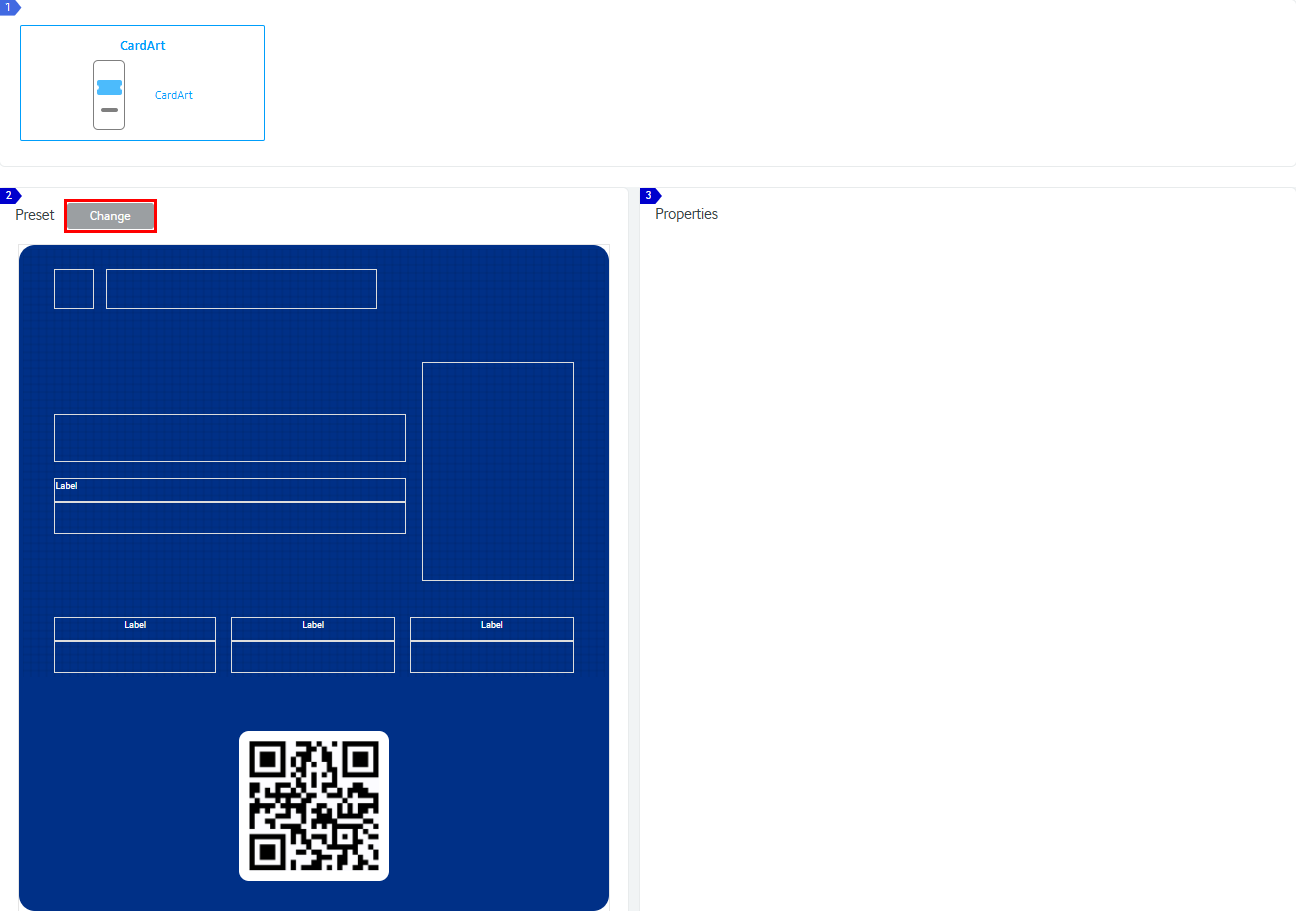
Step 1: Determine the Layout Preset
To determine the layout preset:
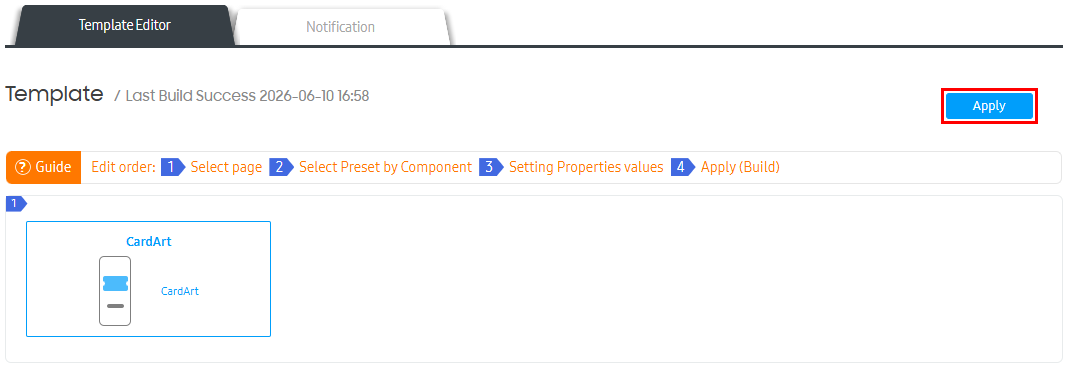
In the Template Editor, click the Preset Change button to modify the layout design.
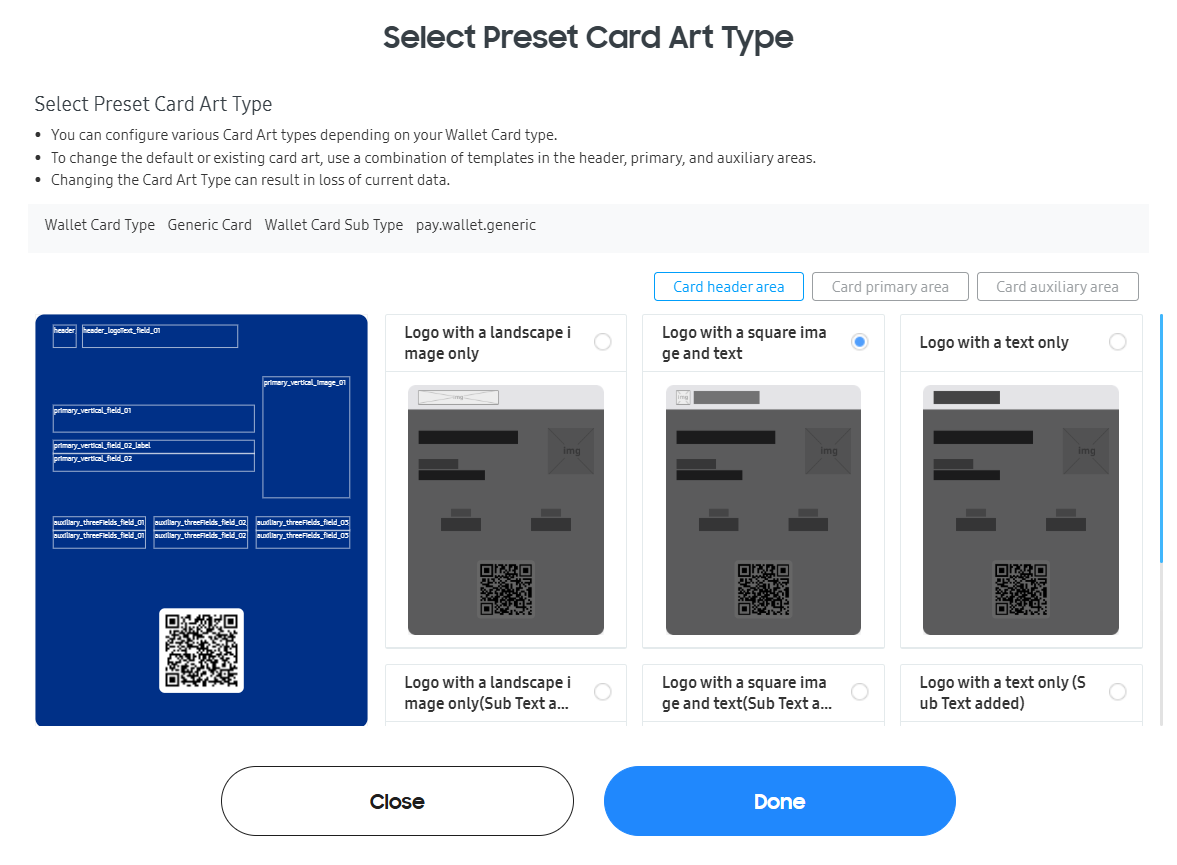
Presets consist of a combination of three areas: Card Header Area, Card Primary Area, and Card Auxiliary Area
Select each tabs respectively to create the desired combination.
Note-The design types provided vary by card type and area.
Note-• Changing the Preset updates all previously saved layouts.
• Once a card has been activated, its layout cannot be modified. Ensure thorough testing before releasing the card.
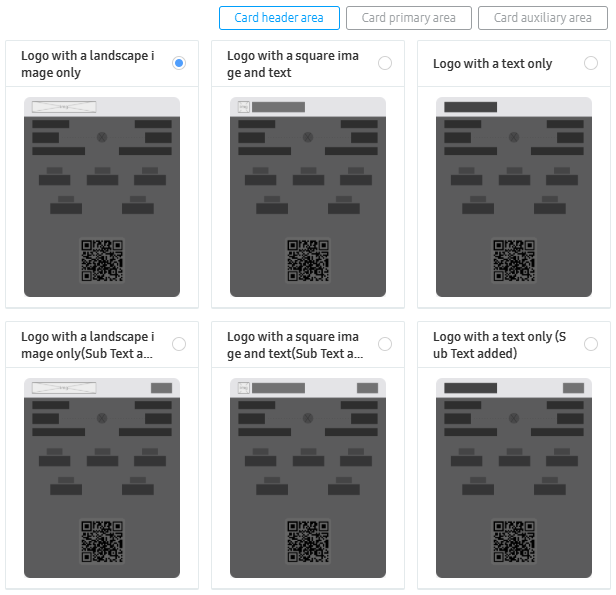
Card Header Area: Choose from six option, including logo type and sub-text combinations.
Logo type: Logo image, Logo image + Text, Text only
The Card Header Area has the same configuration across all card types, and 6 available configurations:
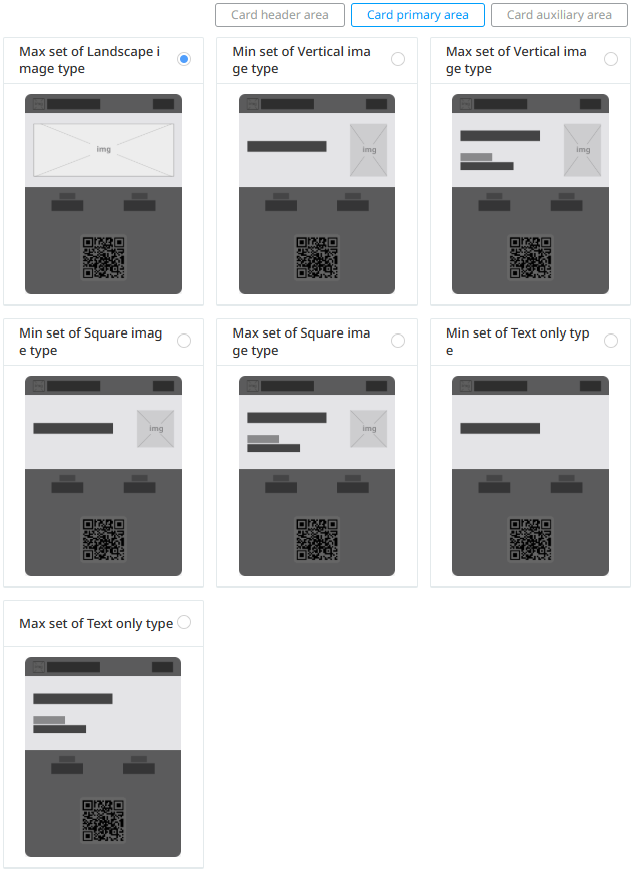
Card Primary Area: The main section that determines the card's primary layout.
The Card Primary Area is configured differently for each card types.
The Primary Area of Loyalty(Membership), Coupon, Event Ticket, Generic card has 7 available configurations:
The Primary Area of a Boarding pass has 4 available configurations:
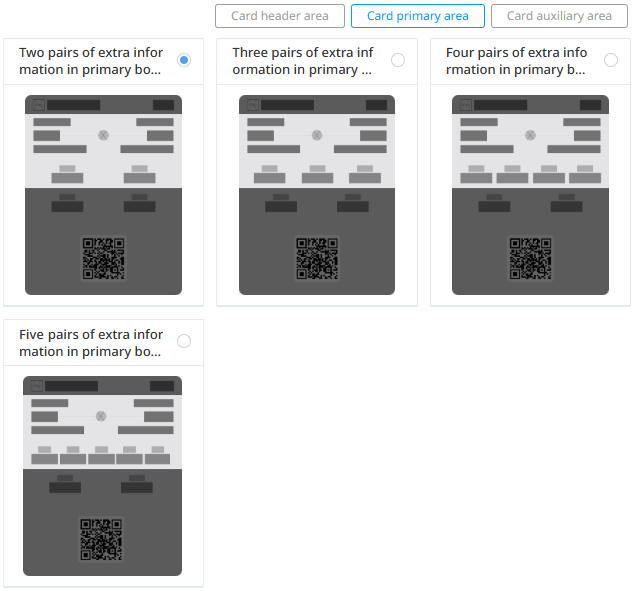
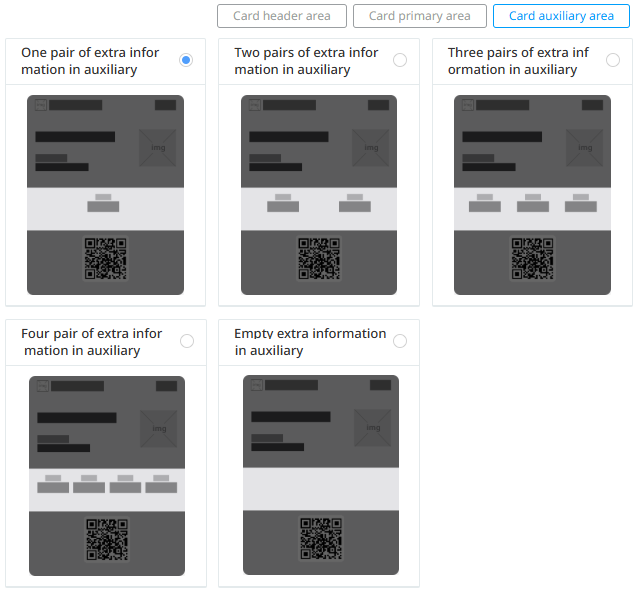
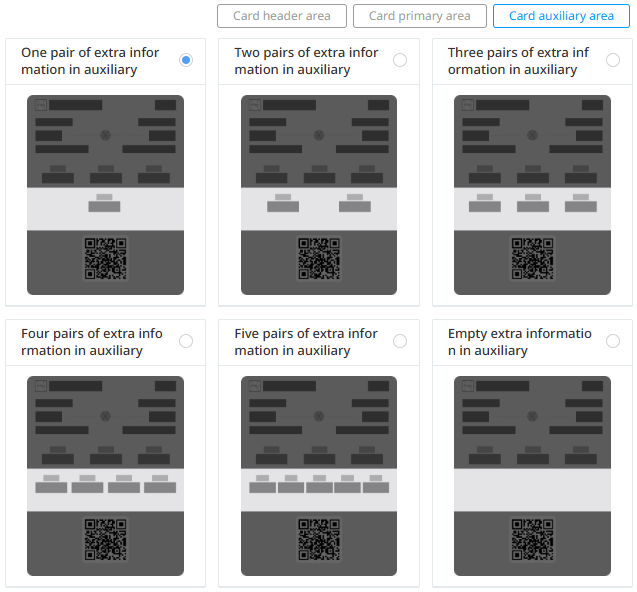
Card Auxiliary Area: Select the number of text fields needed to provide additional information.
The Card Auxiliary area is configured differently for each card types
The auxiliary area of Loyalty(Membership),, Coupon, Event Ticket, Generic card has 5 available configurations.
The auxiliary area of a Boarding pass has 6 available configurations.
Step 2: Define Key Values for Each Attribute in the Layout
To define the key values for each attribute:
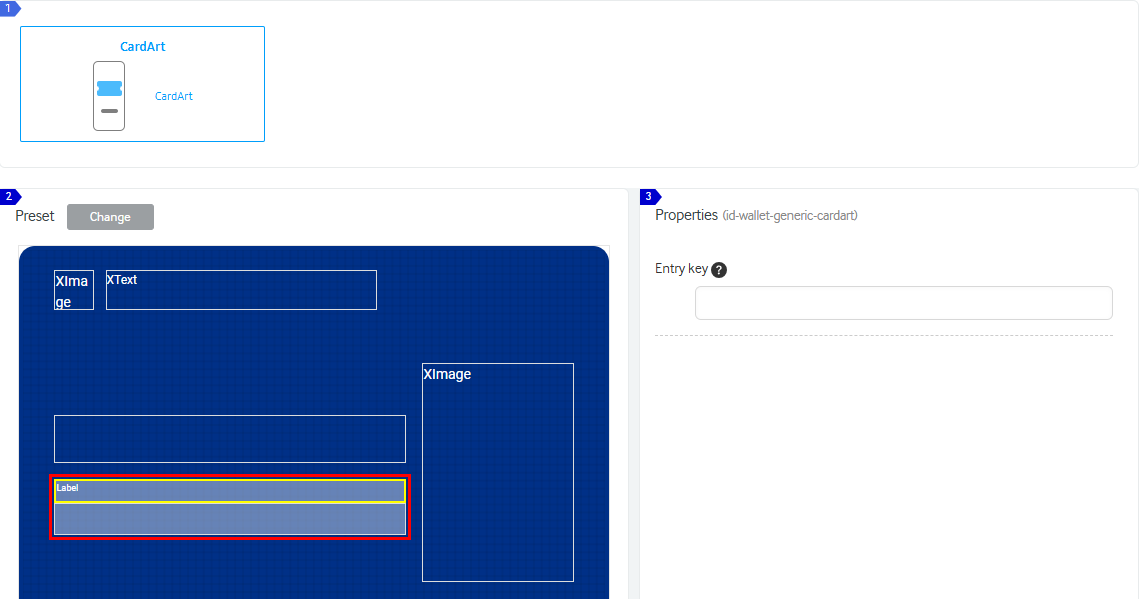
Click on an empty container in the card preview where the key has not been set.
When an empty container consists of a label and a value pair, the label and value are selected as a group. Setting either a label or a value synchronizes and applies the values across all grouped containers.
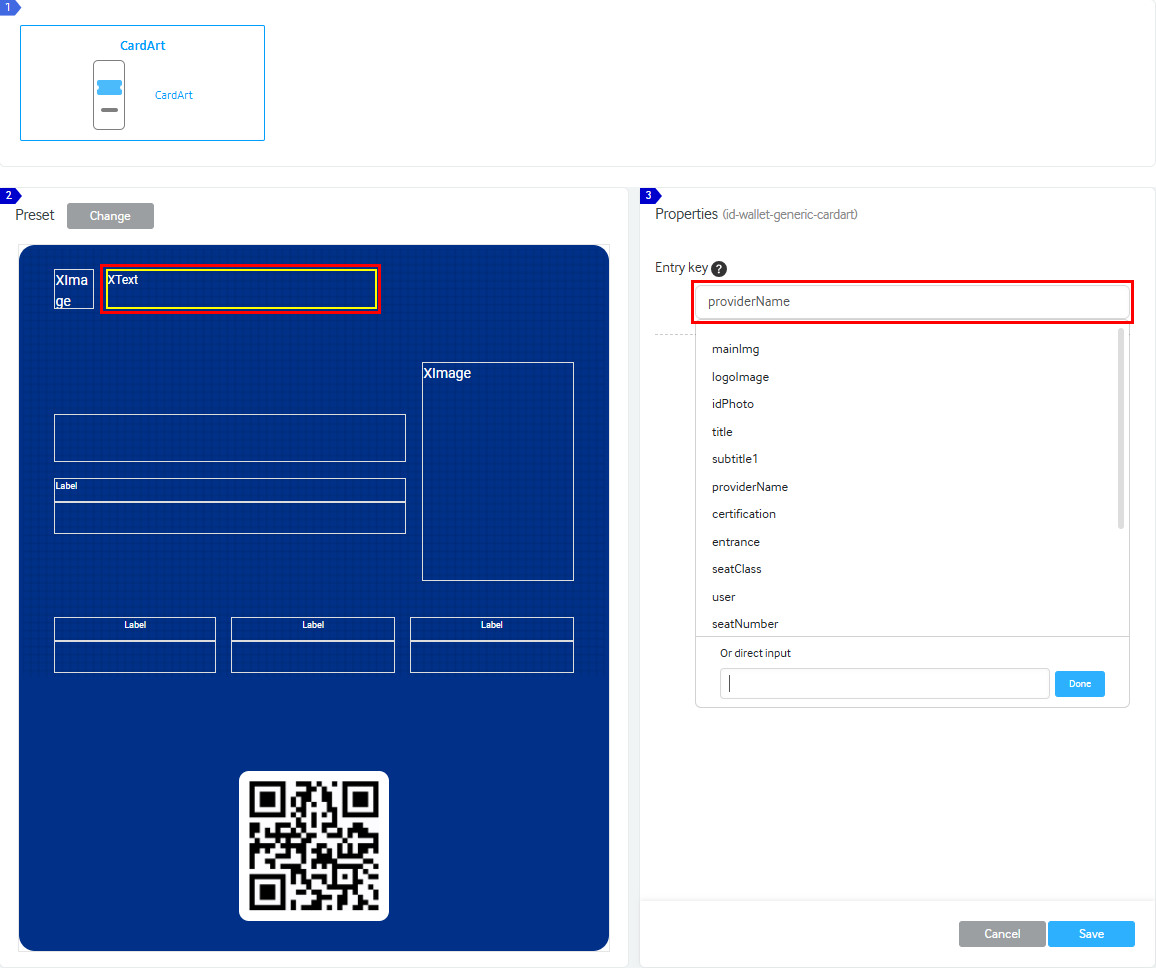
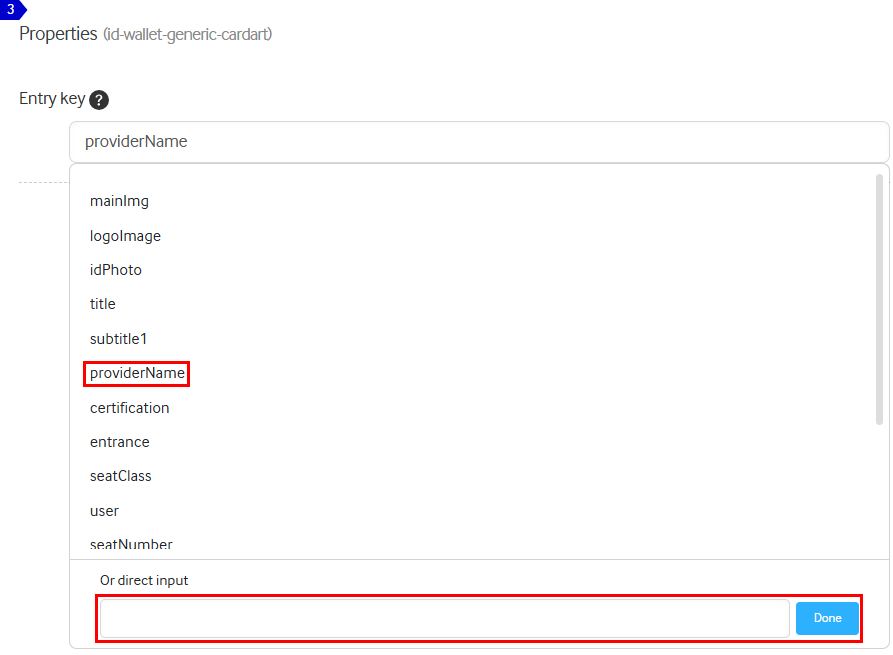
Click the Entry Key button to view the supported attribute names.
Select an attribute from the list or if the desired attribute is not available, enter the value directly in the direct input field:
When selecting from the attribute list, Samsung Wallet's supported text will appear in your application.
Save the key value by clicking the Save button.
Once all configurations are complete, click Apply to implement the layout.
Step 3: Prepare Card Data Matching the Layout Design
To prepare the card data matching the chosen layout design:
Refer to the specifications for each card type for Wallet Card data
If you used direct input during layout setup, provide an extendedfields attribute corresponding to the key value:
We use cookies to improve your experience on our website and to show you relevant
advertising. Manage you settings for our cookies below.
Essential Cookies
These cookies are essential as they enable you to move around the website. This
category cannot be disabled.
Company
Domain
Samsung Electronics
developer.samsung.com, .samsung.com
Analytical/Performance Cookies
These cookies collect information about how you use our website. for example which
pages you visit most often. All information these cookies collect is used to improve
how the website works.
Company
Domain
Samsung Electronics
.samsung.com
Functionality Cookies
These cookies allow our website to remember choices you make (such as your user name, language or the region your are in) and
tailor the website to provide enhanced features and content for you.
Company
Domain
Samsung Electronics
developer.samsung.com, google.account.samsung.com
Preferences Submitted
You have successfully updated your cookie preferences.