Automate Binary Management in Galaxy Store Using the Content Publish API
Md. Shahin Hossain
Engineer, Samsung Developer Program
Binary management APIs play a crucial role in maintaining and updating applications on the Galaxy Store Seller Portal. As your application evolves, you may need to add new binaries, change the GMS (Google Mobile Service) services status of existing binaries, or remove binaries from your application.
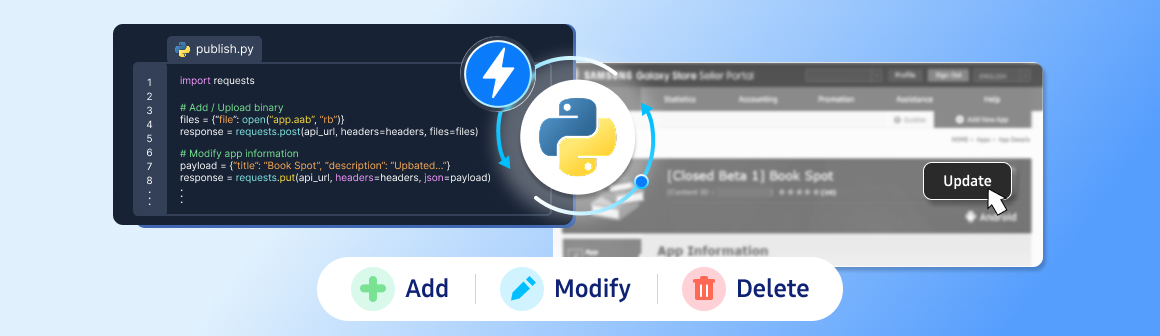
The Galaxy Store Seller Portal provides dedicated Content Publish APIs to help you manage your application binaries programmatically. With the Add New Binary, Modify Binary, and Delete Binary APIs, you can efficiently handle binary operations while minimizing manual actions through the Galaxy Store Seller Portal.
This tutorial provides an overview of these three APIs, including their use cases, required request parameters, and expected responses. The full process of implementing the binary management APIs is as follows:

Figure 1: Implementing binary management APIs
Prerequisites
Before implementing the Binary Management APIs, ensure that your environment meets the following requirements:
- Samsung Account: A Samsung Account registered with the Galaxy Store Seller Portal.
- Service Account ID: Obtain your Service Account ID from Seller Portal > Assistance > API Service. If you do not have one, create a new Service Account ID.
- Access Token: Generate a valid access token to authenticate API requests. Follow the access-token generation procedure provided in this guide.
- Application Status: The application content status must be in
Updating.
Preparing the Application for Binary Management APIs
For implementing the binary management APIs, it is essential to ensure that your application has completed the registration and submission process through the Galaxy Store Seller Portal manually for the first time. After that, no further manual registration or submission is required for subsequent updates.
The full application preparation process is as follows:

Figure 2: Preparing the application
If your application is already in the Updating content status, this process is not necessary and you can proceed directly to the file uploading process. To prepare the application for updating its status and implementing the binary management APIs, follow these steps:
- If you do not have an application, register a new application on the Seller Portal by following the Register Your App in Seller Portal guide. After registering your application, or if your application is already in the
REGISTRATIONstatus, proceed to the next step. If your application is in theFor SaleorBeta Deployedcontent status, you can move directly to Step 4. - Submit your application for review, including policy checks. For more details on the review process, refer to the application review process guide.
- The following figure shows an application that has finished the initial registration and review process, and is now in either the
For Saleor theBeta Deployedcontent status.
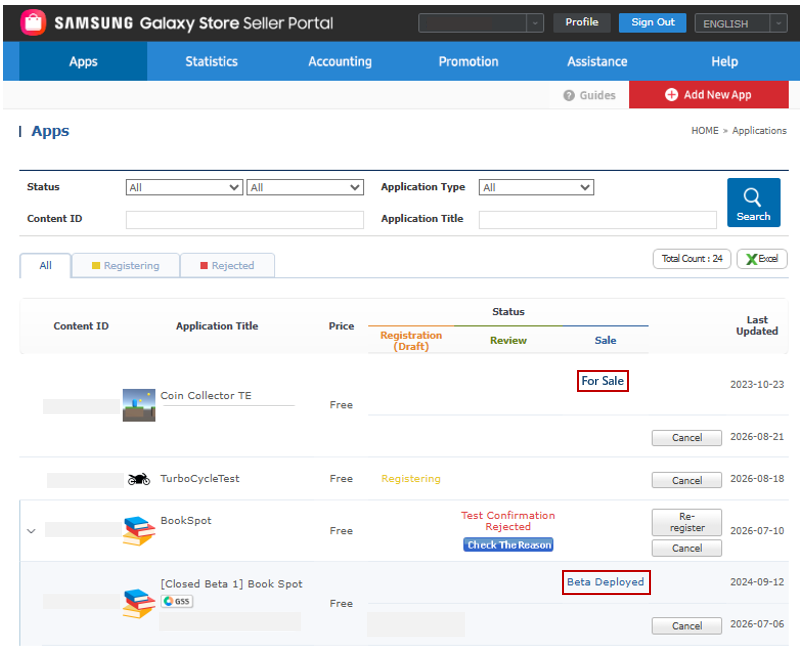
Figure 3: Applications in the For Sale or Beta Deployed content status in the Seller Portal
- After your application reaches the
For SaleorBeta Deployedcontent status, the Update option becomes available in the Seller Portal application details tab. This option moves the application to the correspondingUpdatingstatus, allowing you to make further changes and updates.
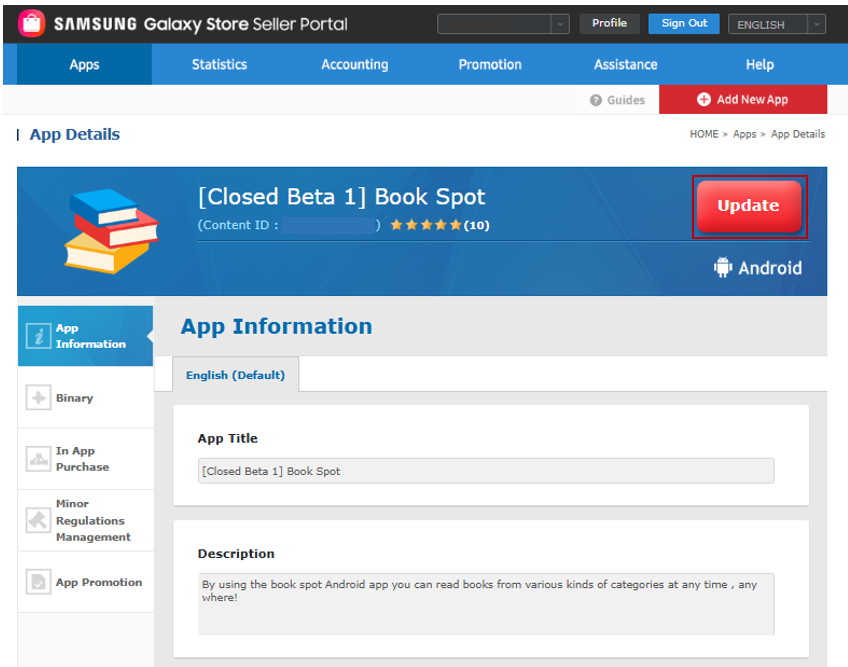
Figure 4: Update button of an application in Seller Portal
- Once the application’s content status becomes
UpdatingorBeta Updating, you can then use the Add New Binary, Modify Binary, and Delete Binary APIs to manage the application's binaries programmatically.
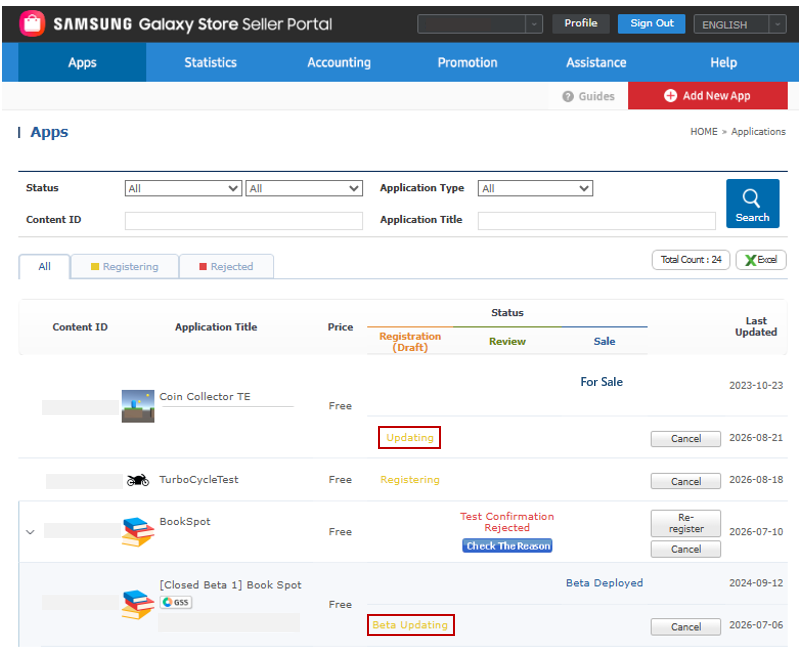
Figure 5: Updating or Beta Updating status in Seller Portal
SALE, the corresponding content status is For Sale or Beta Deployed. After clicking the update button, the application status moves to REGISTRATION, and the content status becomes Updating or Beta Updating.Obtaining the Upload fileKey
Before adding a new binary, you must first upload the binary file using the Galaxy Store file upload process. The complete process of file uploading is shown in the image below:

Figure 6: Binary file upload process
- Create a Session ID: Initiate an upload session to obtain a
sessionId. - Upload the Binary: Use the
sessionIdto upload the binary file.
After a successful upload, the API will return a fileKey which uniquely identifies the uploaded file. This fileKey is a required parameter when calling the Add New Binary API.
Configuring API Implementation Credentials
The binary management APIs require an access token and Service Account ID for authentication. To simplify your implementation, define these credentials and the common request headers at the beginning of your code. This approach allows you to reuse them across all API requests.
The following Python example initializes the authentication credentials and common headers:
import requests
import json

# Access token and headers
accessToken = "<your-access-token>"
Authorization = "Bearer " + accessToken
SERVICE_ACCOUNT_ID = "<your-service-account-id>"
Implementing the Add New Binary API
The Add New Binary API is used to add a new binary to an application for a new release. It is ideal for registering updated builds that include new features, enhancements, bug fixes, or compatibility changes. You can add up to 20 binary files under one content ID.
The size of a binary converted from an APK or AAB into an APK must be within 4 GB. Binaries that exceed this size cannot be installed on the user's device. The newly added binary becomes part of the application update and can then proceed through the Galaxy Store submission and review process.
Request Parameters and API Endpoint
To add a new binary, first define the essential request parameters including the application's contentId, the fileKey returned after uploading the binary, GMS status, and the binary sequence for device information. Once these parameters have been assigned, you can then specify the API endpoint where the request will be submitted.
# Request parameters
contentId = "<Content ID of your application>"
fileKey = "<Your file uploading return key>"
gms = "N"
binarySeqForDeviceInfo = "2"

# Defining the API endpoint
api_url = https://devapi.samsungapps.com/seller/v2/content/binary
Headers and Request Payload
The headers provide the necessary authorization and Service Account information, while the JSON payload contains the application and binary details required to add the new binary.
# Header to be sent to the API
headers = {
    "Authorization": Authorization,
    "service-account-id": SERVICE_ACCOUNT_ID,
    "Content-Type": "application/json"
}

# Request payload
payload = {
    "contentId": contentId,
    "gms": gms,
    "filekey": fileKey,
    "binarySeqForDeviceInfo": binarySeqForDeviceInfo
}
Submitting a POST Request
Finally, you can send a POST request to the Galaxy Store server with the previously defined API endpoint, request headers, and payload.
try:
    # POST request
    response = requests.post(api_url, headers=headers, json=payload)

    print("Status Code:", response.status_code)

    try:
        data_shows = response.json()
        print(json.dumps(data_shows, indent=4))
    except:
        print(response.text)

except Exception as e:
    print("Error:", str(e))
Successful Request Response
After successfully processing the POST request, the Galaxy Store server returns the following JSON response:
{
   "resultCode": "0000",
   "resultMessage": "Ok"
   data: {
      "binarySeq": "3"
   }
}
Implementing the Modify Binary API
The Modify Binary API allows you to enable or disable Google Mobile Service (GMS) of an existing binary by specifying the application’s content ID, and the binary sequence that identifies the binary.
Request Parameters and API Endpoint
To modify an existing binary, specify the application’s contentId, binarySeq, and the applicable GMS status. To enable GMS, the gms parameter must be set to "Y", and to disable it, it must be set to "N". Once these parameters have been assigned, you can then specify the API endpoint where the request will be submitted.
# Request parameters
contentId = "<Content ID of your application>"
gms = "N"
binarySeq = "2"

# Defining the API endpoint
api_url = https://devapi.samsungapps.com/seller/v2/content/binary
Headers and Request Payload
The headers provide the necessary authorization and
Account information, while the JSON payload contains the application and binary details required to modify the binary.
# Header to be sent to the API
headers = {
    "Authorization": Authorization,
    "service-account-id": SERVICE_ACCOUNT_ID,
    "Content-Type": "application/json"
}

# Request payload
payload = {
    "contentId": contentId,
    "gms": gms,
    "binarySeq": binarySeq
}
Submitting a PUT Request
Finally, you can send a PUT request to the Galaxy Store server with the previously defined API endpoint, request headers, and payload.
try:
    # PUT request
    response = requests.put(api_url, headers=headers, json=payload)

    print("Status Code:", response.status_code)

    try:
        data_shows = response.json()
        print("Response JSON:")
        print(json.dumps(data_shows, indent=4))
    except:
        print("Response Text:")
        print(response.text)

except Exception as e:
    print("Error:", str(e))
Successful Request Response
After successfully processing the PUT request, the Galaxy Store server returns the following JSON response:
{
   "resultCode": "0000",
   "resultMessage": "Ok"
}
Implementing the Delete Binary API
When a binary is no longer required, you can remove it from the application using the Delete Binary API. This API provides a simple way to delete a specific binary by identifying the application and the binary to be removed.
Request Parameters and API Endpoint
To delete a specific binary, you need to provide the application’s contentId and the corresponding binarySeq to identify the binary for removal. These values are included as query parameters in the API endpoint.
# Request parameters
contentId = "<Content ID of your application>"
binarySeq = "2"
# Defining the API endpoint
api_url = "https://devapi.samsungapps.com/seller/v2/content/binary?contentId={contentId}&binarySeq={binarySeq}"
Headers
The headers typically consist of an Authorization token for secure access and a service-account-id to uniquely identify the Service Account making the API request.
# Header to be sent to the API
headers = {
    "Authorization": Authorization,
    "service-account-id": SERVICE_ACCOUNT_ID
}
Submitting a DELETE Request
Finally, you can send a DELETE request to the Galaxy Store server, with the specified API endpoint and headers.
try:
    # DELETE request
    response = requests.delete(api_url, headers=headers)
    print("Status Code:", response.status_code)
    try:
        data_shows = response.json()
        print(json.dumps(data_shows, indent=4))
    except:
        print(response.text)
except Exception as e:
    print("Error:", str(e))
Successful Request Response
After successfully processing the DELETE request, the Galaxy Store server returns following JSON response.
{
   "resultCode": "0000",
   "resultMessage": "Ok"
}
Failure Response
When a request for any of the binary management APIs fails, the Galaxy Store server returns an error response with details about the issue.
Conclusion
This tutorial covers the complete workflow from preparing the application in Updating status and uploading a binary file to using the dedicated APIs to add, modify, and delete binaries to an application. By integrating these APIs into your development or publishing workflow, you can make binary management more consistent and efficient while reducing the need for manual operations through the Galaxy Store Seller Portal.
For questions or assistance regarding this article, you can visit the Samsung Developers Forum or contact Developer Support.
Blog Articles in This Series
-
How to Manage Buyer Comments in Galaxy Store Using the Developer API: This article explains how to programmatically view buyer comments, reply to feedback, and delete existing replies, helping developers streamline customer feedback management.
-
Managing Staged Rollouts Using the Content Publish API with Galaxy Store Seller Portal: This article explains how to manage staged rollouts for Galaxy Store applications using the Content Publish API.