As of July 2025, Samsung Health SDK for Android has been deprecated. While existing functionality will continue to operate for now, developers are strongly encouraged to migrate to Samsung Health Data SDK to ensure long-term compatibility and continued support.
Both SDKs provide access to health data, which is stored in Samsung Health app. This data may originate directly from the app itself, as is the case for steps, or from connected wearable devices such as the ring, watch or dedicated medical equipment. Samsung Health Data SDK offers several advantages over its predecessor:
More user-friendly API
Support for more features such as suspend functions
Cleaner and more compact source code
The Purpose
In this guide, you'll learn how to transition your app from Samsung Health SDK for Android to Samsung Health Data SDK. This migration will help future-proof your app and enable you to take full advantage of new capabilities and modern API features offered by Samsung Health Data SDK.
StepDiary Migration Overview
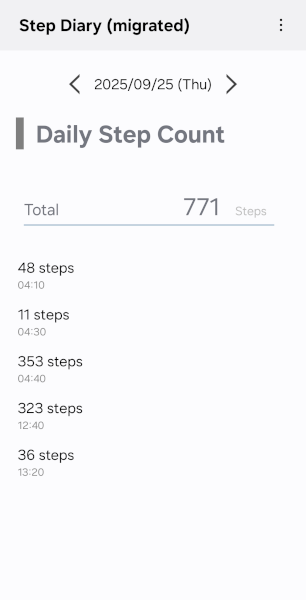
StepDiary is a sample app originally built using Samsung Health SDK for Android. It retrieves the total step count for a specific date and displays detailed step data for that day.
In this guide, you will learn how to migrate StepDiary to Samsung Health Data SDK, specifically, you will:
Understand the differences between the two SDKs
Update your app’s permissions and data access logic
In this guide, we focused exclusively on the minimum required changes needed to migrate the existing app to Samsung Health Data SDK. Enhancements such as UI design or additional feature upgrades are outside of the scope of this exercise.
Prerequisites
Set Up Your Environment
Before you begin the integration, make sure you have the following installed and ready:
Android Studio IDE
Java JDK 17 or later
An Android mobile device compatible with the latest Samsung Health
Previously, Samsung Health SDK for Android required developers to submit a partner request to gain access, which needed to be applied for and approved before use. Now, with Samsung Health Data SDK, you can download and use the SDK in developer mode without submitting a partner request.
To enhance convenience for developers, Samsung Health Data SDK has improved its developer mode functionality. If you only need to read data from Samsung Health app, you can activate developer mode and proceed with development and testing without requiring a partner request. For more information on developer mode, please refer to developer mode.
If you want to test writing data to Samsung Health app using Samsung Health Data SDK or distribute your app, you need to obtain a partnership for Samsung Health Data SDK. You can request it by following this process.
App Migration
StepDiary app’s overall structure has been preserved during the migration. Key components include:
StepCountReader - handles all data request operations.
StepDiaryActivity - manages main SDK objects, handling permissions and errors.
StepCountObserver - serves as a bridge between data changes and the UI. It has been extended with an onError event to notify the Activity of any SDK-level exceptions.
Replace the SDK library
Replace Samsung Health SDK for Android’s AAR file in your project:
Navigate to src/main/libs in your project.
Replace samsung-health-data-1.5.1.aar with the new samsung-health-data-api-(version).aar from the downloaded SDK package.
Add Dependencies and Kotlin Parcelize
Update your module-level build.gradle to have the following dependencies:
dependencies {
    //Samsung Health Data SDK
    implementation files('src/main/libs/samsung-health-data-api-1.0.0.aar')
    //gson lib required by the SDK
    implementation "com.google.code.gson:gson:2.13.1"
    //Support for coroutine-based suspend function
    implementation "androidx.activity:activity:1.10.1"
    implementation "androidx.lifecycle:lifecycle-runtime:2.9.2"
    //… other existing dependencies
}
Add Kotlin-parcelize plugin
In your module-level build.gradle, add:
apply plugin: 'kotlin-parcelize'
Note
The implementation may vary depending on build script structure.
Update StepDiaryActivity
Update StepDiaryActivity to inherit from androidx.activity.ComponentActivity.
Why this matters:
ComponentActivity provides built-in lifecycle awareness which is important for integration with Samsung Health Data SDK.
This integration enables seamless invocation of suspend functions, enhancing coroutine support.
Connect with Samsung Health
You have now completed the initial setup required to begin using Samsung Health Data SDK.
To start reading step data from Samsung Health, you must first establish a connection with Samsung Health app:
The HealthDataStore is the main object for accessing health data.
private val healthDataStore: HealthDataStore by lazy {
    HealthDataService.getStore(this)
}
Note
The HealthDataStore class name is the same as in Samsung Health SDK for Android, but now it provides updated functionality in Samsung Health Data SDK.
Request Permissions
Before your app can read health data from Samsung Health, you must define necessary permissions. In our case, since StepDiary reads step data, we request read-only access:
Define required permission
private val permissionKeySet: Set<Permission> =
        setOf(Permission.of(DataTypes.STEPS, AccessType.READ))
Check existing permissions
Before making any data requests, verify whether the user has already granted the necessary permissions:
val grantedPermissions = healthDataStore.getGrantedPermissions(permissionKeySet)
        .grantedPermissions.containsAll(permissionKeySet)
If permissions are missing, prompt the user with a permission dialog to grant access:
Always perform this check during app startup - ideally inside your Activity's onCreate() method. This ensures the app has the required access before attempting any data operations.
Note
If permissions are not granted, any data request attempts may result in exceptions due to insufficient access.
Fetch Step Data
Create the request:
Now you are going to create a request to read steps from Samsung Health for a specific time range, grouped in 10-minute intervals.
Use DataType.StepsType, which aggregates readings across all connected devices (smartphone, watch, etc.) to avoid duplicates - just like Samsung Health’s internal calculations. This type is similar to StepDailyTrend from Samsung Health SDK for Android.
Build the aggregate request
val aggregateRequest = DataType.StepsType.TOTAL.requestBuilder
        .setLocalTimeFilterWithGroup(localTimeFilter, localTimeGroup)
        .build()
Set the filters for the request
Here, we apply two filters:
LocalTimeFilter - defines start time and end time of steps collection
LocalTimeGroup - describes how the steps will be grouped
//startDateTime endDateTime will be set to start of the day and end of the day respectively
val localTimeFilter = LocalTimeFilter.of(startDateTime, endDateTime)
// LocalTimeGroup – set up to group steps in 10 minutes ‘buckets’
val localTimeGroupUnit = LocalTimeGroupUnit.MINUTELY
val multiplier = 10 // for 10-minute grouping
val localTimeGroup = LocalTimeGroup.of(localTimeGroupUnit, multiplier)
Run the request and process results
Now run the request and iterate through the results to:
Display each 10-minute segment and
Accumulate total steps for the day
runCatching {
    healthDataStore.aggregateData(getAggregateRequest(startDateTime)) }
        .onFailure { observer.onError(it as HealthDataException) }
        .getOrNull()
        ?.dataList
        ?.map { data ->
            val stepCount = data.value?.toInt() ?: 0
            val timeLabel = data.startTime.atZone(ZoneId.systemDefault())
                .format(DateTimeFormatter.ofPattern("HH:mm"))
            StepBinningData(timeLabel, stepCount)
        } ?.let { stepList ->
            val totalSteps = stepList.sumOf { it.count }
            observer.onChanged(totalSteps)
            observer.onBinningDataChanged(stepList)
}
Step-by-step breakdown of the code above:
Make the request
To request aggregated step data in a 10-minute interval for a given day (startDateTime), call Samsung Health Data SDK’s getAggregateRequest() method. The method builds the query with the time filters and grouping.
The runCatching function wraps the call to prevent crashes on failure (missing permission, bad request) and logs the error.
Get the result list
.getOrNull()?.dataList?.asSequence()
If the call succeeded, datalist contains the aggregated data.
Map each data item
map { data -> ... }
For every 10-minute interval, the map function returns:
Extract the number of steps.
Format the start time (e.g. 14:30).
Create a StepBinningData(timeLable, stepCount) object.
Update the UI with results
let { stepList -> ... }
Calculate the total daily steps from the interval entries.
Notify the app using observer to update both the summary and detailed view.
Exception Handling
Robust health apps can recover gracefully when things go sideways. When working with Samsung Health Data SDK, key functions such as aggregateData, requestPermissions, or even getGrantedPermissions may throw exceptions under certain conditions.
To prevent unexpected crashes or blank screens, it’s best to funnel these exceptions into a central error handler.
You can do it by wrapping every API invocation with
HealthDataException is the main exception object for Samsung Health Data SDK.
Your handleException function should:
Show error dialog
Clear the UI of any outdated step data
Try to resolve the exception
Some HealthDataException instances include a resolution intent. You can check if the exception has a resolution by checking hasResolution property of the exception object and try to fix it by invoking resolve().
Examples of such exceptions:
ERR_OLD_VERSION_PLATFORM: Indicates that Samsung Health app is outdated.
ERR_PLATFORM_NOT_INSTALLED: Signals that Samsung Health app isn’t installed at all.
In both cases, the resolution involves opening the device’s app marketplace, prompting the user to install or update Samsung Health app. Once the issue is fixed, control returns to the app so it can continue functioning.
This approach not only keeps your UI clean but allows for a consistent, guided error experience. When something goes wrong, users can see a clear and actionable dialog of what happened and how to fix it.
Include migration completion information in the app manifest
Please add the following details to the AndroidManifest.xml file of your app.
Once integration is complete, run the app to verify data retrieval and interaction behavior work as expected, matching the previous implementation.
You can access the full source code of the app, which has been migrated to the Samsung Health Data SDK, here:
StepDiary-migrated download
(Dec 9, 2025)
Congratulations! You've successfully migrated your app to use Samsung Health Data SDK. Now you can build a modern and reliable health app that reads and displays health data directly from Samsung Health.
Partner request before distributing your app
The developer mode of Samsung Health Data SDK is a feature provided solely for development purposes.
To ensure that an app using Samsung Health Data SDK functions properly without enabling developer mode, you need to submit a partner request through the developer site before distributing your app on app marketplaces.
After the partner app is approved, the app's detailed information will be registered in Samsung's system.
Having a Trouble?
We are operating a developer support channel on the Samsung Developer site. If you encounter any issue or any question, please visit Developer Support and submit your query after logging in your Samsung account.
Manage Your Cookies
We use cookies to improve your experience on our website and to show you relevant
advertising. Manage you settings for our cookies below.
Essential Cookies
These cookies are essential as they enable you to move around the website. This
category cannot be disabled.
Company
Domain
Samsung Electronics
developer.samsung.com, .samsung.com
Analytical/Performance Cookies
These cookies collect information about how you use our website. for example which
pages you visit most often. All information these cookies collect is used to improve
how the website works.
Company
Domain
Samsung Electronics
.samsung.com
Functionality Cookies
These cookies allow our website to remember choices you make (such as your user name, language or the region your are in) and
tailor the website to provide enhanced features and content for you.
Company
Domain
Samsung Electronics
developer.samsung.com, google.account.samsung.com
Preferences Submitted
You have successfully updated your cookie preferences.