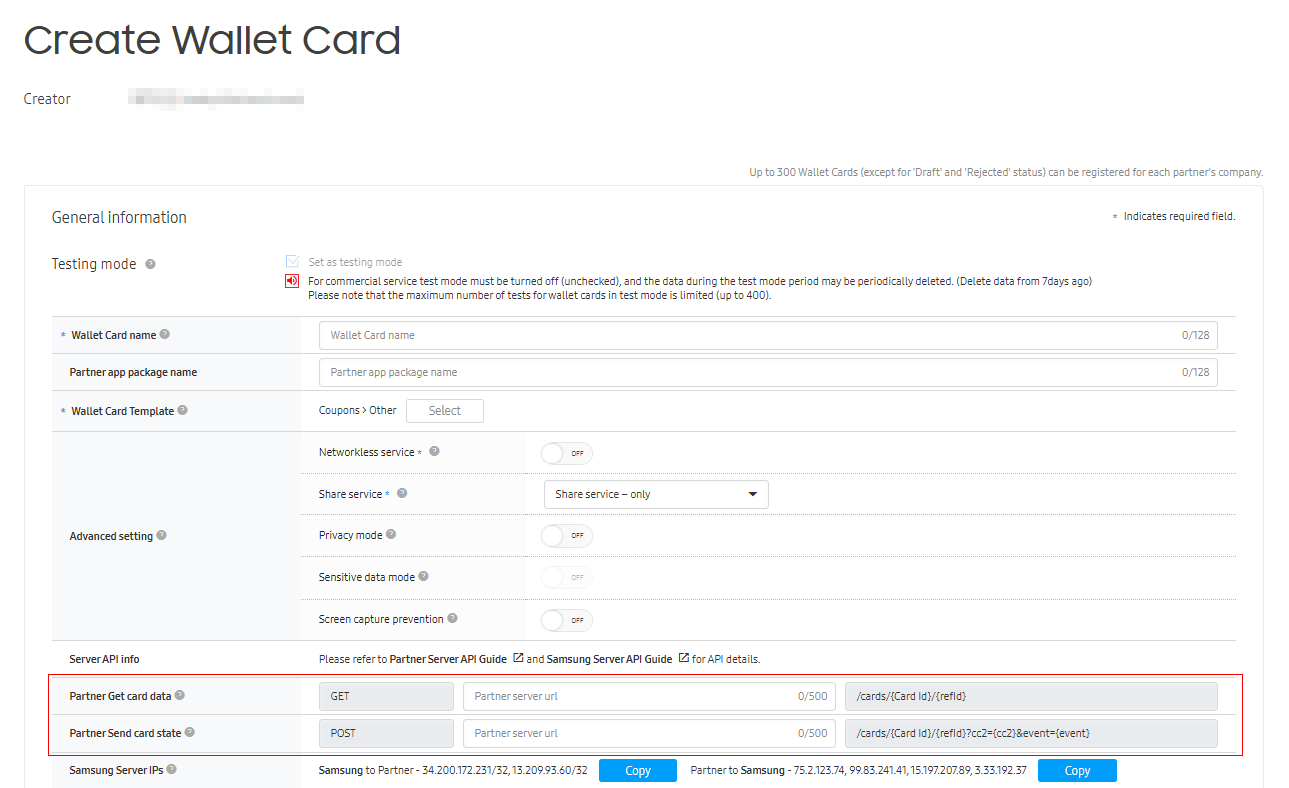
This feature works with the Server API Information from the Create Wallet Card from Partner Portal.
View the request and response data of the push notification to be sent and received by the server.
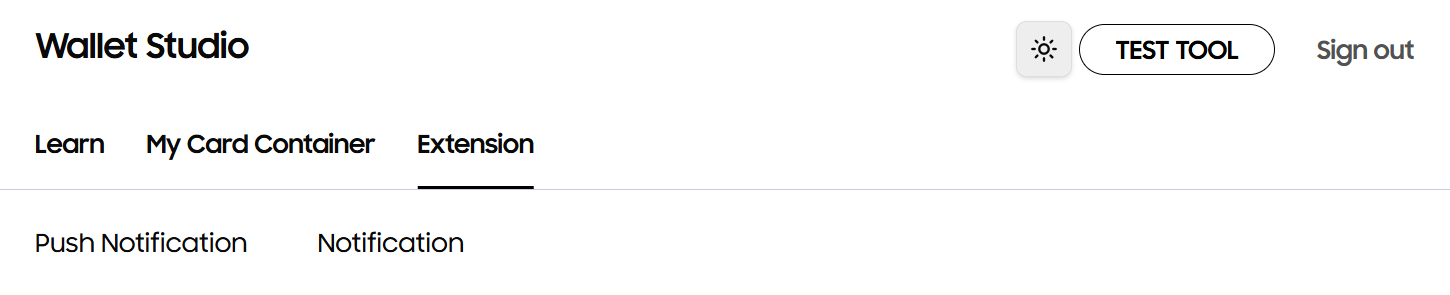
Push Notification
Simulate the server connection with the request and response data of push notification.
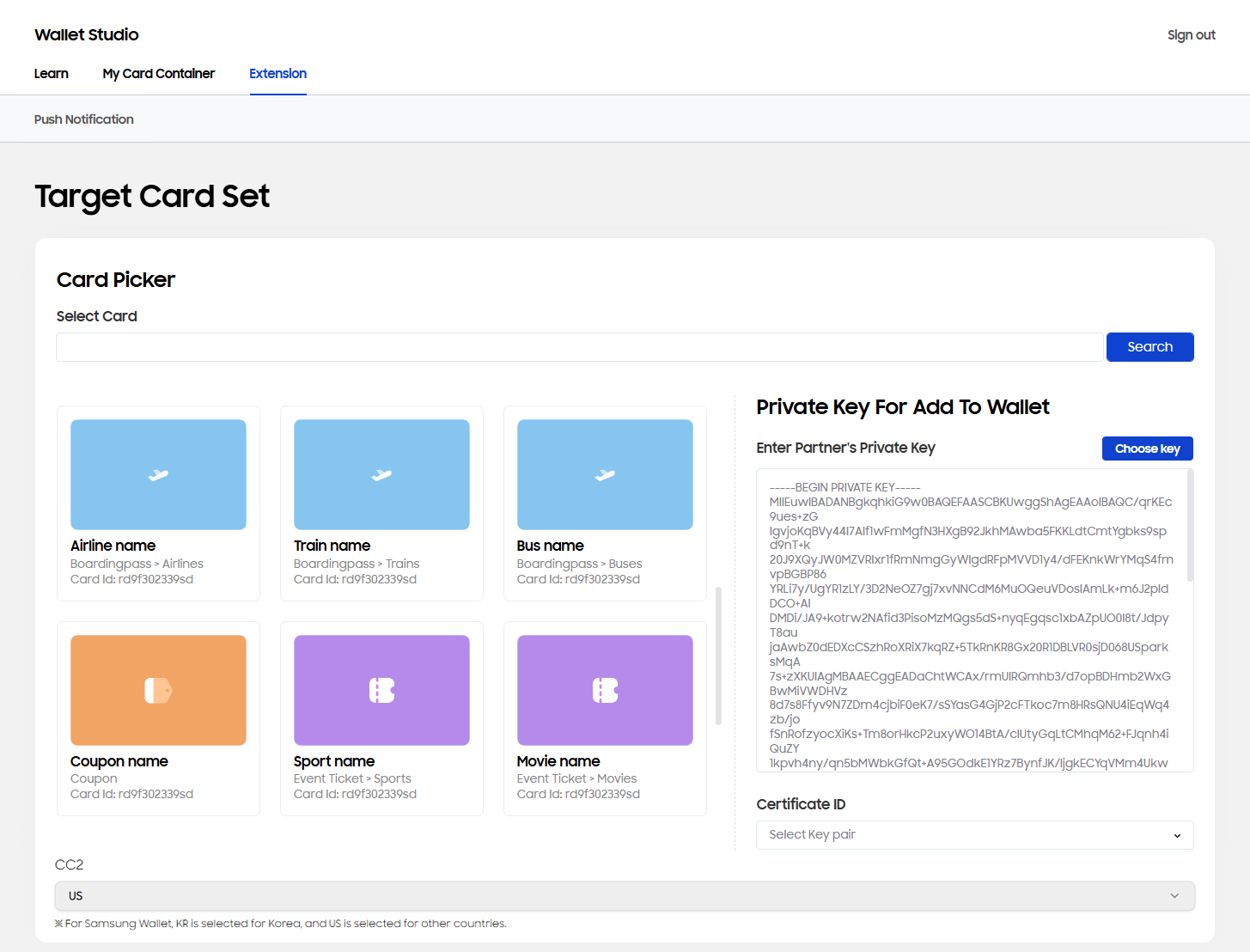
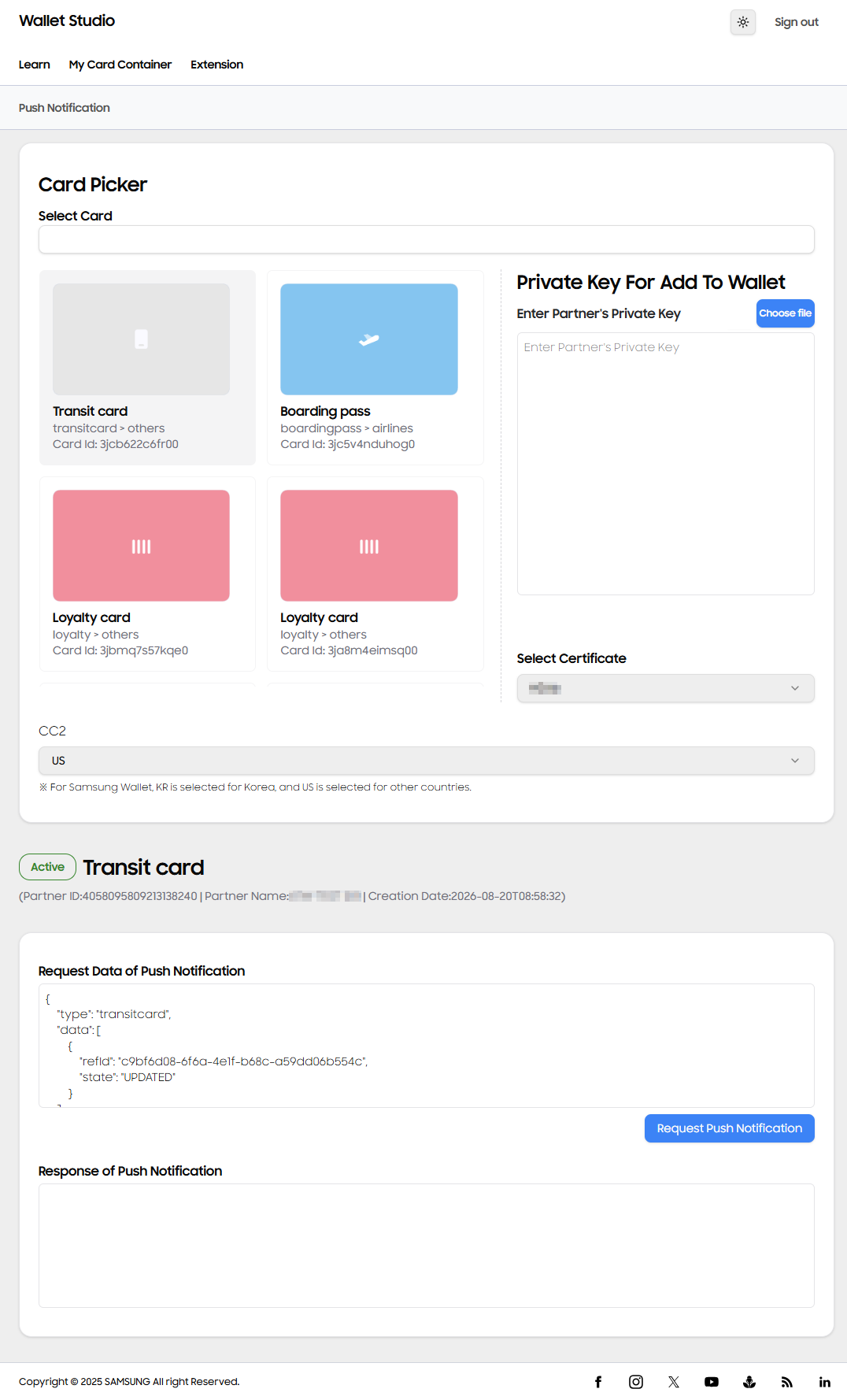
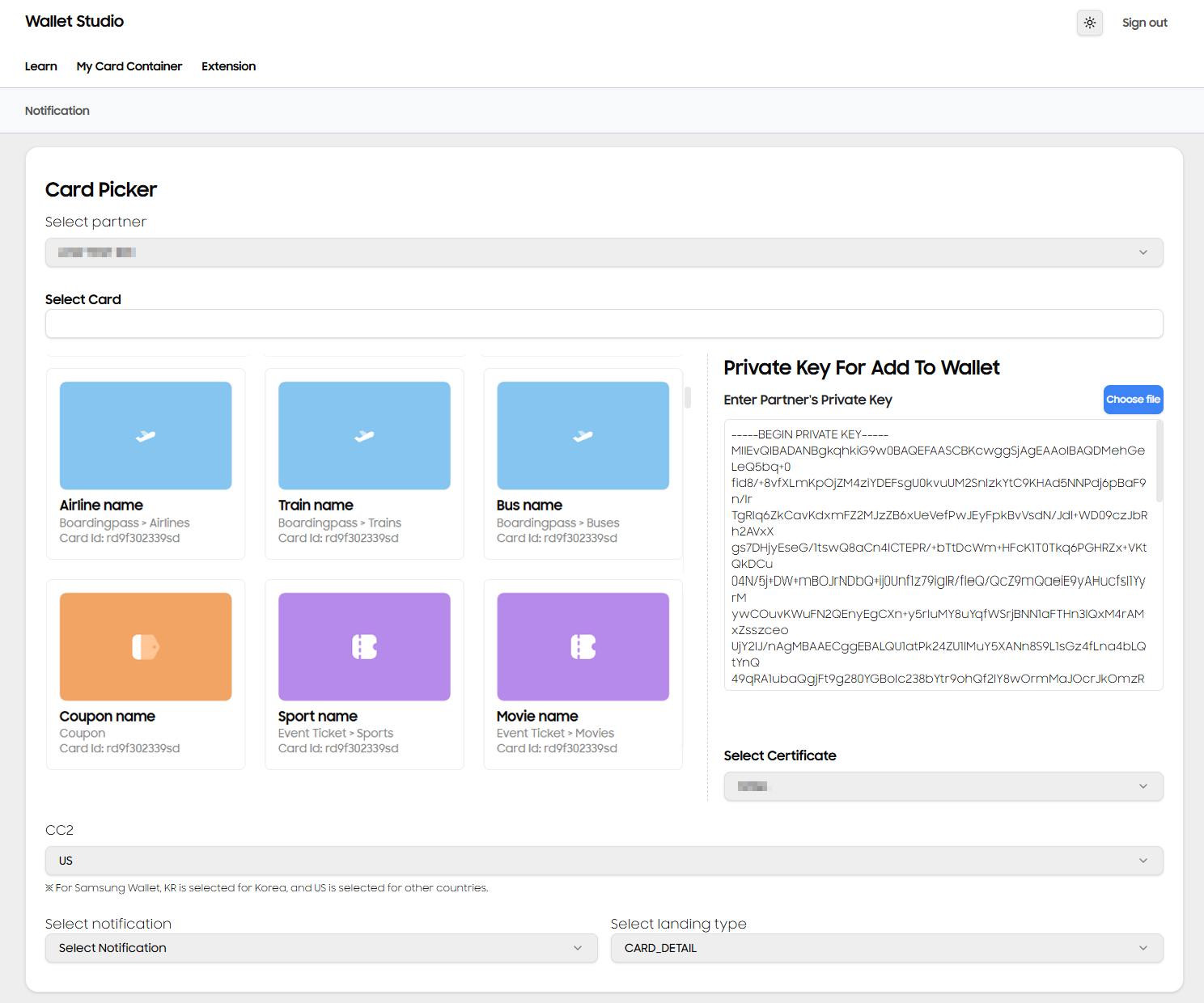
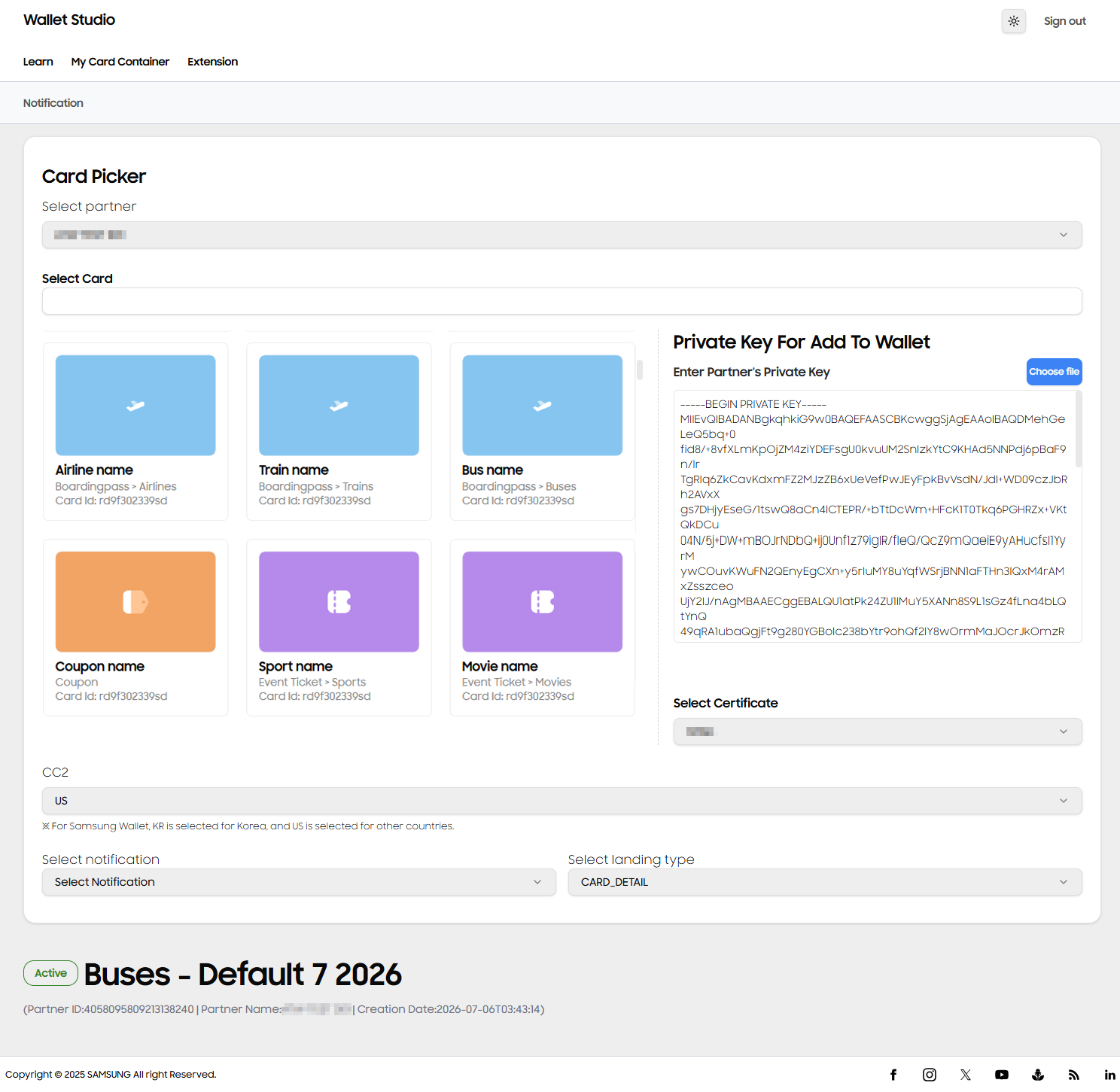
Card Picker
Card search: Search existing wallet cards from the partner account.
Existing cards: Select an existing wallet card to view template.
Partner private key: Enter the partner private key for Add to Wallet.
Click Choose file button and select the .key file to the private key.
Manually input the private key.
Click the Select Certificate dropdown box to select the necessary certificate.
CC2: Samsung Wallet region
KR - South Korea
US - United States/Global/other countries
Push Notification data
Status and name: Wallet card status, name, partner ID, and card creation date.
Request data: Initiate request data of push notification to simulate actual server-to-server communication of push notification to the device.
The request data must include the refId of the wallet card used for "Add to Samsung Wallet" feature. The wallet card will receive a notification once the request is sent.
Button to send request data: Trigger sending the request data to the servers.
Response data: Simulated response of the server-to-server communication of push notification to the device.
Notification
Simulate the server connection with the request and response data of push notification, using notification templates.
Card Picker
Card search: Search existing wallet cards from the partner account.
Existing cards: Select an existing wallet card to view template.
Partner private key: Enter the partner private key for Add to Wallet.
Click Choose file button and select the .key file to the private key.
Manually input the private key.
Click the Select Certificate dropdown box to select the necessary certificate.
Notification template: Select notification template for the push notification.
Note-The notification template can be set up in the Partner Portal. For more information, visit Notification for Partners.
Notification data
Status and name: Wallet card status, name, partner ID, and card creation date.
Request data: Initiate request data of push notification to simulate actual server-to-server communication of push notification to the device.
The request data must include the refId of the wallet card used for “Add to Samsung Wallet” feature, and key value of the notification template.
Once the request is sent, the Samsung Wallet app that added the wallet card with refId will display a notification on the mobile.
Button to send request data: Trigger sending the request data to the servers.
Response data: Simulated response of the server-to-server communication of push notification to the device.
Manage Your Cookies
We use cookies to improve your experience on our website and to show you relevant
advertising. Manage you settings for our cookies below.
Essential Cookies
These cookies are essential as they enable you to move around the website. This
category cannot be disabled.
Company
Domain
Samsung Electronics
developer.samsung.com, .samsung.com
Analytical/Performance Cookies
These cookies collect information about how you use our website. for example which
pages you visit most often. All information these cookies collect is used to improve
how the website works.
Company
Domain
Samsung Electronics
.samsung.com
Functionality Cookies
These cookies allow our website to remember choices you make (such as your user name, language or the region your are in) and
tailor the website to provide enhanced features and content for you.
Company
Domain
Samsung Electronics
developer.samsung.com, google.account.samsung.com
Preferences Submitted
You have successfully updated your cookie preferences.