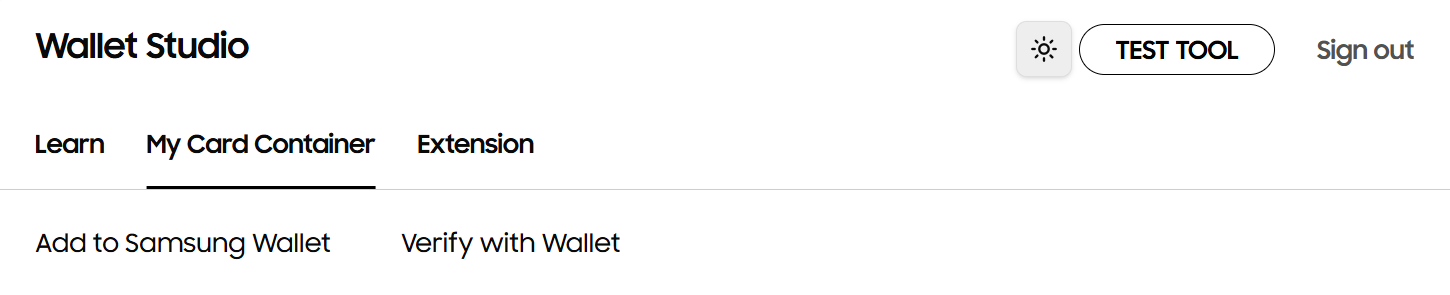
Partners learn how to use the "Add to Samsung Wallet" and "Verify with Samsung Wallet" functionalities with their existing cards, and the wallet card customization.
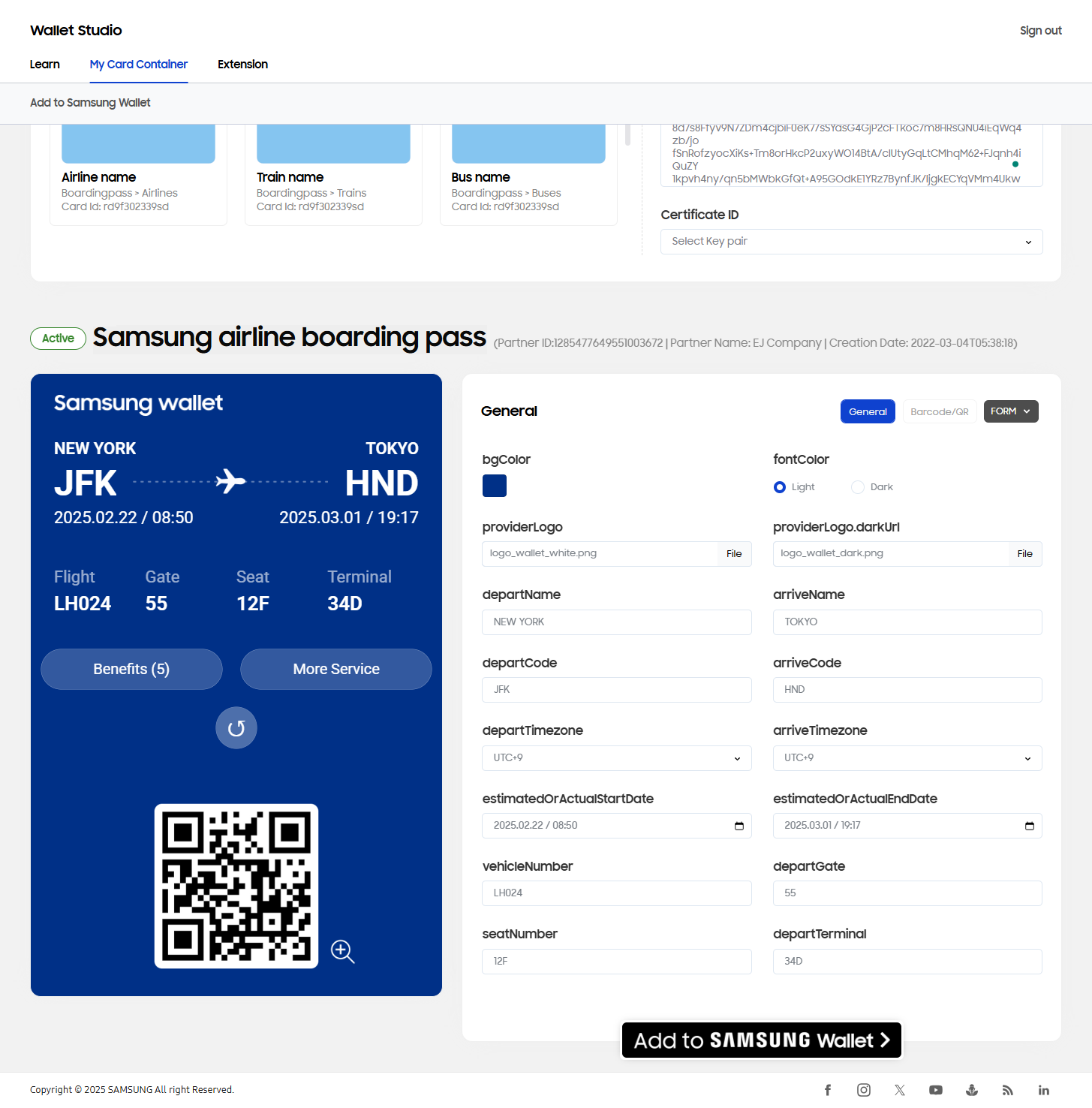
Add to Samsung Wallet
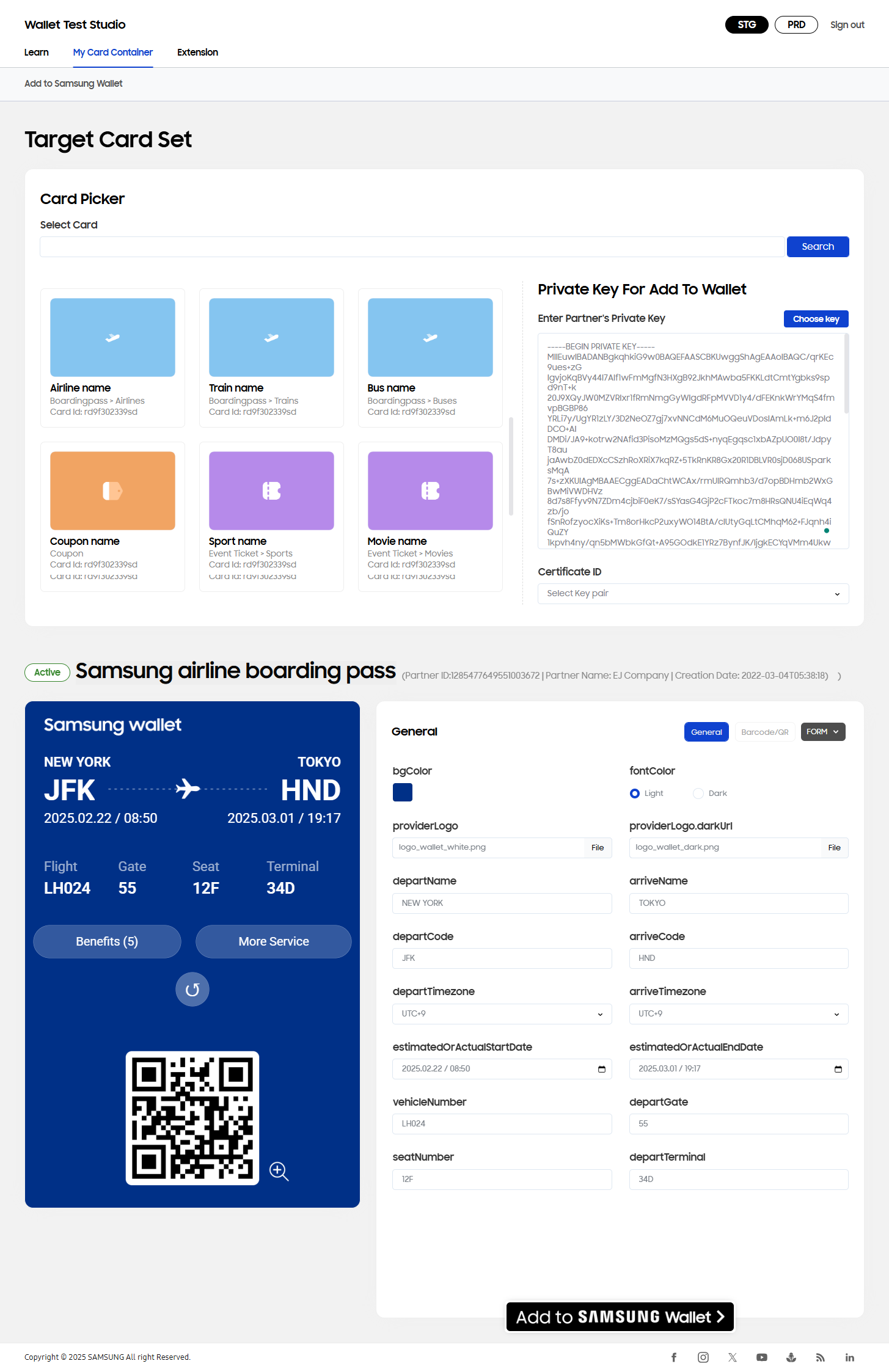
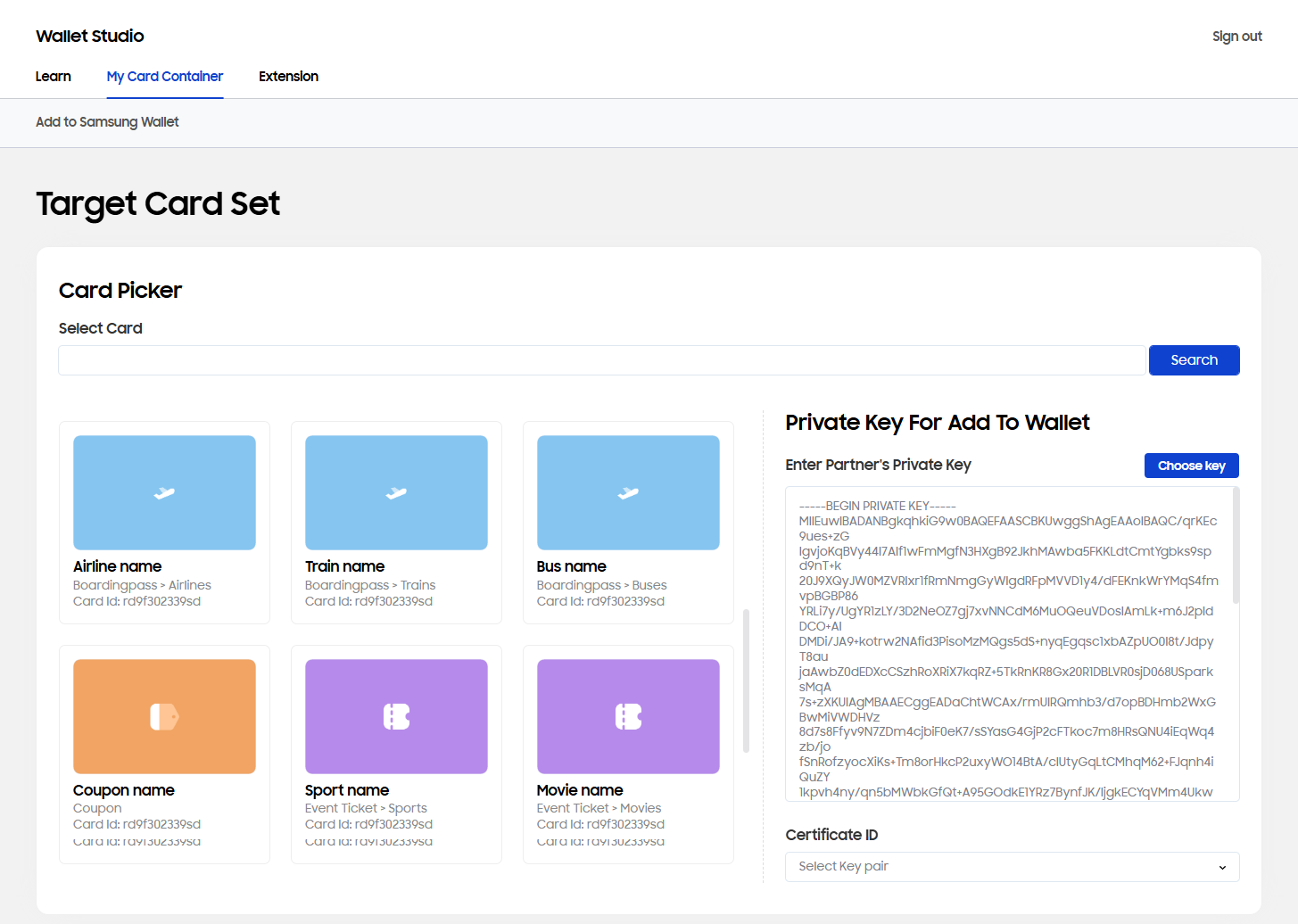
All of partner's existing wallet cards are displayed and can be customized.
Card Picker
Card search: Search existing wallet cards from the partner account.
Existing cards: Select an existing wallet card to view template.
Partner private key: Enter the partner private key for Add to Wallet to start customizing the wallet card.
Click Choose file button and select the .key file to the private key.
Manually input the private key.
Click the Select Certificate dropdown box to select the necessary certificate ID.
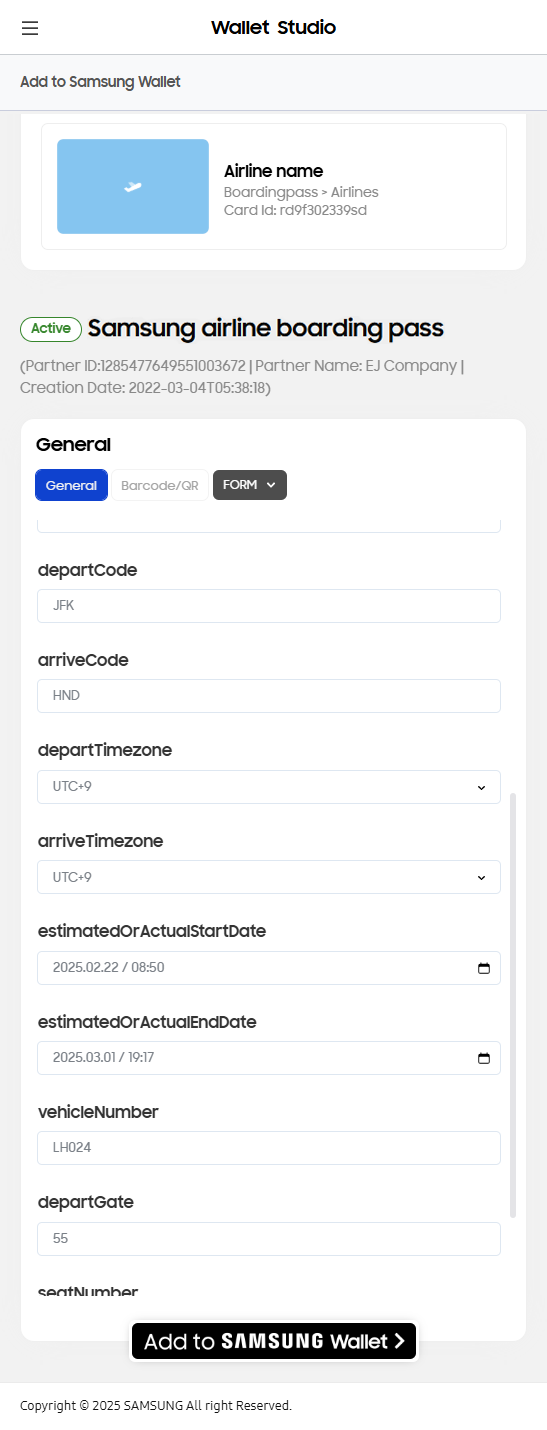
Setting my card
Status and name: Wallet card status, name, partner ID, and card creation date.
Customization screen: Customize your wallet card and simulate the "Add to Samsung Wallet" functionality.
Verify with Samsung Wallet
Note-To test this feature, user must have an existing mDL (Mobile Driver's License) card in Samsung Wallet application.
mDL is a wallet card which contains the Mobile Driver's License and ist available for selected states. mDL cards follow the Online Relying Party (RP) standard for each person's credentials.
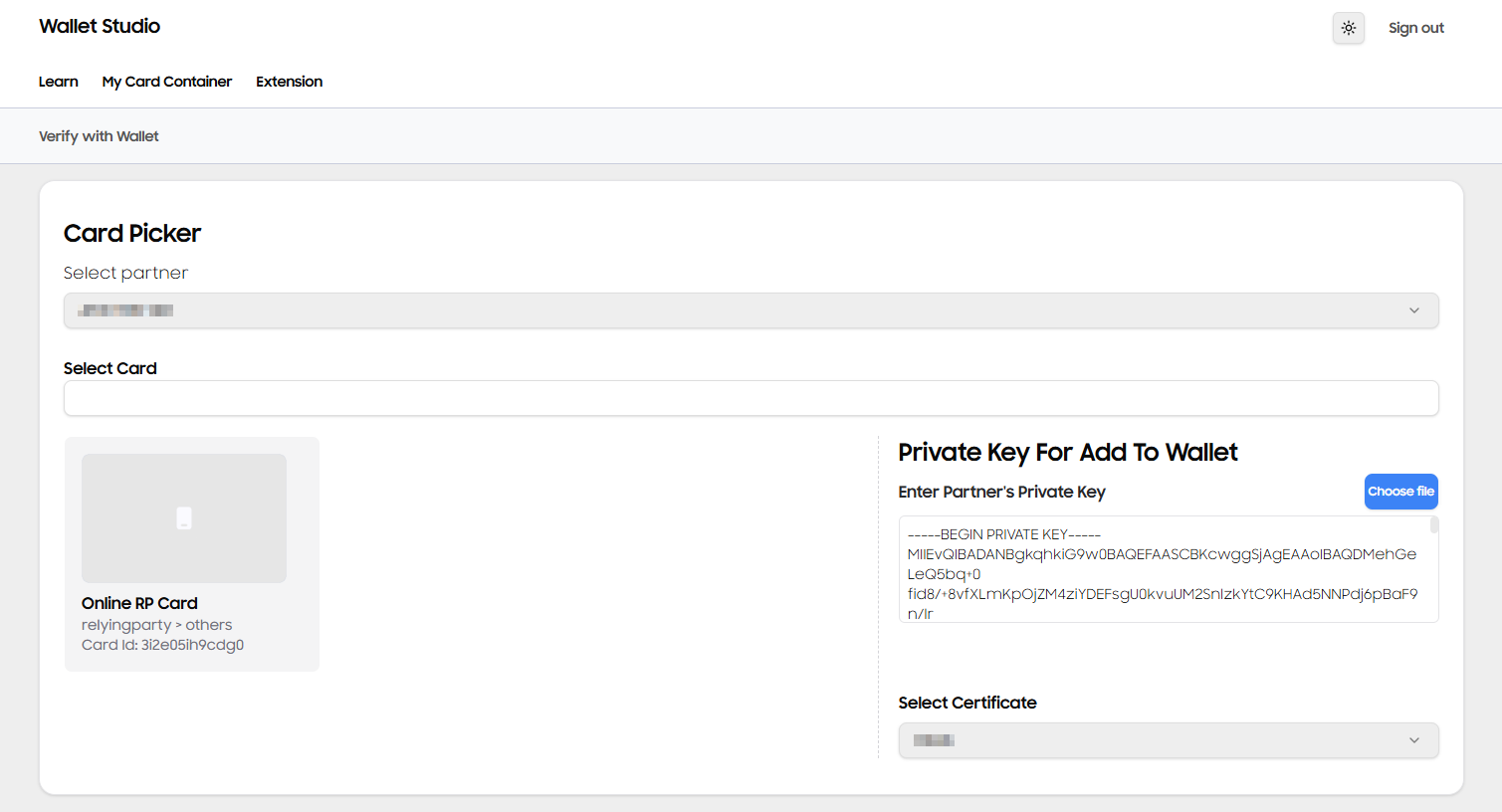
Similar to Add to Samsung Wallet, all of partner's existing relying party cards are displayed and can be customized.
Card Picker
Card search: Search existing wallet cards from the partner account.
Existing cards: Select an existing wallet card to view template.
Partner private key: Enter the partner private key for Add to Wallet to start customizing the wallet card.
Click Choose file button and select the .key file to the private key.
Manually input the private key.
Click the Select Certificate dropdown box to select the necessary certificate.
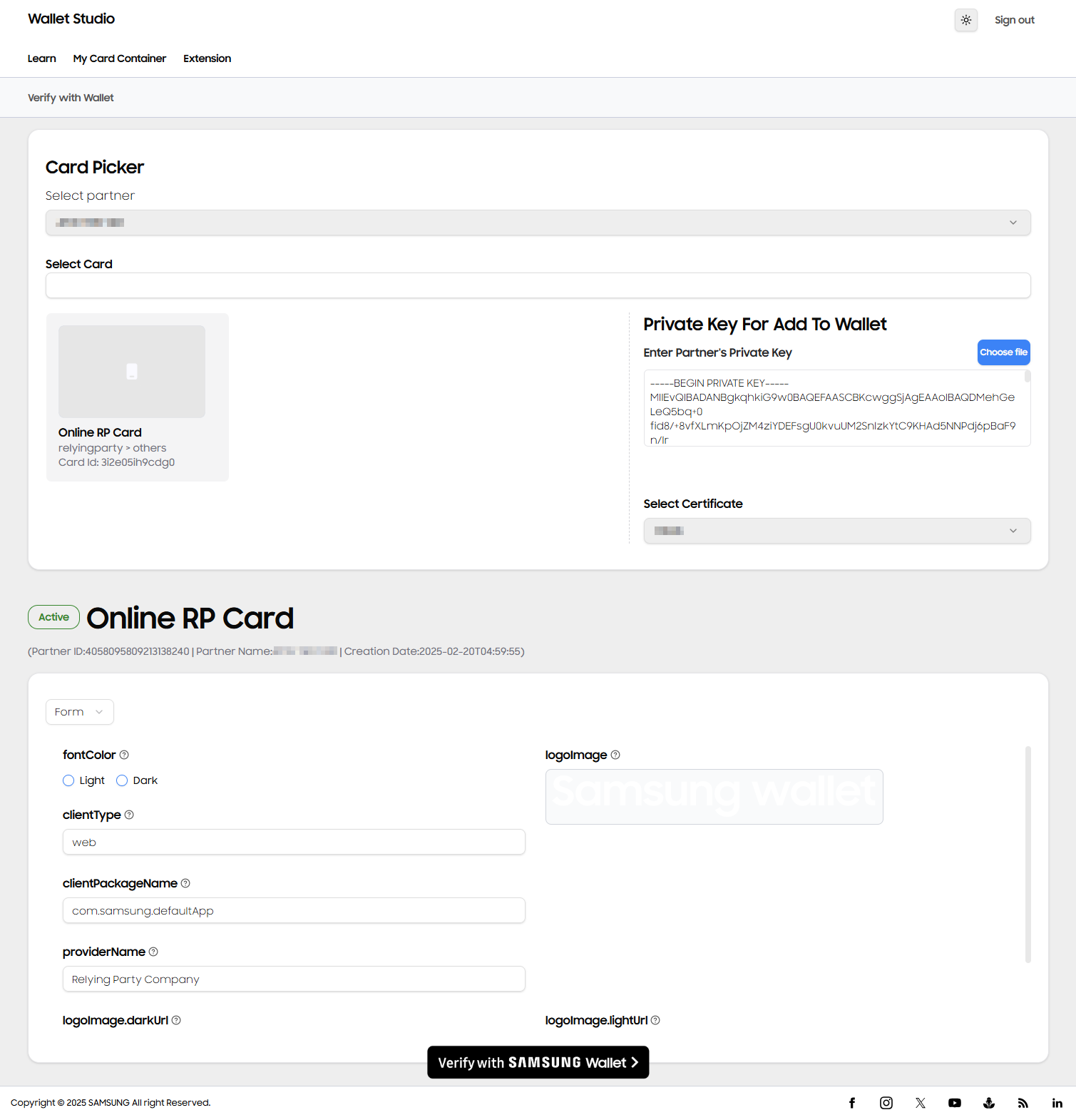
Setting my card
Status and name: Wallet card status, name, partner ID, and card creation date.
Customization screen: Customize your wallet card.
Data presentation: Select the data presentation to view wallet card fields. Presentation of fields include Form or JSON.
Verify with Samsung Wallet button: Simulate the "Verify with Samsung Wallet" functionality.
If you are on a desktop browser: Click the button. On the pop-up modal, scan the QR code to automatically add the wallet card to Samsung Wallet.
If you are on a mobile browser: Tap the button. On the pop-up modal, tap "Verify with Samsung Wallet" button.
Manage Your Cookies
We use cookies to improve your experience on our website and to show you relevant
advertising. Manage you settings for our cookies below.
Essential Cookies
These cookies are essential as they enable you to move around the website. This
category cannot be disabled.
Company
Domain
Samsung Electronics
developer.samsung.com, .samsung.com
Analytical/Performance Cookies
These cookies collect information about how you use our website. for example which
pages you visit most often. All information these cookies collect is used to improve
how the website works.
Company
Domain
Samsung Electronics
.samsung.com
Functionality Cookies
These cookies allow our website to remember choices you make (such as your user name, language or the region your are in) and
tailor the website to provide enhanced features and content for you.
Company
Domain
Samsung Electronics
developer.samsung.com, google.account.samsung.com
Preferences Submitted
You have successfully updated your cookie preferences.