Card transaction functionalities allow the customer to pay for their in-app purchases with Samsung Pay. The payment data is handled between Samsung Pay, your app, and your payment gateway (PG) as direct network tokens or indirect gateway tokens.
To manage a card transaction for an in-app payment:
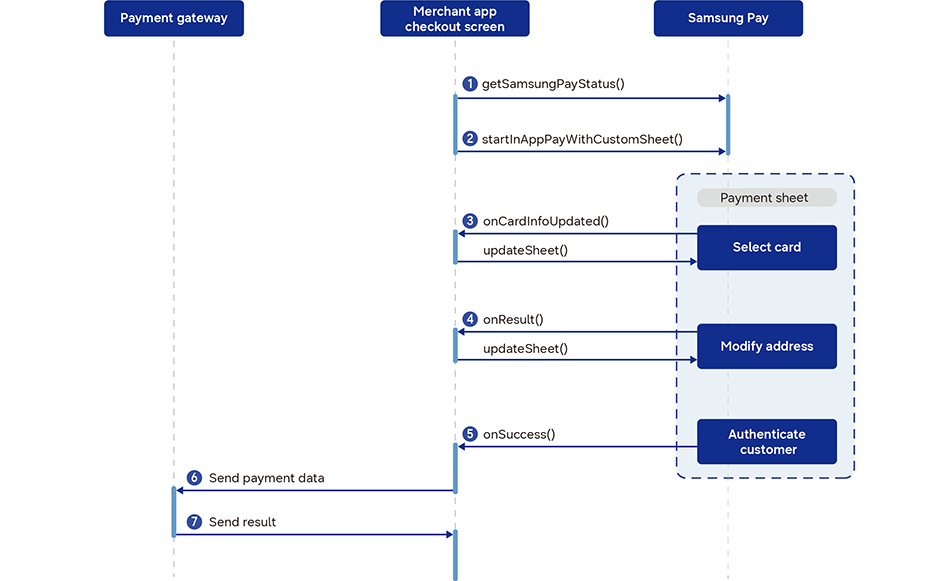
The following figure illustrates the card transaction flow that involves a series of operations that ensure secure, seamless, and verified payment processing between your app, Samsung Pay, and PG.
To determine whether you can display the Samsung Pay button, check the Samsung Pay status on the customer's device and confirm that you support payments with at least one card in the customer's Samsung Wallet.
When the customer clicks the Samsung Pay button, start the payment process with the startInAppPayWithCustomSheet() method.
A binding is established between your app and the Samsung Wallet app, your app is verified, and the custom payment sheet is displayed to the customer.
The onCardInfoUpdated() event notifies you of the card the customer has selected. Use the updateSheet() method to update the payment amount based on the card, as necessary, and display the updated custom sheet to the customer.
The updateSheet() method's onResult() event notifies you of the billing and shipping addresses the customer wants to use. Use the updateSheet() method to update the payment amount based on the shipping costs, as necessary, and display the updated custom sheet to the customer.
The customer sheet allows the customer to be authenticated in the Samsung Wallet app using biometrics or other secure methods supported by the app, and the startInAppPayWithCustomSheet() method's onSuccess() event notifies you of the successful authentication and provides the tokenized payment data.
Submit the payment data to your PG for transaction processing.
Receive confirmation of the transaction success or failure from the PG. Display the result to the customer and update your app backend accordingly.
Manage Your Cookies
We use cookies to improve your experience on our website and to show you relevant
advertising. Manage you settings for our cookies below.
Essential Cookies
These cookies are essential as they enable you to move around the website. This
category cannot be disabled.
Company
Domain
Samsung Electronics
developer.samsung.com, .samsung.com
Analytical/Performance Cookies
These cookies collect information about how you use our website. for example which
pages you visit most often. All information these cookies collect is used to improve
how the website works.
Company
Domain
Samsung Electronics
.samsung.com
Functionality Cookies
These cookies allow our website to remember choices you make (such as your user name, language or the region your are in) and
tailor the website to provide enhanced features and content for you.
Company
Domain
Samsung Electronics
developer.samsung.com, google.account.samsung.com
Preferences Submitted
You have successfully updated your cookie preferences.