The Samsung Pay SDK for Android sample app aids you in understanding the SDK and implementing it in your app. Sample source code and APKs are included in the Samsung Pay SDK for Android, which can be downloaded from Downloads and resources.
The sample app shows how to implement the payment sheet’s dynamic controls. You can leverage additional customer order and payment data, and create a more customized UI look and feel.
The following payment sheet controls are available, each suited for a particular purpose or need:
You can use the address control to display the billing or shipping address on the payment sheet. The address info comes from the Samsung Wallet app’s My info user profile or from the data provided by your app during the payment request.
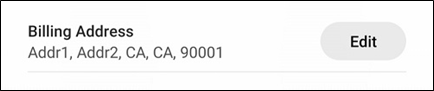
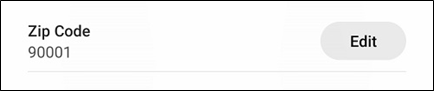
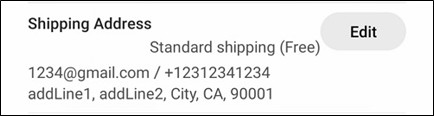
The following figures show how the address control can display on a custom payment sheet:
Address control type
Example
Billing address
Billing address zip code
Shipping address
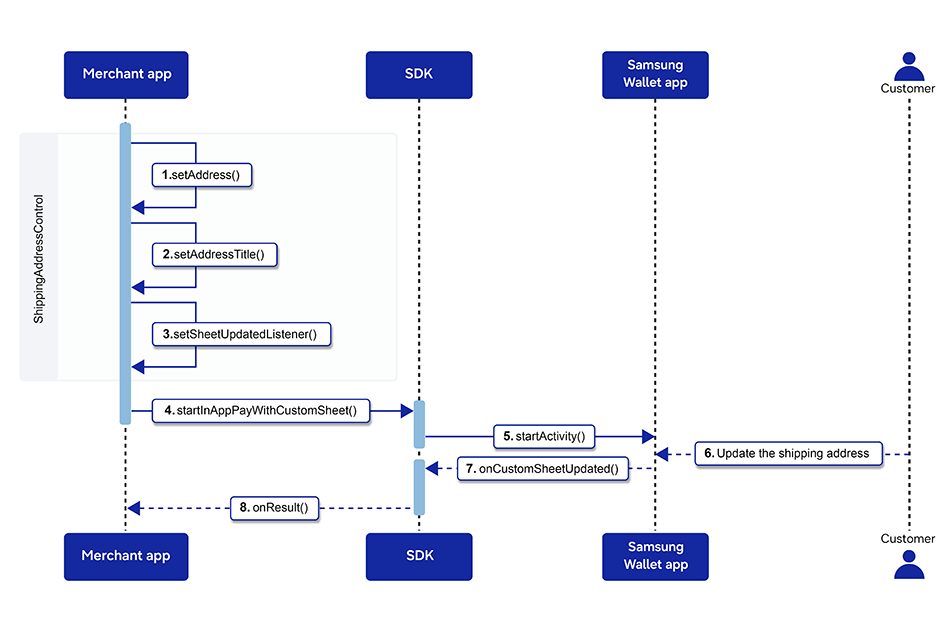
When you create the address control, use the following properties:
controlld and SheetItemType are required. The ID uniquely identifies the control, and the type defines the kind of address used (billing address, just the billing address zip code, or shipping address).
addressTitle displays a merchant-defined title on the payment sheet. If empty, the default title (such as Billing address) is displayed.
address provides various methods to retrieve the address details.
You can retrieve the phone number using the getPhoneNumber() method of the CustomSheetPaymentInfo object called Address. Starting from the API level 1.5, the addressee’s email address has also been added, and you can retrieve it using getEmail(). You can also set a display option for the shipping address with setDisplayOption(). For more information, see the API reference Javadoc and the sample code included with the Samsung Pay SDK for Android.
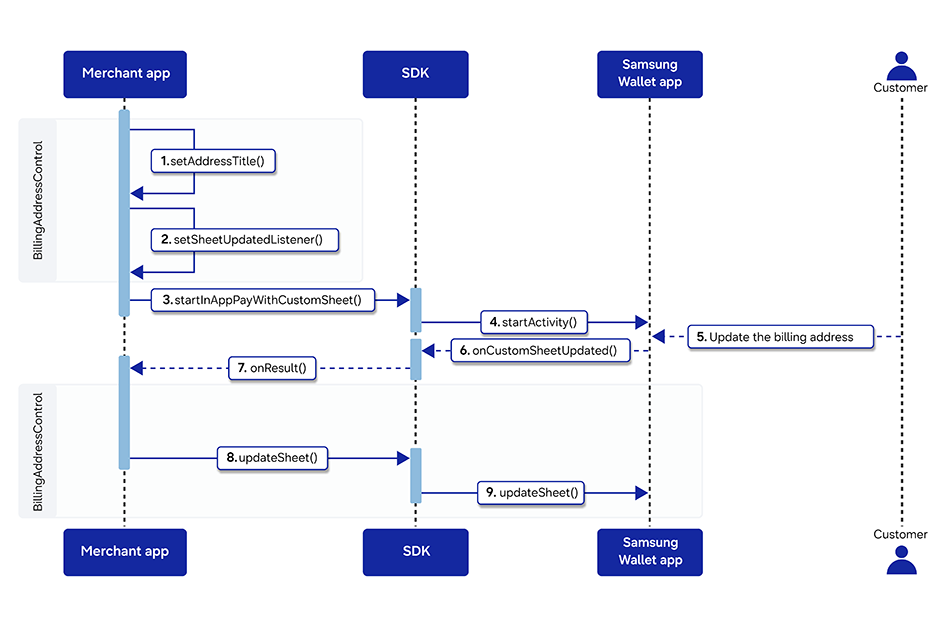
SheetUpdatedListener captures the response from Samsung Wallet. Your app must deliver an AmountBoxControl to Samsung Wallet in order to display payment information on a custom payment sheet. When you receive the onResult() callback, you must call the updateSheet() method to update the current payment sheet.
errorCode contains error codes directly related to the address.
The following figures illustrate the workflow for billing and shipping address controls.
The following code snippet is an example of using the billing and shipping address controls on the payment sheet:
// For billing address
fun makeBillingAddressControl(): AddressControl {
    val billingAddressControl = if (!isZipCodeOnly) {
        AddressControl(BILLING_ADDRESS_ID, SheetItemType.BILLING_ADDRESS)
        billingAddressControl.addressTitle = "Billing Address"
    } else {
        /*
         * For billing address with zip code only.
         * Since API level 2.19, SheetItemType.ZIP_ONLY_ADDRESS
         * For US addresses only
         */
        AddressControl(BILLING_ADDRESS_ID, SheetItemType.ZIP_ONLY_ADDRESS)
        billingAddressControl.addressTitle = "Zip Code"
    }
    // This callback is received when Controls are updated
    billingAddressControl.sheetUpdatedListener = sheetUpdatedListener()
    return billingAddressControl
}

// Listener for billing address or zip-code-only billing address
fun sheetUpdatedListener(): SheetUpdatedListener {
    return SheetUpdatedListener { updatedControlId: String, customSheet: CustomSheet ->
        Log.d(
            TAG,
            "onResult billingAddressControl updatedControlId: $updatedControlId"
        )
        val addressControl =
            customSheet.getSheetControl(updatedControlId) as AddressControl
        val billAddress = addressControl.address
        // Validate only the zipcode or billing address, and set errorCode if needed
        if (addressControl.sheetItem.sheetItemType == SheetItemType.ZIP_ONLY_ADDRESS) {
            val errorCode: Int = validateZipcodeBillingAddress(billAddress)
            Log.d(TAG, "onResult updateSheetBilling  errorCode: $errorCode")
            addressControl.errorCode = errorCode
            customSheet.updateControl(addressControl)
        } else {
            val errorCode = validateBillingAddress(billAddress)
            Log.d(TAG, "onResult updateSheetBilling  errorCode: $errorCode")
            addressControl.errorCode = errorCode
            customSheet.updateControl(addressControl)
        }
        // Update transaction values
        val amountBoxControl =
            CustomSheet.getSheetControl(AMOUNT_CONTROL_ID) as AmountBoxControl
        amountBoxControl.updateValue(PRODUCT_ITEM_ID, 1000.0)
        amountBoxControl.updateValue(PRODUCT_TAX_ID, 50.0)
        amountBoxControl.updateValue(PRODUCT_SHIPPING_ID, 10.0)
        amountBoxControl.updateValue(PRODUCT_FUEL_ID, 0.0, "Pending")
        amountBoxControl.setAmountTotal(1060.0, AmountConstants.FORMAT_TOTAL_PRICE_ONLY)
        customSheet.updateControl(amountBoxControl)
        try {
            // Call updateSheet for the full AmountBoxControl. This is mandatory.
            paymentManager.updateSheet(customSheet)
        } catch (e: IllegalStateException) {
            e.printStackTrace()
        } catch (e: NullPointerException) {
            e.printStackTrace()
        }
    }
}

// For shipping address
fun makeShippingAddressControl(): AddressControl {
    val shippingAddressControl = AddressControl(SHIPPING_ADDRESS_ID, SheetItemType.SHIPPING_ADDRESS)
    shippingAddressControl.addressTitle = "Shipping Address"
    val shippingAddress = CustomSheetPaymentInfo.Address.Builder()
        .setAddressee("name")
        .setAddressLine1("addLine1")
        .setAddressLine2("addLine2")
        .setCity("city")
        .setState("state")
        .setCountryCode("USA")
        .setPostalCode("zip")
        .setPhoneNumber("555-123-1234")
        .setEmail("user@samsung.com")
        .build()
    shippingAddressControl.address = shippingAddress
    /*
     * Set address display options on a custom payment sheet.
     * If displayOption is not set, then default addressControl is displayed on the custom payment sheet.
     * The possible values are a combination of the below constants:
     *     {DISPLAY_OPTION_ADDRESSEE}
     *     {DISPLAY_OPTION_ADDRESS}
     *     {DISPLAY_OPTION_PHONE_NUMBER}
     *     {DISPLAY_OPTION_EMAIL}
     */
    var displayOption_val = AddressConstants.DISPLAY_OPTION_ADDRESSEE //Addressee is mandatory
    displayOption_val += AddressConstants.DISPLAY_OPTION_ADDRESS
    displayOption_val += AddressConstants.DISPLAY_OPTION_PHONE_NUMBER
    displayOption_val += AddressConstants.DISPLAY_OPTION_EMAIL
    shippingAddressControl.displayOption = displayOption_val
    return shippingAddressControl
}
Apply a plain text control
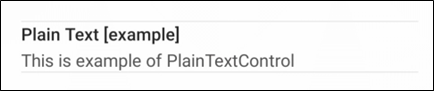
You can use the plain text control to display plain text, such as a promotion notice, on the payment sheet. The control consists of a title with 2 lines of text or a single line of text without a title.
The following figure show how the plain text control can display on a custom payment sheet.
When you create the plain text control, use the following properties:
controlld is required to uniquely identify the control.
setText() method defines the title and text lines.
The following figure illustrates the workflow for the plain text control.
The following code snippet is an example of using the plain text control on the payment sheet:
fun makePlainTextControl(): PlainTextControl {
    val plainTextControl = PlainTextControl("ExamplePlainTextControlId")
    plainTextControl.setText("Plain Text [example]", "This is example of PlainTextControl")
    return plainTextControl
}
Apply an amount box control
You can use the amount box control to display purchase amount information on the payment sheet.
The following figure show how the amount box control can display on a custom payment sheet.
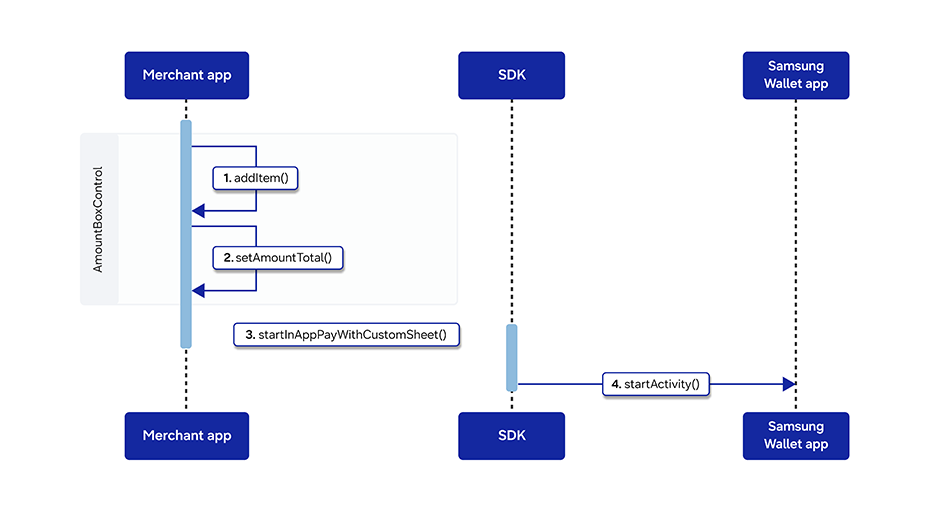
When you create the amount box control, use the following properties:
controlld is required to uniquely identify the control.
currencyCode is required to define the purchase currency.
One or more Item properties, where each consists of id, title, price, and extraPrice.
If extraPrice exists, its text is displayed on the payment sheet even though there is an actual (numerical) price value. If there is no extraPrice, the price value with currencyCode is displayed.
AmountTotal consists of price and displayOption.
The displayOption value allows predefined strings only. Your app can set the text to, for example, Estimated amount, Amount pending, Pending, and Free. The UI format for the displayed string varies based on the text.
NoteThe setAmountTotal() method can accept as an argument strings that are not predefined, but then the method generates an invalid parameter condition or returns an error code. For details, see the Samsung Pay SDK for Android API reference Javadoc, available in the Documentation folder of your downloaded SDK package.
The following figure illustrates the workflow for the amount box control.
The following code snippet is an example of using the amount box control on the payment sheet:
When updating the payment sheet, you can add new items to the amount box control using the addItem() method of the AmountBoxControl class. For example, if the customer selects a specific card in the payment sheet, you can add a discount item:
Call the updateValue(item_id) method of the AmountBoxControl class to update each amount item.
Add any new items you need.
Call the CustomSheet.updateControl() method for the changes to take effect in the CustomSheet object.
After you have made all the updates for the payment sheet, call the PaymentManager.updateSheet(CustomSheet) method to let Samsung Pay know that no further actions are pending in your app.
The following code snippet is an example of adding items to the amount box control while updating the values:
val amount = sheet.getSheetControll("id_amount")

amount.updateValue("itemId", 900.0)
amount.updateValue("taxId", 50.0)
amount.updateValue("shippingId", 10.0)
amount.updateValue("fuelId", 0.0)

// Add the “Discount” item
amount.addItem(4, "discountId", "Discount", -60.0, "")

amount.setAmountTotal(1000.0, AmountConstants.FORMAT_TOTAL_PRICE_ONLY)
sheet.updateControl(amount)

// Call updateSheet() with AmountBoxControl. This is mandatory.
try {
    paymentManager.updateSheet(sheet)
} catch (e: IllegalStateException) {
    e.printStackTrace()
} catch (e: NullPointerException) {
    e.printStackTrace()
}
Apply a spinner control
You can use the spinner control to display spinner options on the payment sheet. The control consists of a title with 2 lines of text or a single line of text without a title.
When you create the spinner control, use the following properties:
controlld is required to uniquely identify the control.
title displays the title for the spinner options.
SheetItemType distinguishes between the types of spinner to be displayed.
Since the API level 1.6, the following Spinner types are available:
SHIPPING_METHOD_SPINNER
INSTALLMENT_SPINNER
NoteSHIPPING_METHOD_SPINNER can be used when the shipping address comes from Samsung Wallet, such as when the CustomSheetPaymentInfo.AddressInPaymentSheet option is set to NEED_BILLING_AND_SHIPPING or NEED_SHIPPING_SPAY. When the shipping address is provided by your app (the CustomSheetPaymentInfo.AddressInPaymentSheet option is set to SEND_SHIPPING or NEED_BILLING_SEND_SHIPPING), it is not changeable in the payment sheet. You must pre-calculate the shipping fee (if applied) in your app.
The following code snippet is an example of using the spinner control on the payment sheet:
// Construct SpinnerControl for shipping method
val spinnerControl = SpinnerControl(
    SHIPPINGMETHOD_SPINNER_ID, "Shipping Method ",
    SheetItemType.SHIPPING_METHOD_SPINNER
)

// Let the customer select one shipping method option on the payment sheet
spinnerControl.addItem(
    "shipping_method_1",
    getString(android.R.string.standard_shipping_free)
)
spinnerControl.addItem("shipping_method_2", getString(android.R.string.twoday_shipping))
spinnerControl.addItem("shipping_method_3", getString(android.R.string.oneday_shipping))
spinnerControl.selectedItemId = "shipping_method_1" // Set the default option

// Listen for SheetControl events
spinnerControl.setSheetUpdatedListener(SheetUpdatedListener { updatedControlId, customSheet ->
    val amountBoxControl =
        CustomSheet.getSheetControl(AMOUNT_CONTROL_ID) as AmountBoxControl
    val spinnerControl = CustomSheet.getSheetControl(updatedControlId) as SpinnerControl
    when (spinnerControl.selectedItemId) {
        "shipping_method_1" -> amountBoxControl.updateValue(PRODUCT_SHIPPING_ID, 10.0)
        "shipping_method_2" -> amountBoxControl.updateValue(PRODUCT_SHIPPING_ID, 10 + 0.1)
        "shipping_method_3" -> amountBoxControl.updateValue(PRODUCT_SHIPPING_ID, 10 + 0.2)
        else -> amountBoxControl.updateValue(PRODUCT_SHIPPING_ID, 10.0)
    }
    amountBoxControl.setAmountTotal(
        1000 + amountBoxControl.getValue(PRODUCT_SHIPPING_ID),
        AmountConstants.FORMAT_TOTAL_PRICE_ONLY
    )
    customSheet.updateControl(amountBoxControl)

    // Call updateSheet() with AmountBoxControl. This is mandatory.
    try {
        paymentManager.updateSheet(customSheet)
    } catch (e: IllegalStateException) {
        e.printStackTrace()
    } catch (e: NullPointerException) {
        e.printStackTrace()
    }
})

// Construct SpinnerControl for an installment plan
val spinnerControl = SpinnerControl(
    INSTALLMENT_SPINNER_ID, "Installment",
    SheetItemType.INSTALLMENT_SPINNER
)
spinnerControl.addItem("installment_1", "1 month without interest")
spinnerControl.addItem("installment_2", "2 months with 2% monthly interest")
spinnerControl.addItem("installment_3", "3 months with 2.2% monthly interest")
spinnerControl.selectedItemId = "installment_1" // Set the default option

// Listen for SheetControl events
spinnerControl.setSheetUpdatedListener(SheetUpdatedListener { updatedControlId, customSheet ->
    val amountBoxControl: AmountBoxControl =
    CustomSheet.getSheetControl(AMOUNT_CONTROL_ID) as AmountBoxControl
    val spinnerControl = CustomSheet.getSheetControl(updatedControlId) as SpinnerControl
    val totalInterest = 0.0
    when (spinnerControl.selectedItemId) {
        "installment1" -> amountBoxControl.updateValue(
            PRODUCT_TOTAL_INTEREST_ID,
            totalInterest
        )

        "installment2" ->                 // Calculate total interest again and update the value
            amountBoxControl.updateValue(PRODUCT_TOTAL_INTEREST_ID, totalInterest)

        "installment3" ->                 // Calculate total interest again and update the value
            amountBoxControl.updateValue(PRODUCT_TOTAL_INTEREST_ID, totalInterest)

        else -> amountBoxControl.updateValue(PRODUCT_TOTAL_INTEREST_ID, totalInterest)
    }
    amountBoxControl.setAmountTotal(
        1000 + amountBoxControl.getValue(PRODUCT_TOTAL_INTEREST_ID),
        AmountConstants.FORMAT_TOTAL_PRICE_ONLY
    )
    customSheet.updateControl(amountBoxControl)

    // Call updateSheet() with AmountBoxControl. This is mandatory.
    try {
        paymentManager.updateSheet(customSheet)
    } catch (e: IllegalStateException) {
        e.printStackTrace()
    } catch (e: NullPointerException) {
        e.printStackTrace()
    }
})
Display a custom error message
You can use custom error messages to inform the customer of any foreseen error scenarios.
To display a custom error message on the payment sheet, use the updateSheet() method with a customErrorMessage value:
fun updateSheet(sheet : CustomSheet, errorCode : Int, customErrorMessage : String)
This method is an extension of the existing updateSheet(sheet) method, allowing you to display a message in the payment sheet’s authentication area:
// Update sheet with CUSTOM_MESSAGE error code
paymentManager.updateSheet(customSheet, PaymentManager.CUSTOM_MESSAGE,"Phone number entered is not valid. Please change your phone number.")
Manage Your Cookies
We use cookies to improve your experience on our website and to show you relevant
advertising. Manage you settings for our cookies below.
Essential Cookies
These cookies are essential as they enable you to move around the website. This
category cannot be disabled.
Company
Domain
Samsung Electronics
developer.samsung.com, .samsung.com
Analytical/Performance Cookies
These cookies collect information about how you use our website. for example which
pages you visit most often. All information these cookies collect is used to improve
how the website works.
Company
Domain
Samsung Electronics
.samsung.com
Functionality Cookies
These cookies allow our website to remember choices you make (such as your user name, language or the region your are in) and
tailor the website to provide enhanced features and content for you.
Company
Domain
Samsung Electronics
developer.samsung.com, google.account.samsung.com
Preferences Submitted
You have successfully updated your cookie preferences.