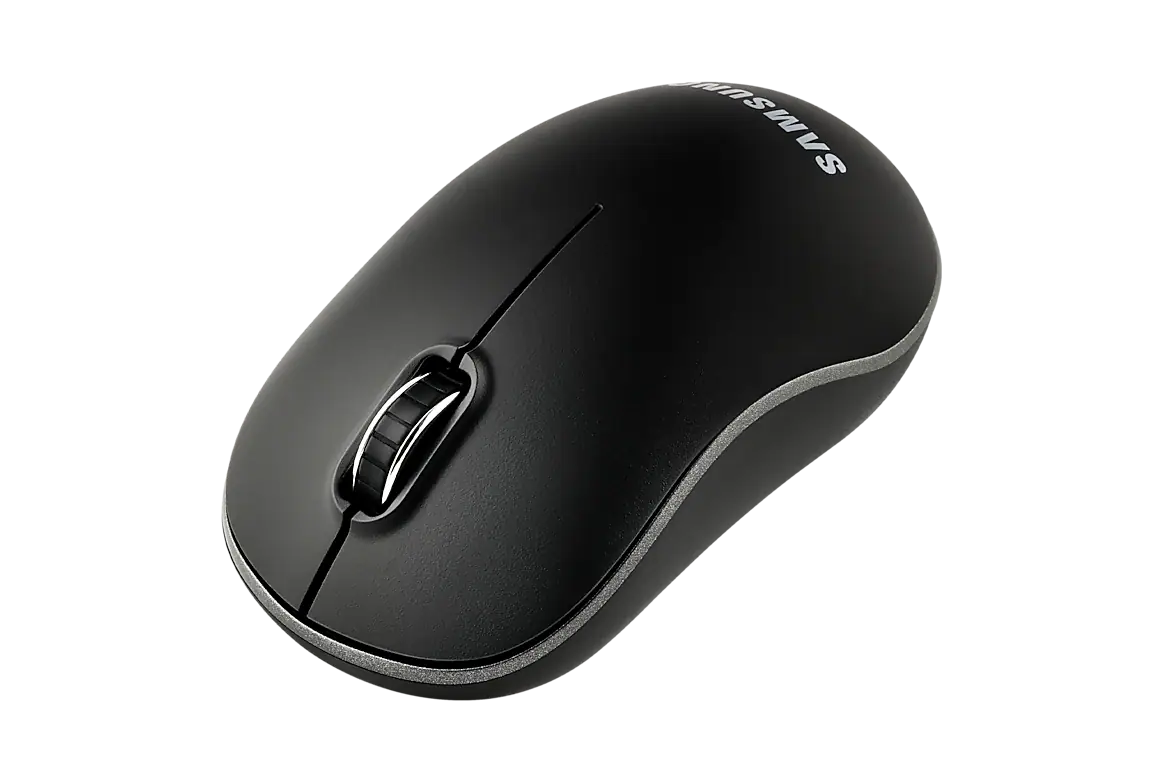
If "pointing-device-support" is not defined, the default value is applied, depending on the device model:
Feature
2015 ~ 2020
2021 ~
Default Value
enable
disable
Table 1: Pointing device support default value
For 2021 / 2022 models, the default value was changed to disable in July 2023.
If a mouse pointer is shown on your application and your application does not act according to mouse clicks, a serious defect will be reported when your application is verified by Samsung.
Floating Menu
The Floating Menu functionality is provided in the form of an overlay menu to navigate and use functions of a remote control by using the mouse right click.
The floating.navigation metadata key was introduced starting from 2024 products (Tizen 8.0) to configure the Floating Menu.
Enabling the Floating Menu:
The Floating Menu is enabled by default. The floating.navigation metadata key does not need to be explicitly added to the application's "config.xml" to enable the Floating Menu.
Disabling the Floating Menu:
To disable the Floating Menu, the value of the floating.navigation metadata key must be set to false:
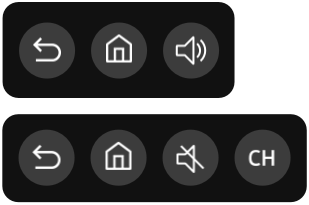
This menu is used if the application supports both input from mouse (using pointing-device-support='enable') and the Floating Menu with floating.navigation='true'.
The following overlay menu appears when using the mouse right click.
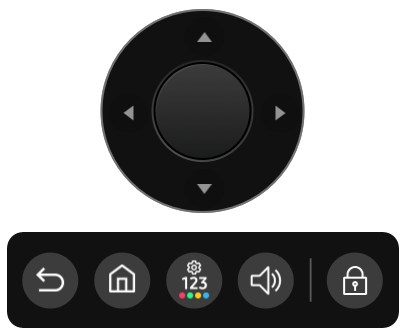
Type 2: Floating menu with D-pad for screen navigation
This menu is used if the application does not support input from mouse (using pointing-device-support='disable') but supports the Floating Menu with floating.navigation='true'.
The following overway menu appears when using the mouse right click.
The following pop-up appears when using the mouse left click.
Handling Mouse Events
The supported mouse events are described in the W3C Mouse Events.
To receive notifications for mouse events, for example, the click event:
Create a listener for the click event. The listener is notified each time the element is clicked.
function handleKeyClick () {
// Something you want to do
...
}
Manage Your Cookies
We use cookies to improve your experience on our website and to show you relevant
advertising. Manage you settings for our cookies below.
Essential Cookies
These cookies are essential as they enable you to move around the website. This
category cannot be disabled.
Company
Domain
Samsung Electronics
developer.samsung.com, .samsung.com
Analytical/Performance Cookies
These cookies collect information about how you use our website. for example which
pages you visit most often. All information these cookies collect is used to improve
how the website works.
Company
Domain
Samsung Electronics
.samsung.com
Functionality Cookies
These cookies allow our website to remember choices you make (such as your user name, language or the region your are in) and
tailor the website to provide enhanced features and content for you.
Company
Domain
Samsung Electronics
developer.samsung.com, google.account.samsung.com
Preferences Submitted
You have successfully updated your cookie preferences.