After you check the Samsung Pay status on the customer's device and determine that you can display the Samsung Pay button, implement the push provisioning flow to provision the customer's card to Samsung Wallet:
NoteRemember to obtain the governing issuer implementation guides and specifications from the applicable card network and implement each network’s required handling in your app and server.
A co-badge card combines 2 payment brands or networks.
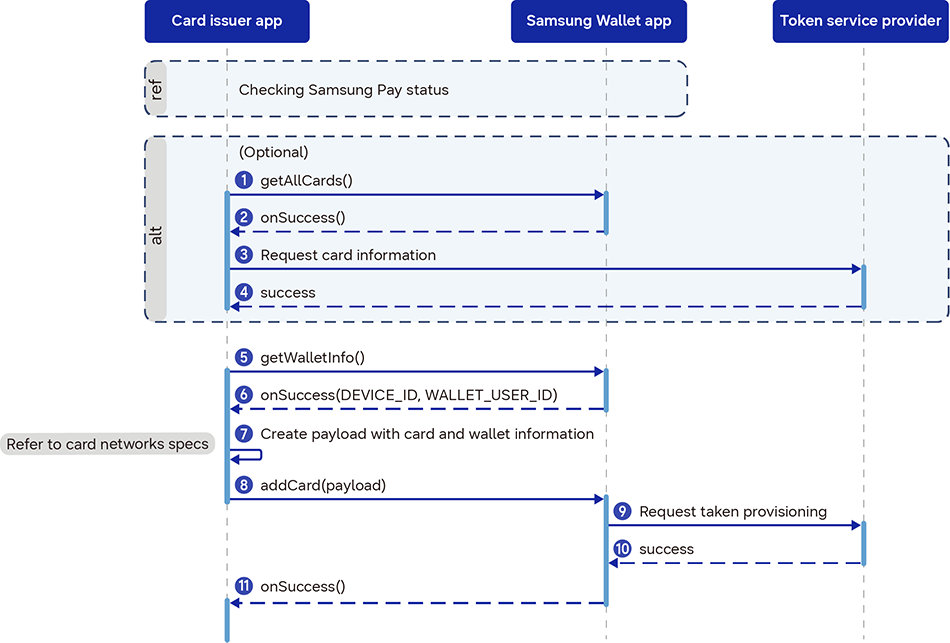
The following figure illustrates the push provisioning flow.
After checking the Samsung Pay status on the customer's device, request a list of the customer's current cards from the Samsung Wallet app installed on the same customer device where your app is running.
Samsung Wallet sends the card list to your app.
If the card is not yet added, request the card details necessary for provisioning from your token service provider (TSP).
The TSP sends the card details to your app.
Request the customer's wallet details from Samsung Wallet.
Samsung Wallet sends the wallet details to your app.
Create a provisioning payload with the card and wallet details, as required by your card network.
Send the provisioning request to Samsung Wallet to add a new card.
Samsung Wallet requests token provisioning from the TSP.
The TSP returns a token to Samsung Wallet, which stores it.
Samsung Wallet sends a notification of the provisioning result to your app.
Manage Your Cookies
We use cookies to improve your experience on our website and to show you relevant
advertising. Manage you settings for our cookies below.
Essential Cookies
These cookies are essential as they enable you to move around the website. This
category cannot be disabled.
Company
Domain
Samsung Electronics
developer.samsung.com, .samsung.com
Analytical/Performance Cookies
These cookies collect information about how you use our website. for example which
pages you visit most often. All information these cookies collect is used to improve
how the website works.
Company
Domain
Samsung Electronics
.samsung.com
Functionality Cookies
These cookies allow our website to remember choices you make (such as your user name, language or the region your are in) and
tailor the website to provide enhanced features and content for you.
Company
Domain
Samsung Electronics
developer.samsung.com, google.account.samsung.com
Preferences Submitted
You have successfully updated your cookie preferences.