Save to Pay is a service that allows you to provision the customer's payment cards from your website.
All communication between your server and Samsung Save to Pay server uses mutual SSL (two-way TLS) over TLS 1.2. Both sides authenticate each other with TLS certificates: Samsung issues you a client certificate for inbound calls, and you must provide a client certificate for Samsung for outbound communication.
The following sections provide all the information you need to integrate Save to Pay:
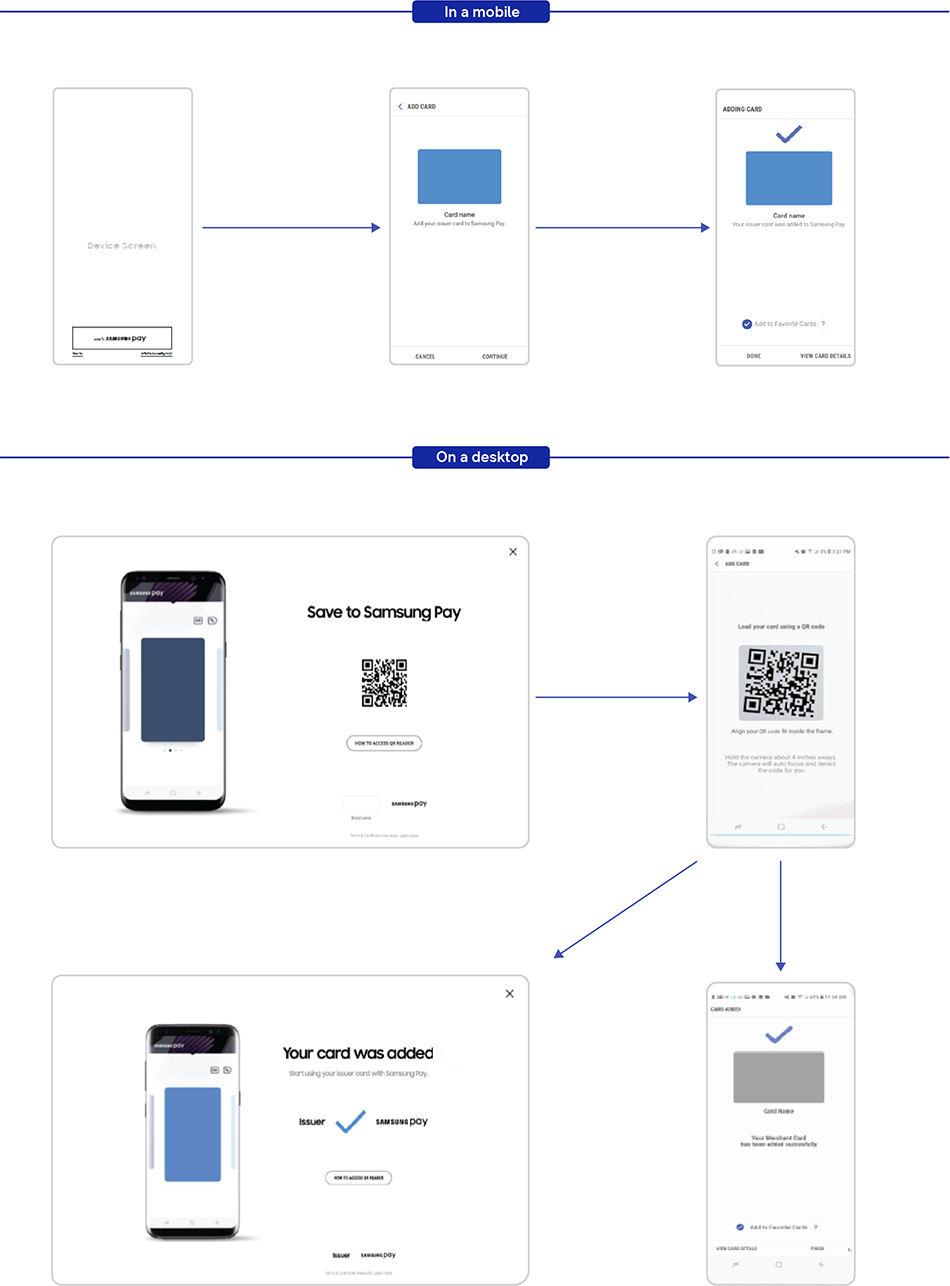
The following figure illustrates the user experience of Save to Pay.
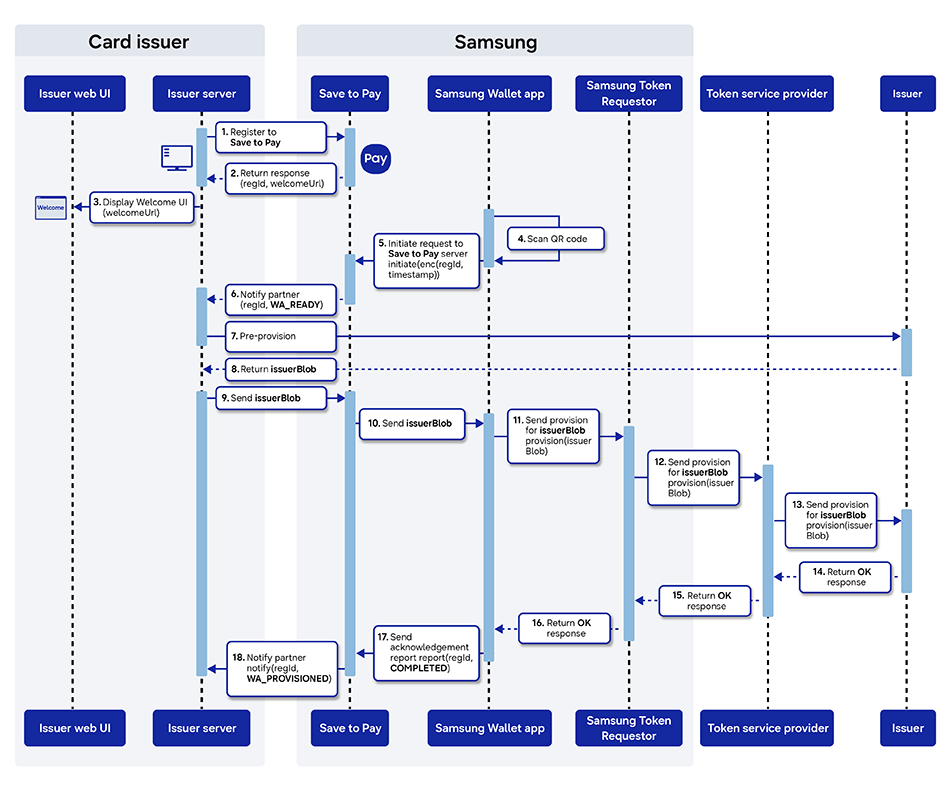
The following diagram illustrates the overall Save to Pay flow.
-
When the customer initiates a process on a desktop for adding a card (for example, by clicking a button or opening a specific page), the issuer server registers for the Save to Pay service session by sending a registration request to Save to Pay.
-
Save to Pay returns the URL for the welcome UI to the issuer server as a response.
-
The issuer website displays the welcome UI.
-
In the Samsung Wallet app, the customer scans the QR code, which triggers the push provisioning process.
If the Samsung App is not installed on the customer's mobile, the welcome UI directs the customer to install the app and sign in with their Samsung Account.
-
Samsung Wallet sends an initiation request to Save to Pay.
-
Save to Pay notifies the issuer server that the wallet is ready.
-
If the partner issuer is a brand, their issuer server sends a pre-provision request to the card issuer. Otherwise, they retrieve the data from their own server and skip to step 9.
-
The card issuer returns the data for provisioning (issuerBlob). The data consists of encrypted device- and wallet-specific details, formatted depending on the issuer.
-
The issuer server sends the provisioning data to Save to Pay.
-
Save to Pay forwards the provisioning data to Samsung Wallet.
-
To initiate the tokenization process for the card, Samsung Wallet sends the provisioning data to Samsung Token Requestor.
-
Samsung Token Requestor forwards the data to the card issuer's token service provider.
-
The token service provider forwards the data to the card issuer.
-
The card issuer returns the provisioning response to the token service provider.
-
The token service provider returns the response to Samsung Token Requestor.
-
Samsung Token Requestor returns the response to Samsung Wallet that stores the token for future use in online purchases.
-
Samsung Wallet sends a report to Save to Pay.
-
Save to Pay notifies the issuer server that the card has been provisioned.