All applications must be signed with valid certificates before they can be installed or run. This topic describes how to create a certificate profile you can use to sign your applications.
According to the Tizen policy, all applications must be signed with valid certificates before they can be installed or run. The signature verifies the source of the application and makes sure it has not been tampered with since its publication. A certificate profile is a combination of the certificates used for signing, and it can be created using the Certificate Manager. The active certificate profile is used when packaging your application.
Device ID (DUID) for the target device on which you want to install your application
Creating a Certificate Profile
A certificate profile consists of an author certificate and 1 or more distributor certificates.
To create a certificate profile:
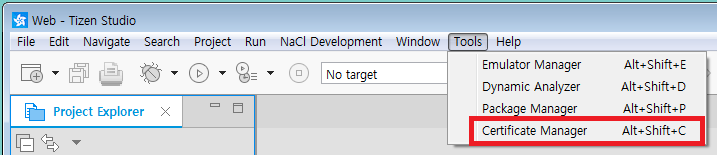
In the Tizen Studio menu, select "Tools > Certificate Manager".
NoteIn Tizen Studio 2.0 and lower, if the Tizen Studio and the Certificate Manager are running at the same time, the Certificate Manager can freeze. To avoid this issue, after launching the Certificate Manager, close the Tizen Studio.
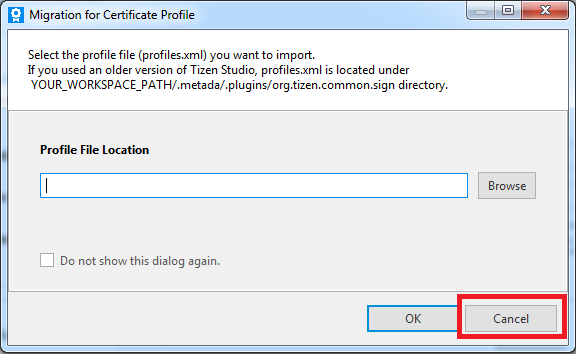
Click "Cancel" on "Migration for Certificate Profile" dialog.
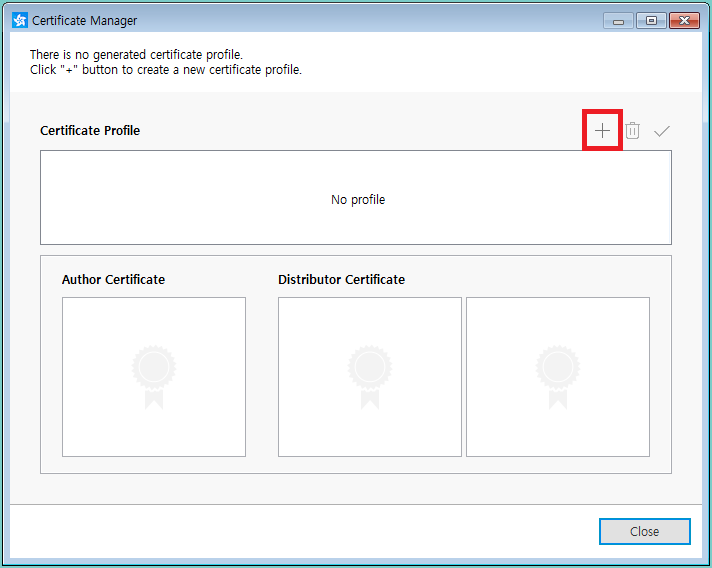
Click "+".
The certificate profile creation wizard opens.
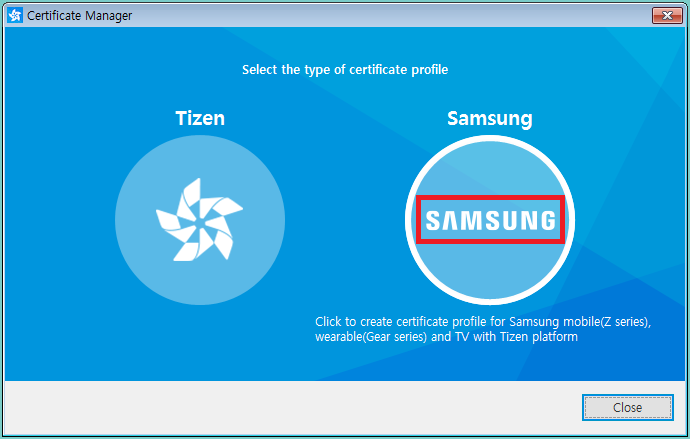
Click "Samsung".
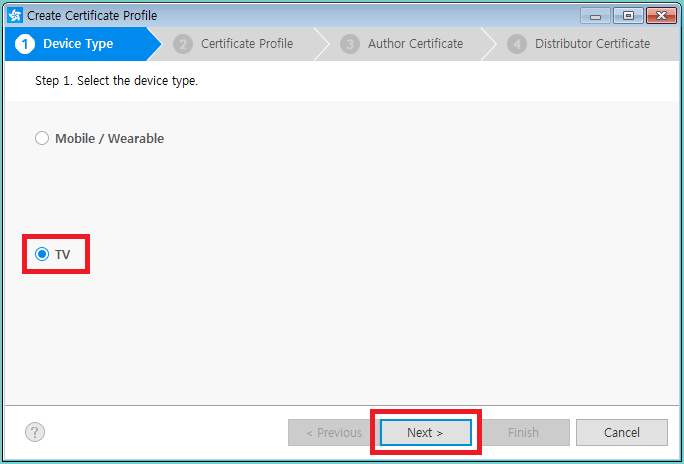
Select "TV", and click "Next".
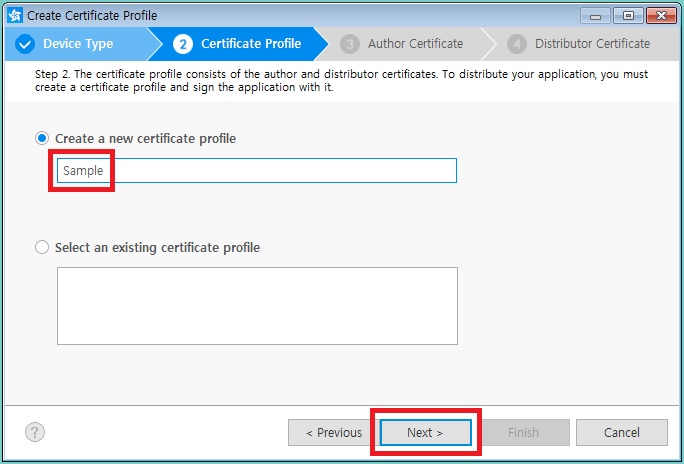
Enter a name for the certificate profile, and click "Next".
Add an author certificate.
To create a new author certificate:
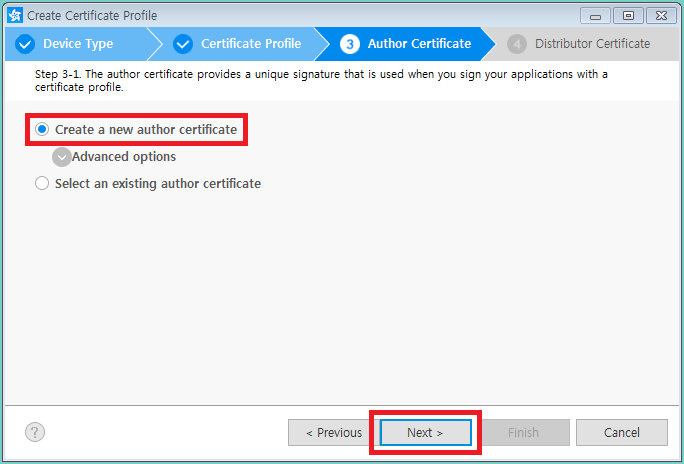
You can create a new author certificate or import an existing one.
Select "Create a new author certificate" and click "Next".
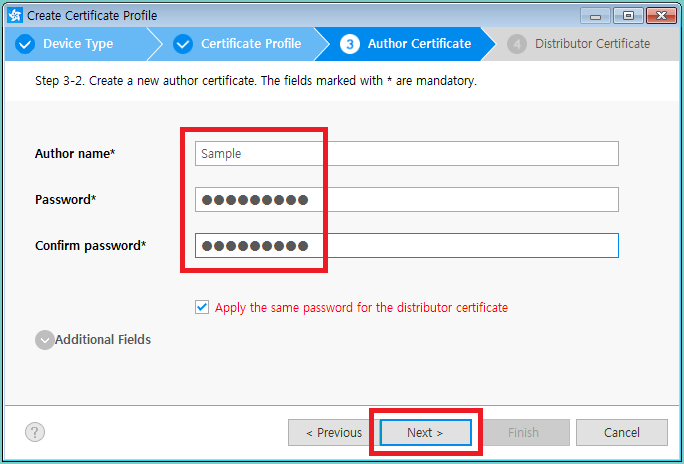
Enter the required information, and click "Next".
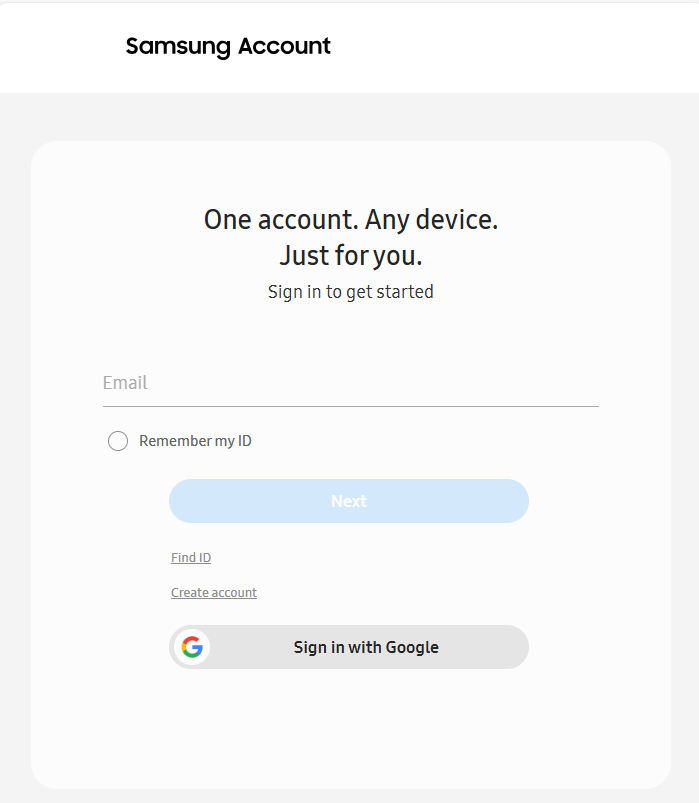
Sign in with your Samsung Developer account.
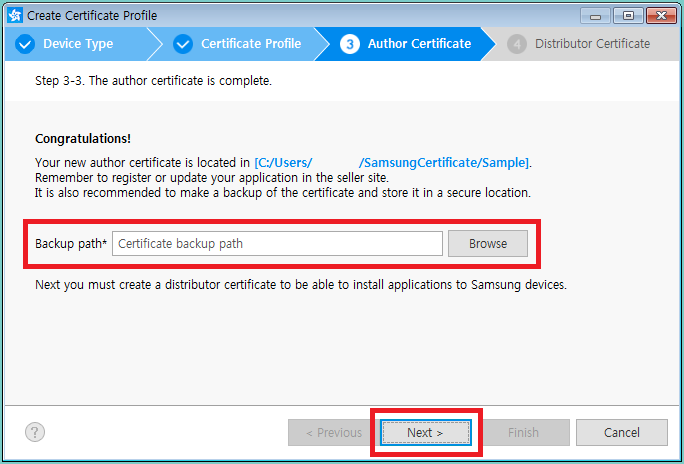
Define a backup path for your certificate file, and click "Next".
ImportantKeep your certificates backed up in a safe location. When you update your published applications, the update must be signed with the same author certificate as the original application. If the applications are signed with different author certificates, the update can be recognized as a different application and not an update.
To import an existing author certificate:
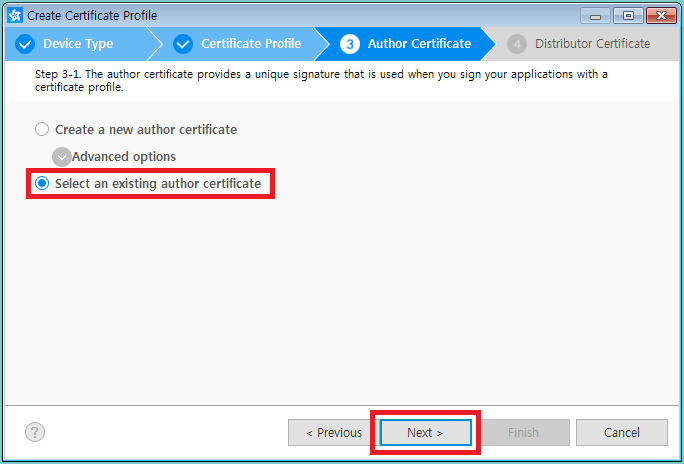
If you already have an author certificate ("author.p12" file), you can import it.
Select "Select an existing author certificate", and click "Next".
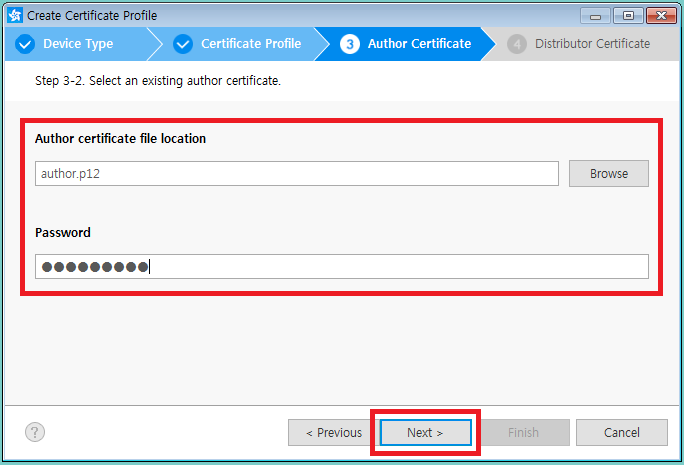
Define the existing certificate, and click "Next".
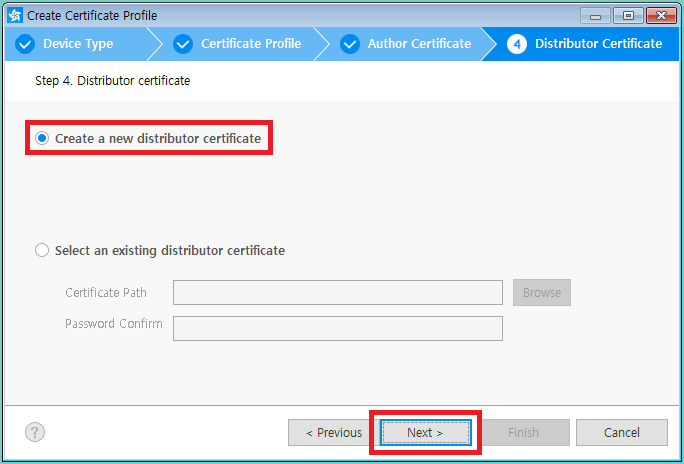
Add a distributor certificate:
Select "Create a new distributor certificate" and click "Next".
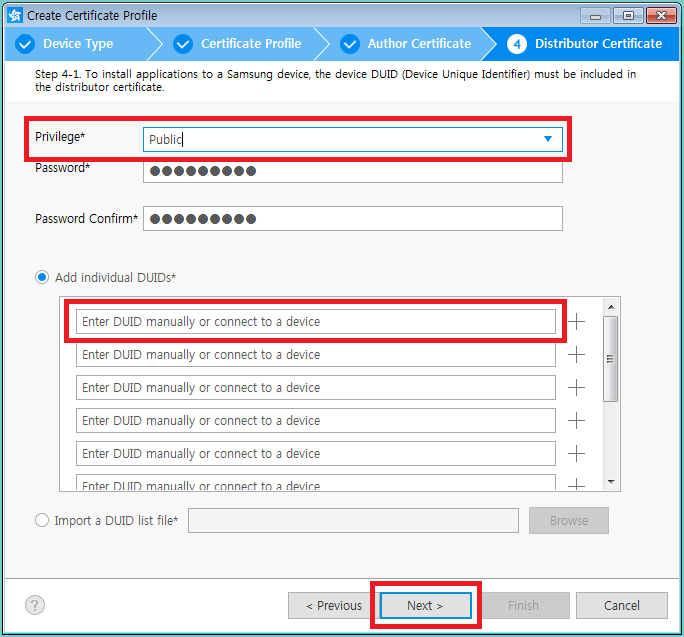
Define the privilege level you need, and add the device ID (DUID) for the target device. You can enter the DUID manually, or by clicking "+" next to the connected device in the list.
NoteTo view the device ID, on your device, go to "Menu > Support > Contact Samsung > Unique Device ID".
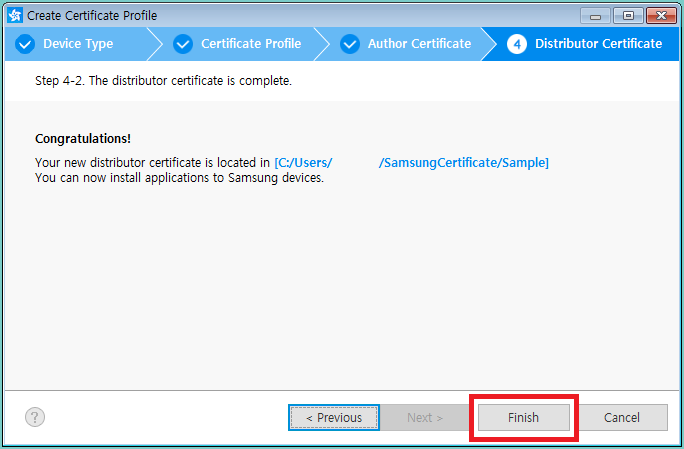
To close the certificate profile creation wizard, click "Finish".
Manage Your Cookies
We use cookies to improve your experience on our website and to show you relevant
advertising. Manage you settings for our cookies below.
Essential Cookies
These cookies are essential as they enable you to move around the website. This
category cannot be disabled.
Company
Domain
Samsung Electronics
developer.samsung.com, .samsung.com
Analytical/Performance Cookies
These cookies collect information about how you use our website. for example which
pages you visit most often. All information these cookies collect is used to improve
how the website works.
Company
Domain
Samsung Electronics
.samsung.com
Functionality Cookies
These cookies allow our website to remember choices you make (such as your user name, language or the region your are in) and
tailor the website to provide enhanced features and content for you.
Company
Domain
Samsung Electronics
developer.samsung.com, google.account.samsung.com
Preferences Submitted
You have successfully updated your cookie preferences.