This topic describes the code editing tools provided by the Tizen Studio, such as the content assist and syntax checker tools.
The Tizen Studio provides tools for writing and editing code.
Using Content Assist
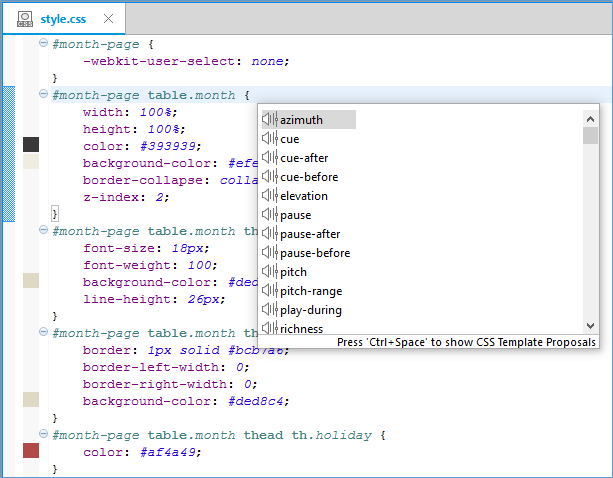
Content assist is a functionality provided in parts of the Tizen Studio Web Editor to help you write code faster and more efficiently.
Content assist allows you to quickly type names in the context of HTML, CSS, and JavaScript code. For example, you can simply type the first letters, and press "Ctrl + Space" to get suggestions for element and attribute properties that match the entered letters and are valid for the current context (class name, interface name, variable, or field names). If you mistype a name, content assist displays an error.
The Tizen Studio supports Web API, jQuery API, jQuery Mobile API, and various W3C/HTML5 APIs. The content assist functionality can be expanded with support for user-defined and third-party APIs.
Syntax checking tools help you identify and correct problems with the structural quality of your code.
There are 2 ways to inspect your code:
Manual check
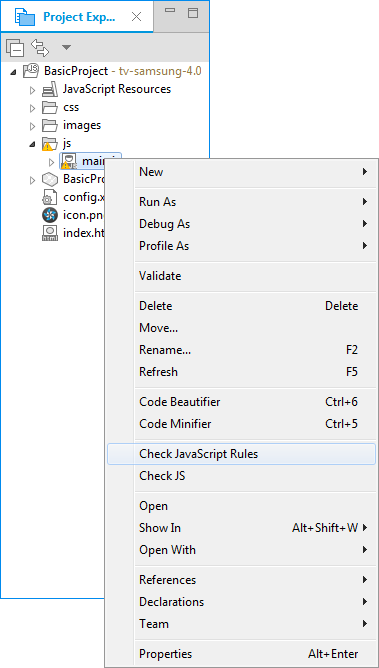
In the "Project Explorer" view, select a JavaScript file.
Right-click the file and select "Check JavaScript Rules".
NoteYou can check JavaScript immediately, even without saving the file.
View the results in the "Problems" view.
Automatic check
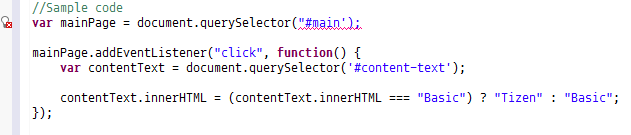
When writing code, if there are syntax errors, the automatic check displays the CSSLint or JSLint validator results on the left edge of the editor.
When you save a file, the project is built and the syntax is checked automatically.
Modifying Syntax Check Settings
If you want to adjust the error level settings for the CSS or JavaScript Validator, go to "Window > Preferences > Tizen Studio > Web > Editor > CSS Editor" or "JavaScript Editor".
By default, the CSS or JavaScript syntax check is run when a document is saved or the project is built. However, you can configure the details in the preferences. To change the inspection point, adjust it in the "CSS Editor" or "JavaScript Editor" tab:
If you select "Build", the editor performs a check when building the project.
If you select "Reconcile", the editor performs a check when saving the file.
We use cookies to improve your experience on our website and to show you relevant
advertising. Manage you settings for our cookies below.
Essential Cookies
These cookies are essential as they enable you to move around the website. This
category cannot be disabled.
Company
Domain
Samsung Electronics
developer.samsung.com, .samsung.com
Analytical/Performance Cookies
These cookies collect information about how you use our website. for example which
pages you visit most often. All information these cookies collect is used to improve
how the website works.
Company
Domain
Samsung Electronics
.samsung.com
Functionality Cookies
These cookies allow our website to remember choices you make (such as your user name, language or the region your are in) and
tailor the website to provide enhanced features and content for you.
Company
Domain
Samsung Electronics
developer.samsung.com, google.account.samsung.com
Preferences Submitted
You have successfully updated your cookie preferences.