From Seller Portal, you can add a Samsung In-App Purchase (IAP) product (item or subscription). See also Creating an In-App Product
-
Go to the app list and open an app.
-
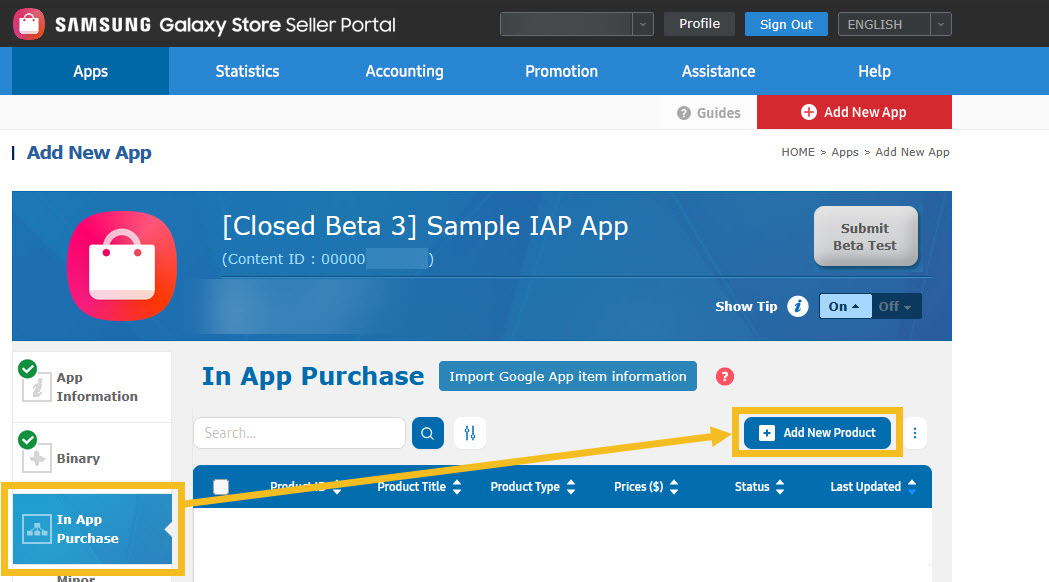
Select the In-App Purchase tab and click Add New Product.
-
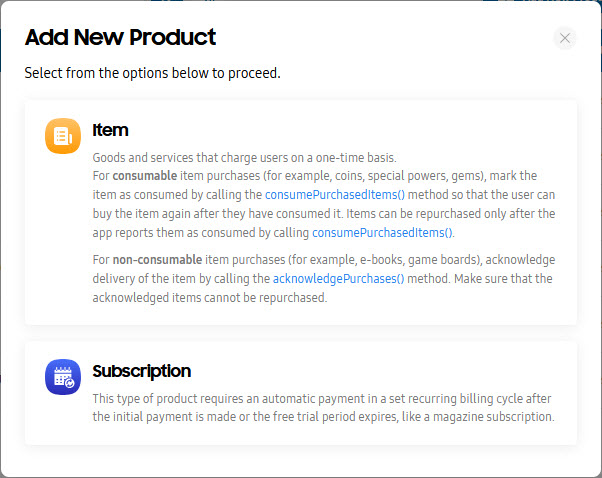
Click Item.
-
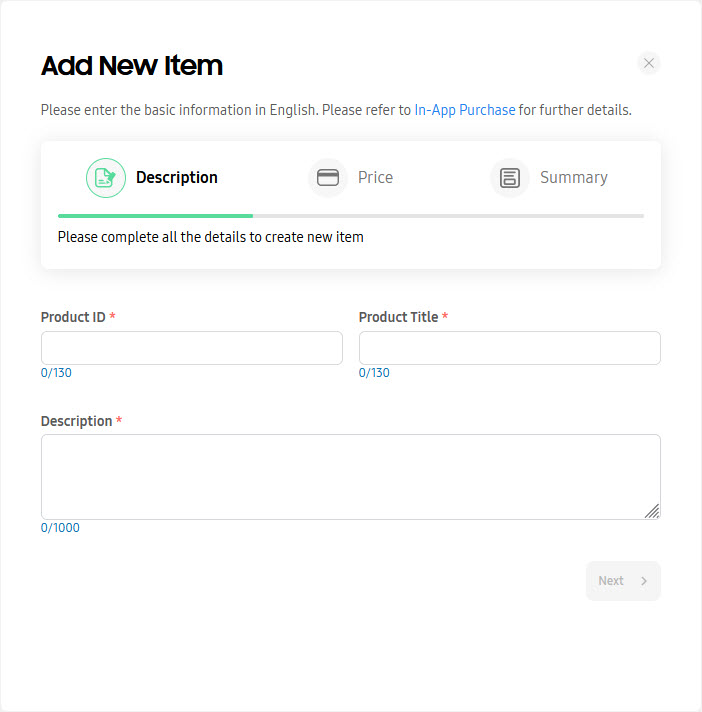
Enter the Product ID, Product Title, and Description of your item and click Next. All basic information must be entered in English.
-
Click Set New Price
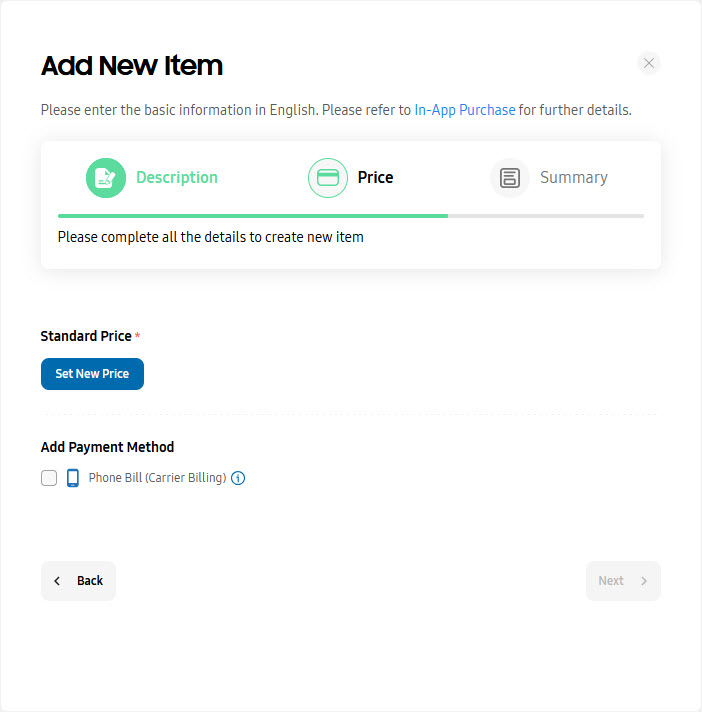
-
Enter a standard price (in USD) for all countries and click Apply. Or, set a price for each country (in the local currency). You can also connect a price template, which allows you to set a fixed local price in each country where your app is sold and can be applied to one or more in-app products of an app.
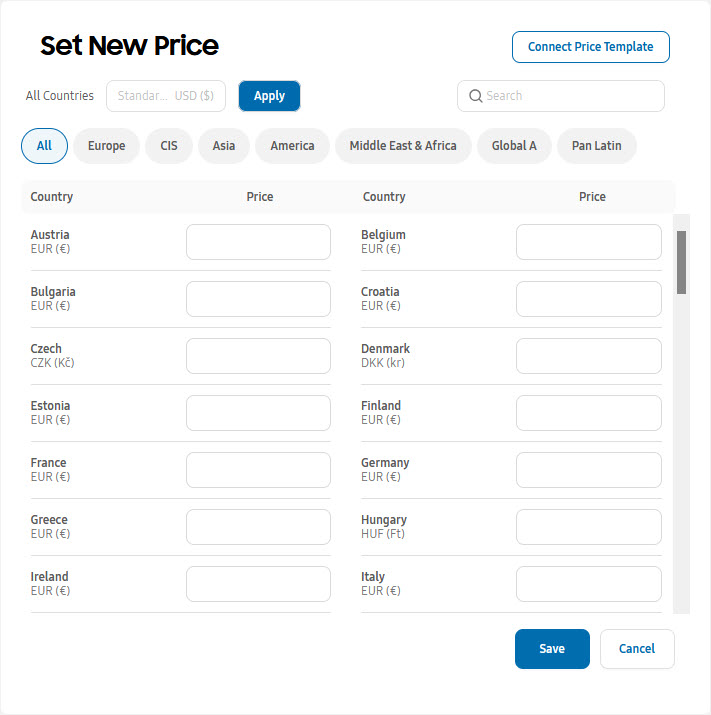
-
When you have entered the price, click Save then click Next.
-
Review the information you have just entered and click Save then OK.
-
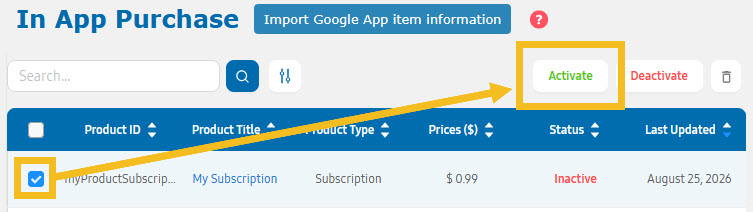
Activate your item: select the checkbox next to the item you just added, then click Activate and OK.
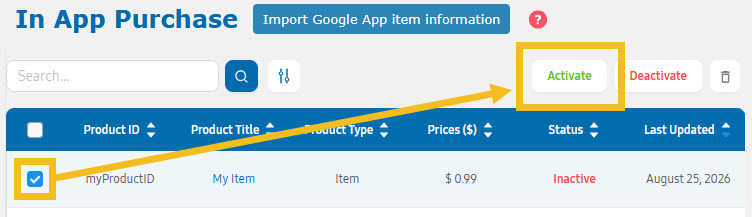
-
Go to the app list and open an app.
-
Select the In-App Purchase tab and click Add New Product.
-
Click Subscription.
-
Enter the Product ID, Product Title, and Description of your item and click Next. All basic information must be entered in English.
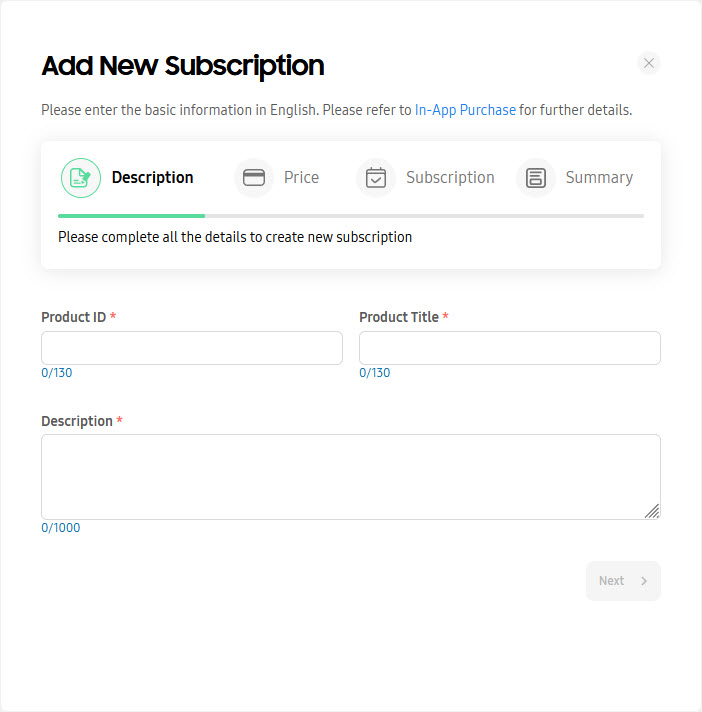
-
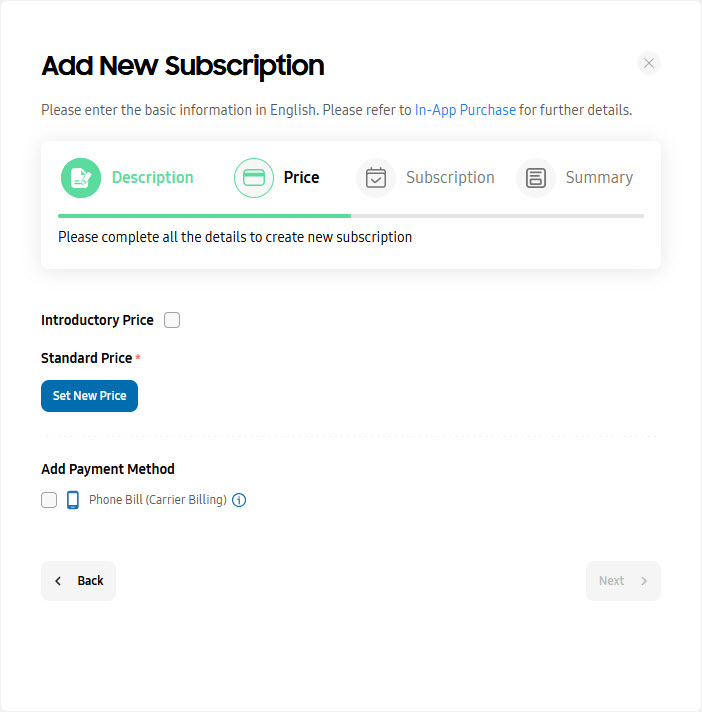
Click Set New Price
-
Enter a standard price (in USD) for all countries and click Apply. Or, set a price for each country (in the local currency). You can also connect a price template, which allows you to set a fixed local price in each country where your app is sold and can be applied to one or more in-app products of an app.
-
When you have entered the price, click Save. If you want to add an introductory price, select the checkbox then click Set New Discounted Price and enter the Discount Period.
-
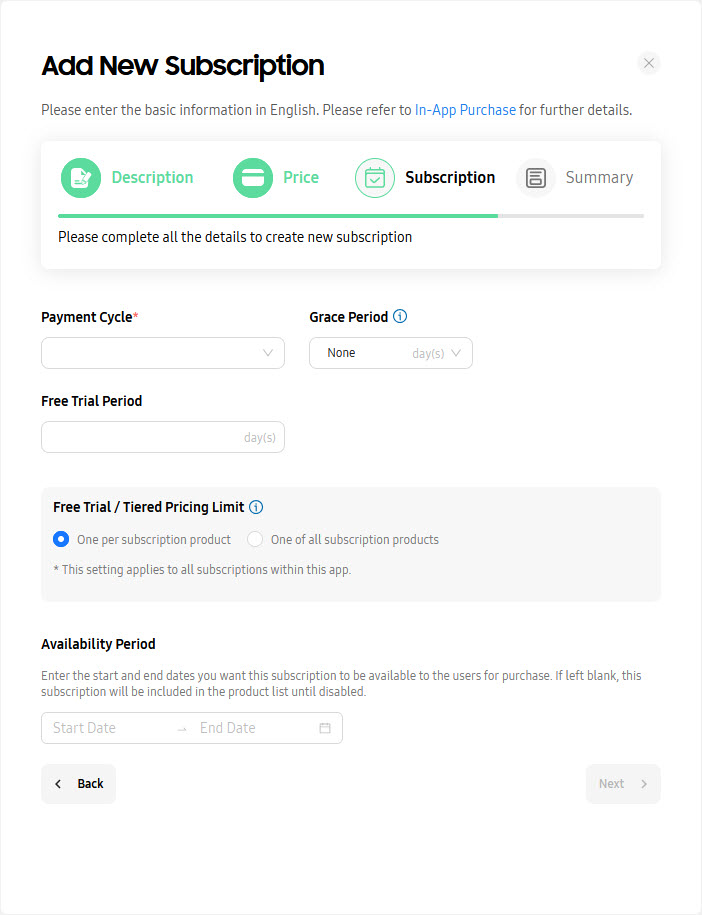
Click Next and select the Payment Cycle. You can also add a grace period and free trial period.
-
Click Next and review the information you have just entered. Then click Save and OK.
-
Activate your subscription: select the checkbox next to the subscription you just added, then click Activate and OK.