If you want to add or remove in-app products from a price templag you can connect or disconnect them.
Connect a price template and an in-app product
Connecting a price template and an in-app product applies the prices in the price template to the in-app product. Any prices previously set within the in-app product are overwritten.
There are two ways to connect a price template and an in-app product.
Connect a price template to an in-app product
To connect a price template to an in-app product:
Log in to Seller Portal, go to the app list, and open an app.
From the In App Purchase tab of the selected app, open the in-app product.
Click Edit.
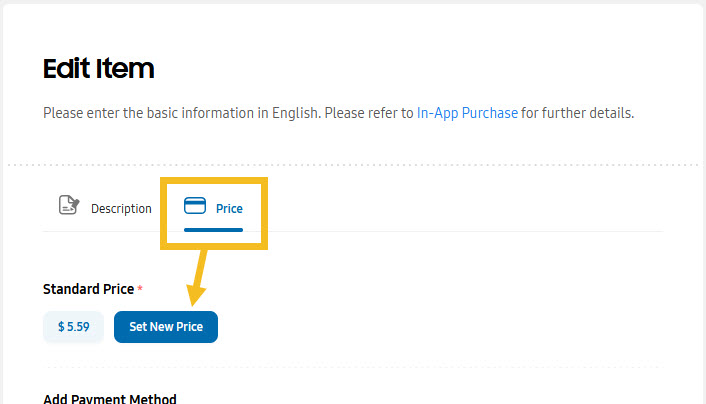
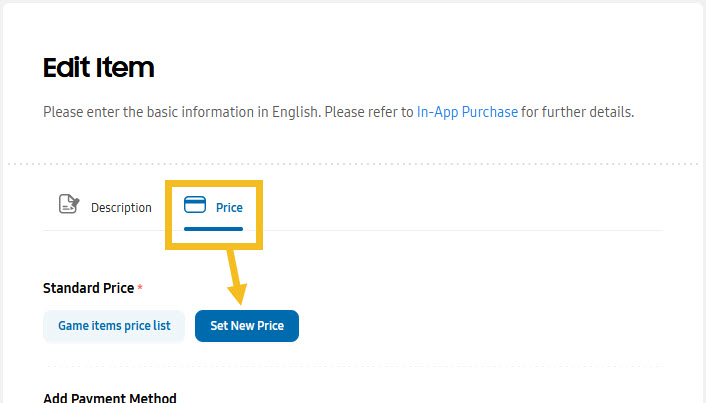
Open the Price section and click Set New Price.
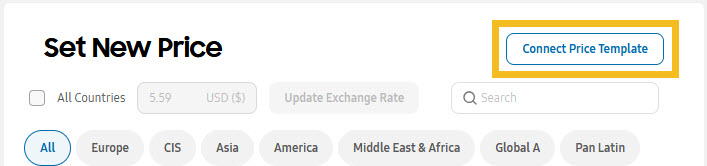
Click Connect Price Template.
Select a price template and click Apply.
Click Save twice.
Click Close to return to the list of in-app products.
Connect an in-app product to a price template
To connect an in-app product to a price template:
Log in to Seller Portal, go to the app list, and open an app.
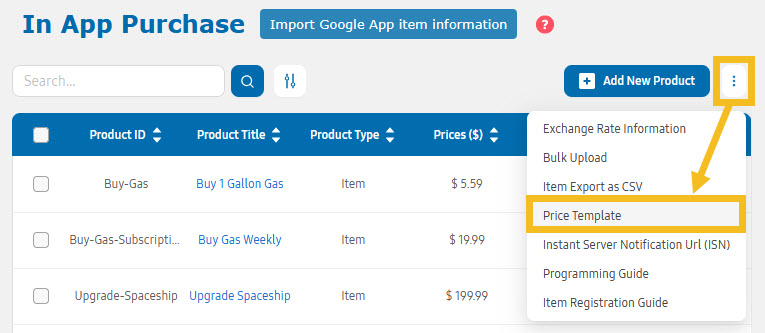
From the In App Purchase tab of the selected app, click the more menu (the three vertical dots) and select Price Template.
Click the Template Name.
Click Edit.
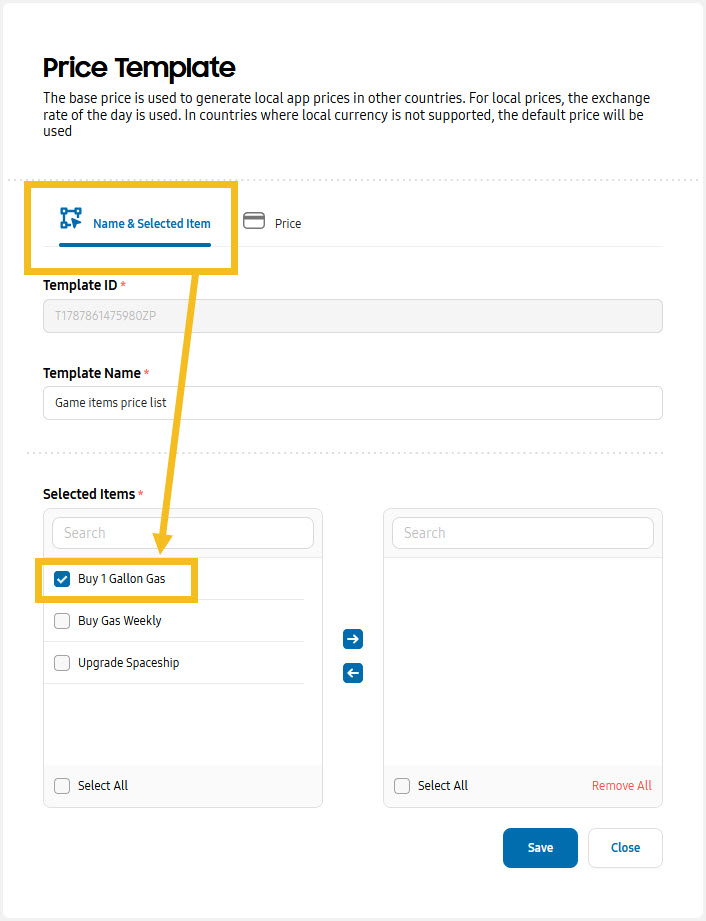
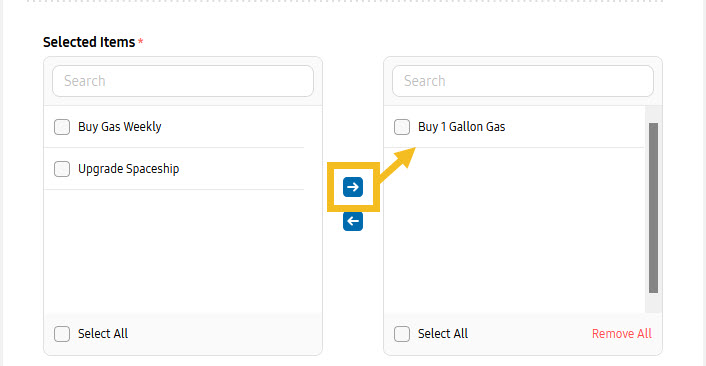
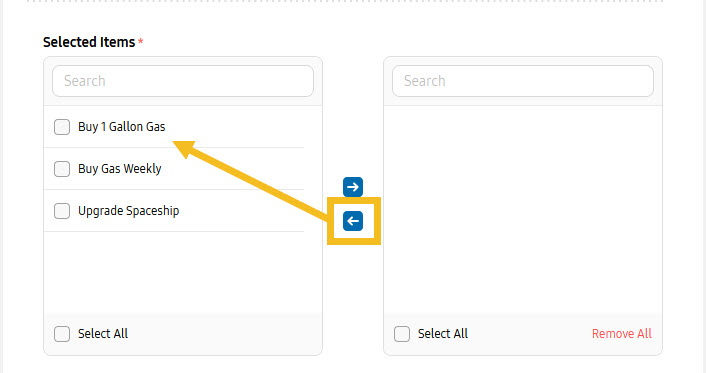
Open the Name & Selected Item section and, in the left text box, select the item to connect.
Click the right arrow to move the item to the right text box.
Click Save.
Click Close twice to return to the list of in-app products.
Disconnect a price template and an in-app product
Disconnecting a price template and an in-app product allows you to manually update prices for the in-app product. When you disconnect a price template, the initial prices used by the in-app product are based on the prices set in the price template.
There are two ways to disconnect a price template and an in-app product.
Disconnect a price template from an in-app product
To disconnect a price template from an in-app product:
Log in to Seller Portal, go to the app list, and open an app.
From the In App Purchase tab of the selected app, open the in-app product.
Click Edit.
Open the Price section and click Set New Price.
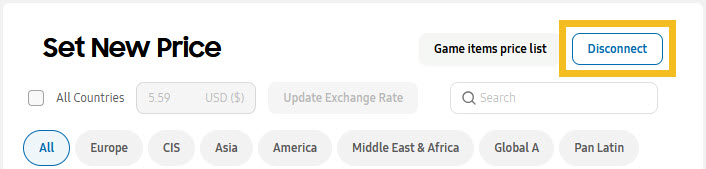
Click Disconnect.
Click OK and then Save twice.
Click Close to return to the list of in-app products.
Disconnect an in-app product from a price template
To disconnect an in-app product from a price template:
Log in to Seller Portal, go to the app list, and open an app.
From the In App Purchase tab of the selected app, click the more menu (the three vertical dots) and select Price Template.
Click the Template Name.
Click Edit.
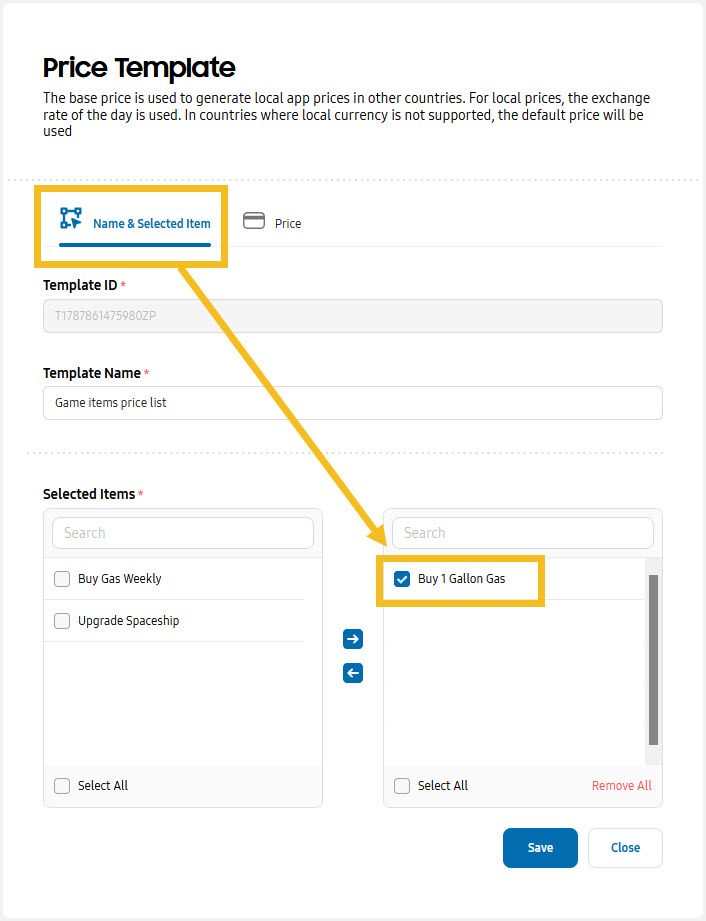
Open the Name & Selected Item section and, in the right text box, select the item to disconnect.
Click the left arrow to move the item to the left text box.
Click Save.
Click Close twice to return to the list of in-app products.
Manage Your Cookies
We use cookies to improve your experience on our website and to show you relevant
advertising. Manage you settings for our cookies below.
Essential Cookies
These cookies are essential as they enable you to move around the website. This
category cannot be disabled.
Company
Domain
Samsung Electronics
developer.samsung.com, .samsung.com
Analytical/Performance Cookies
These cookies collect information about how you use our website. for example which
pages you visit most often. All information these cookies collect is used to improve
how the website works.
Company
Domain
Samsung Electronics
.samsung.com
Functionality Cookies
These cookies allow our website to remember choices you make (such as your user name, language or the region your are in) and
tailor the website to provide enhanced features and content for you.
Company
Domain
Samsung Electronics
developer.samsung.com, google.account.samsung.com
Preferences Submitted
You have successfully updated your cookie preferences.