Manage price templates using a CSV, allowing you to do a bulk update. You can modify an existing price template and add new price templates.
The CSV files has the following columns:
Column Name
Description
Example
Template ID
Do not modify. The price template ID generated by the system.
If you are adding a new template, leave this cell empty.
T1234505842789AQ
Template Name*
The name of the price template.
Game items price list
Connected Item IDs*
The package name and product ID of the IAP product using the price template.
Format: <package_name>|<product_name>
If you are adding a new template, the package name is found by going to the Binary tab and ciicking the binary file name. The product ID is found in the table that is first displayed when you click the In App Purchase tab.
If more than one IAP product is connected, they are separated by a semicolon (;).
The price, in U.S. dollars, on which local prices are based. When applied, local prices for each country are automatically calculated and set using the daily exchange rate.
Uses the three-character country code (ISO 3166) of the country where the item is sold, three-character currency code (ISO 4217) of the specified country's currency, and the local price.
If more than one price is specified, they are separated by a semicolon (;).
The price must be at or above the minimum payment amount of a country/region. If you set the price below the minimum payment amount, Seller Portal automatically changes the price to the minimum payment amount.
KORKRW4900;ARGUSD3
*If you are adding a price template, these fields are required.
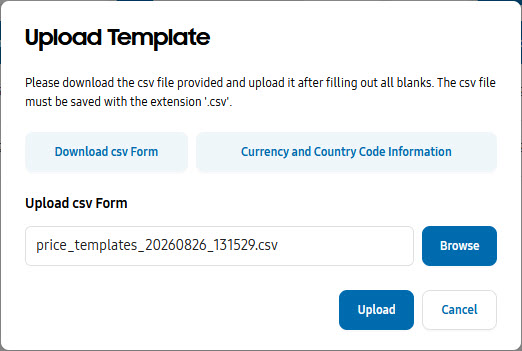
NoteA CSV that lists the country and currency codes can be downloaded from the import popup (click Import to display the popup).
Export a price template
Download price template information configured in Seller Portal to a CSV file.
To export a price template:
Log in to Seller Portal, go to the app list, and open an app.
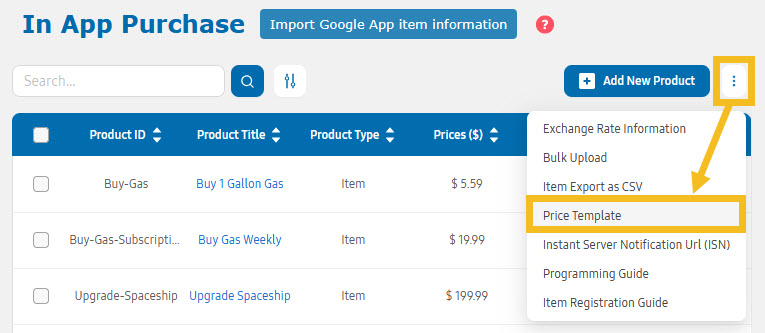
From the In App Purchase tab of the selected app, click the more menu (the three vertical dots) and select Price Template.
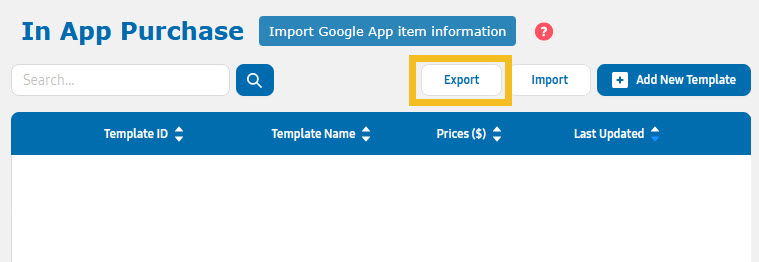
Click Export.
Click Export in the popup.
Import a price template
Upload changes to existing price templates and add new price templates in Seller Portal. It is recommended that you export the latest version of the CSV file before making your updates.
When you upload the CSV file, only price template information that has been updated or added is uploaded.
NoteIf you delete a price template from the CSV file, when you upload the file, the price template is not deleted from Seller Portal.
To import a price template:
Log in to Seller Portal, go to the app list, and open an app.
From the In App Purchase tab of the selected app, click the more menu (the three vertical dots) and select Price Template.
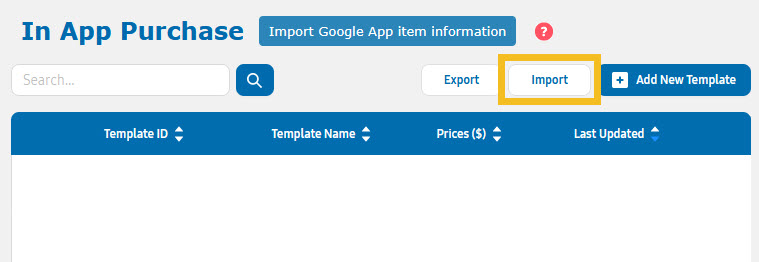
Click Import.
Browse to the file to import, then click Upload.
Click OK.
Manage Your Cookies
We use cookies to improve your experience on our website and to show you relevant
advertising. Manage you settings for our cookies below.
Essential Cookies
These cookies are essential as they enable you to move around the website. This
category cannot be disabled.
Company
Domain
Samsung Electronics
developer.samsung.com, .samsung.com
Analytical/Performance Cookies
These cookies collect information about how you use our website. for example which
pages you visit most often. All information these cookies collect is used to improve
how the website works.
Company
Domain
Samsung Electronics
.samsung.com
Functionality Cookies
These cookies allow our website to remember choices you make (such as your user name, language or the region your are in) and
tailor the website to provide enhanced features and content for you.
Company
Domain
Samsung Electronics
developer.samsung.com, google.account.samsung.com
Preferences Submitted
You have successfully updated your cookie preferences.