
Prepare to Test

Before you can start testing your app and Samsung In-App Purchase (IAP), you must prepare your testers, app, and in-app products.

Complete these steps before running any IAP test:

  1. Ensure each tester has registered a valid payment method (such as a credit card) in Galaxy Store

    A payment method must be registered, even to make purchases in the sandbox test environment.

    To register a payment method, on the test device, open Galaxy Store and select Menu > Payment methods.

  2. Set the IAP operation mode in your app code

    IapHelper.setOperationMode(HelperDefine.OperationMode.[selected IAP operating mode]);
    

  3. Build the app APK
    For details, see the Programming Guide.

  4. Prepare your app in Galaxy Store Seller Portal

    Register the app and all in-app products

  5. Add a license tester from your seller profile

    You can also add license testers from the binary tab of the app registration page (see the next step, Add a Closed Beta Test and testers to your app ).

    You can add a license tester from your seller profile if:

    • You do not manage accounts in Seller Portal or
    • You are adding license testers to an app managed in the Seller Portal account to which you are logged in
    1. Log in to Seller Portal. The app you are testing must be registered in this account.
    2. Click Profile at the top of the page.
      Location of Profile button in Seller Portal
    3. Scroll to the bottom of the Profile page and click Edit.
    4. In the pop-up window, enter your Seller Portal account password and click OK.
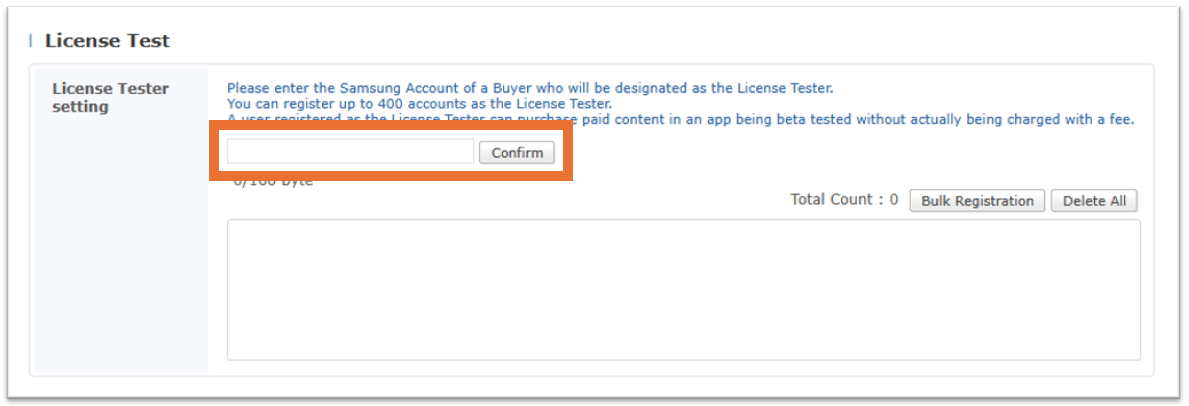
    5. Scroll down to the License Test section, enter the email address of the tester (the address must be associated with a Samsung account), and click Confirm.
      Seller profile — where to add a license tester
      The list of license testers is displayed in the bottom text box area. You can add up to 400 license testers.
    6. Click Save to save your changes.


  6. Add a Closed Beta Test and testers to your app and get your beta testing URL

    • Add a Closed Beta Test and testers to your app

      You can add a license tester from the Closed Beta Test app if:

      • You do not manage accounts in Seller Portal,
      • The app is managed in the Seller Portal account to which you are logged in, or
      • You are an applications manager of the app
      1. Log in to Seller Portal.

      2. Go to the app list and open the app.

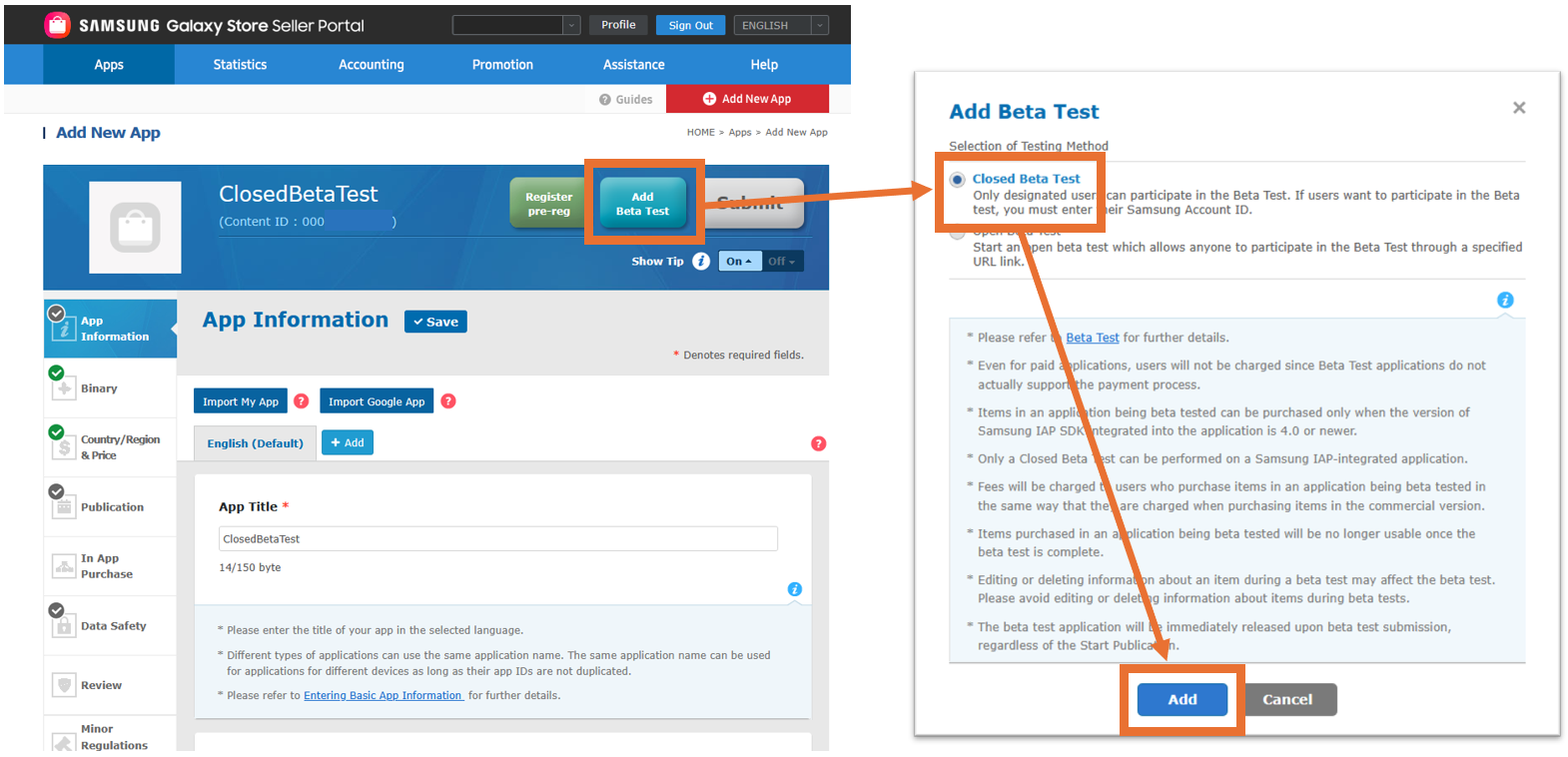
      3. Click Add Beta Test, select Closed Beta Test, and click Add. For more information about beta testing, see Beta Test in the Seller Portal guides.

        Add a Beta Test

      4. Click Yes to add the beta test app then click OK.

      5. From the app list, find your Closed Beta Test app and click Beta Registering.

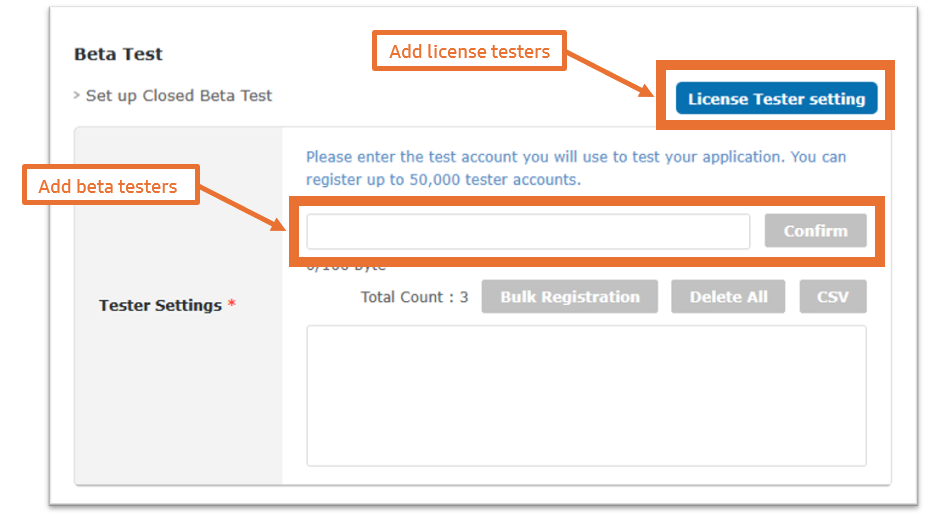
      6. Select the Binary tab, scroll down to the Beta Test section, and add licensed and/or beta testers. You can add up to 400 license testers and 50,000 beta testers.

        Add license and beta testers

      7. Update any other information for your beta test app. Click Save then click OK.
        8 Click Submit Beta Test to submit the app and its products for beta release. Then, click Yes and OK. See the App Registration Guide for details.

      8. From the app list, find the app and verify the status is Ready for Beta testing (you may need to wait for the status to change).

      9. Click Publish now then click Yes.

      10. Verify the app's status is Beta Deployed before installing the app (you may need to wait 20 minutes for the status to change).


    • Get your beta testing URL

      1. Log in to Seller Portal.

      2. Go to the app list and open the app.

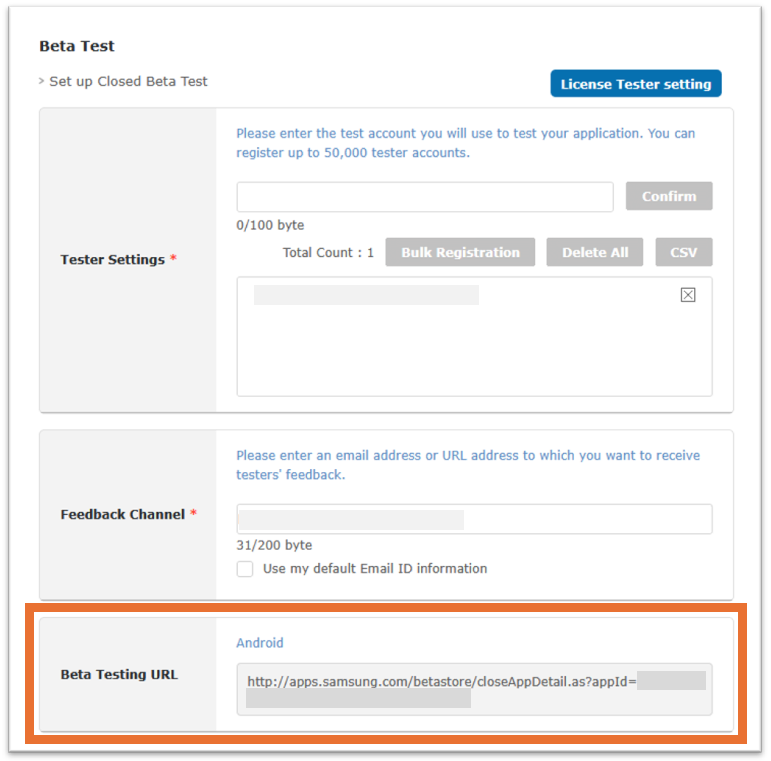
      3. Select the Binary tab. Scroll to the bottom and copy the Beta Testing URL.

        The Beta Testing URL

      4. If you just submitted your app for beta testing, wait 20 minutes before sending the Beta Testing URL to your testers.


  7. Update tester list after deployment

    If you want to add or remove testers after your app has been deployed, you’ll need to update the app, update the list of testers, and after saving your changes, wait 10 minutes for the changes to take effect.

    • Update the list of testers for a Closed Beta Test

      1. Log in to Seller Portal. The app you are testing must be registered in this account or must be in an account for which you are an applications manager.
      2. If the app is in a managed account, switch to this managed account.
      3. Click Apps in the menu bar to go to the apps list.
      4. Find the Closed Beta Test app in the list and click Update.
      5. In the Edit App page, click the Binary tab.
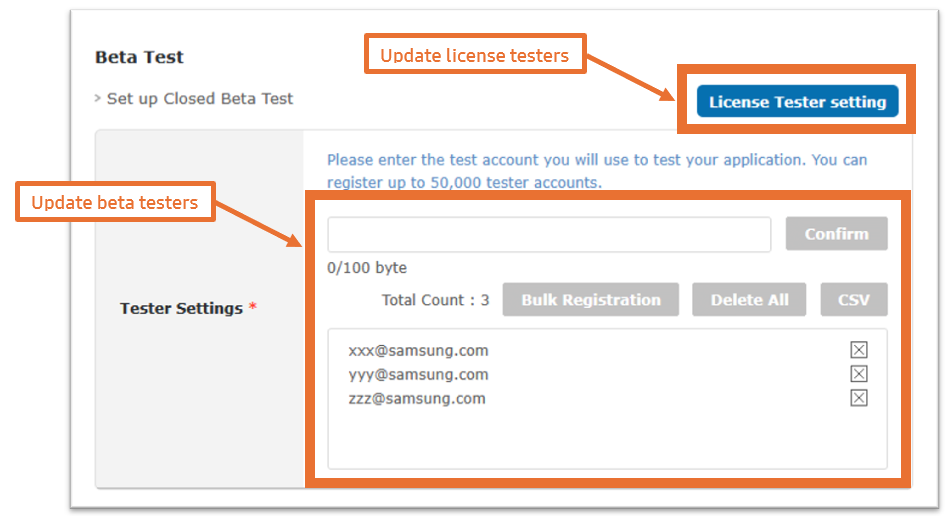
      6. Scroll down to the Beta Test section and update your list of testers. You can add up to 400 license testers and 50,000 beta testers.
        Closed Beta Test app — where to update license testers and beta testers after app deployment
      7. Click Save to save your changes.
      8. Wait 10 minutes for the changes to take effect.


    • Update a license tester from your seller profile

      1. Log in to Seller Portal. The app you are testing must be registered in this account.
      2. Click Profile at the top of the page.
        Location of Profile button in Seller Portal
      3. Scroll to the bottom of the Profile page and click Edit.
      4. In the pop-up window, enter your Seller Portal account password and click OK.
      5. Scroll down to the License Test section, and update your list of testers. You can add up to 400 license testers.
      6. Click Save to save your changes.
      7. Wait 10 minutes for the changes to take effect.