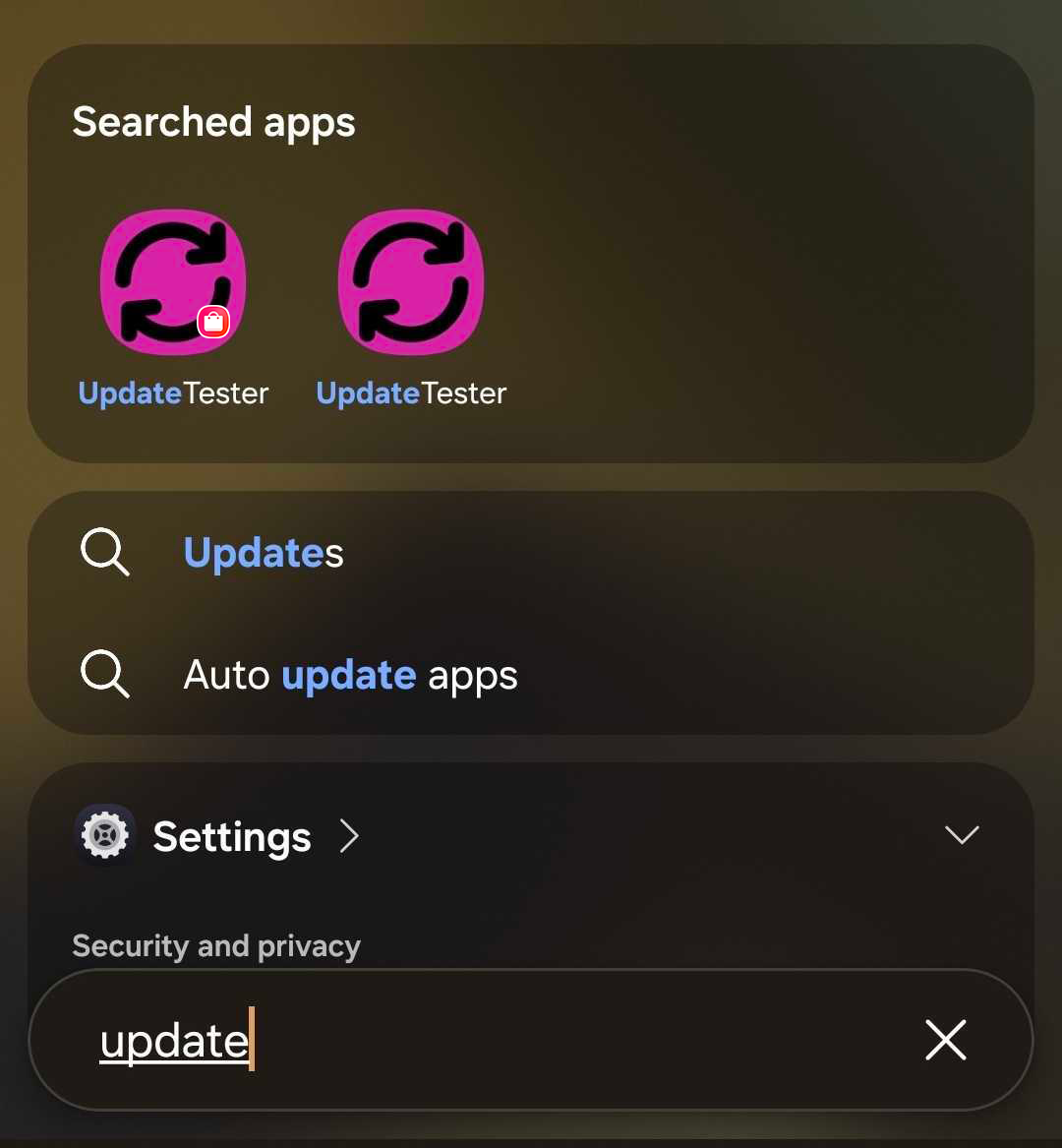
When publishing an application in Galaxy Store, it’s important to consider that users can have access to multiple app stores on their device. This can lead to app overwrites among versions published in different stores.
To understand the basics of how app updates work on Android, we recommend referencing How app updates work of the Android Developer Documentation, especially the "Apps on multiple stores" section.
Do I need to prevent cross-store updates?
Whether or not you want to prevent cross-store updates will depend on the nature of your application. If the application feature set is the same among all stores, there may be little need to prevent cross-store updates as the user experience won’t change if the user updates from one store’s build to another’s.
However, if your application has unique features on Galaxy Store, such as using the Samsung IAP SDK to facilitate in-app purchases, you will likely need to prevent cross-store updates. This prevents users from losing access to the unique features if they update to a different store’s version of the app.
What do I need to change to prevent cross-store updates?
From the Android Developer Documentation we linked to above, two adjustments to your package to prevent cross-store updates are provided: create a unique package name or use different signing keys. You can also use a higher version code in Galaxy Store or do nothing.
Let’s break these down into different cases to show the different user experiences and considerations you need to understand when making any adjustments to your application.
In case #1, you create a variant of your package that has a different package name that is unique to Galaxy Store.
Having a different package name will prevent any overwrites that occur from a different store update, which is why it’s our recommended solution.
However, there are some other factors you should be aware of when changing the app package name:
This introduces the ability for two different versions of your app to be installed on the user’s device at the same time, as Android will treat these packages as separate apps.
You may have integrated some 3rd party services within your application which have a dependency on your app’s package name to function correctly.
We recommend doing a full audit of your 3rd party integration after changing the package name to make sure they are working as expected .
Case #2 — Different signing key
In case #2, you ensure the key that you use to sign your package is different among each store. This can be done by using two separate key stores to sign your build. Or, in the case where you are uploading AAB files, you can simply use the Galaxy Store App Signing solution which will inherently be a different signature than the key used in other stores.
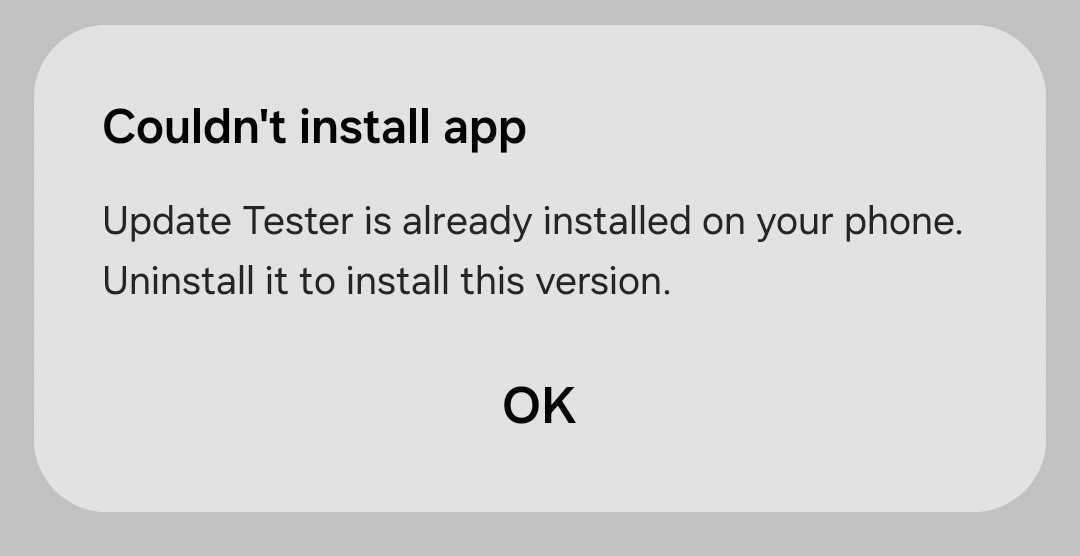
Unlike using a separate package name, users will still see the option to update your application from a different app store but will receive an error when they try to do so.
Like using a separate package name, there are some things you should confirm when using a different signing key:
Some 3rd party services may depend on the SHA digest of your application for authentication. This signature change will reset your SHA digest for your app.
We recommend auditing that your 3rd party integrations are working correctly after changing the signature of your application.
We have gotten occasional reports from developers getting their app flagged by Google Play Protect when they change their signature from the commonly recognized version. This is not a consistently repeatable issue and is outside of the control of the Galaxy Store team.
In case #3, you consistently publish your app to Galaxy Store with a higher version code than is found in other stores.
Using this setup, users will be able to update your app installed from other app stores to the Galaxy Store version. But, they will not be able to update your app installed from Galaxy Store to another app store's version. This is only recommended if you have some unique feature in Galaxy Store that you would like to drive users to.
Case #4 — No changes
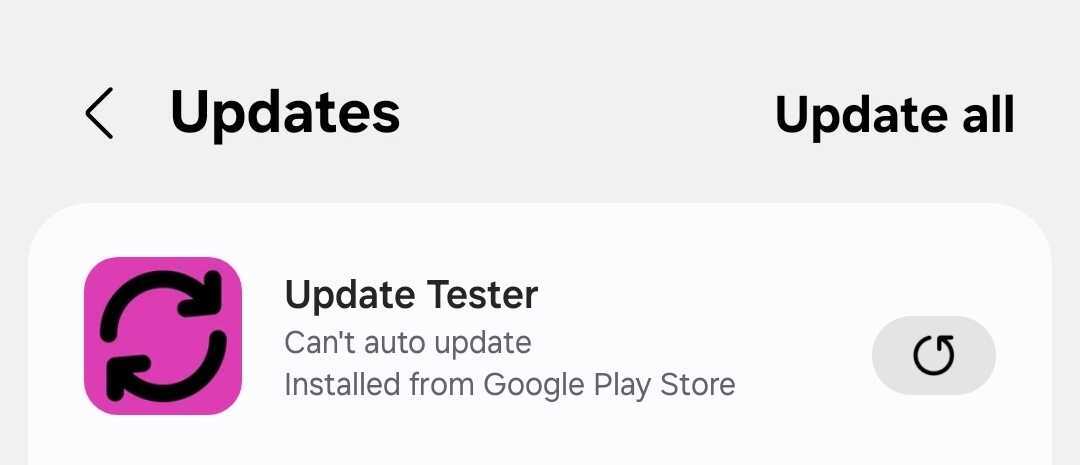
In case #4, let’s observe what happens when you make no changes to your application package name or signing key when publishing to Galaxy Store. This means that users are able to freely update among the version installed from Galaxy Store and the version published on other stores, depending on the version code of the application they currently have on their device.
You may think you can minimize cross-store updates by ensuring you publish the same version codes in each store at the same time. However, this is not feasible in practice:
If you are doing a staged rollout, the rollout groups will not be the same among stores. Different groups of users will get the updated version from each store at different times.
Once an app update is fully released, there is a lag time from when the update is available to the user updating the application. During this lag time, users will have at least two eligible stores they can receive the update from.
App stores have different review times and auto-update cycles, making it difficult to perfectly synchronize release timing.
Because of these factors, if you make no changes to your build, some of your users will bounce among versions that get published in different stores as updates are released.
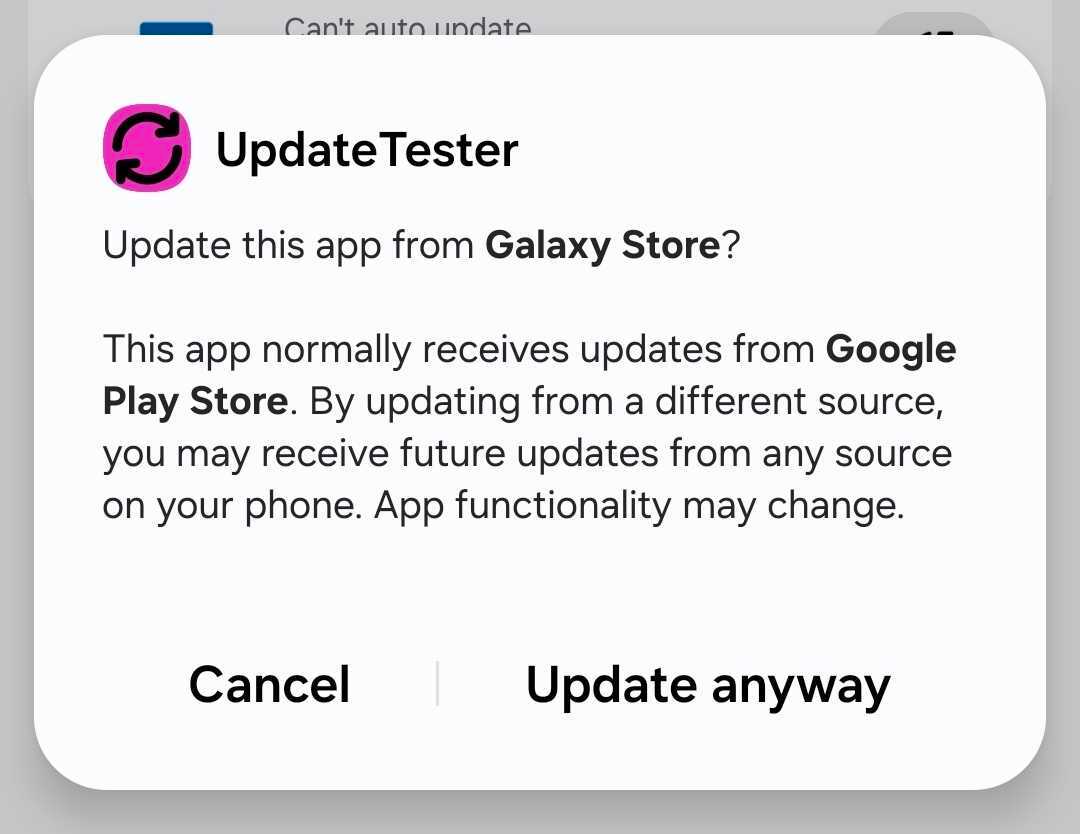
Starting with Android 14, the OS will ask users for a confirmation before updating an application that was installed by another store.
Manage Your Cookies
We use cookies to improve your experience on our website and to show you relevant
advertising. Manage you settings for our cookies below.
Essential Cookies
These cookies are essential as they enable you to move around the website. This
category cannot be disabled.
Company
Domain
Samsung Electronics
developer.samsung.com, .samsung.com
Analytical/Performance Cookies
These cookies collect information about how you use our website. for example which
pages you visit most often. All information these cookies collect is used to improve
how the website works.
Company
Domain
Samsung Electronics
.samsung.com
Functionality Cookies
These cookies allow our website to remember choices you make (such as your user name, language or the region your are in) and
tailor the website to provide enhanced features and content for you.
Company
Domain
Samsung Electronics
developer.samsung.com, google.account.samsung.com
Preferences Submitted
You have successfully updated your cookie preferences.