Connecting to TV Device

This topic describes how to test your application by running or debugging it on a TV or a target device.


If you have tested your application on the emulator, it is ready for uploading and testing on a TV. Even though it is possible to complete most application testing on the emulator, it is highly recommended that you also test your application on a target device. The emulator and TV environments are very similar, but there are some differences at the hardware level.

Prerequisites

To test your application on a TV:

  • Make sure that the TV has the latest firmware installed.
  • Connect your computer and the TV to the same network.
  • Create a certificate profile.

Connecting the TV and SDK

  1. Follow the guide for enabling Developer Mode in the TV.


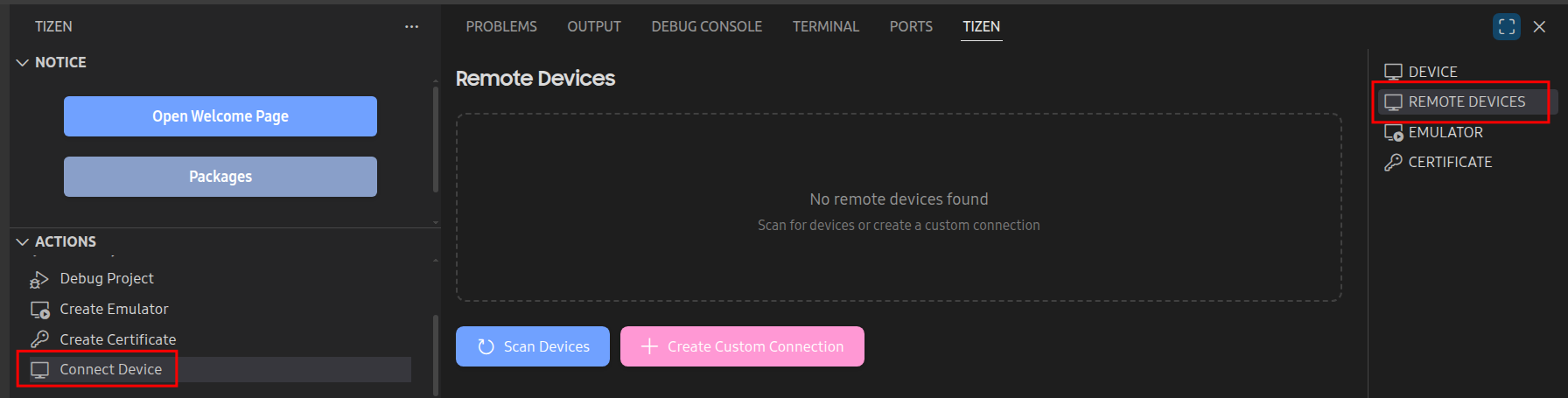
  2. In the Tizen extension, under Actions tree, select "Connect Device".
    The "Remote Devices" window launches.
    Figure 1. Device Manager

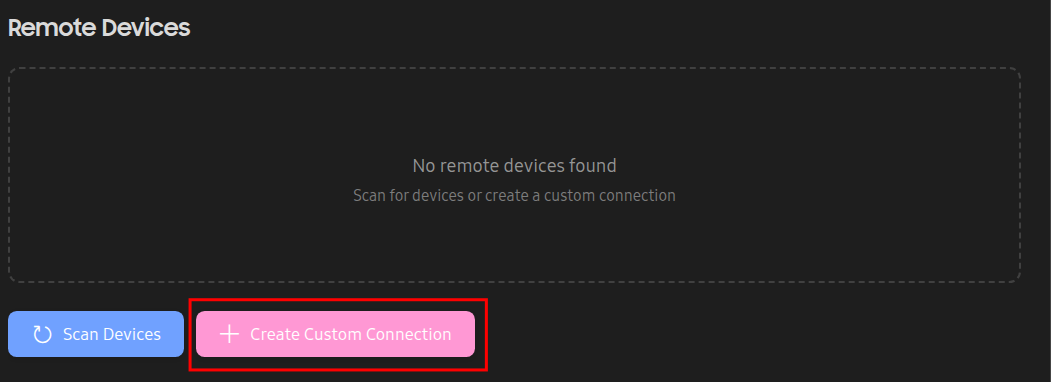
  3. To add a TV, click "+ Create Custom Connection".
    Figure 2. Remote Device Manager

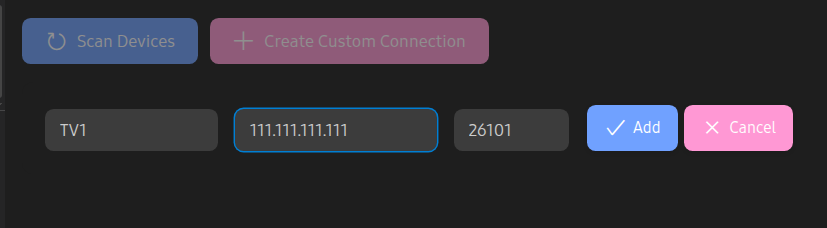
  4. Fields for TV information will appear, define the information for the TV you want to connect to, such as the name, IP address, and port number, and click "Add".
    Figure 3. Add Device dialog

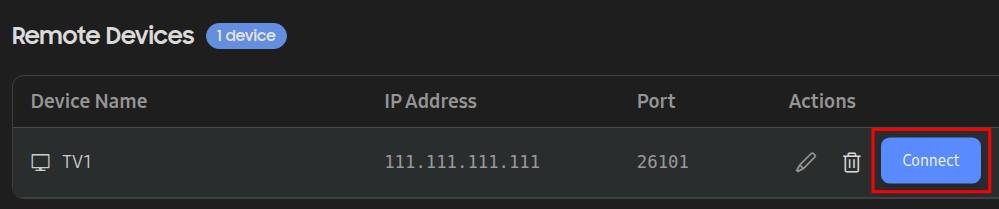
  5. In the Remote Devices window, select the TV from the list, and click "Connect".
    Figure 4. Switch connect
    Now you can launch applications on the TV directly from the Tizen Studio.

Launching Applications on the TV

You can launch your application on the target device in normal or debug mode:

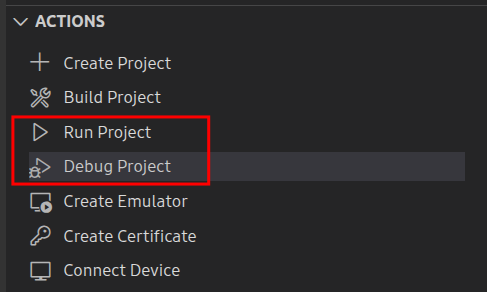
  • To launch the application in normal mode, under Actions tree:
    • "Run Project": Run the application on the connected device.
    • "Debug Project": Run the application in debug mode on the connected device.

Troubleshooting

The following are common issues you can encounter when working with an application on the TV:

Error Codes or Message, Issue

Description

"1009 : App uninstall fail"

The application cannot be uninstalled through the Tizen Studio due to internal device problems. Uninstall the application from the "Apps" panel on the TV.

"1010 : App install fail"

Application installation can fail for many reasons. A problem with the signing certificates is a common reason. Check your certificates and try again.

"1013 : App run fail"

The application cannot be launched through the Tizen Studio due to internal device problems. Try to run the application again, or reboot the device.

"You are not an authorized user!" error and "Null Pointer" error (NPE)

These error messages occur if you are using older versions of the device firmware or SDK. Make sure you are using the newest firmware and SDK versions.

"Failed to get a device information" message

This message occurs only on 2015 devices, and has no effect on running the application. You can ignore the message.

On a macOS computer, the Tizen Studio freezes or hangs

Update your Java Development Kit installation.

Frequently Asked Questions

The previous version of the application will uninstall automatically when you install the new version.

For security reasons, installing applications or widgets through USB is no longer supported.

The Web engine of the Web simulator is different than that of the TV and the emulator. Therefore, application behavior can vary between Web simulator, TV, and emulator. Make sure you perform the final testing of your application on the emulator and TV.

Port 26101 is an internal device port. It cannot be opened separately.