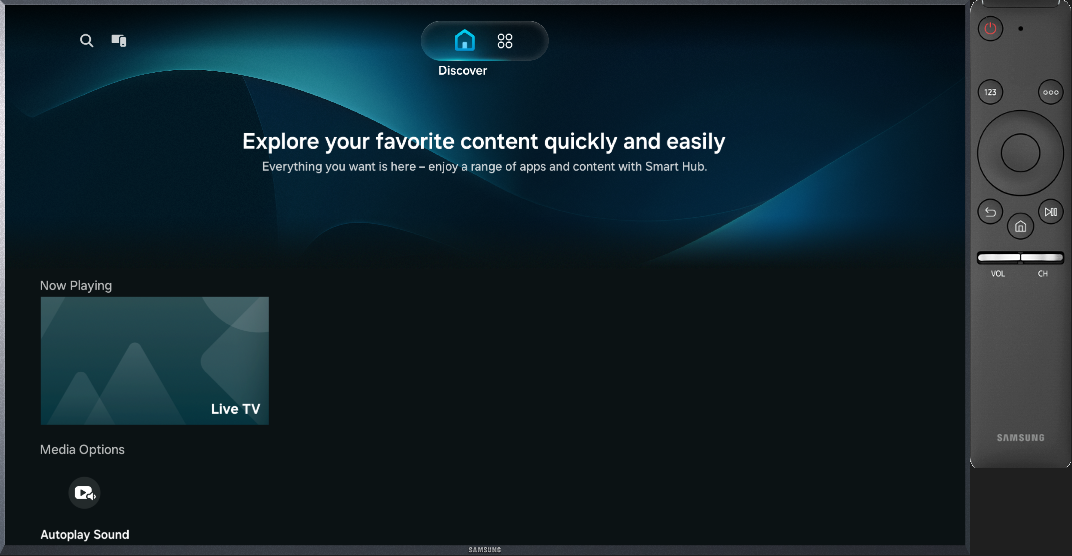
The TV emulator is a tool that provides an environment similar to a real device, for testing purposes. If you do not have the real device, you can test on a virtual device with similar features.
The TV emulator is a virtual machine that closely resembles a real TV software stack. It reduces the inconvenience of testing the application on a real device, by providing an environment similar to a real device. The emulator provides the actual hardware similar to real device controls, and you can check the application features, such as data processing and user scenarios. The emulator is based on the open source QEMU project.
NoteThe emulator is slower than a real TV.
For more information on the differences between the TV emulator and real TVs, see Emulator Limitations.
Creating Emulator Instances
To create an emulator instance:
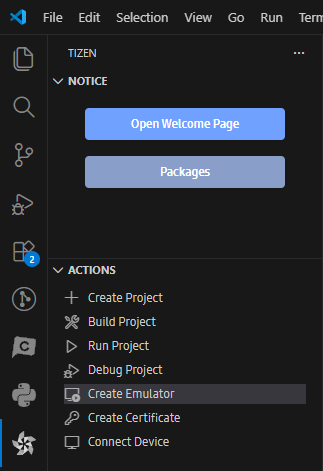
Open the Tizen VS Code Extension activity bar.
Under Actions, Click "Create Emulator".
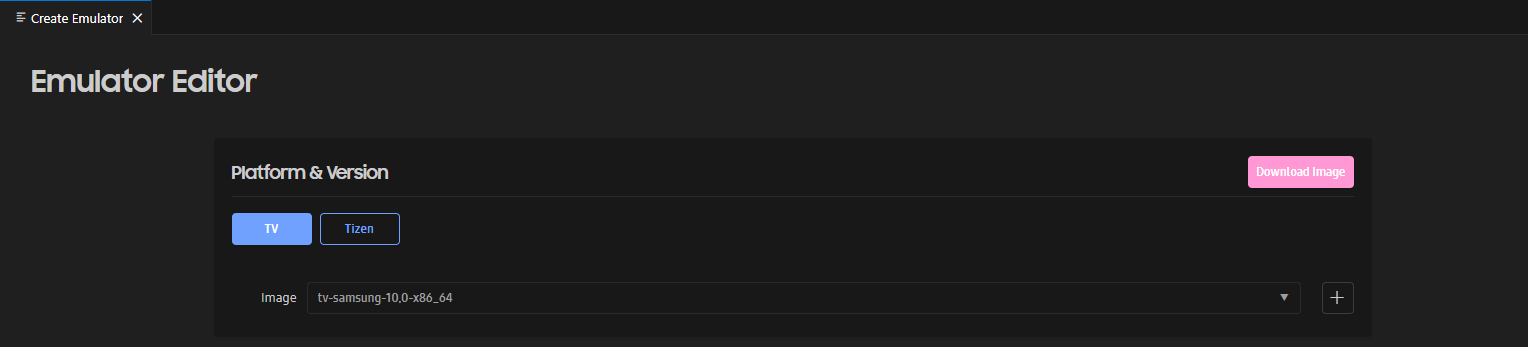
Select the "TV" device image.
Select a template for a TV.
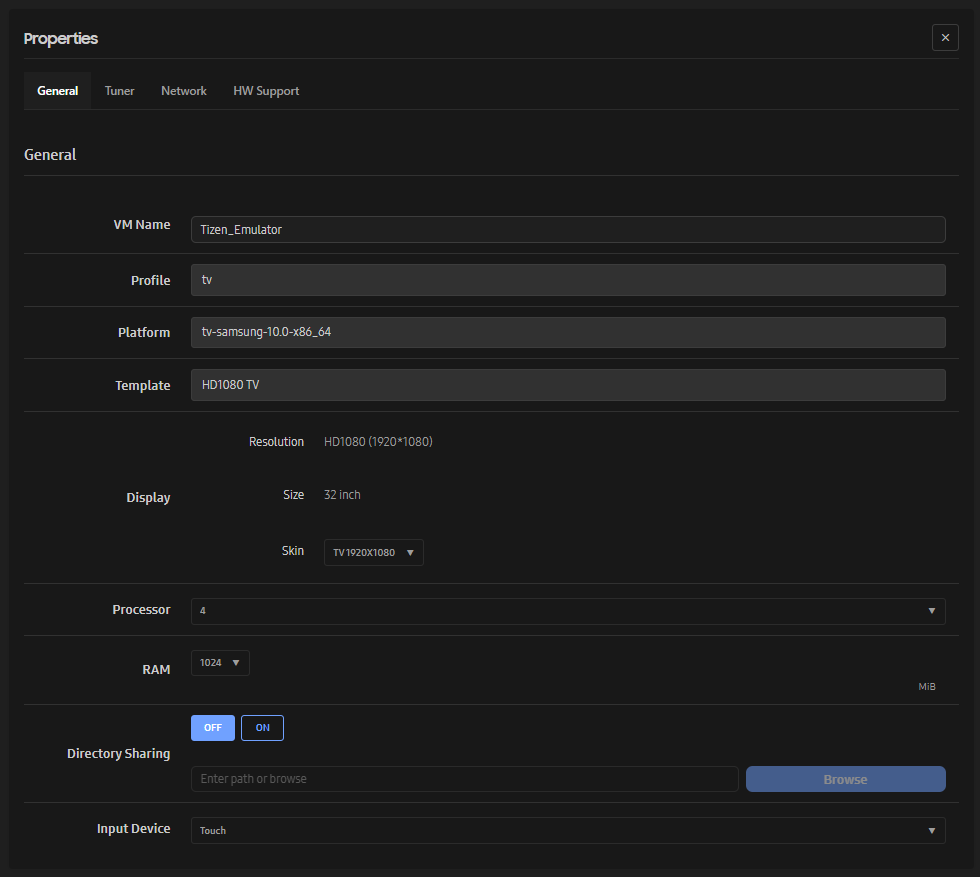
Check the configuration settings, and click "Finish".
In the "General" tab, make sure that the amount of RAM is 1024 MB or greater. The emulator can be unstable with less than 1024 MB of RAM.
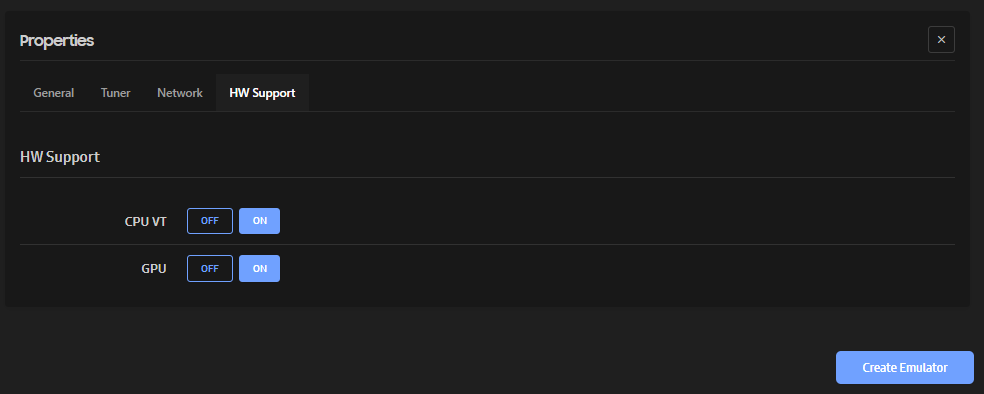
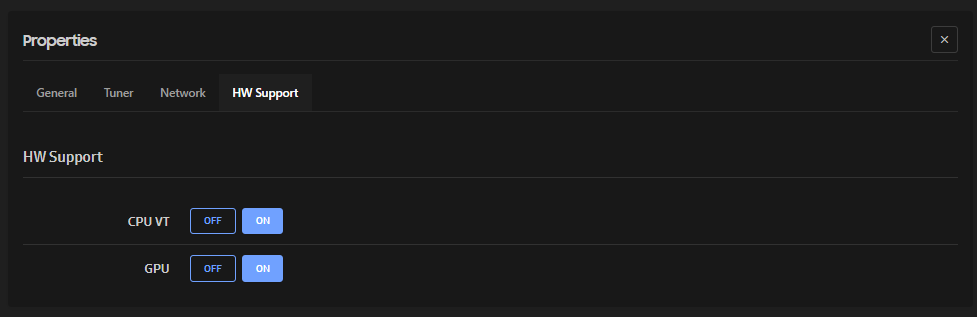
In the "HW Support" tab, make sure that "CPU VT" and "GPU" are switched on. If either value is "OFF", the emulator instance cannot be launched.
NoteIf there is a warning message next to "CPU VT", install Intel® HAXM.
Click "Create Emulator".
Launching Applications in the Emulator
To launch an application in an emulator instance:
Launch the emulator instance.
Select the instance from the Emulator Manager list (located under Tizen tab alongside the Terminal), and click "Start".
Launch the application in normal or debug mode:
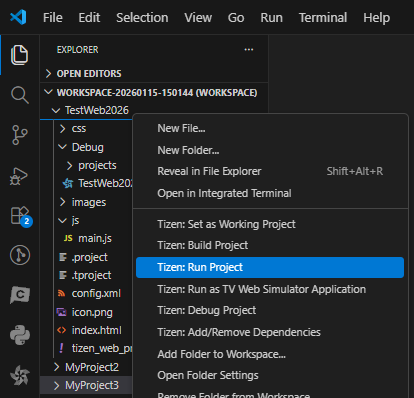
To launch the application in normal mode, right-click on the application in the "Explorer" view in VS Code, and select "Tizen: Run Project".
The application is packaged, transferred, installed, and launched on the emulator automatically. The launch progress is shown in the VS Code, lower right.
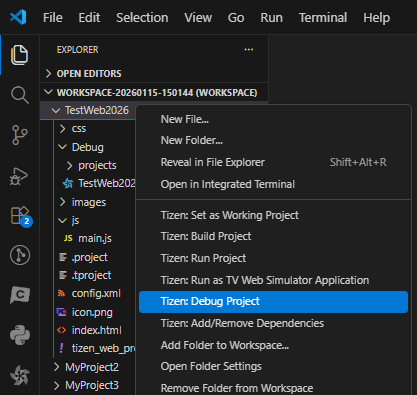
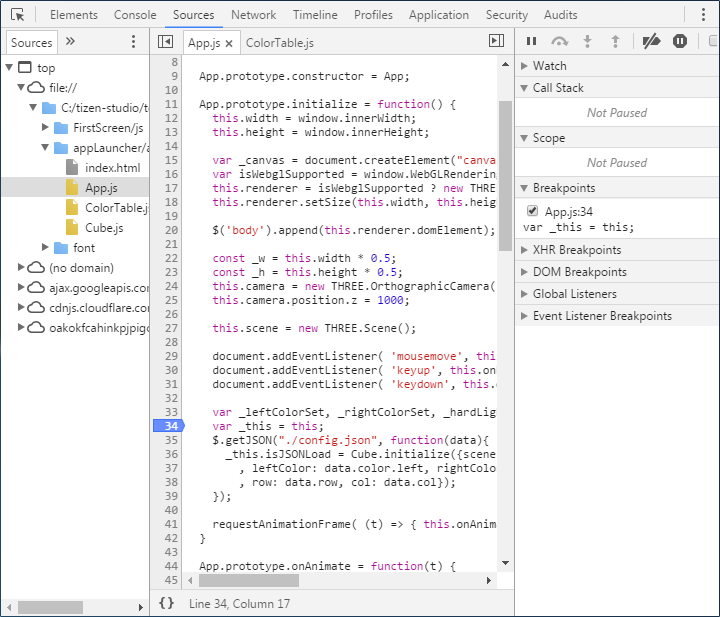
To launch the application in debug mode, right-click on the application in the "Explorer" view in the VS Code, and select "Tizen: Debug Project".
The application is launched on the emulator, along with the Web Inspector.
Emulator Features
The TV emulator has the following features:
Virtual remote control
Using the virtual remote control, you can control the application in the emulator just like on an actual device.
NoteThe "POINTER" button on the virtual 2015 Samsung Smart Remote is not supported. Instead, simply use your computer mouse.
Emulator Control Panel
You can control the state of the emulator dynamically. For more information, see Emulator Control Panel.
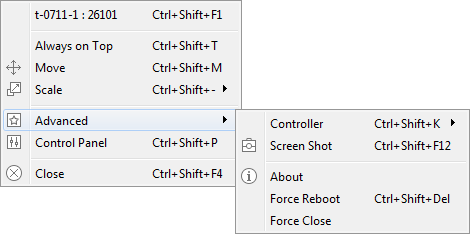
Context menu options
You can right-click the emulator instance to access additional features, such as adjusting the scale of the emulator screen. In the "Advanced" menu, you can change the type of remote control, and take screen shots.
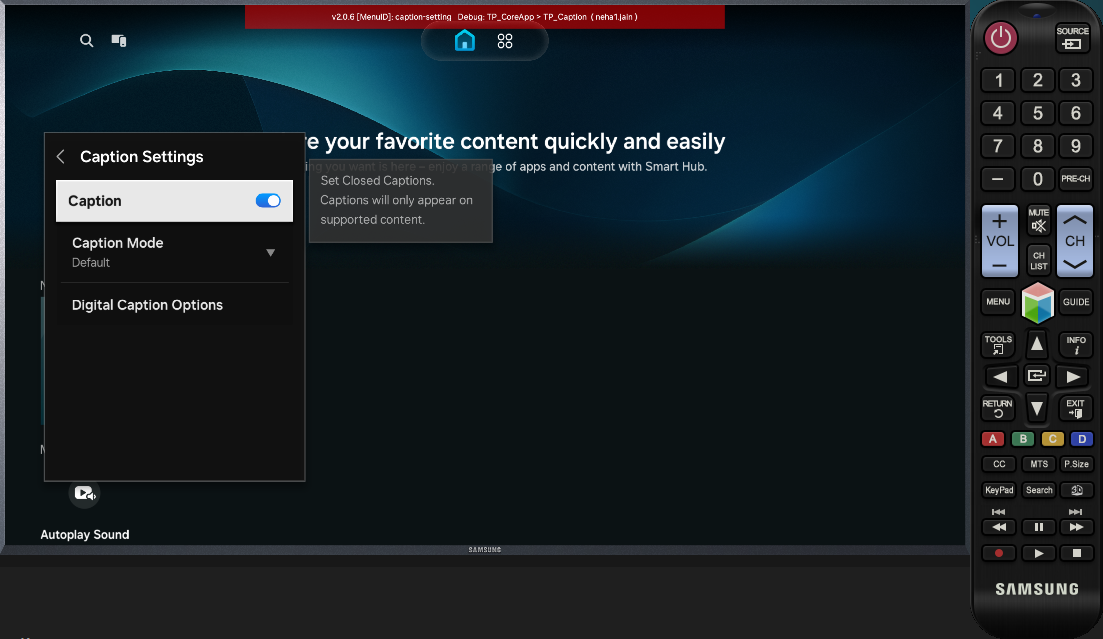
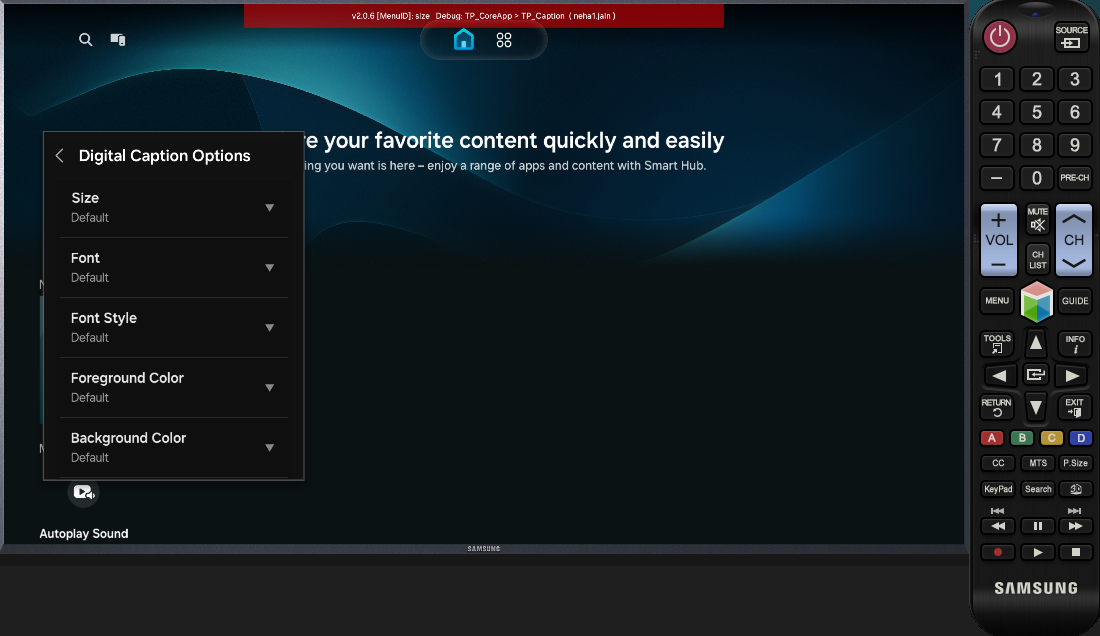
Captioning
You can set captioning options. On the emulator, go to "Settings > General > Accessibility > Caption Settings".
Manage Your Cookies
We use cookies to improve your experience on our website and to show you relevant
advertising. Manage you settings for our cookies below.
Essential Cookies
These cookies are essential as they enable you to move around the website. This
category cannot be disabled.
Company
Domain
Samsung Electronics
developer.samsung.com, .samsung.com
Analytical/Performance Cookies
These cookies collect information about how you use our website. for example which
pages you visit most often. All information these cookies collect is used to improve
how the website works.
Company
Domain
Samsung Electronics
.samsung.com
Functionality Cookies
These cookies allow our website to remember choices you make (such as your user name, language or the region your are in) and
tailor the website to provide enhanced features and content for you.
Company
Domain
Samsung Electronics
developer.samsung.com, google.account.samsung.com
Preferences Submitted
You have successfully updated your cookie preferences.