ImportantDue to NaCl deprecation by the Chromium project, Tizen TV will continue its support for NaCl only until 2021-year products. Meanwhile, Tizen TV will start focusing on high-performance, cross-browser WebAssembly from 2020-year products.
This topic describes how to export a Native Client project as development files, or as a Tizen application package.
You can use the Tizen Studio to export a NaCl project in 2 ways:
As project development files, enabling you to back up your code or move it to a different computer
As a Tizen application package, enabling you to test the application on the emulator or a TV
Exporting Project Files
You can export your project files to, for example, create a backup or import into a different Tizen Studio installation. Exporting the project ensures that all required files are included.
To export NaCl project files:
In the "Project Explorer" view, select the project.
In the Tizen Studio menu, select "File > Export".
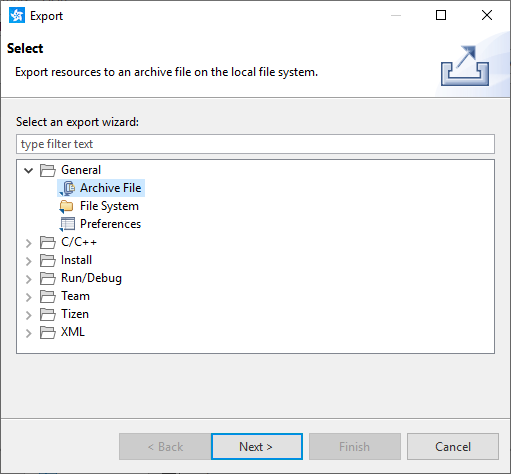
Select "General > Archive File" or "File System", and click "Next".
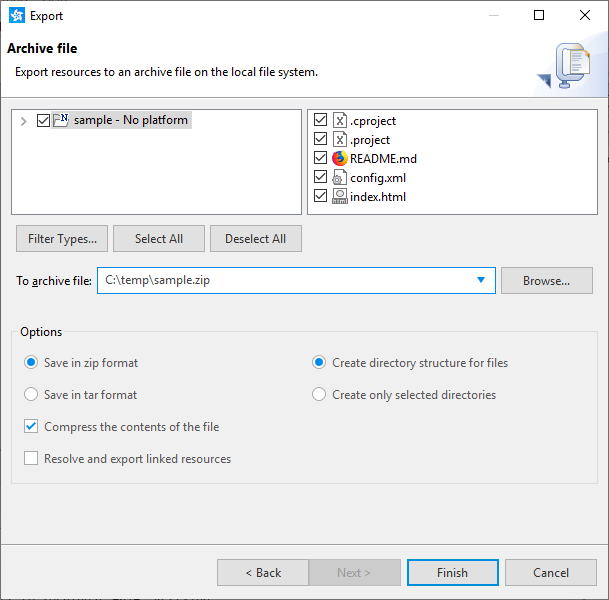
Define the files within the project to export, the file name or directory to export to, and export options.
Click "Finish".
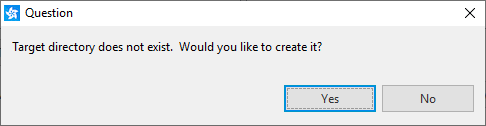
If you have defined a target directory that does not yet exist, to confirm creating it, click "Yes".
For information on importing a NaCl project to the Tizen Studio, see Importing NaCl Projects.
Exporting Tizen Application Packages
A ".wgt" application package can be created from a Native Client (NaCl) project in the same way as a Tizen project. To have the required configuration files, you must have already built the project at least once.
You can create the Tizen application package within the project directory or with a custom directory and name:
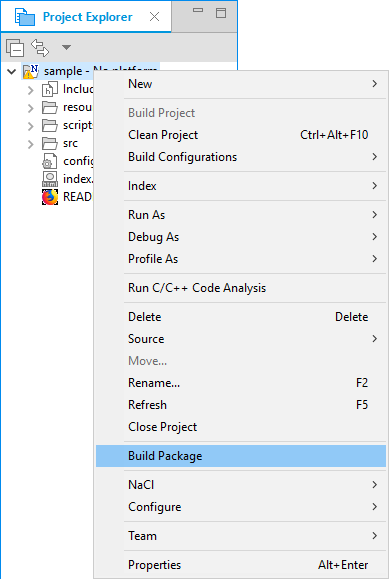
To create the package within the project directory, in the "Project Explorer" view, right-click the project and select "Build Package".
The package is created in the project directory with the same name as the project.
To create the package with a custom directory and name:
In the "Project Explorer" view, select the project.
In the Tizen Studio main menu, select "File > Export".
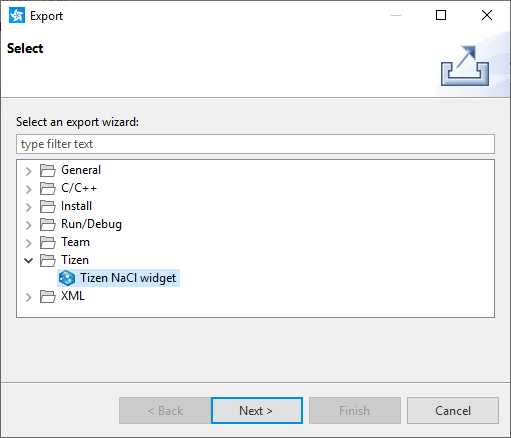
Select "Tizen > Tizen NaCl widget" and click "Next".
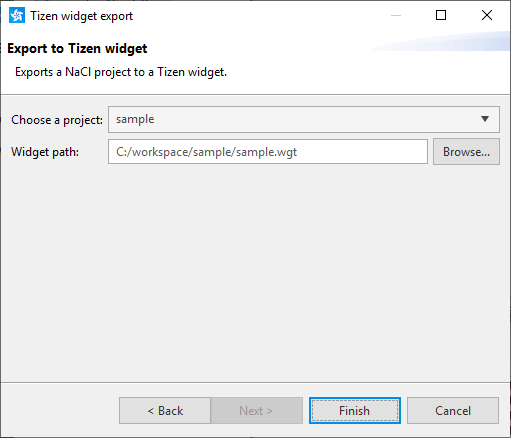
Select the project, define the target package path, and click "Finish".
Manage Your Cookies
We use cookies to improve your experience on our website and to show you relevant
advertising. Manage you settings for our cookies below.
Essential Cookies
These cookies are essential as they enable you to move around the website. This
category cannot be disabled.
Company
Domain
Samsung Electronics
developer.samsung.com, .samsung.com
Analytical/Performance Cookies
These cookies collect information about how you use our website. for example which
pages you visit most often. All information these cookies collect is used to improve
how the website works.
Company
Domain
Samsung Electronics
.samsung.com
Functionality Cookies
These cookies allow our website to remember choices you make (such as your user name, language or the region your are in) and
tailor the website to provide enhanced features and content for you.
Company
Domain
Samsung Electronics
developer.samsung.com, google.account.samsung.com
Preferences Submitted
You have successfully updated your cookie preferences.